You can migrate your existing Node.js application to Hostinger at any time. Hostinger supports two migration methods:
- Deploy directly from a GitHub repository (recommended)
- Upload your application as a ZIP file
Using GitHub is the fastest and easiest option, but ZIP uploads are fully supported if your project is not stored in a repository.
Option 1 — Migrate using GitHub (recommended)
Most Node.js applications are already stored in GitHub repositories. Connecting your GitHub account to Hostinger allows you to deploy your application quickly without manually uploading files.
To migrate using GitHub:
-
Log in to hPanel.
-
Start the Node.js application deployment flow.
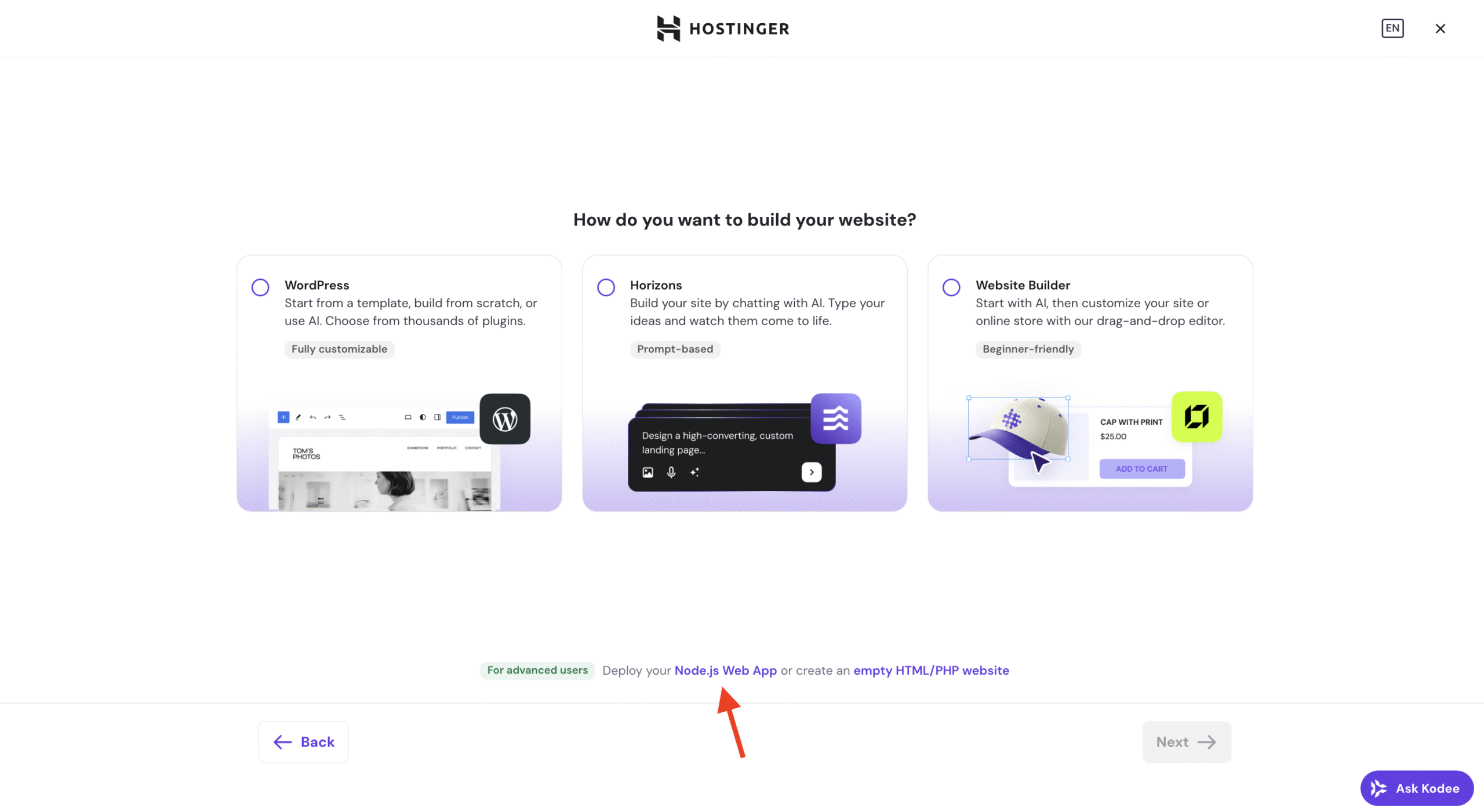
-
Choose Connect GitHub when prompted.
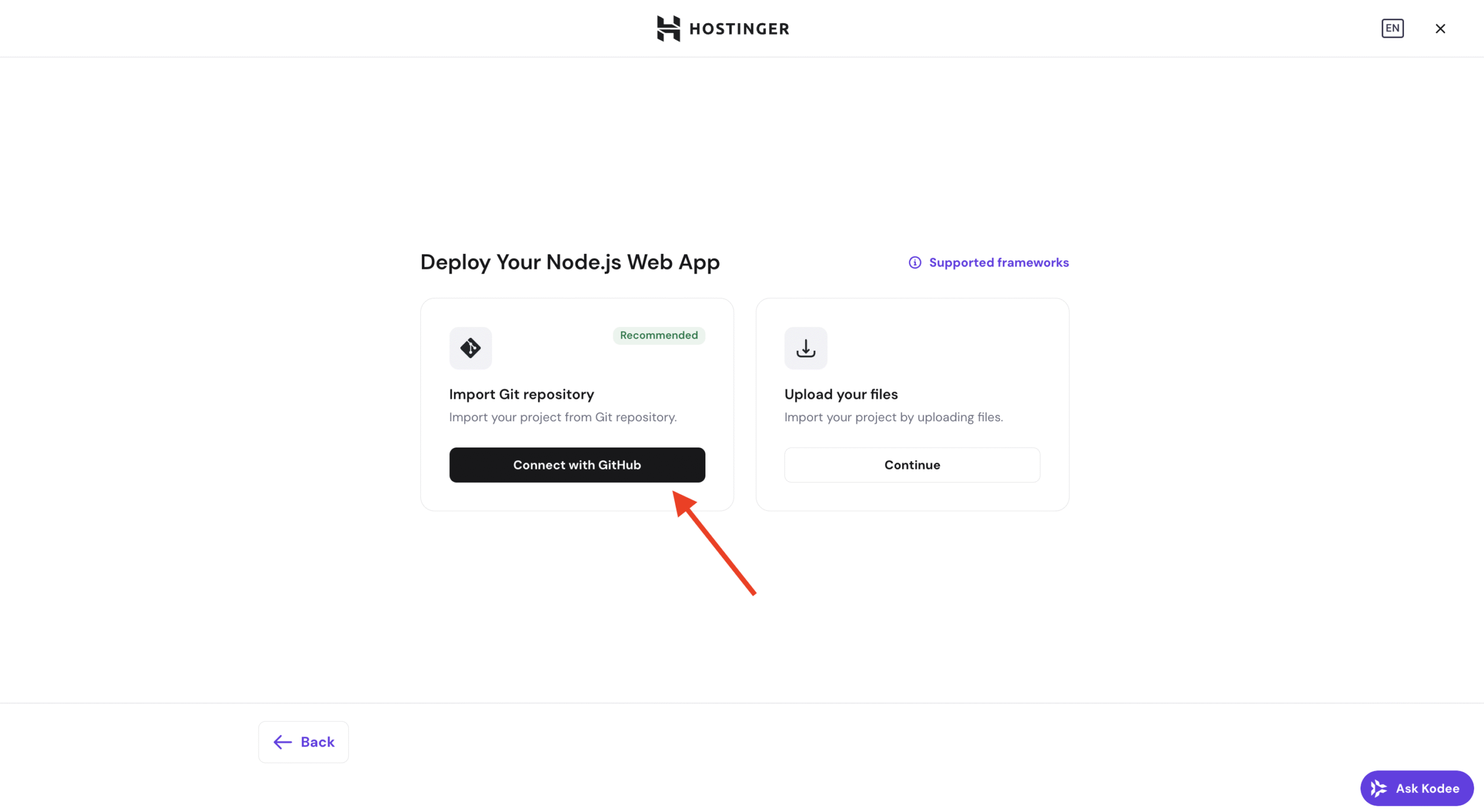
-
Authorize Hostinger to access your GitHub account.
-
Select the repository that contains your Node.js application.
-
Choose the branch you want to deploy.
-
Review build settings and environment variables.
-
Start the deployment.
Hostinger will automatically build and deploy your application using the selected repository.
Option 2 — Migrate using a ZIP file
If your Node.js application is not stored in GitHub, you can migrate it by uploading your application files as a ZIP archive.
To migrate using a ZIP file:
-
Prepare a ZIP file containing your Node.js application.
-
Include package.json and all required source files
-
Exclude unnecessary files such as node_modules
-
-
Log in to hPanel.
-
Start the Node.js application deployment flow.
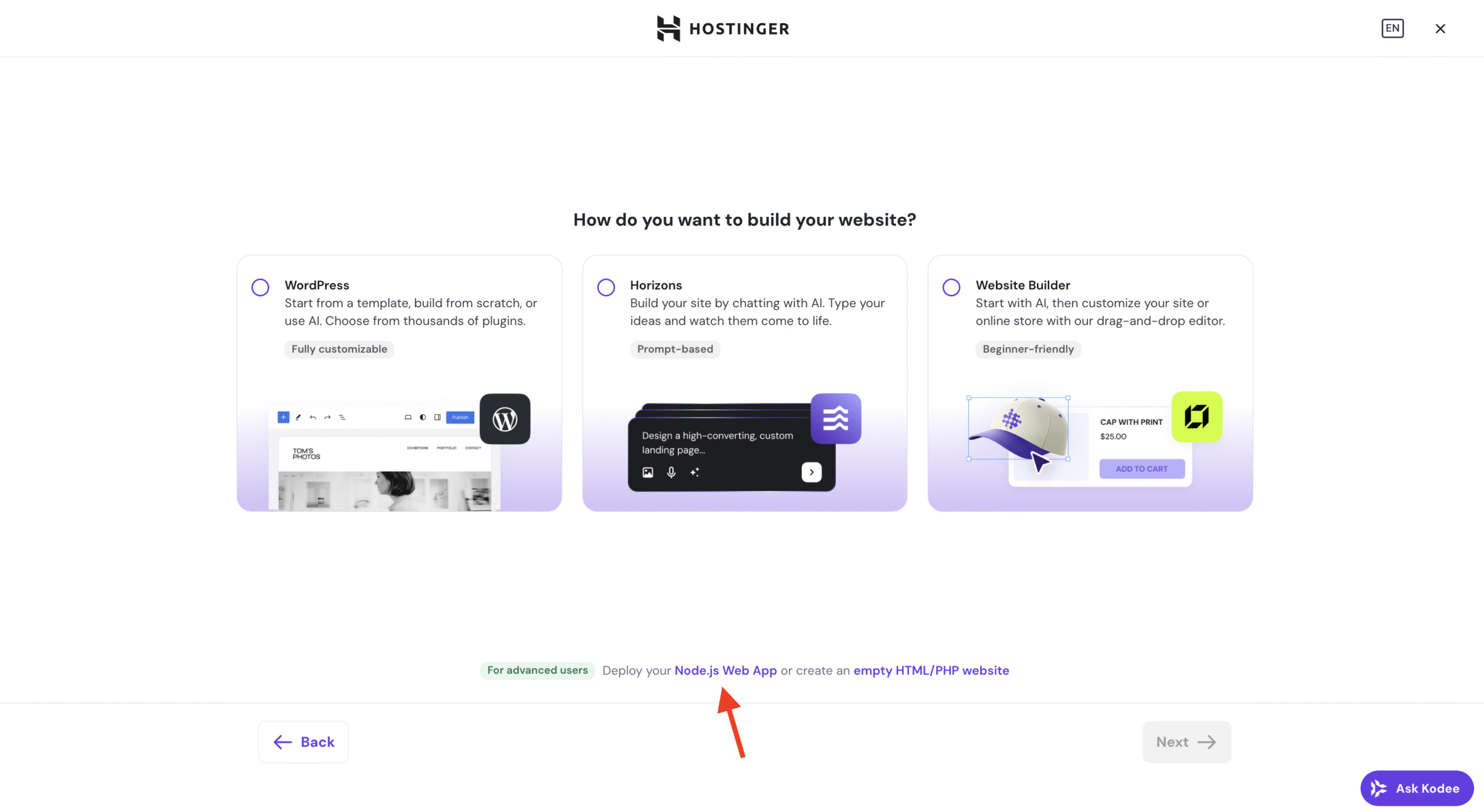
-
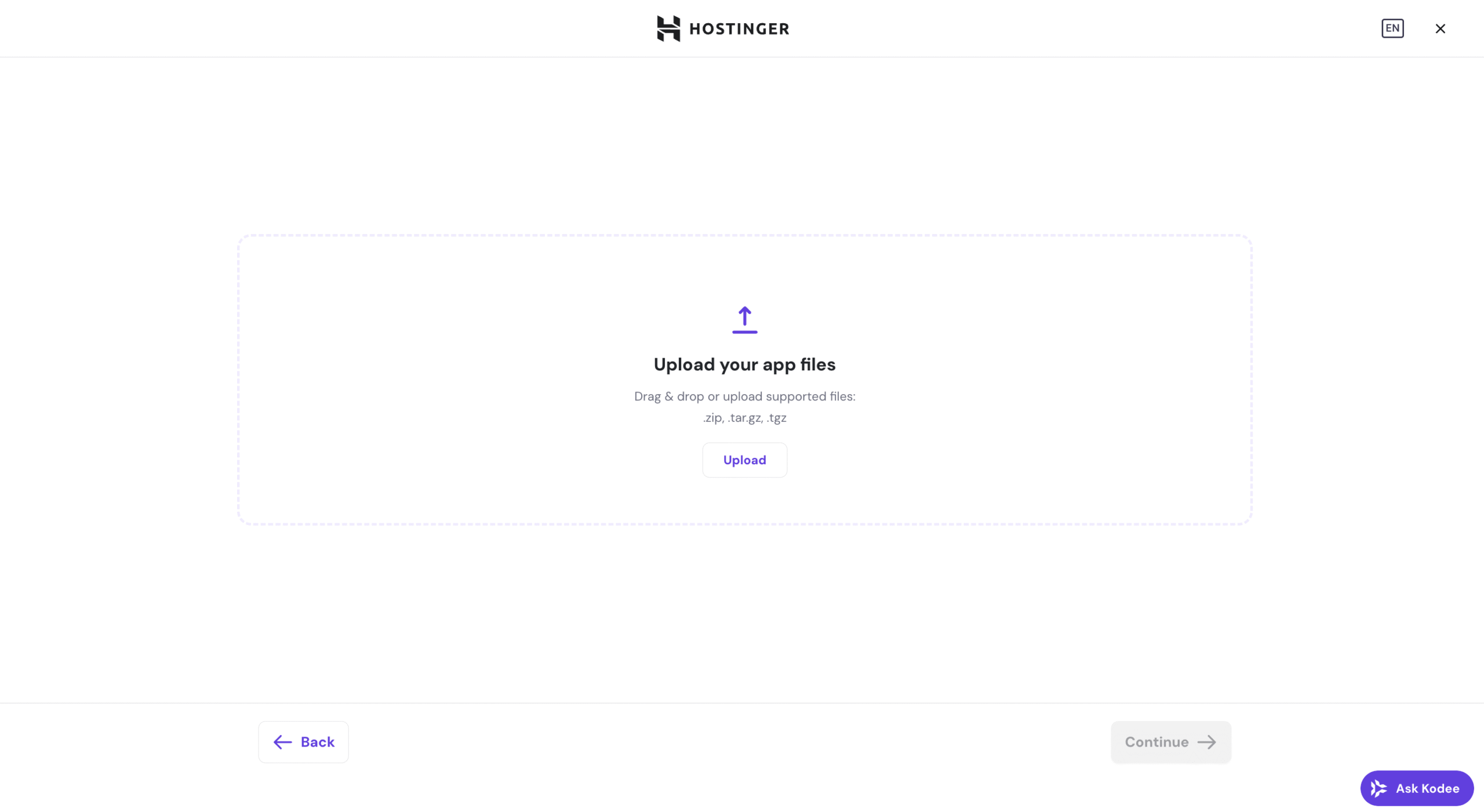
Select Upload ZIP file.
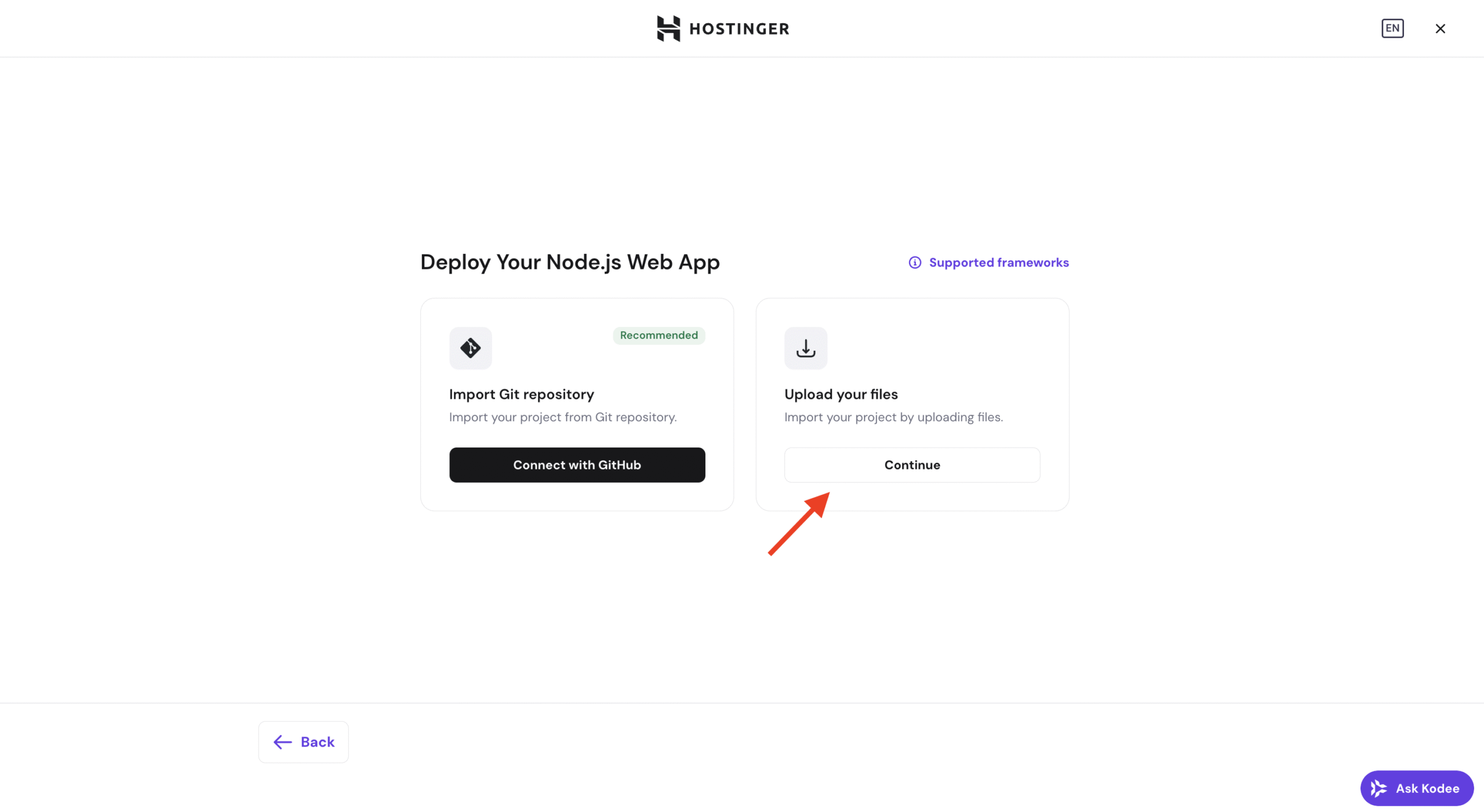
-
Upload your ZIP archive.
-
Configure build settings and environment variables.
-
Start the deployment.
Hostinger will extract the files, build the application, and deploy it automatically.
Before migrating
NOTES:
- Make sure your application runs correctly locally before migrating.
- Verify that all required environment variables are added during deployment.
- Confirm the correct Node.js version is selected.
- Test the application after deployment before switching production traffic.