OpenClaw (formerly known as Moltbot/Clawdbot) is a personal AI assistant platform that runs on your own infrastructure, enabling you to interact with AI across multiple messaging channels, including WhatsApp, Telegram, Slack, Discord, and more. This guide will walk you through deploying OpenClaw on your Hostinger VPS using the one-click Docker template.
We also have a video tutorial on our Hostinger Academy YouTube channel:
Installation Steps
Deploy OpenClaw (If You Don’t Have a VPS Yet)
If you don’t have a VPS already, you can deploy OpenClaw directly from the marketplace:
- Head to the OpenClaw VPS hosting page
- Select your hosting plan that fits your needs
- Click Deploy – the OpenClaw application will be automatically pre-selected
- Select if you want to purchase Nexos AI credits for even easier integration with AI models.
- Complete the purchase
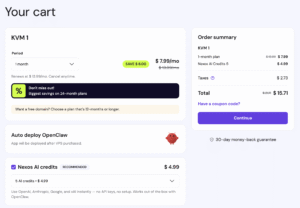
After completing the purchase, you’ll see a configuration screen where you can set up your environment variables:
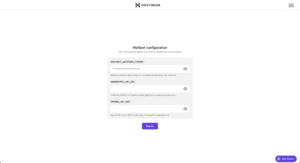
Configuration Options:
If you purchase Nexos AI credits, you will see these inputs:
- OPENCLAW_GATEWAY_TOKEN: This will be auto-generated for you, you need to copy it for later use
- WHATSAPP_NUMBER: Your WhatsApp number for later use (optional)
If you don’t purchase Nexos AI credits, you will see these inputs:
- OPENCLAW_GATEWAY_TOKEN: This will be auto-generated for you
- ANTHROPIC_API_KEY: Your Anthropic API key for Claude integration (optional)
- OPENAI_API_KEY: Your OpenAI API key for AI integration (optional)
- GEMINI_API_KEY: Your Gemini API key for AI integration (optional)
- XAI_API_KEY: Your XAI API key for AI integration (optional)
- WHATSAPP_NUMBER: Your WhatsApp number for later use (optional)
Once the installation is complete, a Docker project will be created automatically. This typically takes several minutes. After it’s done, you’ll see the OpenClaw application with exposed ports ready for access.
Install Docker Manager (If You Already Have a VPS)
If you already have an existing VPS, follow these steps:
Step 1: Install Docker Manager
- Once your VPS is active, access the hPanel
- From the left sidebar, locate and click on Docker Manager
- If Docker Manager is not yet installed, click the installation button to set it up
- Wait for the installation to complete (this typically takes 2-3 minutes)
Step 2: Deploy OpenClaw from the Catalog
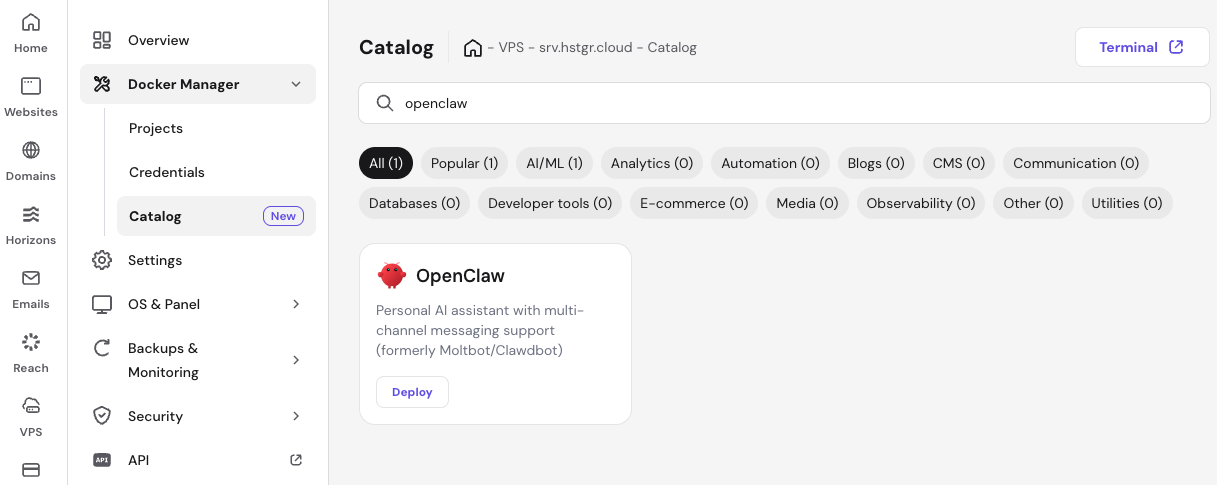
- In Docker Manager, navigate to the Catalog section
- Use the search bar or browse the categories to find OpenClaw
- Click on the OpenClaw card to view the application details
- Click the Deploy button
Step 3: Configure Environment Variables
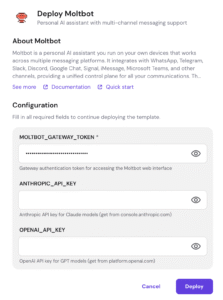
During deployment, you’ll be prompted to configure several environment variables:
Required:
- OPENCLAW_GATEWAY_TOKEN: This is auto-generated for you. This token will be used to access your OpenClaw web interface. Save this token securely for later use.
Optional:
- ANTHROPIC_API_KEY: Claude web session key for browser-based authentication
- OPENAI_API_KEY: Claude web cookie for session persistence
- GEMINI_API_KEY: Your Gemini API key for AI integration
- XAI_API_KEY: Your XAI API key for AI integration
- WHATSAPP_NUMBER: Your WhatsApp number for later use
You can leave the optional fields empty and configure them later if needed.
Step 4: Complete the Deployment
- Review your configuration
- Click Deploy to start the installation
- Docker will pull the OpenClaw image and start the container
- Wait for the deployment status to show as “Running” (usually takes 1-2 minutes)
Accessing OpenClaw
Once deployed, you can access your OpenClaw instance under Overview:
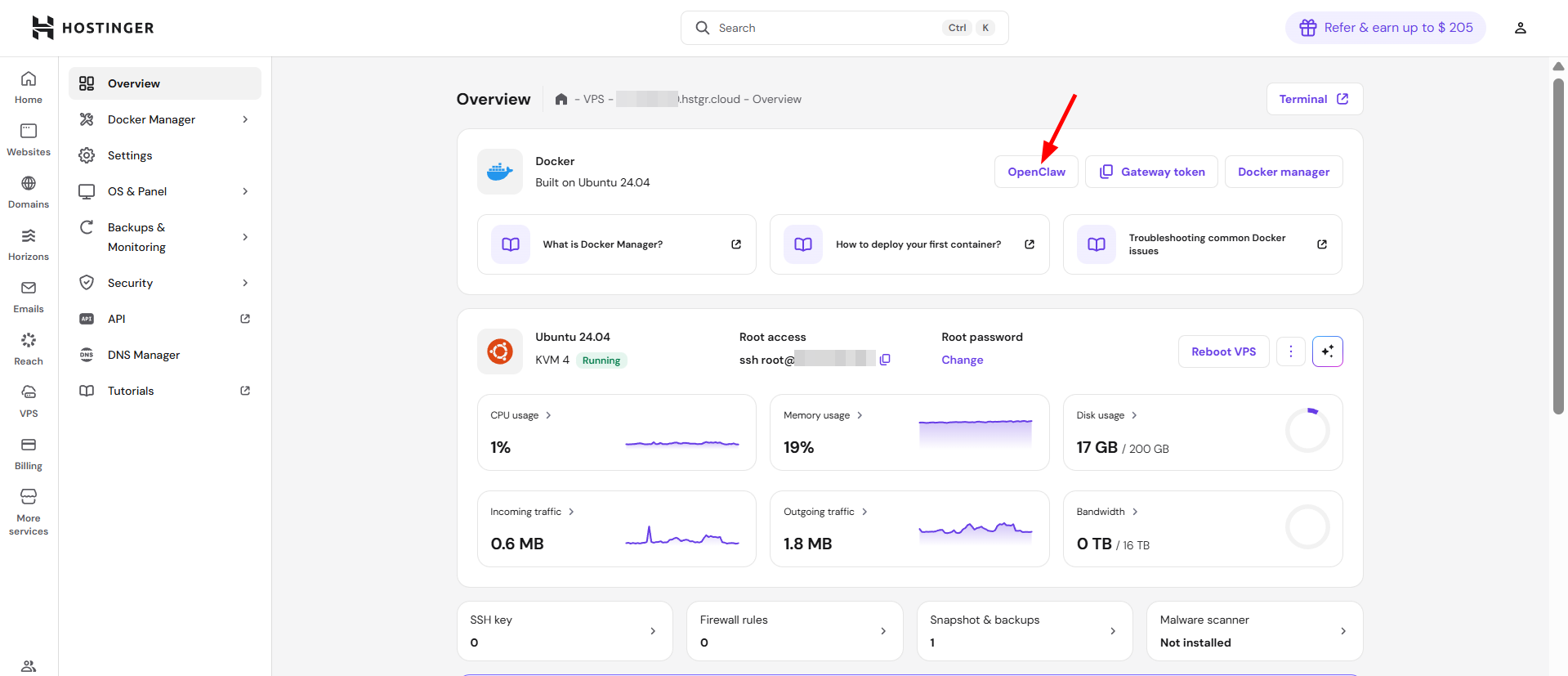
Alternatively, you can also follow these steps:
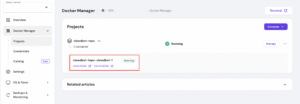
- In Docker Manager, navigate to your deployed OpenClaw project
- Note the assigned port number for the web interface
- Access OpenClaw at:
http://your-vps-ip:portor by simply pressing on the port in the project.
Post-Installation Configuration
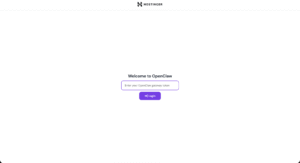
Step 1: Enter Your Gateway Token
- You’ll see a field for the Gateway Token
- Insert the OPENCLAW_GATEWAY_TOKEN that you copied during the installation step
- Press on Login to authenticate your access
- If you forget to copy the token, you can find it by clicking “Manage” on the OpenClaw project, and look for OPENCLAW_GATEWAY_TOKEN inside Environment section, then copy the value.
Step 2: Connecting Messaging Channels
After your OpenClaw instance is running, you can connect it to various messaging platforms:
- Go to Channels and press on Show QR
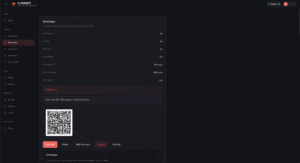
- Head to your WhatsApp Settings -> Linked devices
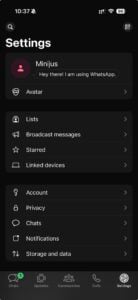
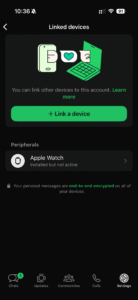
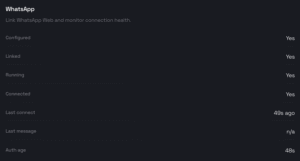
Press on “Wait for scan” and scan the code with your WhatsApp app by pressing on “Link a device“.
Managing Your OpenClaw Instance
Viewing Logs
- Go to Docker Manager → Projects
- Select your OpenClaw project
- Click on the container to view logs and status
Updating OpenClaw
- Navigate to your OpenClaw project in Docker Manager
- Click on the update option
- Docker will pull the latest image and restart your container
Securing OpenClaw
We have a separate knowledge base article for that here: https://www.hostinger.com/support/how-to-secure-and-harden-openclaw-security/
Next Steps
- Connect your preferred messaging channels
- Set up automated workflows using the skills platform
Note: Keep your OPENCLAW_GATEWAY_TOKEN and any API credentials secure. Never share these publicly or commit them to version control.