You can modify the AI model used by your OpenClaw instance either through a direct chat command or by manually updating your API provider settings in hPanel.
Change Models Using nexos.ai
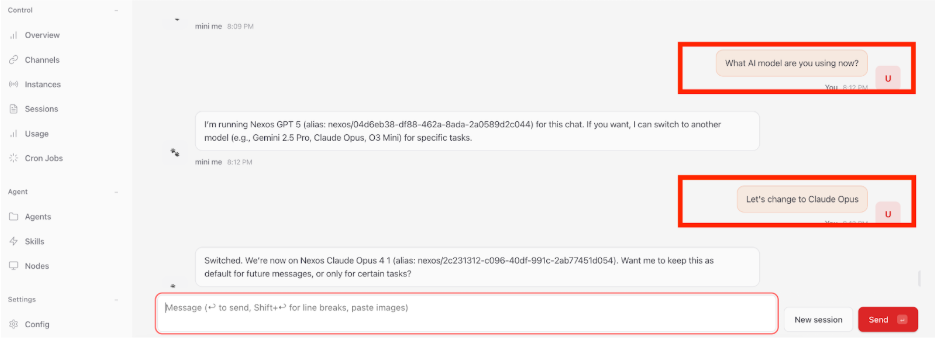
If you are using the integrated nexos.ai provider, you can change models directly through the communication interface.
- Log in to hPanel and navigate to the OpenClaw section.
- Click the OpenClaw button to open your application.
- Open the chat interface.
- Ask the assistant which model it is currently using.
- Instruct the assistant to switch to your preferred model.
Switch to a custom AI provider
To use a model from a different provider, such as OpenAI, Anthropic, or xAI, you must manually update your API key.
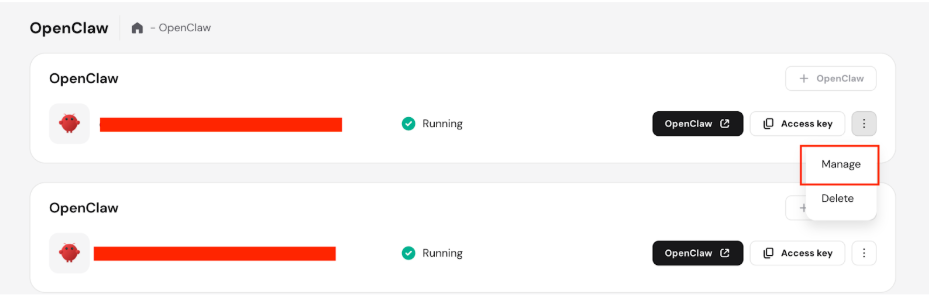
- Go to the OpenClaw section in hPanel.
- Click the Options (⋮) button next to your instance and select Manage.
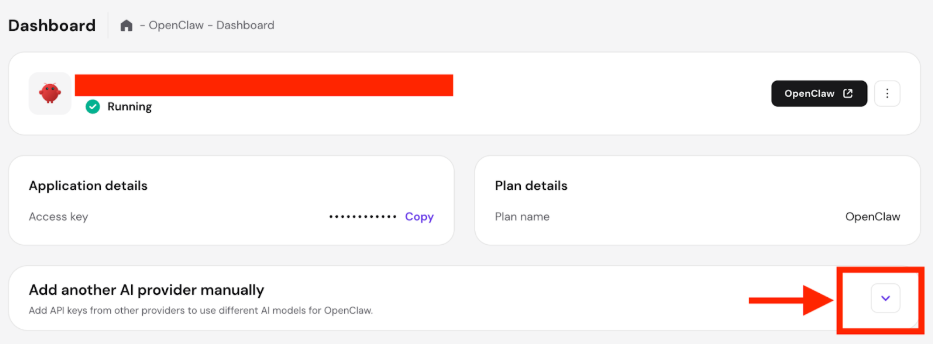
- Locate the section labeled Add another AI provider manually and click the arrow to expand the options.
- Enter the API key obtained from your chosen vendor (e.g., OpenAI, Anthropic, xAI, or nexos.ai).
NOTE: Without an API key and purchased credits, OpenClaw will not be able to function properly.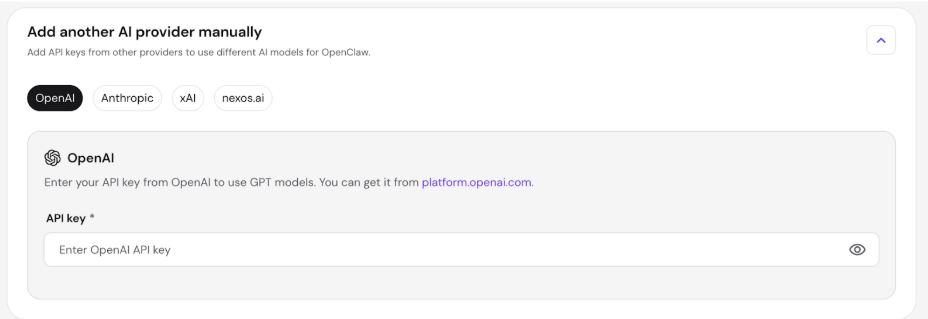
- Save the changes.
After adding a new API key, click OpenClaw to launch the application. A Starting OpenClaw window will appear while the system automatically identifies the new key and runs the necessary configurations.
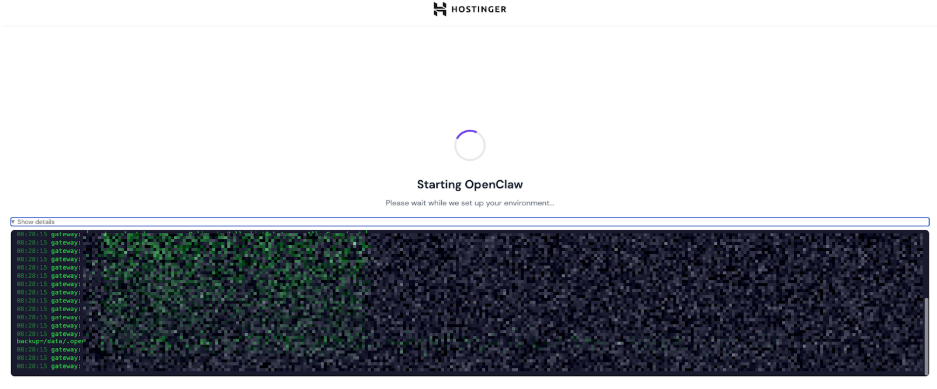
Once the process is complete, your assistant will be ready for use with the new model.