Link tracking allows you to see exactly when a recipient interacts with files sent via your email. This feature is available for Premium Hostinger Email plans and provides real-time notifications for file opens and downloads, helping you monitor engagement more effectively.
Before you start
- Link tracking must be enabled for each link when adding it
- File tracking works only for files added as tracked attachments
How to track link clicks
- Open the email composer (New message)
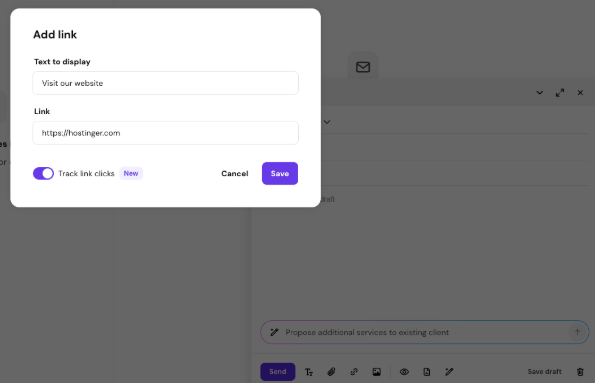
- Click the Add link (link icon) in the bottom toolbar
- Enter:
- Text to display
- Link (URL)
- Enable Track link clicks
- Click Save
The link is now tracked. You will be notified when someone clicks it.
How to track file downloads
- Open the email composer (New message)
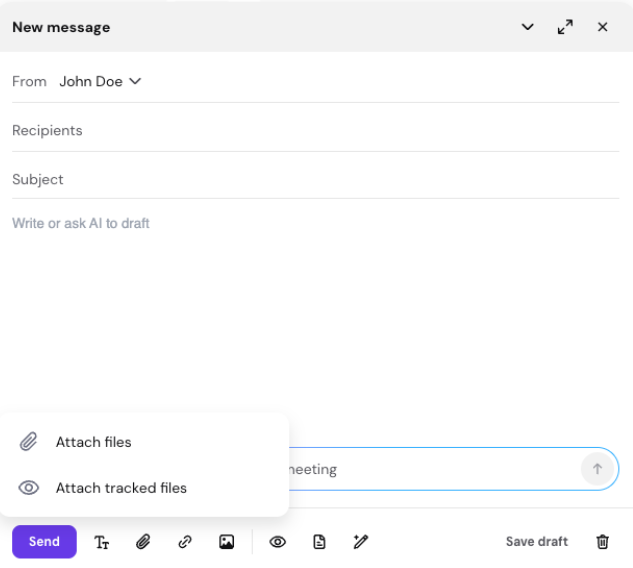
- Click the Attach files (paperclip icon) in the bottom toolbar
- Select Attach tracked files
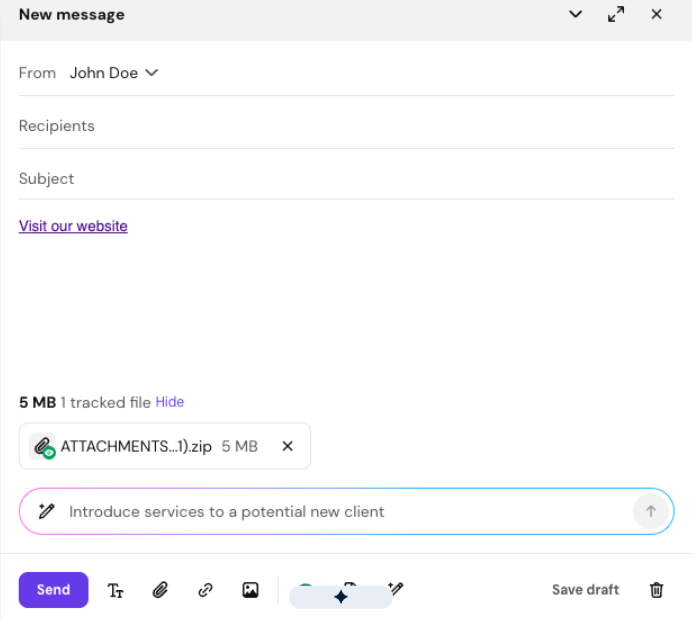
- Choose the files you want to add
- Confirm to attach them
These files will now be tracked when recipients download them.
How to check link and file activity
You can view tracking details in two ways.
Option 1: From notifications
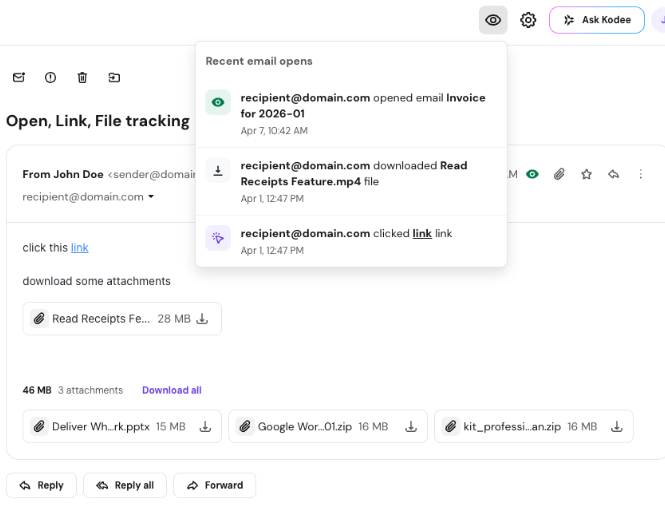
- Click the eye icon in the top bar
- View recent activity (opens, clicks, downloads)
- Click any notification to see full details in the tracking dashboard
Option 2: From the Sent folder
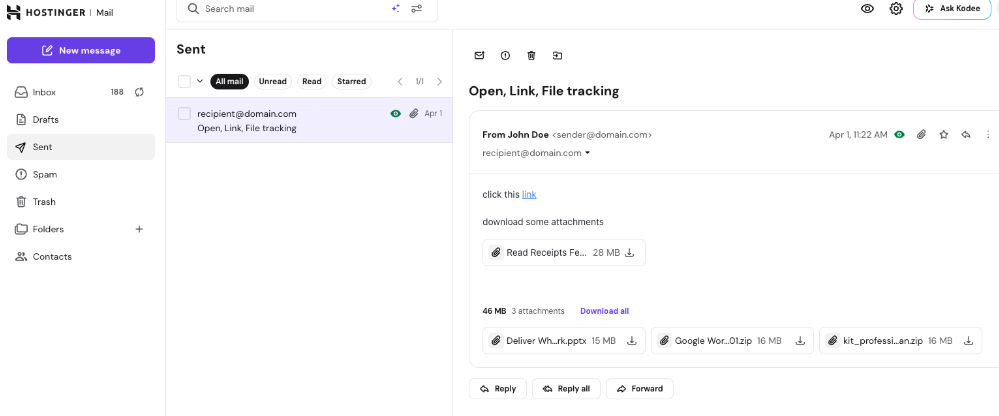
- Go to Sent
- Open the email or click the eye icon next to it
- Tracking dashboard will be opened
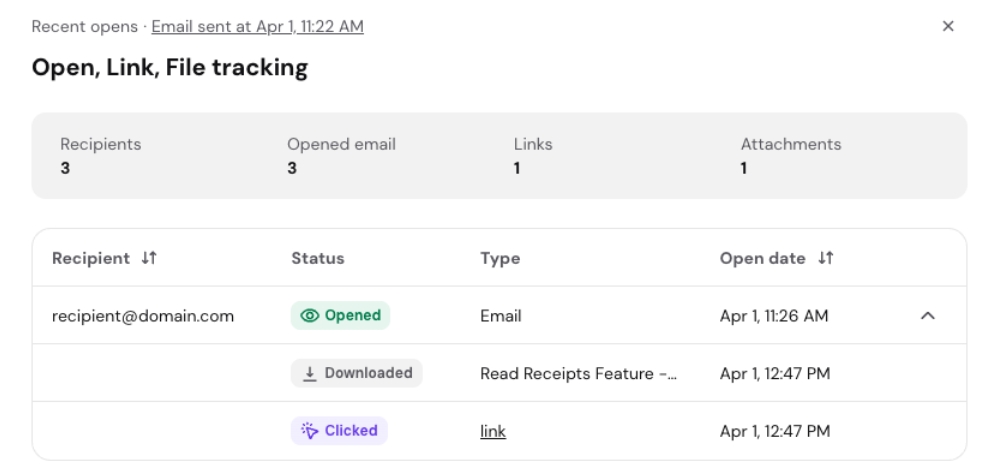
What you can see in the tracking dashboard
In the tracking dashboard, you can view:
- Date and time of each action
- Who opened the email
- Who clicked a link
- Who downloaded attachments
Troubleshooting
A link shows as clicked, but the recipient didn’t click it
Some email security systems automatically scan links, and files. This can register as an open or click even if the recipient did not interact with it.
Tips for better deliverability
- Avoid sending too many tracked links or files in one email
- Use tracking only when needed
- Send emails only to recipients who expect them
Ensure email deliverability while using link and file tracking Excessive use of link and file tracking can affect the deliverability of your emails. Sparing use of tracked link and file tracking will make sure that the spam filters don’t categorize your emails as spam. Also, it’s important to avoid sending a large number of tracked files, or links to recipients that have not signed up (subscribed) for receiving emails from you, to maintain your email deliverability.