Hostinger Agents is a standalone AI-powered application providing seven specialized AI agents to assist with business management. Each agent possesses domain-specific knowledge, a unique personality, and a focused set of skills to generate strategies, content, and analysis.
How Hostinger AI Agents Work
Instead of a single chatbot, expertise is divided across seven distinct agents to ensure more relevant output with less manual adjustment. You interact with them using natural language, similar to messaging a colleague.
The system utilizes two primary interaction methods:
-
Skills: Use structured, guided tasks like Keyword Research or Write Blog Post. The agent asks targeted questions to produce a specific result.
-
Chat: Use the chat feature for brainstorming, asking general questions, or thinking through complex problems.
Meet the Hostinger AI Agents
Each agent is built around a specific business area to provide expert-level support.
Hostinger Agents includes seven AI agents, each built around a specific area of running a business.
| Hostinger AI Agent | Hostinger AI Agent | Primary tasks |
| Business Advisor | Business planning, goal-setting, competitive analysis, pricing strategy, productivity. Good starting point if unsure which agent to use. | |
| Creative Writer | Blog posts, landing page copy, product descriptions, newsletters, social media captions, editing and reworking existing text. | |
| SEO Consultant | Keyword research, on-page optimization, meta tags, site structure, local SEO, content planning for search. | |
| Marketing Planner | Social media growth, email marketing, ad campaigns, product launches, promotions, content calendars. | |
| Legal Advisor | Privacy policies, terms of service, contracts, NDAs, refund policies, GDPR checklists. Produces drafts — always review before publishing. | |
| Customer Comms | Apologies to unhappy customers, late payment reminders, review responses, partnership outreach, auto-replies. | |
| Sales & Outreach | Cold outreach emails, LinkedIn messages, call scripts, proposals, quotes, follow-up sequences. For new prospects, not existing customers. | |
| Atlas (Trial agent) | Available exclusively during the free trial. Atlas is designed to deliver a quick, personalized win in 2–3 minutes. Before your first message, Atlas is pre-loaded with context about your website — so instead of asking “how can I help?”, it opens with a specific, actionable suggestion (e.g., “your site has these issues, let’s fix this one now”). |
Choosing the right agent for the task
Having dedicated agents allow you to take advantage of their specialization. Here are a few examples.
| If you want to… | Use this agent |
| Think through a business idea, set goals, or make a strategic decision | Business Advisor |
| Write blog posts, website copy, newsletters, or social content | Creative Writer |
| Improve search rankings, find keywords, or plan SEO content | SEO Consultant |
| Plan a marketing campaign, grow on social media, or run ads | Marketing Planner |
| Draft a privacy policy, contract, terms of service, or compliance checklist | Legal Advisor |
| Write emails to customers, respond to reviews, or handle difficult conversations | Customer Comms |
| Reach out to prospects, write proposals, or prepare for a sales call | Sales & Outreach |
While some tasks may seem similar, selecting the agent based on their specific focus ensures the best results:
- Content vs. Strategy: Use Creative Writer to write the actual words and Marketing Planner to create the distribution plan.
- Customer Relations: Use Customer Comms for existing customers and Sales & Outreach for cold outreach to new prospects.
- Business Planning: Use Business Advisor for overall pricing strategies and Sales & Outreach for negotiating specific deals.
Chat controls and workspace tools
- Rate replies: Use the thumbs up or thumbs down icon on any agent message to rate the response. Feedback helps improve future replies.
- Stop generating: Click the stop button while an agent is composing a reply to halt output immediately. Content already produced is preserved in the conversation.
- Personalized suggestions: Context-aware prompt suggestions appear above the chat input. Select one to continue your task without typing a new prompt from scratch.
- Edit and iterate on images: Upload an image in the chat and ask the agent to modify, remix, or use it as a reference for new image generation — all within the same conversation.
- Conversation history: Access a dedicated history tab in each workspace to browse, search, and resume past conversations.
- Files viewer: All files created or uploaded during your sessions are collected in a files gallery. Filter by file type, preview, and download directly from the panel.
App integrations
Agents can connect to 1,000+ external tools — including Google Sheets, Slack, Gmail, Notion, and HubSpot — to pull data, send messages, and update records without leaving the conversation.
How to connect an app:
- Ask your agent to perform a task that requires an external app (e.g., “Add this to my Google Sheet”).
- If the app isn’t connected yet, a Connect button appears inline in the agent’s response.
- Click Connect and follow the authorization steps.
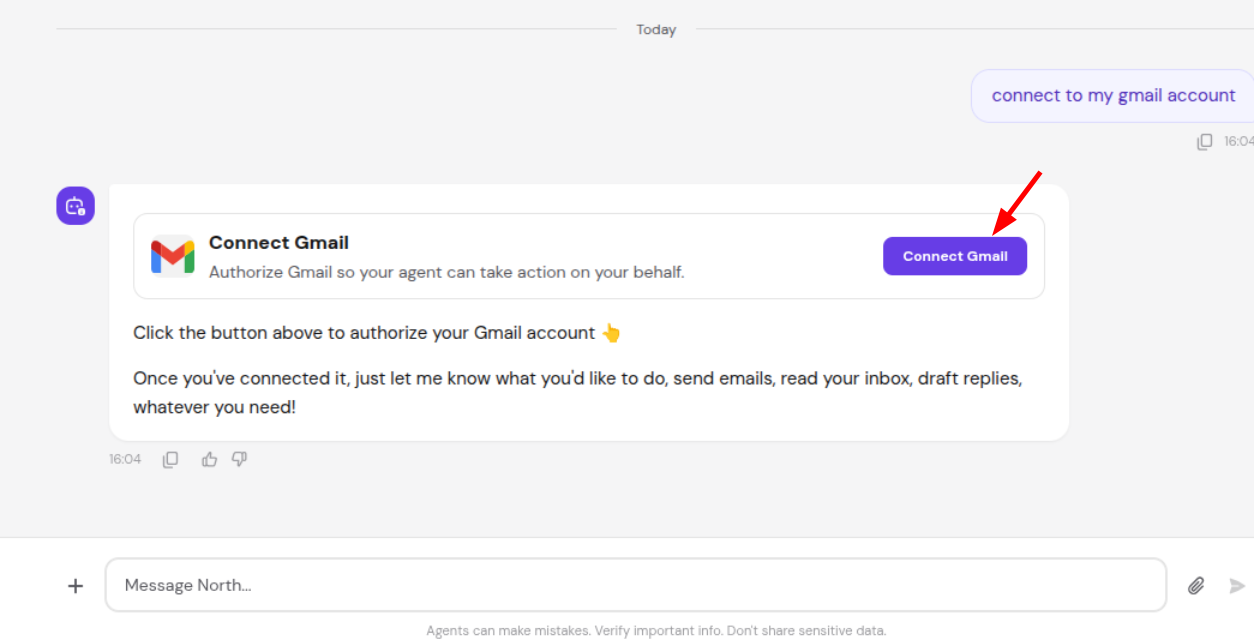
- Once authorized, the agent completes the requested action.
To manage existing connections, open the agent’s settings and go to the Integrations section. From there you can add, review, or remove connected apps.
Additional capabilities
The agent chat includes the following capabilities:
- File attachments: You can attach files directly in the agent chat. Supported formats include images, PDFs, and text-based files (CSV, JSON, TXT, MD). The agent will analyze the content and respond based on what you’ve shared. Click the attachment icon in the chat input to upload.
- Image generation: agents can generate images based on your prompts. Generated images appear inline in the conversation with a lightbox viewer for full-size preview.
- Long-term memory: Agents retain context and key details from past conversations — the more you interact, the more personalized responses become. You can view, edit, or delete individual memories from the Memory Management page in settings.
- App integrations: Connect your agents to 1,000+ external tools — including Google Sheets, Slack, Notion, and HubSpot. Once connected, agents can pull data, send messages, and update records directly from the chat interface. App connections can be managed from your agent’s settings.
- Image editing and remixing Upload any image in the agent chat and ask the agent to modify it, extend it, or use it as a reference for generating new images. All edits happen inline within the conversation.
- File Gallery All files — uploaded by you or created by your agents — are collected in a dedicated gallery. You can filter by file type, preview contents, and download files with one click.
- File previews and version history Open any agent-created file for a full preview directly in chat. Each update is saved as a new version, so you can compare changes and roll back to any earlier version at any time.
- Conversation History All workspaces include a History tab. Browse your past conversations and resume any of them instantly.
Specialist handoff from Kodee (hPanel)
When chatting with Kodee in hPanel, Kodee detects what you’re working on and suggests the relevant Hostinger AI Agent. A tailored starting prompt is automatically pre-filled based on your conversation — no need to repeat context.
Supported use cases:
| If you mention… | Kodee suggests |
|---|---|
| SEO, search rankings, keywords | SEO Consultant |
| Generating images | Marketing Planner |
| Blog posts, FAQ pages, website copy | Creative Writer |
| Terms of service, contracts, legal documents | Legal Advisor |
| Business ideas, value proposition, strategy | Business Advisor |
To use: describe your need to Kodee in hPanel. If a relevant Agent is available, Kodee will suggest it and pre-fill a prompt based on your conversation. Select the suggestion to open the Agent with your context already filled in.
Get agent help directly through Kodee
You can now get help from specialized agents directly through Kodee in hPanel, without leaving your chat or switching tabs.
When you send Kodee a request, it detects the intent, delegates to the right specialist agent in the background, and returns the result inside the same conversation — along with a link to the full agent conversation for more detail.
Kodee currently delegates to five agents:
- SEO Consultant for SEO, keywords, and search rankings
- Creative Writer for blog posts, website copy, and social content
- Marketing Planner for image generation
- Legal Advisor for privacy policies, contracts, and legal documents
- Business Advisor for business strategy, pricing, and goal-setting
Things to know:
- This feature uses Agent credits — if your credits run out, Kodee will direct you to the Agents page to top up.
- Responses may take a minute or two, as the specialist agent is performing real work in the background.
With these specialized AI agents at your disposal, you can streamline your business operations and focus on growth.