When troubleshooting Node.js applications, customers often rely on logs to understand what went wrong. A common point of confusion arises when the stderr.log file is empty. This can lead to uncertainty about whether the application is functioning correctly or where to investigate next.
This article explains:
-
What an empty stderr.log actually means
-
The difference between build logs, runtime logs, and stderr.log
-
Common reasons why stderr.log is empty
-
What steps to take next when debugging
Log types explained
Before diving into the issue, it’s important to distinguish between the three main types of logs:
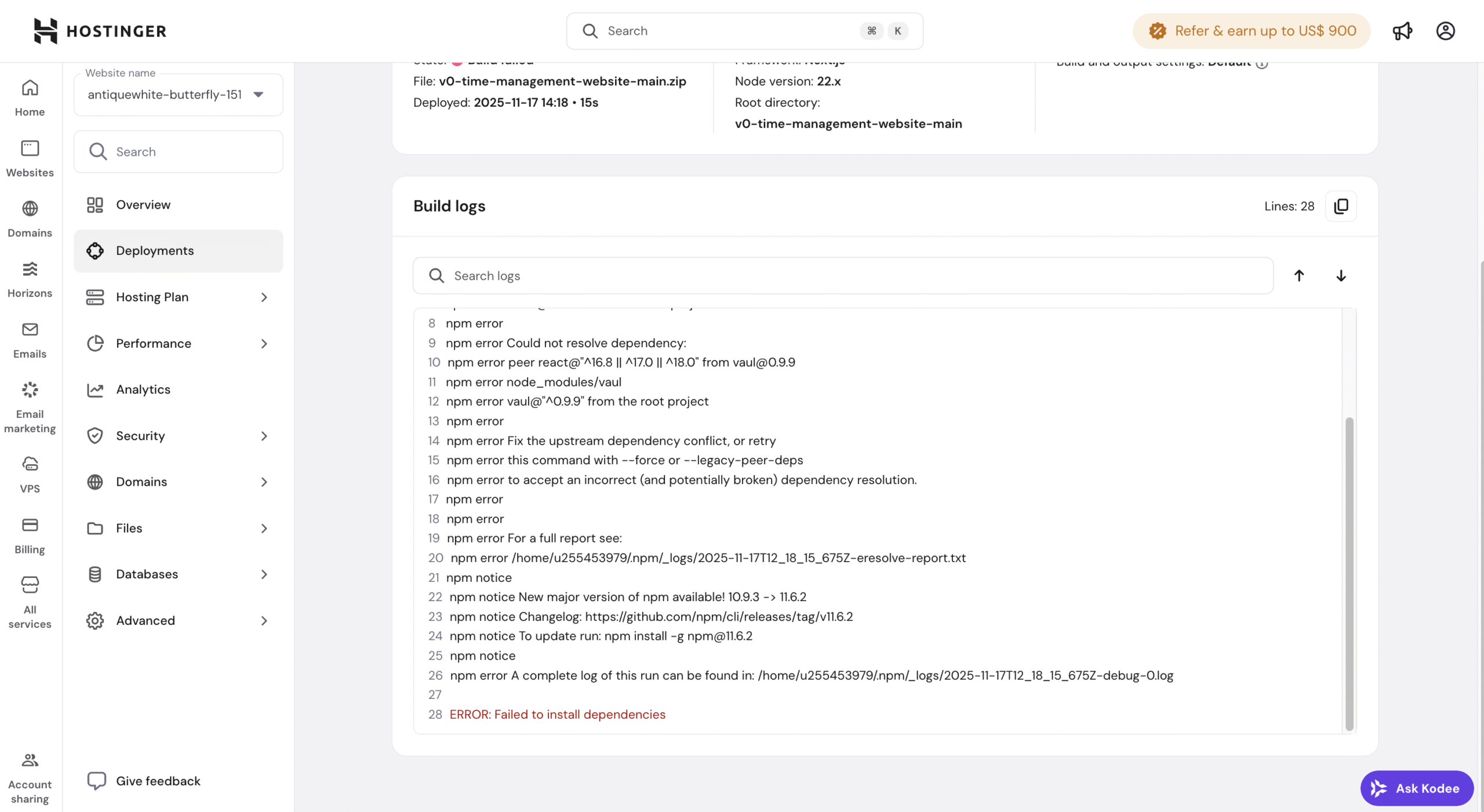
1. Build Logs
-
Generated during the build phase (e.g., dependency installation, compilation)
-
Typically include output from commands like npm install or npm run build
-
Errors here prevent the app from being built or deployed
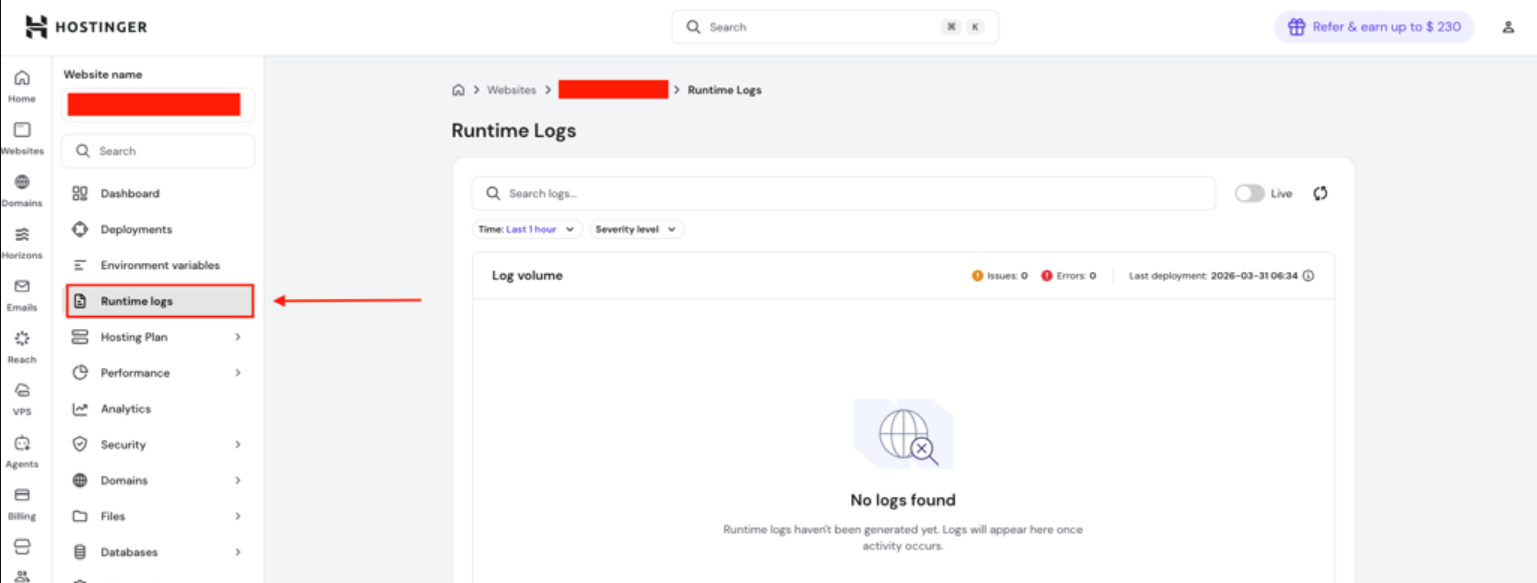
2. Runtime Logs (stdout)
-
Generated when the application is running
-
Includes console.log() output and general application activity
-
This is where most application-level logs appear by default
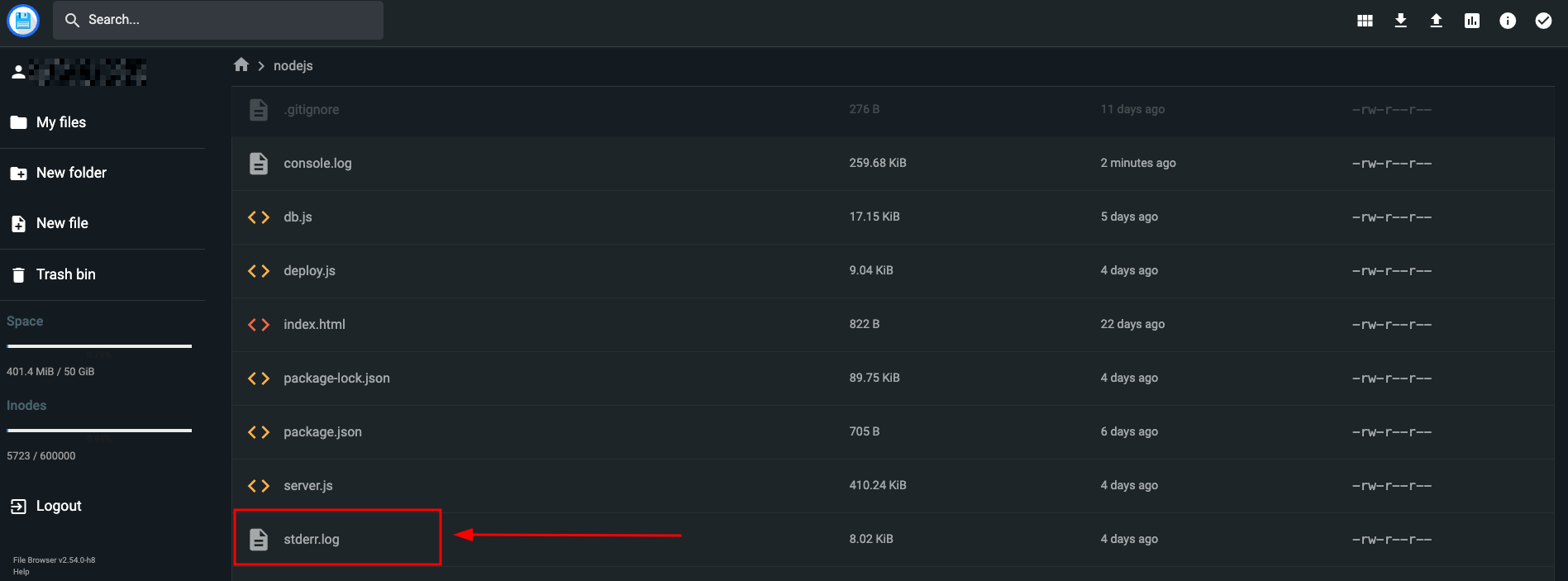
3. stderr.log
-
Captures error output (stderr stream)
-
Includes uncaught exceptions, system-level errors, or anything written via console.error()
-
Not all errors automatically go here
What does an empty stderr.log mean?
An empty stderr.log does not necessarily mean that nothing went wrong.
It typically indicates one of the following:
1. The application never fully started
If the application fails before initialization:
-
No logging system may be active yet
-
No output is written to stderr.log
Common causes:
-
Missing or invalid entry point (e.g., wrong start script)
-
Syntax errors preventing execution
-
Missing dependencies
2. Errors are logged to stdout instead of stderr
In Node.js:
-
console.log() → stdout
-
console.error() → stderr
However, many frameworks and libraries:
-
Log errors using console.log()
-
Or use custom loggers that write everything to stdout
Result:
Errors exist, but stderr.log remains empty.
3. Missing or incorrect environment variables
If required environment variables are not loaded:
-
The app may exit early
-
No logs are written (or only minimal output appears)
Examples:
-
Missing PORT
-
Missing database credentials
-
Misconfigured .env file
4. Silent process exit
Some applications:
-
Catch errors internally
-
Exit without logging anything
This can happen when:
-
Error handling is incomplete
-
Logging is not configured properly
What to check next
If stderr.log is empty, follow these steps:
1. Check runtime logs first
- Search for errors, warnings, or unexpected exits. If errors are unclear:
-
-
Look for the last line before the process stopped
-
Check if a startup confirmation message is missing
-
If logs look normal, investigate a specific route or request
-
Add explicit error handlers (see step 5)
-
-
Look for stack traces or startup messages
2. Verify the application started successfully
Confirm that the app actually started:
-
-
Server running on port…
-
Listening on…
Look for messages like:
-
If these are missing:
-
The app likely failed during startup
3. Validate environment variables
Ensure all required environment variables are present:
-
Check .env file (if used)
-
Confirm variables are correctly loaded in your environment
You can temporarily add debugging:
console.log(process.env);
If you see injecting env (0) from .env in your runtime logs, this is not an error. The (0) simply means zero variables were loaded from a .env file — either because the file doesn’t exist on the server, or it’s empty. This is expected, since .env files are typically not deployed.
Hostinger injects environment variables directly into the process via Hostinger dashboard. However, this message alone doesn’t confirm that your Hostinger dashboard variables were successfully loaded — those are two separate mechanisms. To verify your variables are actually available at runtime, check the output of console.log(process.env) and look for your expected keys (e.g., database credentials, API keys). You can also log Object.keys(process.env).length to see how many variables are present.
4. Review the start command
Check your package.json:
"scripts": {

  "start": "node app.js"

}
Ensure:
-
The correct entry file is used
-
No typos or missing files
5. Add explicit error logging
To ensure errors appear in stderr.log, use:
process.on('uncaughtException', (err) => {

  console.error('Uncaught Exception:', err);

});

process.on('unhandledRejection', (err) => {

  console.error('Unhandled Rejection:', err);

});
6. Confirm log file paths
domains/[your-domain]/nodejs/stderr.log
Common files include:
-
stdout.log → runtime logs
-
stderr.log → error logs
Make sure:
-
You are checking the correct directory
-
The application has permission to write logs
NOTE
- For a complete walkthrough of both build and runtime log troubleshooting, see how to troubleshoot a failed Node.js deployment using build logs.