When deploying a Node.js application on Hostinger, you can choose which Node.js version your application will run on. Selecting the correct Node.js version is important, as it directly affects how your application builds and runs.
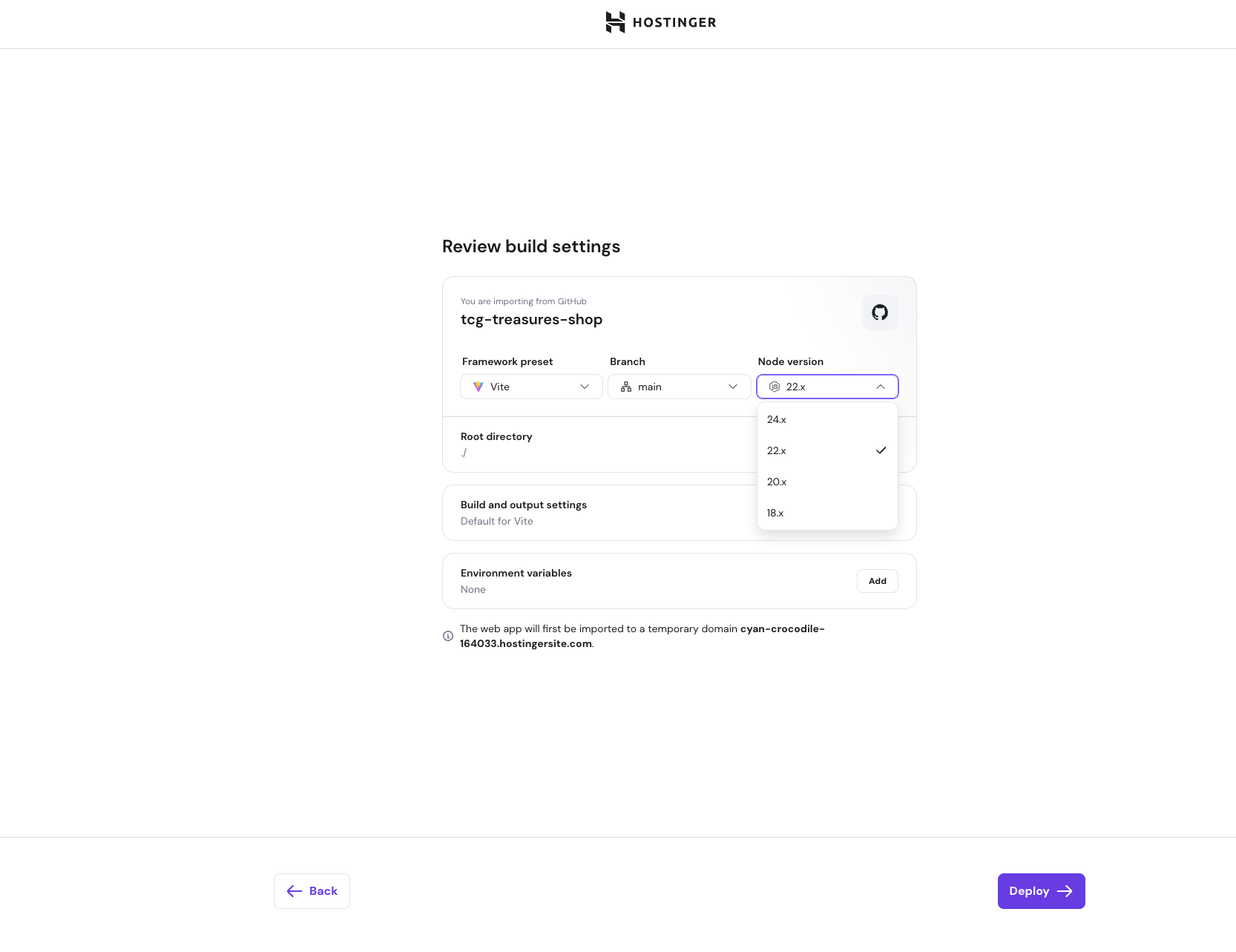
Hostinger supports the following Node.js versions during deployment:
-
18.x
-
20.x
-
22.x
-
24.x
By default, Hostinger attempts to automatically detect the Node.js version your application uses. You can override this selection if needed.
How Node.js version detection works
When you connect a GitHub repository or upload your application files, Hostinger automatically analyzes your project to detect the Node.js version based on:
- The engines field in your package.json file
- Lockfile compatibility
- Project structure and dependencies
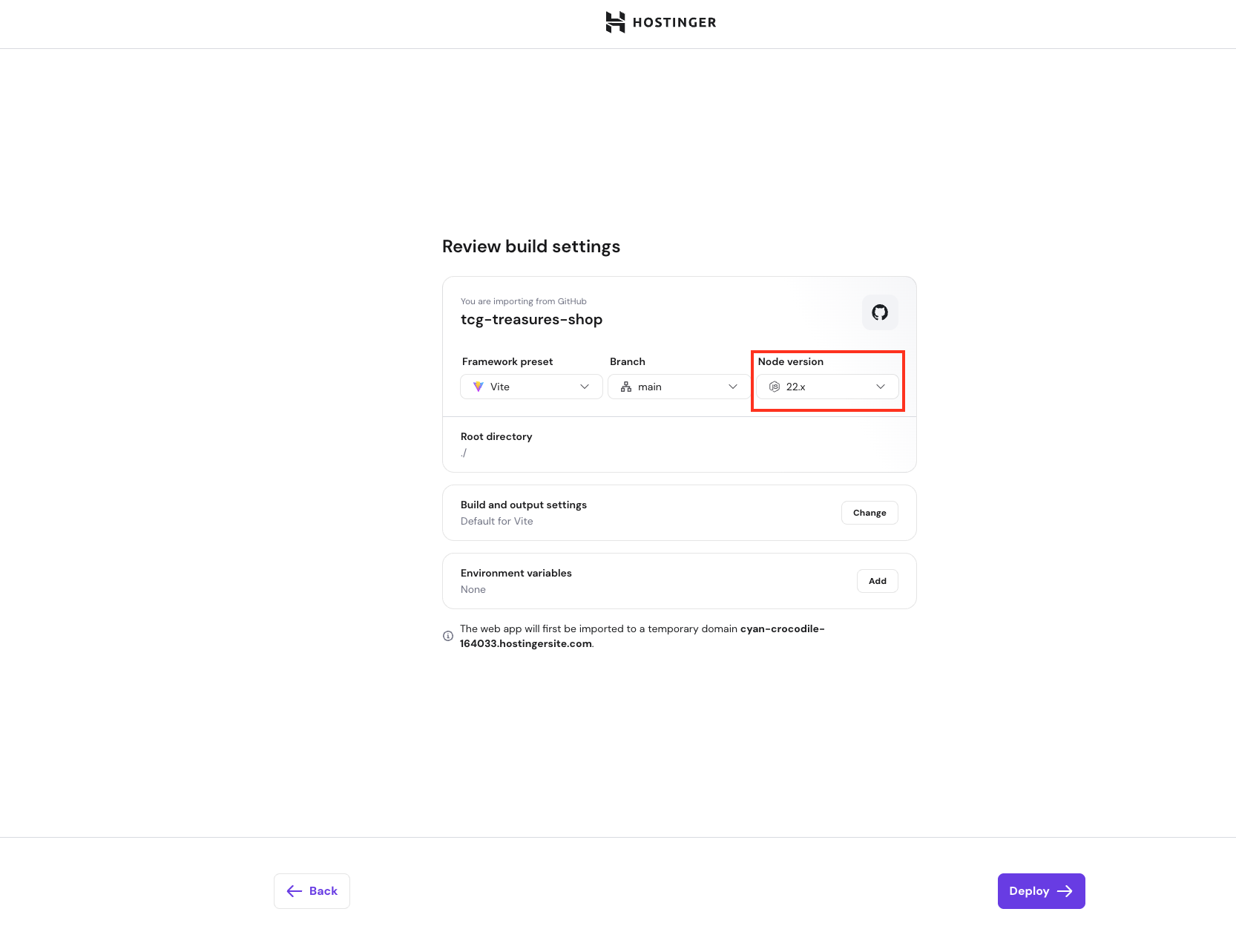
If a compatible version is detected, it will be preselected during the deployment settings step.
How to select a Node.js version manually
You can manually choose a Node.js version during deployment if you want to upgrade or downgrade Node.js, or if automatic detection selected a different version than expected.
To select a Node.js version:
- Start the Node.js application deployment process
- Navigate to the Deployment settings step
- Locate the Node.js version selector
- Choose one of the available versions: 18.x, 20.x, 22.x, or 24.x
- Continue with the deployment
Impact of changing the Node.js version
Changing the Node.js version can affect the build and runtime behavior of your application.
Be aware of the following:
- Some dependencies may not support newer Node.js versions.
- Native modules may fail to compile on incompatible versions.
- Build scripts may behave differently across versions.
- Your application may fail to start if the selected version is unsupported.