Audience segments in Hostinger Reach allow you to group contacts based on their information and behavior. Segments help you target the right audience with the right message, improving engagement and campaign performance.
This article explains what segments are, how to create and manage them, how automatic segments work, and the differences between free and paid plans.
What are Audience Segments?
A segment is a filtered group of contacts based on specific conditions, such as subscription status, engagement with emails, source of contact, or tags.
Segments are mainly used when:
- Sending one-off campaigns
- Creating automations
- Targeting specific groups instead of emailing all contacts
Selecting segments when sending campaigns
When sending a one-off campaign:
- You can select one or multiple segments
- Alternatively, you can send the campaign to all contacts
- If a contact belongs to multiple selected segments, they will receive only one email
- Duplicate recipients are automatically removed, ensuring each contact receives the campaign only once
When you select All contacts as your recipients, you can exclude one or more specific segments from the send instead of building a separate segment to target everyone else. This is useful for sending a broad campaign to your full list while leaving out specific groups, such as VIP clients who receive separate, more tailored communications.
To exclude segments:
- In the campaign setup, go to the Recipients step.
- Turn on Select all contacts.
- Under Choose segments to exclude, select one or more segments to leave out of the send.
- Review the recipient count at the bottom of the screen, which updates to reflect your total contacts minus the excluded segments.
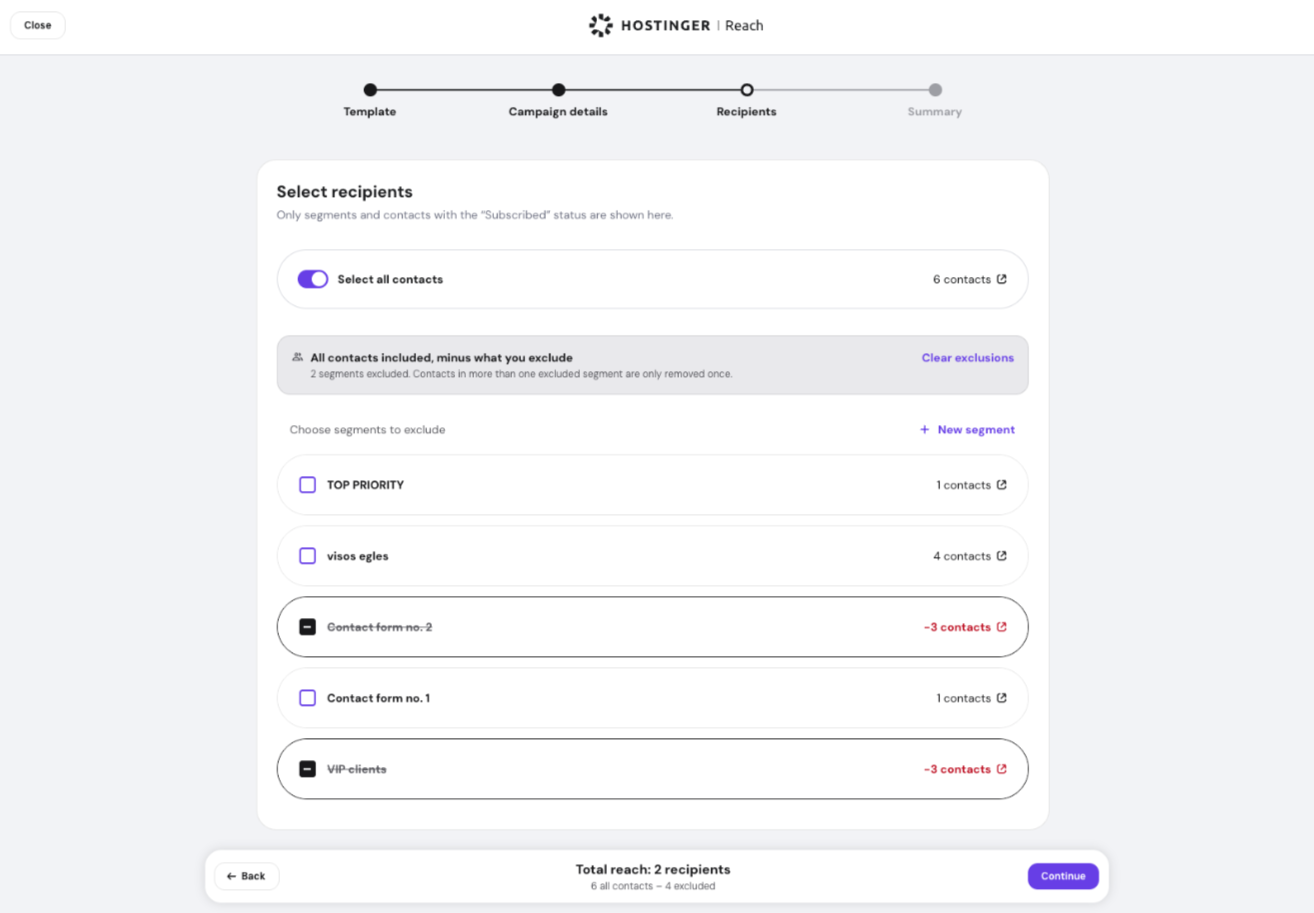
If a contact belongs to more than one excluded segment, they’re removed only once. Select Clear exclusions to remove all exclusions and return to sending to your full contact list.
How to create a segment
You can create segments in two ways:
- Using AI-powered segmentation
- Creating segments manually
Creating a segment with AI
- In Hostinger Reach dashboard, head to Audience then Segments
- Click New Segment
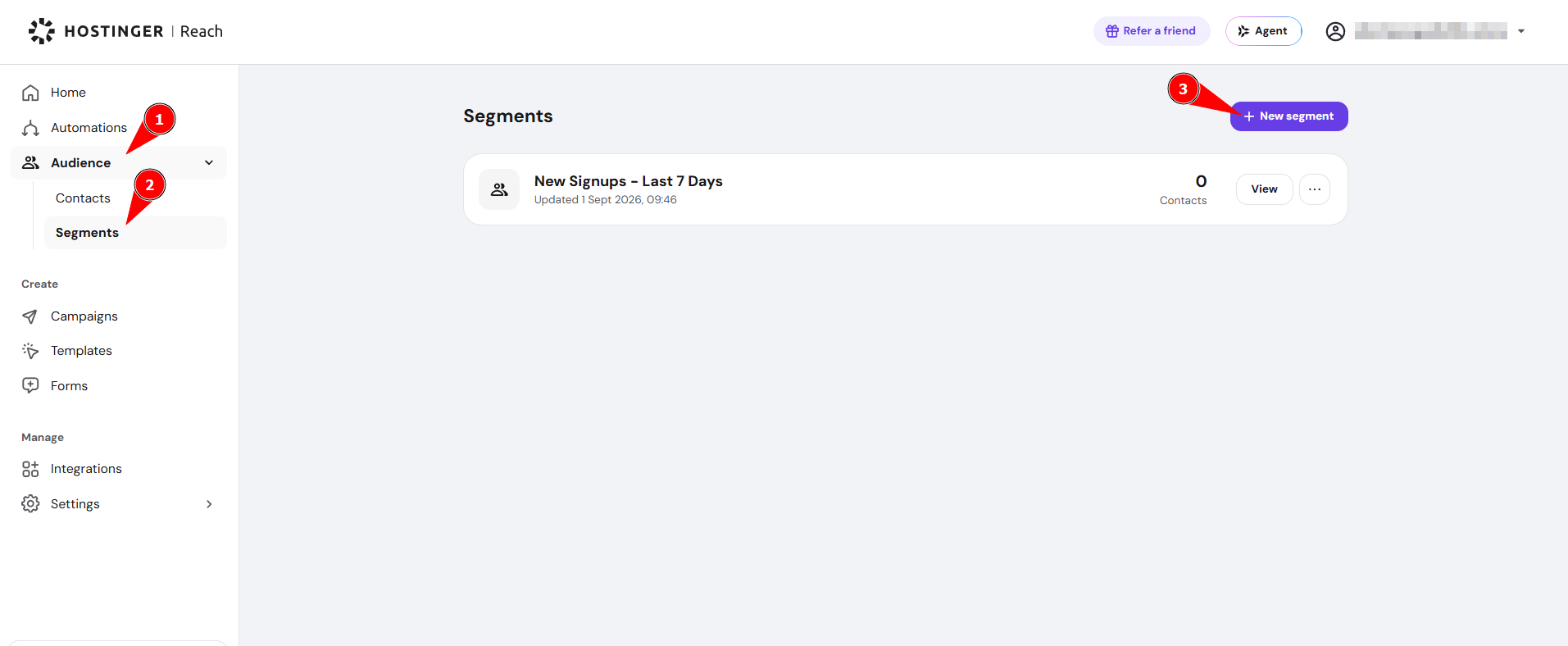
- Describe your segment in natural language
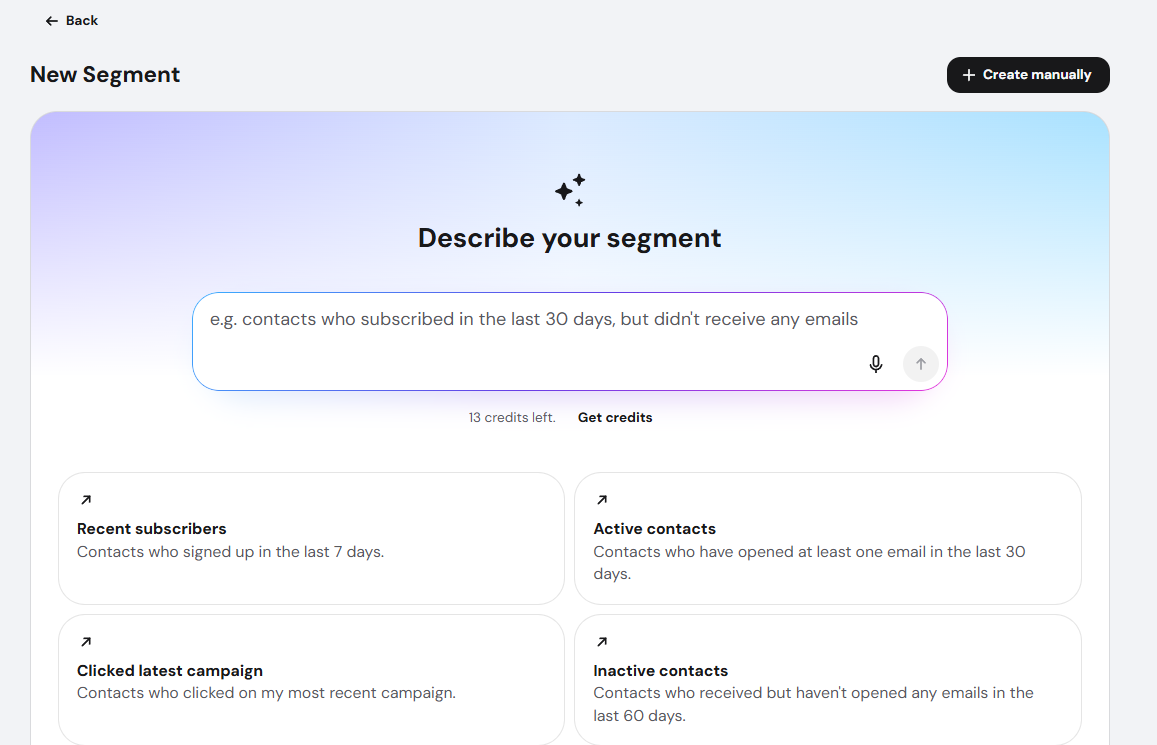
- Optionally, choose one of the four predefined prompts if you need inspiration
What data does AI use?
AI understands a wide range of contact properties, including:
Contact Information
- Email address
- Subscription status (subscribed / unsubscribed)
- Subscription and unsubscription dates
Contact Source & Metadata
- Contact creation date (when it appeared in Reach)
- Notes added to the contact
- Site’s domain (if you synced contacts from a site)
- Source type:
- Website
- CSV import
- Manually added
Email Engagement & Delivery Status
AI knows how contacts interacted with your emails:
- Opened
- Clicked
- Delivered
- Bounced
- Soft-bounced
- Dropped
- Processed
Campaign-Specific Conditions
AI can also filter contacts based on specific campaigns, for example:
- Contacts who did not open a campaign named “Black Friday Sale”
- Contacts who clicked unsubscribe in a specific campaign
Tags
- Contacts that have (or do not have) specific tags
After AI creates the segment
- You will see:
- A segment description explaining who the segment is for
- Suggestions on what kind of content fits this audience
- You can:
- Review all generated conditions
- Manually adjust them if needed
- Click Save Segment to store it
Creating a segment manually
If you want full control over your segment logic, you can create it manually.
- Click New Segment
- Click Create manually
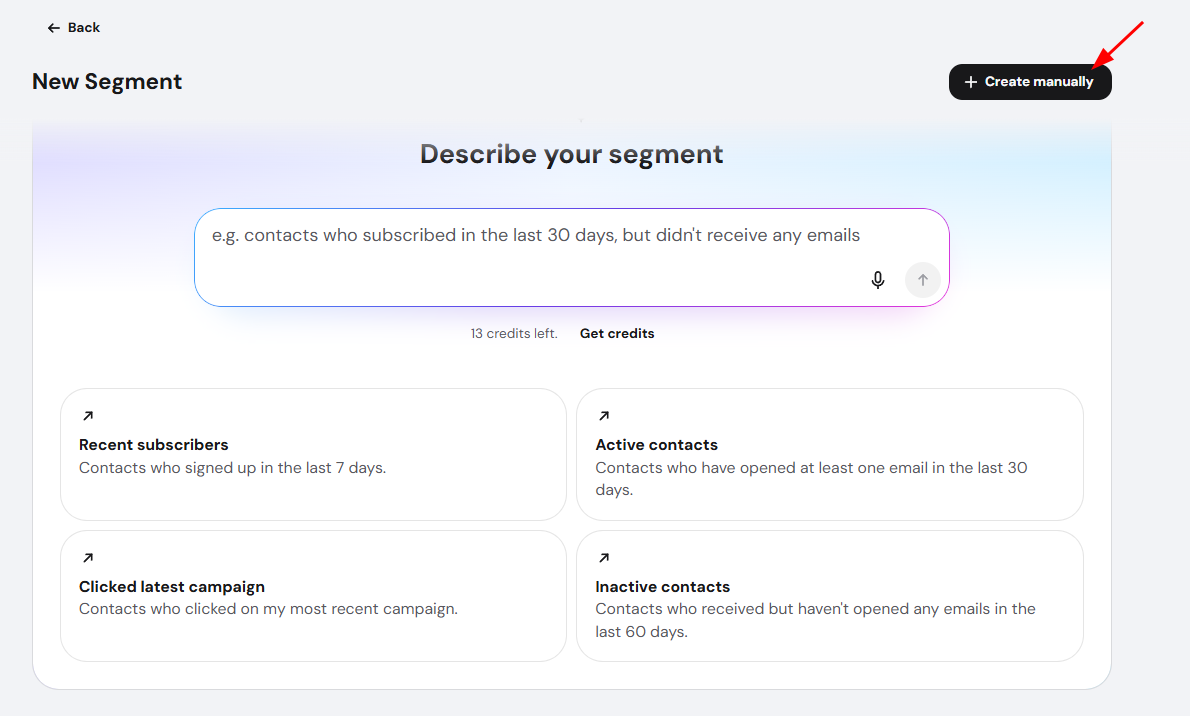
- Choose logic:
- All conditions must match (AND)
- Any condition can match (OR)
- Add conditions using the same contact properties available to AI
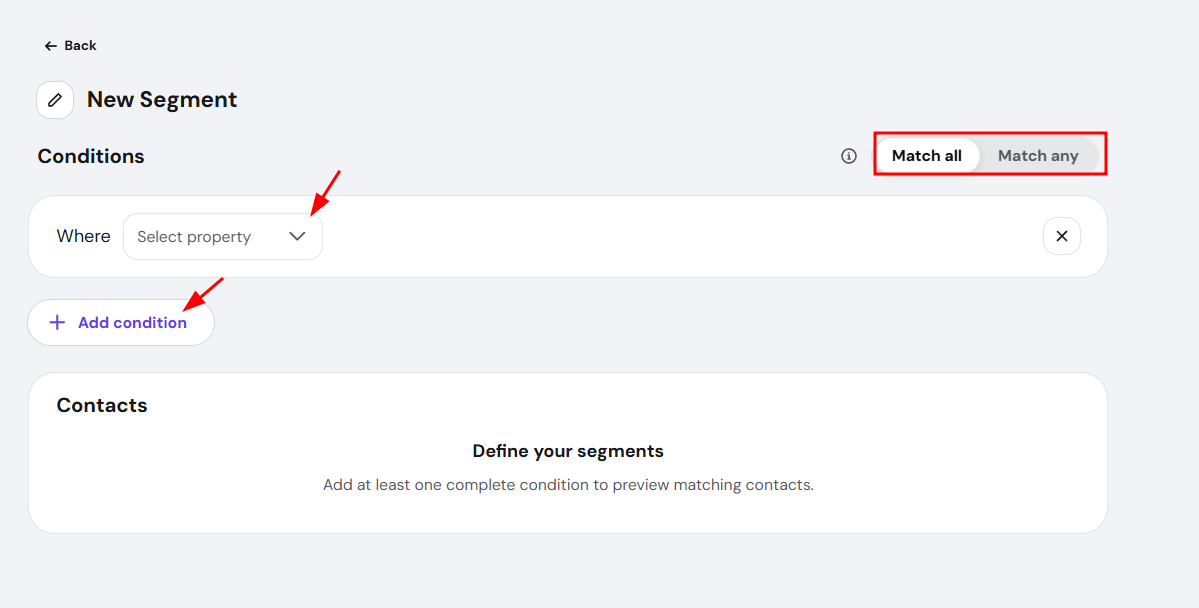
- Click Refresh list to preview contacts in the segment when there are no empty conditions
- Give a title to your segment by clicking pencil icon and Save Segment
Managing segments
After creating a segment, you can:
- Edit segment
- Edit logic and conditions
- Preview contacts
- Rename the segment (click the pencil icon)
- Delete the segment
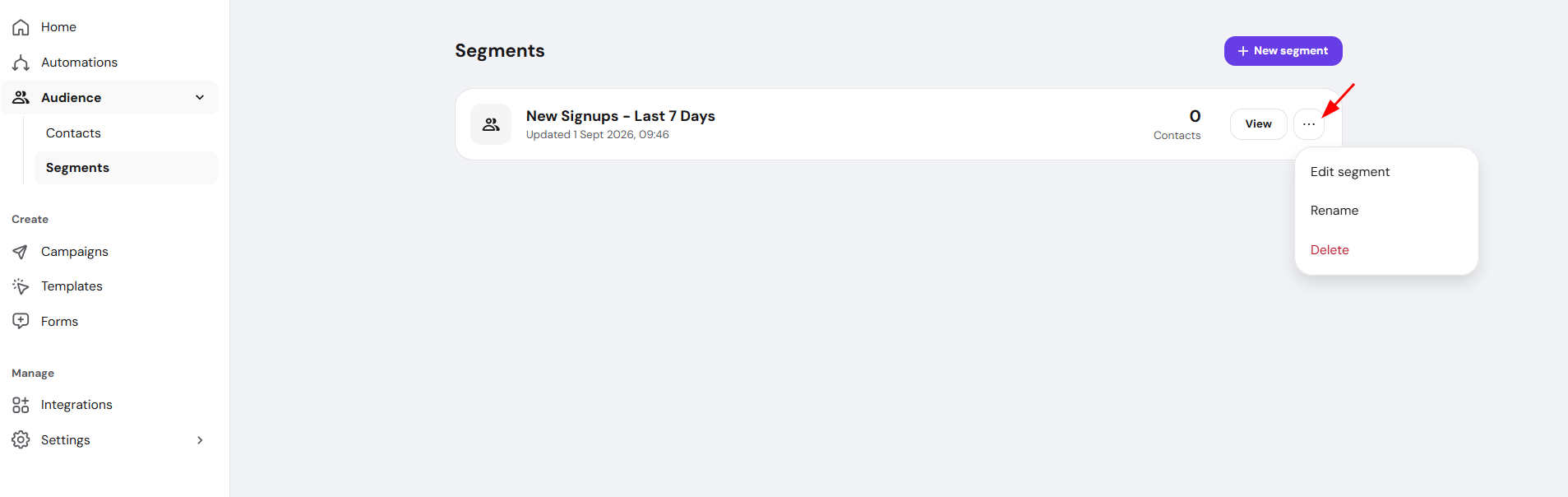
Changes can be made at any time.
Automatically created segments in Reach
Reach automatically creates segments for you in certain cases to make email marketing easier for you.
Website Connections (Hostinger, Website Builder, WordPress)
When you connect a website that has forms:
- Reach automatically creates:
- A tag with the form’s title
- A segment based on that tag
Example:
If your form is called “My New Subscription Form”, Reach will automatically create:
- A tag named My New Subscription Form
- A segment using that tag
CSV File Imports
When uploading a CSV file:
- You can choose to create a segment
- You then must assign a tag
- Reach suggests a tag containing:
- Import date
- CSV file name
A segment based on that tag is created automatically.
Free vs paid plan limitations
Free plan
- You can manage up to 3 segments
- Reach may create additional segments automatically, but:
- Only the three oldest segments can be used when sending campaigns
- Other segments will be locked
Paid plans
- Unlimited segments
- Use all segments in:
- One-off campaigns
- Automations
Practical example: Re-engaging inactive contacts
You can now use the dedicated re-engagement automation templates in Reach to automatically follow up with subscribers who didn’t engage with a specific campaign.
- Re-engage non-openers — targets subscribers who received but did not open a selected campaign.
- Re-engage non-clickers — targets subscribers who opened but did not click a selected campaign.
To set this up, go to Reach Dashboard → Automations, select the relevant template, choose the campaign in the Campaign Sent trigger, configure the condition step, and activate. For full setup steps, see Hostinger Reach: Drip campaign automation.
Summary
Audience segmentation in Hostinger Reach allows you to:
- Target contacts precisely
- Improve engagement and deliverability
- Automate personalized communication
- Scale email marketing efficiently
Whether you use AI-powered segmentation or manual setup, segments give you full control over who receives your messages and when.