The Hostinger MCP Extension allows you to connect your local IDE to your Hostinger account using OAuth or an API token. Once configured, your IDE can retrieve hosting data and manage resources across Websites, WordPress, VPS, Domains (including DNS), Email Marketing, Subscriptions & Payments, and Ecommerce — directly from your development environment. The extension is available on marketplaces and supports popular IDEs like Claude Code, Cursor, JetBrains, Devin Desktop (formerly Devin Desktop), and OpenAI Codex.
This guide will walk you through setting up Hostinger MCP server in Cursor IDEs.
Set up MCP using Hostinger Connector extension (recommended)
The Hostinger Connector is an IDE extension that sets up the Hostinger MCP server in one click using OAuth — no API token generation, manual JSON editing, or copy-pasting required. The latest version introduces a redesigned UI with a clearer, more user-friendly experience, automatic Node.js installation check with a one-click install option if Node.js is missing, an MCP overview panel showing which MCPs are enabled or disabled with tooltips explaining each one, and a tool count display per MCP to help users stay within the recommended tool limit.
Each compatible WordPress website is now added as its own MCP. Instead of a single shared WordPress tool set, AI agents get site-specific tools scoped to each individual website, letting them manage each site’s posts, pages, categories, tags, and media more deeply.
When you add a new website to your account, click Sync in the Connector panel to connect it with one click, without going through the full OAuth authentication flow again.
It includes a one-click link that opens your IDE directly to the Hostinger Connector extension page.
Available on:
- Visual Studio Code Marketplace
- Open VSX (Devin Desktop, Cursor, Google Antigravity)
- Managing WordPress sites in the Connector
Once connected, each compatible WordPress website on your account appears as its own separate MCP server in the Installed MCP servers list, rather than a single shared WordPress toggle. Expanding a site shows the full set of site-specific tools available for it, covering posts, pages, categories, tags, and media, so your AI agent can manage that individual site’s content in more depth.
If you add a new WordPress website to your account afterward, you don’t need to repeat the OAuth setup — just click Sync next to the Websites toggle to detect and connect it with one click.
How to set up Hostinger Connector extension
In Hostinger dashboard, navigate to API under Dev tools on the sidebar. Select your IDE from the tabs (VS Code, Cursor, Devin Desktop, Antigravity, Claude Code) and click Install in IDE name you choose — this deep link opens your IDE directly to the Hostinger Connector extension page.
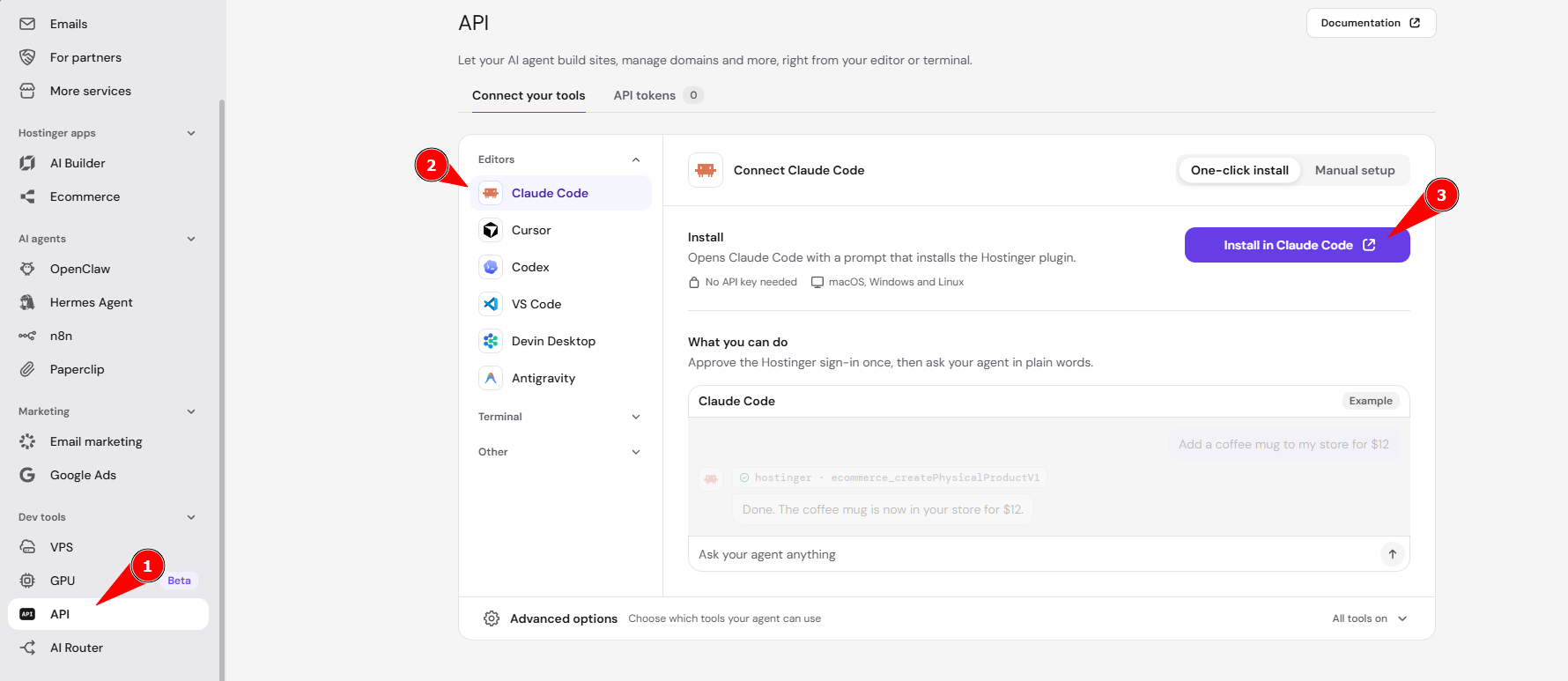
What you can do after connecting the Hostinger Connector extension
Manage domains, deploy sites, control VPS, update DNS records, handle billing, and purchase Web, Cloud, or Agency hosting plans using natural language prompts directly from your IDE’s AI assistant. The assistant directs you to Billing to add a payment method if your account has none saved. The assistant uses your account’s active payment method to complete the purchase if one is already saved.
Devin Desktop is automatically detected and configured. OpenAI Codex is also supported — when setting up any other IDE, the extension adds the MCP config automatically.
Existing users receive the updated product names automatically on extension update. No re-authentication is required.
For manual MCP configuration without the extension, see the steps below.
Set up MCP manually
For manual setup, Hostinger dashboard will walk you through the following steps:
- In Hostinger dashboard, go to API under Dev tools in the sidebar.
- On the Connect your tools tab, select your editor under Editors, then click Manual setup.
- Click Copy command.
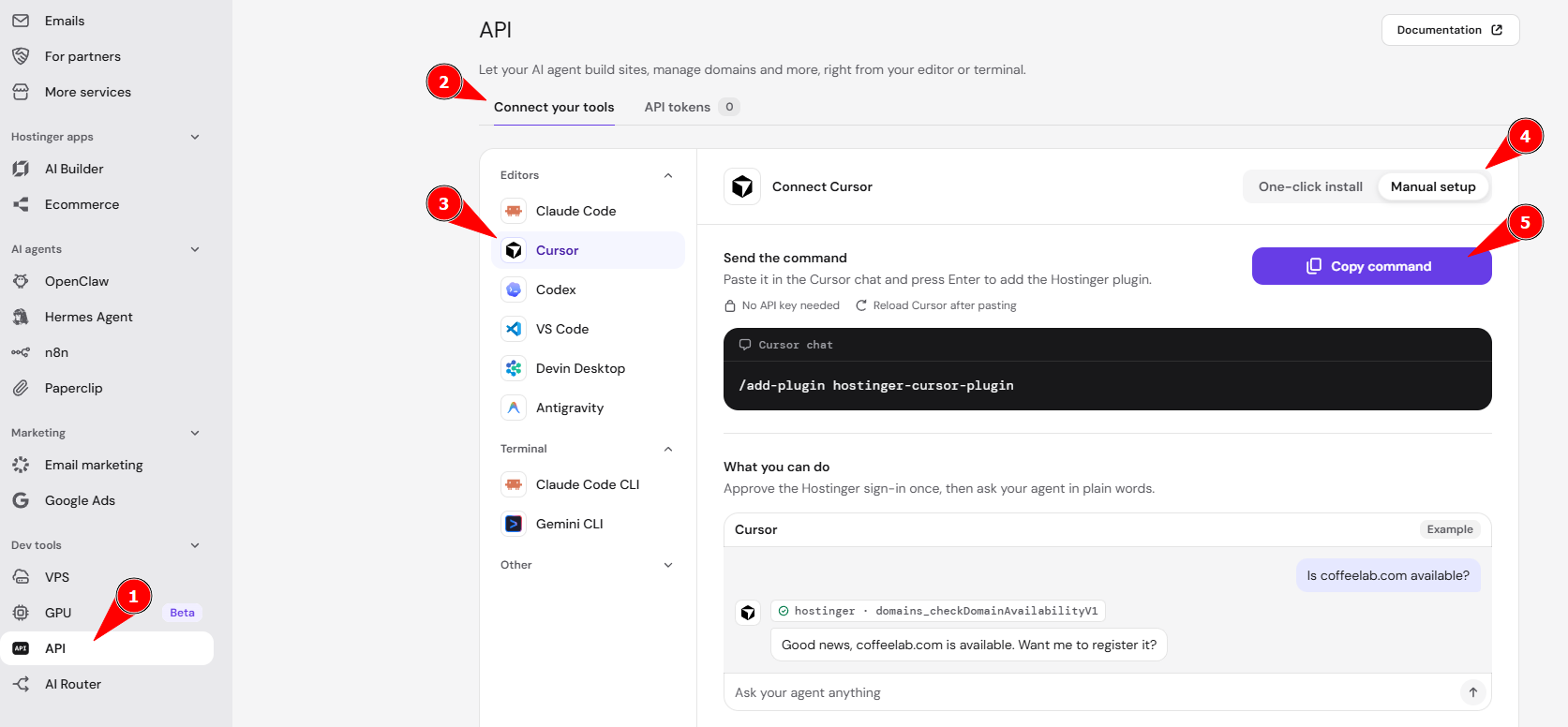
- Use the command in your editor.
- Reload your editor, then approve the Hostinger sign-in.
- Ask your AI assistant “List my Hostinger domains.” If the setup is correct, the assistant uses the Hostinger MCP connection.
If you run into any issues, feel free to contact our Support team — we’re always here to help you get the most out of your hosting tools.