Write effective prompts to get the best results when working with Hostinger AI Builder agentic mode AI. Avoiding large prompt messages that request multiple changes at once helps the tool perform at its best.
Avoid sending large prompt messages to Hostinger AI Builder requesting multiple changes at once, as this stops the tool from the best performance. This is one of the common mistakes to avoid when building with agentic mode.
Keep prompts focused and concise
Avoid sending large, multi-part prompts that request several changes at once. This can reduce Hostinger AI Builder’s accuracy and efficiency.
Instead, start with a clear, high-level first message describing what you want to create.
Then, iterate step-by-step — send follow-up messages for one specific action or improvement at a time.
-
The first message is more high-level and includes what exactly you want to create. It should be around 2 to 5 sentences. Example: “Create a landing page for a fitness app with a hero section and signup form.”
-
The second, third, and next messages should be for iterating your web application by one action at a time. Example: “Add a pricing section with three tiers”
Limiting each prompt to 2–5 actionable sentences helps Hostinger AI Builder perform optimally.
Use direct, actionable feedback
Don’t communicate with the Hostinger AI Builder chatbox as you would communicate with someone from our support or via usual text messages, avoid messages such as “I don’t like the result” or “It’s giving errors” and instead request a specific action “Fix this [specific situation]”.
Example: “Center the signup button in the hero section.”
This helps Hostinger AI Builder understand your intent and produce the correct adjustments.
Some clarifying questions from Hostinger AI Builder may show clickable answer options instead of requiring a typed response. Depending on the question, you can select a single option, select multiple options, or write your own answer. This reduces typing and helps keep your prompts clean and consistent.
Leverage visuals and AI-generated text
- Hostinger AI Builder performs even better when prompts are generated or refined with the help of Hostinger Agent or using AI generated text, like Gemini or ChatGPT).
-
You can also speak to Hostinger AI Builder and upload images—for example, provide a sketch of your app or a screenshot of something to fix.
-
If you face challenges, take a screenshot of the situation you face and send it in Hostinger AI Builder chat asking for a fix so that the AI itself would fix the issue
Use “Revert to this message” when errors appear
In general, if you face errors, the best practice to fix errors is to click on “Revert to this message” button to the message in prior to the one you started facing errors
The more times you requested Hostinger AI Builder to fix the errors, the more it may have created additional errors inside the tool. That’s why the best practice is to revert to the initial message before the error stated to happen.
Select and edit specific elements
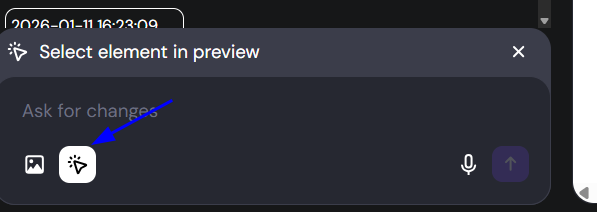
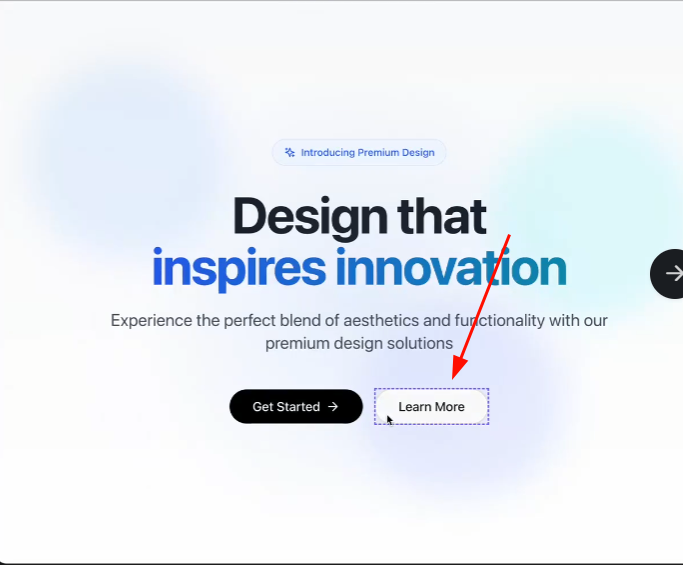
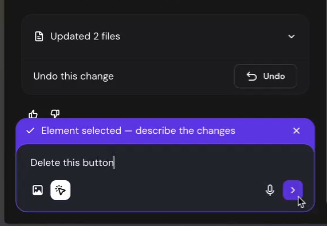
The “Select and edit” tool (targeted editing) allows you to request changes to a specific element separately at a time.
First, click the “Select and edit button”, the arrow below the prompt box:
Then, click the element you wish to apply changes to:
Finally, describe the changes you want to make by writing a prompt:
Keep learning
For a full walkthrough of effective prompting techniques, see how to write effective prompts in agentic mode, web app design tips, or watch the tutorial video linked below.
By applying these practices, you’ll create your web applications faster and with fewer issues — and make the most out of Hostinger AI Builder!