Duplicating a website on the same hosting plan
If you use Hostinger Website Builder to create a website and want to duplicate it, follow the instructions below 👇
All the website’s content and settings are duplicated except for the online store and its content: products and all the store settings are not copied 💡
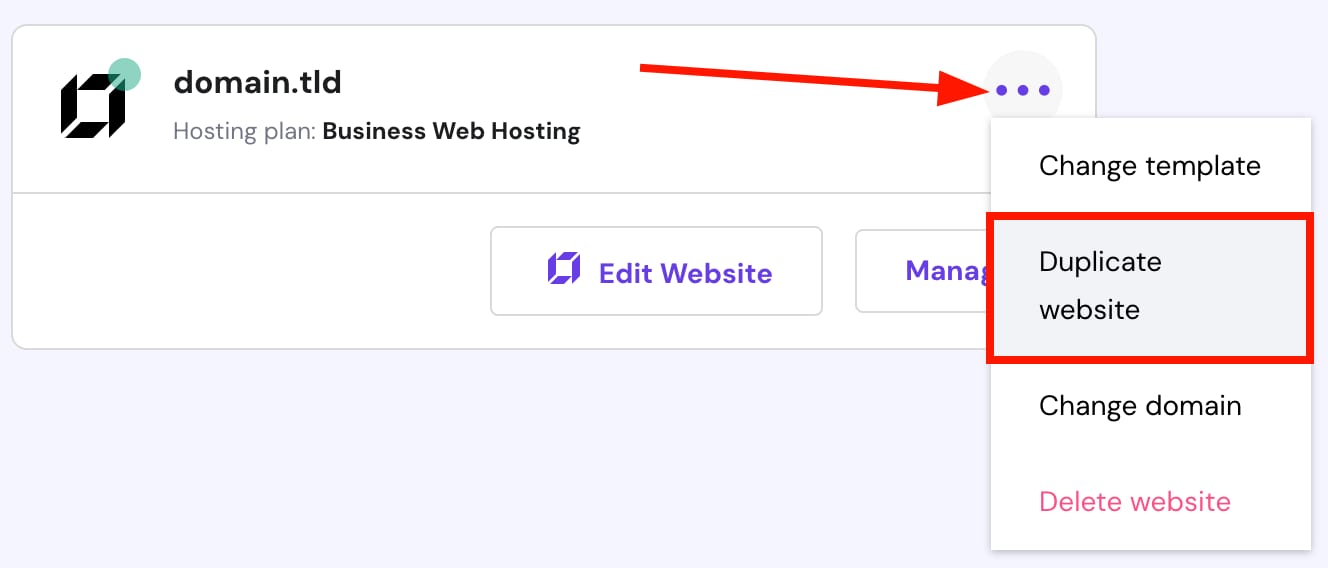
In the Websites section, find the builder website you wish to create a copy of. Click on the ellipsis button ⋯ and select Duplicate website:
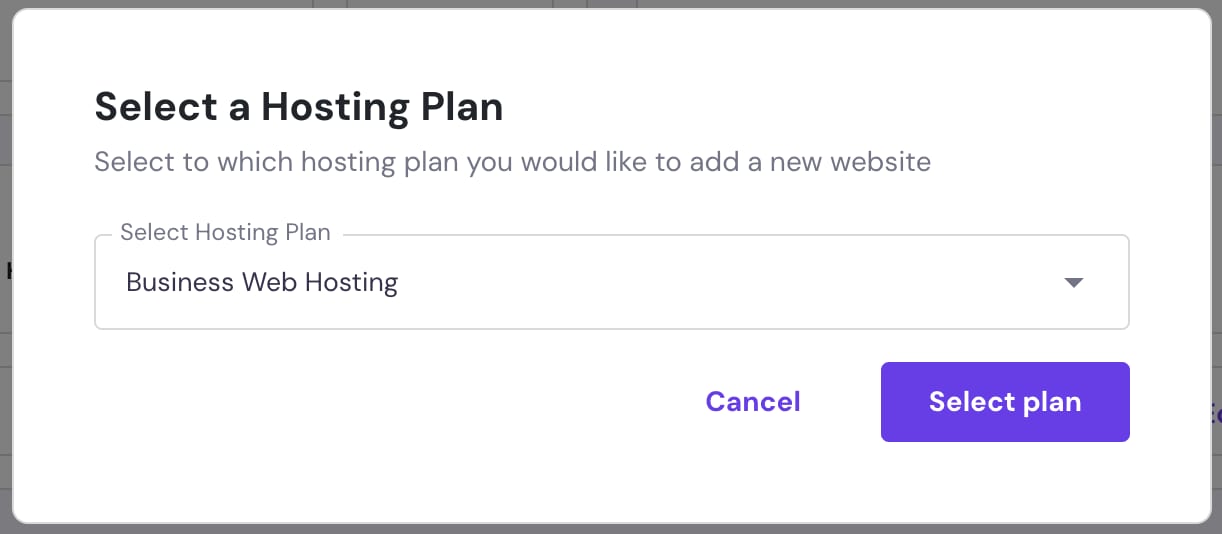
If you have several hosting plans, you’ll be asked to select the preferred one for hosting the duplicated website. In this case, make sure you select the hosting plan where the website is currently hosted.
Finally, the Websites section will automatically reload, and you will find the duplicate on a randomly generated preview domain:
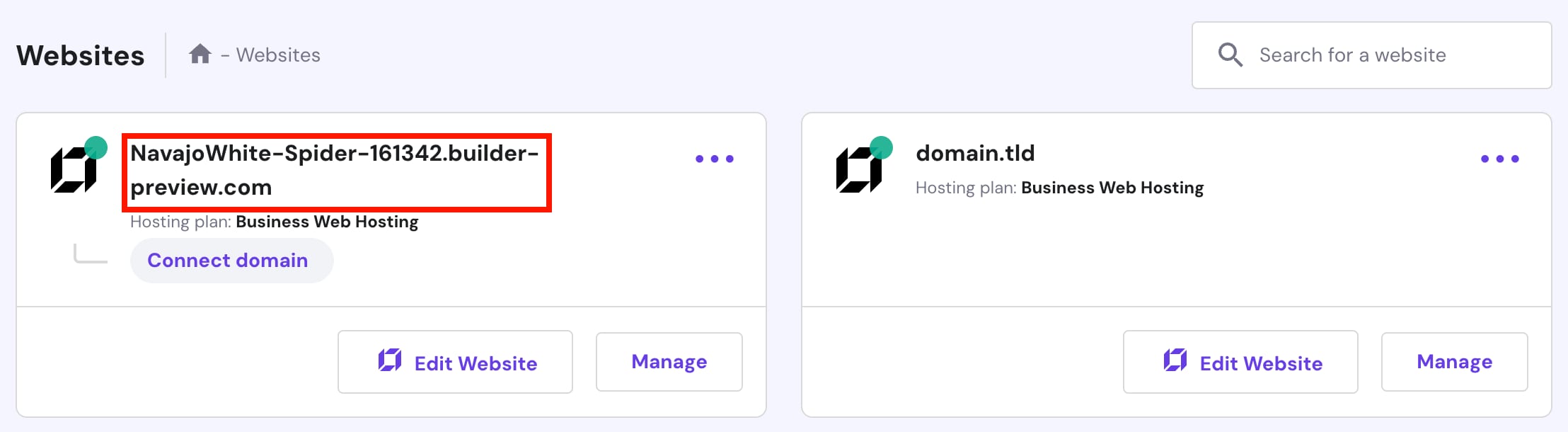
To access the preview domain online, click on Edit Website and publish your duplicated website first. You can change your website’s domain anytime later!
Remember that all the IDs and custom code in the integrations settings are also duplicated. If you use analytic tools (such as Hotjar, Meta Pixel, Google Analytics, etc.), make sure to remove the IDs from the original or the duplicated website: if the same ID is linked to multiple websites, the data will be corrupted 💡
Duplicating a website on a different hosting plan
If you want to duplicate the website to a different plan, the process is exactly the same. A duplication fee applies when moving Website Builder sites between different hosting plans.