When you install WordPress on your Hostinger hosting plan, several plugins are automatically added to your WordPress admin panel under the Hostinger menu: Hostinger Tools, Hostinger Easy Onboarding, Hostinger Ecommerce, Hostinger Reach, AI Content Creator, and AI Website Builder. Each plugin serves a different purpose — this article explains what they do and how to use them.
Hostinger Hub
Hostinger Hub is the home screen for Hostinger tools inside your WordPress admin panel, powered by the Hostinger Easy Onboarding plugin. It is available exclusively to Hostinger customers.
NOTE
- In your WordPress Plugins list, this feature appears under its plugin name, Hostinger Easy Onboarding.
Once the plugin is installed or updated, Hub appears automatically in your WordPress admin panel. You can also access it from the Hostinger menu. Hub has two tabs: Home and Discover.
Home includes a prompt box where you can type a request or select a suggested action, such as Search a blog post or Get a list of orders. Suggested actions update based on your site and its installed products. Select the refresh icon next to the suggestions to see different options.
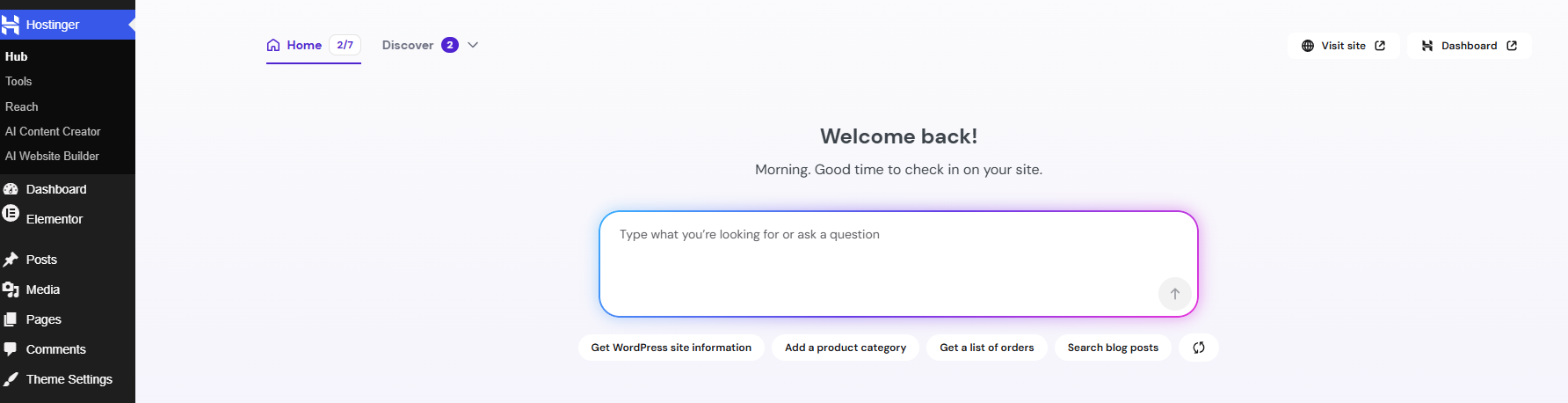
Below the prompt box, a Set up your website checklist walks you through the basic actions to create your website:
- Create site with AI
- Add a domain
- Claim a free business email
- Enhance your website with plugins
- Get found on Google
- Turn site visitors into subscribers
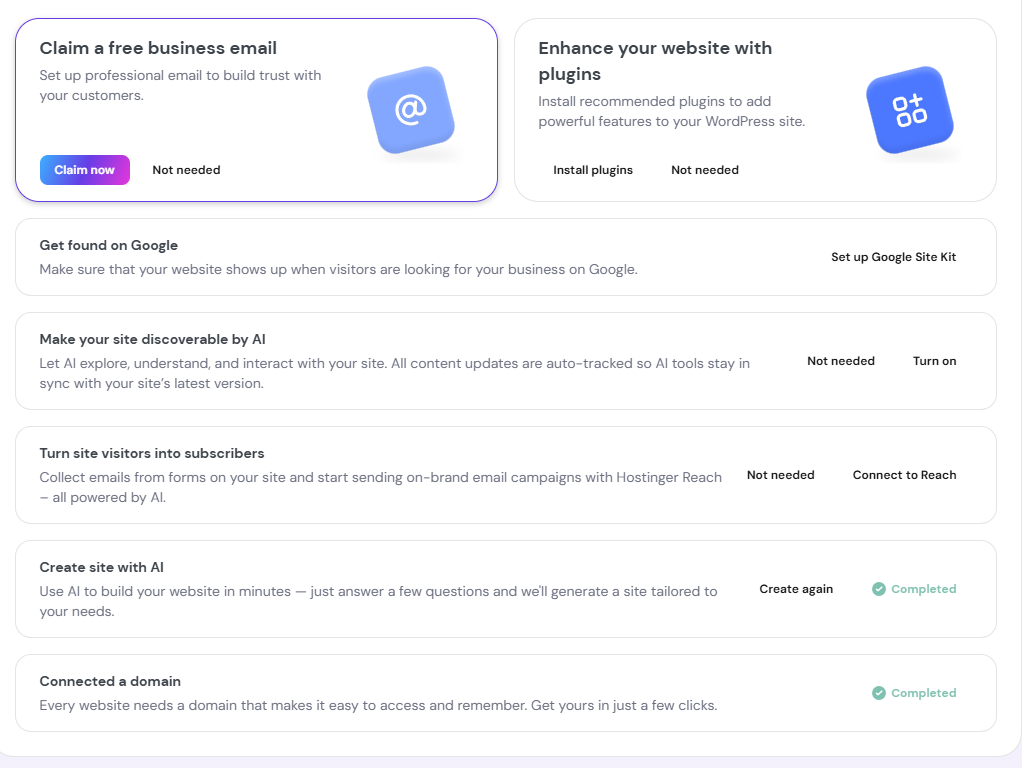
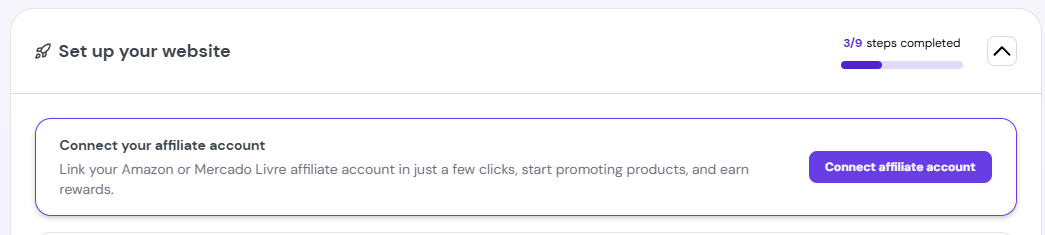
Connecting a custom domain adds an additional step, Make your site discoverable by AI. Installing a Hostinger product from Discover also adds a related step, such as Set up your online store after installing Hostinger Ecommerce, or Connect your affiliate account after installing Hostinger Affiliate Marketing Tools. Completed steps move to the bottom of the checklist.
If you wish to skip a step for now, scroll down and click on your desired step to expand it.
Let’s go over each one in detail:
Create site with AI
Select Create new site with AI to build your website in minutes by answering a few questions, or select Not needed to skip this step. Once your site is created, this step is marked Completed, and you can select Create again to regenerate your site with new answers.
Add a domain
This step appears while your website uses a temporary domain. Select Connect domain to register a new domain or connect one you already own. Once a domain is connected, this step is marked Completed and relabeled Connected a domain.
Claim a free business email
Select Claim now to set up a professional email for your domain and build trust with your customers. Select Not needed to skip this step.
Enhance your website with plugins
Select Install plugins to add recommended plugins with powerful features to your WordPress site. Select Not needed to skip this step.
Get found on Google
Select Set up Google Site Kit to help your website appear when visitors search for your business on Google.
Turn site visitors into subscribers
Select Connect to Reach to collect emails from forms on your site and start sending AI-powered, on-brand email campaigns with Hostinger Reach. Select Not needed to skip this step.
Make your site discoverable by AI
This step appears after you connect a custom domain. Select Turn on to let AI explore, understand, and interact with your site, or select Not needed to skip this step. Content updates are tracked automatically, so AI tools stay in sync with your site’s latest version. This step corresponds to the LLM Optimization feature in the Hostinger Tools plugin.
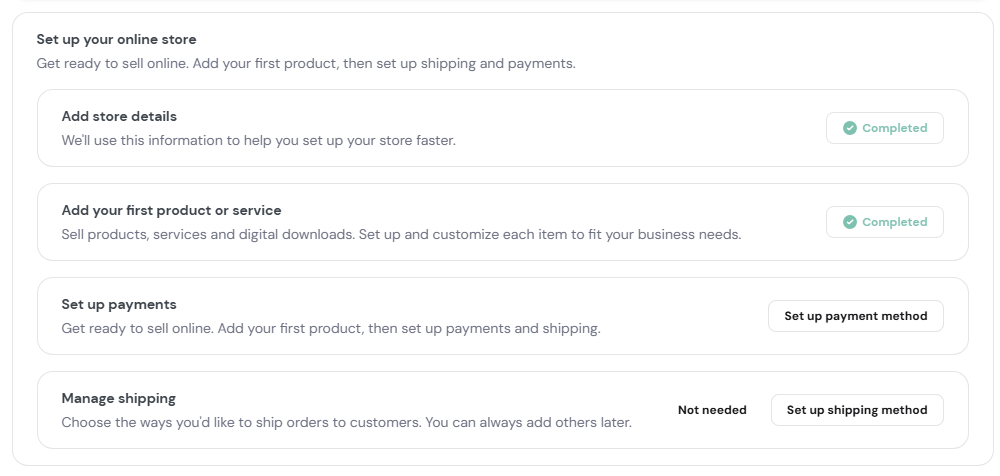
Set up your online store
This step appears after you install Hostinger Ecommerce plugin. Expanding it shows four sub-steps:
- Add store details. Provide details to help set up your store faster.
- Add your first product or service. Add products, services, or digital downloads, and customize each item to fit your business.
- Set up payments. Select Set up payment method to configure how you’ll get paid.
- Manage shipping. Select Set up shipping method to configure shipping options, or Not needed to skip this step.
Discover lists Hostinger products available to install, such as Hostinger Ecommerce and Hostinger Affiliate Marketing Tools.
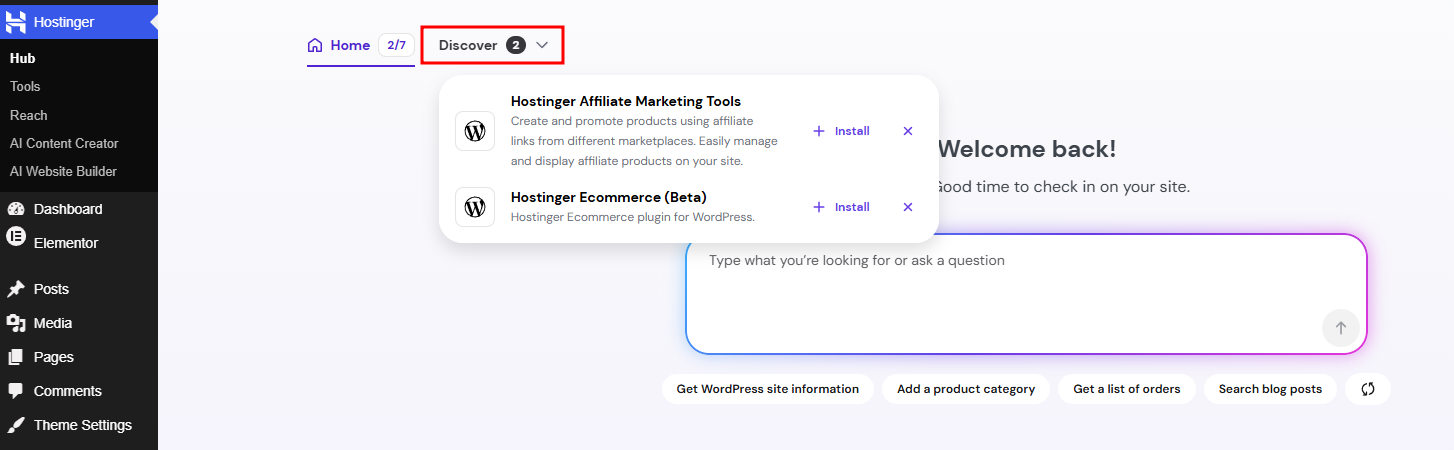
Once you install a product, it moves out of Discover, appears as its own item in the Hostinger menu, and adds a related step to the Set up your website checklist, such as connecting an affiliate account after installing Hostinger Affiliate Marketing Tools.
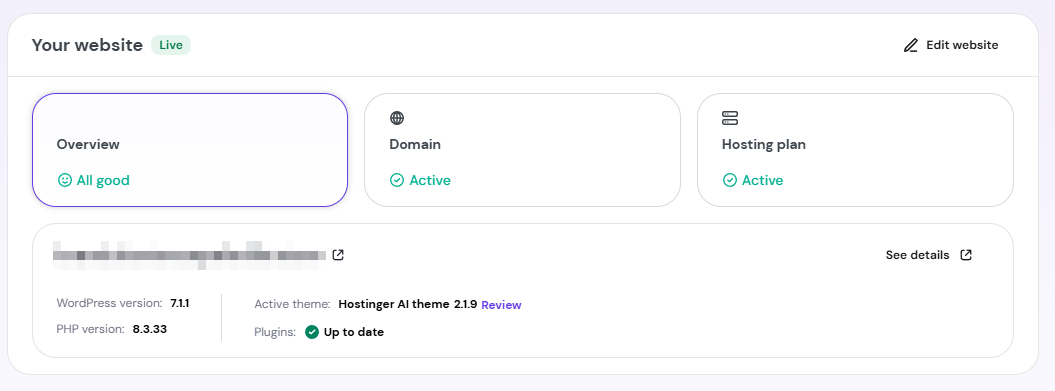
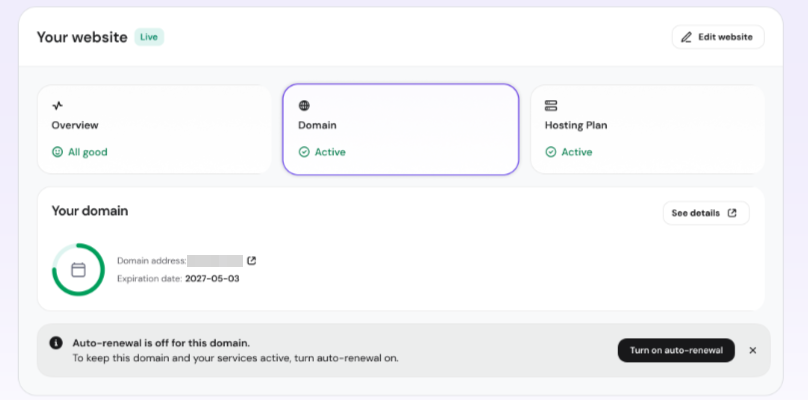
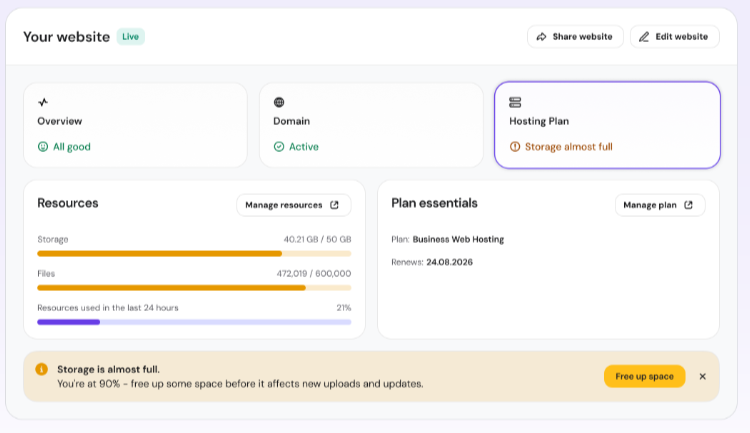
Home also shows Your website status cards. Select a card to expand its details below:
- Overview. Shows your site URL, WordPress version, PHP version, active theme with a Review link, and plugin update status. Select See details for more, or Edit website to open the editor.

- Domain. Shows your domain address, expiration date, and auto-renewal status, with a Turn on auto-renewal button if it’s off.

- Hosting plan. Shows storage and file usage under Resources, and your plan name and renewal date under Plan essentials, with Manage resources and Manage plan links.

Hostinger Tools
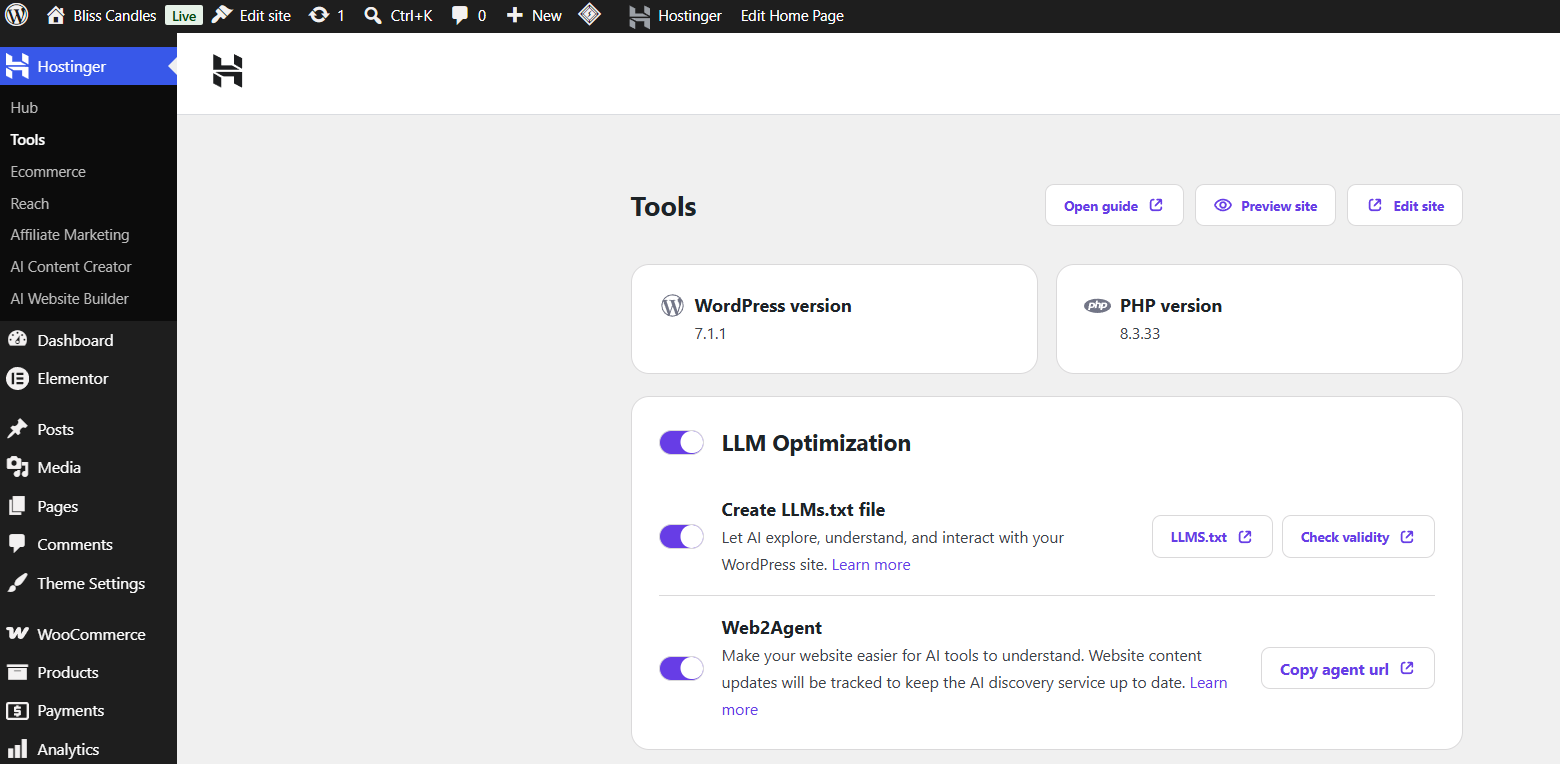
Hostinger Tools is an all-in-one plugin designed to help you manage essential settings for your WordPress site directly from the WordPress admin panel.
The plugin is installed automatically on all new WordPress instances. Once the plugin is installed, go to Hostinger → Tools in your WordPress admin panel.
Features
Basic Info
- Displays your current WordPress version and alerts you when an update is available.
- Shows your current PHP version and alerts you when an update is available.
LLM Optimization
- Enable LLM Optimization to make your site easier for AI tools to explore and interact with.
- Create an LLMs.txt file so AI can explore, understand, and interact with your WordPress site.
- Enable Web2Agent to track content updates on your site and keep the AI discovery service up to date. Use Copy agent URL to share the agent URL where needed.
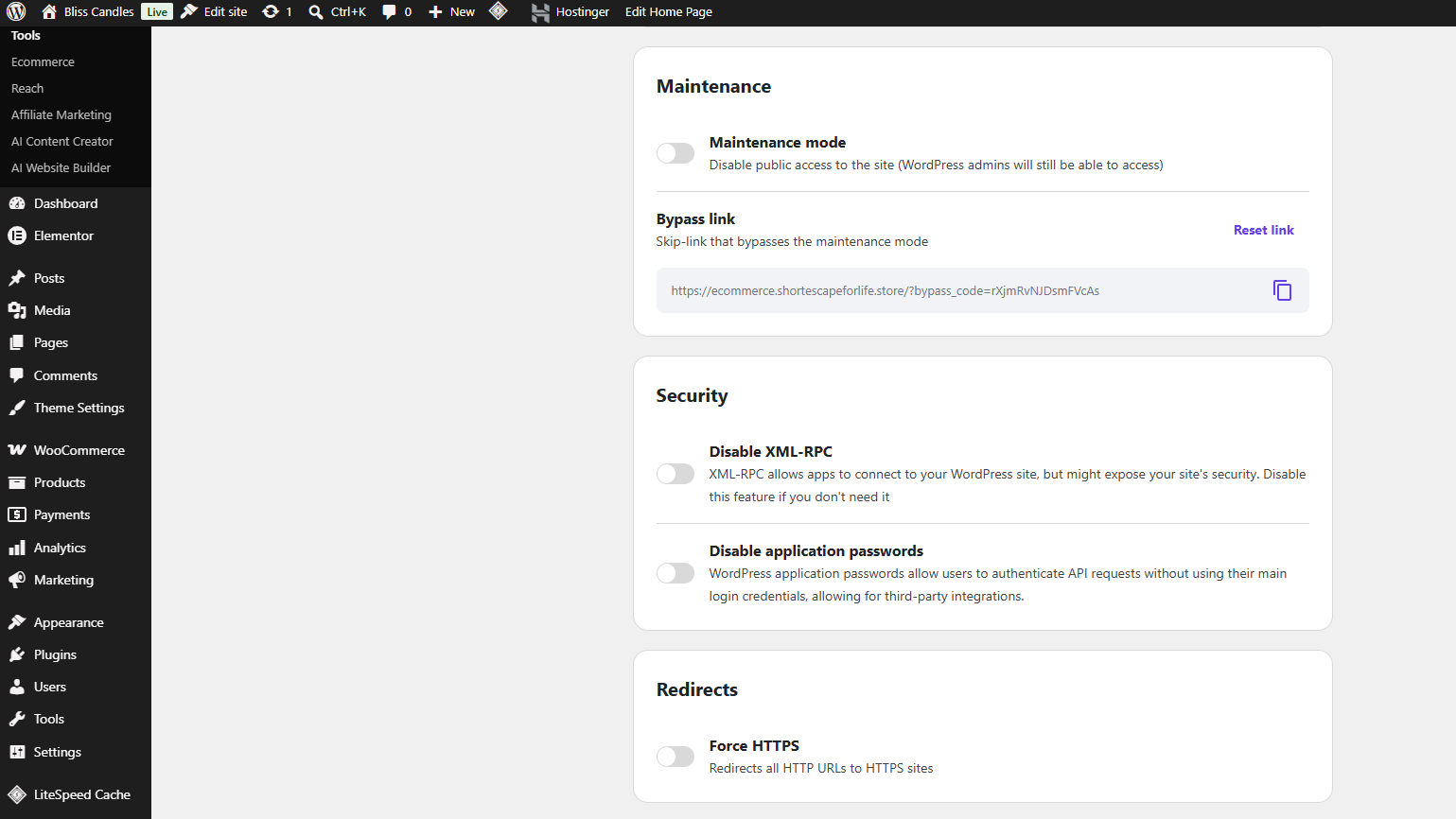
Maintenance Mode
- Enable or disable maintenance mode for your site while you make changes.
- Set a bypass URL so selected users can still access the site during maintenance.
Security
- Enable or disable XML-RPC requests to improve your site’s security.
Redirects
- Force all URLs to use HTTPS for secure browsing.
- Force all URLs to use WWW for consistent site access.
Check more about the features of this plugin in this guide: How to use the Hostinger Tools plugin for WordPress maintenance
Hostinger Ecommerce
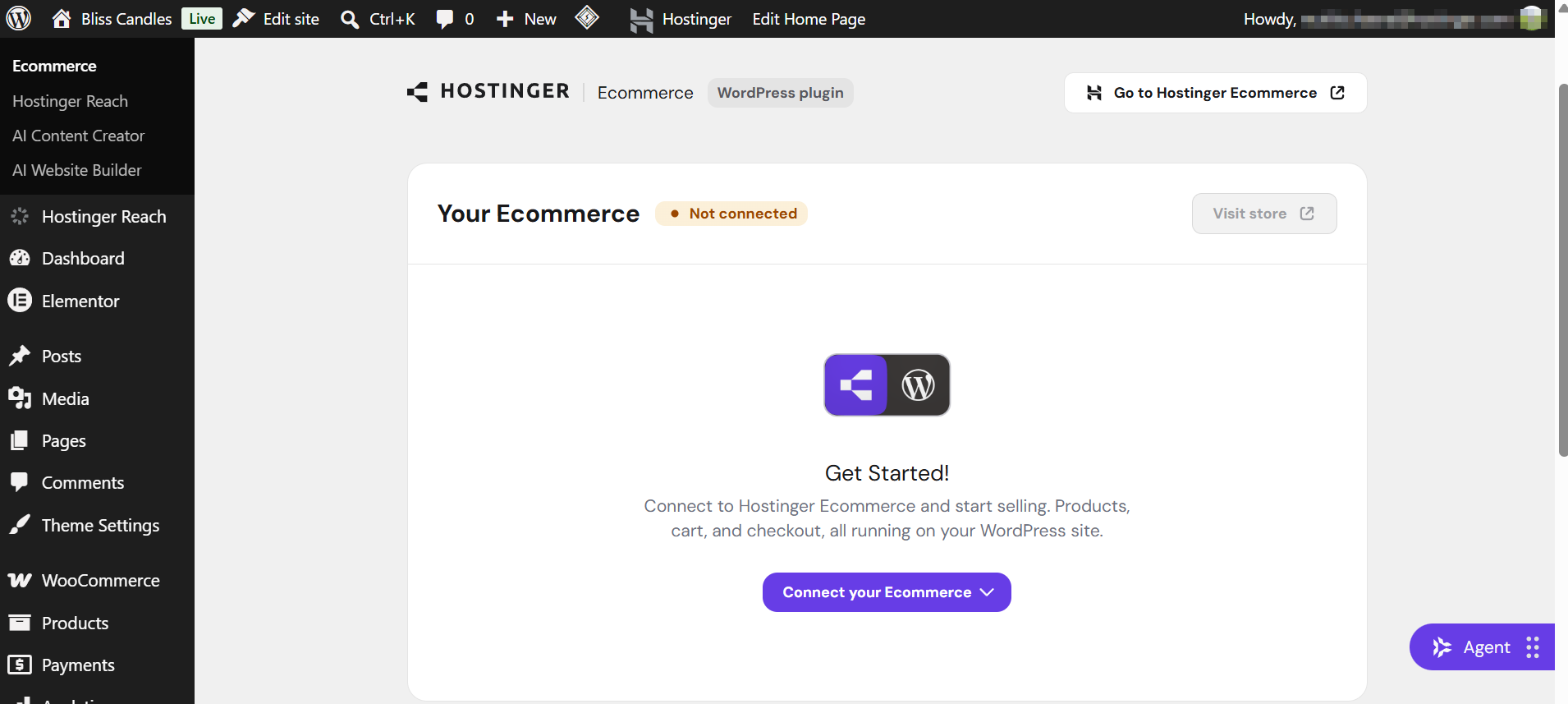
Hostinger Ecommerce connects your WordPress site to the Hostinger Ecommerce platform, letting you sell products without installing WooCommerce. WordPress handles your content and design, while Hostinger Ecommerce manages products, orders, inventory, payments, and analytics.
Once the plugin is installed, go to Hostinger → Ecommerce in your WordPress admin panel to connect an existing store or create a new one, add a payment method, and add products. Products sync automatically to your WordPress store, and customers complete checkout through the Hostinger Ecommerce hosted checkout page.
Check more about the features of this plugin in this guide: How to set up the Hostinger Ecommerce plugin for WordPress.
Hostinger Reach
Hostinger Reach is an email marketing plugin that connects your WordPress site to Reach, syncing contacts from your site’s signup forms and enabling automated email campaigns.
Once connected, Hostinger Reach appears as a dedicated menu in your WordPress admin panel. From there, you can connect to Reach, create signup forms, manage supported third-party form plugins, and set up WooCommerce integrations such as abandoned cart emails.
Check more about the features of this plugin in this guide: How to integrate WordPress with Hostinger Reach.
AI Content Creator
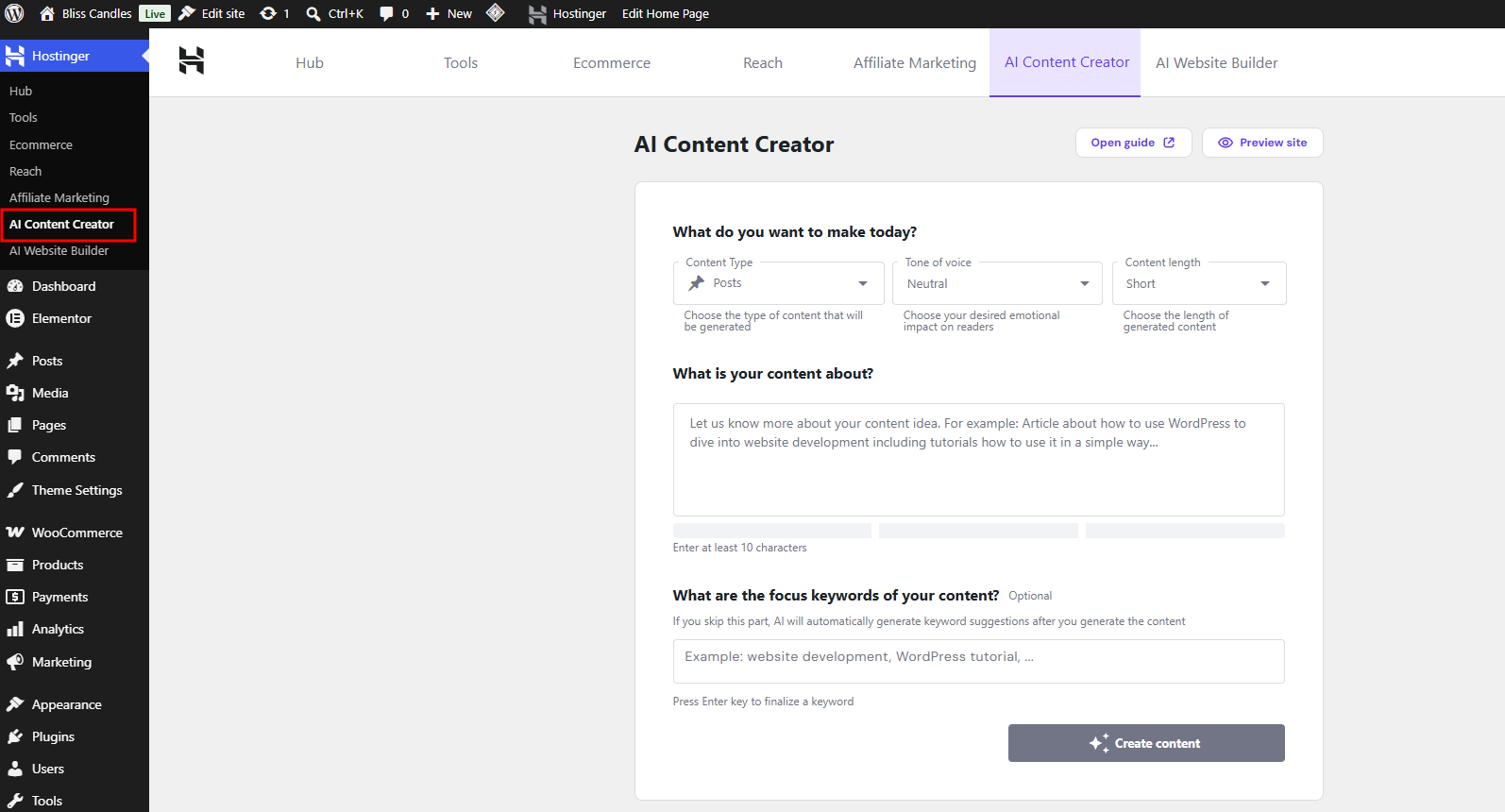
AI Content Creator is a free AI content generator available with Web Business and Cloud hosting plans. It also enables the Hostinger Agent chat bubble, letting you interact with Hostinger Agent directly from your WordPress dashboard.
Once installed, go to Hostinger → AI Content Creator in your WordPress admin panel, choose your content type, tone of voice, and content length, then describe the topic you want AI to generate content about and select Generate content. Review the result, customize the keywords and meta description, then publish the post or page or save it as a draft.
Check more about the features of this plugin in this guide: How to use the WordPress AI Assistant in Hostinger.
The same Hostinger AI Plugin that powers Hostinger Agent and AI Content Creator also supports the Model Context Protocol (MCP), letting external AI tools such as Claude Code, Claude Desktop, and Cursor connect directly to your WordPress site and manage it using plain English.
Check more about the features of this plugin in this guide: How to connect AI tools to your WordPress site via MCP.
AI Website Builder
AI Website Builder generates a full WordPress site structure, design, and content based on a brief description, using Gutenberg or Elementor as your page builder.
You can launch AI Website Builder while creating a new WordPress website, or access it from Hostinger → AI Website Builder in your WordPress admin panel on an existing site. Select your editor, language, and store location if applicable, then describe your brand and let AI generate your site structure, colors, and content.
Check more about the features of this plugin in this guide: How to use Hostinger AI Website Builder for WordPress.
Hostinger Affiliate Marketing Tools
Hostinger Affiliate Marketing Tools helps you add affiliate links to your content in several display formats. It supports Amazon worldwide and Mercado Livre for Brazilian and Mexican users, and works with both Gutenberg and Elementor.
Unlike the other plugins in this article, Affiliate Marketing Tools isn’t installed automatically. Go to WordPress → Overview, scroll to Recommended installations, and select Install next to Hostinger Affiliate Marketing Tools. Once installed, go to Hostinger → Affiliate Marketing to connect your Amazon or Mercado Livre account. You can then insert a single product, a product list, or a comparison table directly from the block editor or Elementor.
Check more about the features of this plugin in this guide: How to use the Hostinger Affiliate Marketing Tools plugin to build an affiliate website.
Additional resources
-
Feel free to check our selection of articles on WordPress management
- To skip any step for now, scroll down and click on your desired step to expand it.