Learn how email notifications work in your online store created with Hostinger Website Builder and how to customize your transactional email domain.
When running an online store with Hostinger Website Builder, email notifications are automatically sent:
- To you — when a new order is submitted
- To your customers — for order confirmations and other transactional updates
You can customize the sender domain of these transactional emails to better represent your brand. Using your own domain helps you:
✅ Strengthens your brand identity
✅ Builds more trust with customers
✅ Improves email recognition and open rates
✅ Creates a more professional, store-focused experience
Make Sure Your Website Has a Connected Domain
Before setting up a custom sender domain for transactional emails, your website must have a connected domain.
If your store does not have a connected domain, transactional emails will be sent from: noreply@store.hostinger.com.
To connect a domain to your website, follow this guide: How to connect a domain to Hostinger Website Builder.
Customise Sender Details
To build trust and ensure clear brand recognition, you can adjust your sender details. Go to: Store settings → Emails → Sender details.
- Type in Sender name. We recommend using your website or business name.
- Type in Sender email.
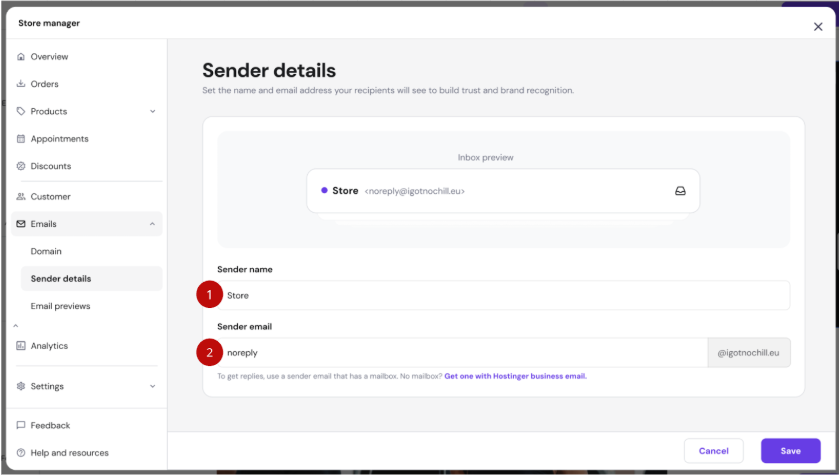
This email address will be used for all transactional emails sent from your store.
Preview Transactional Emails
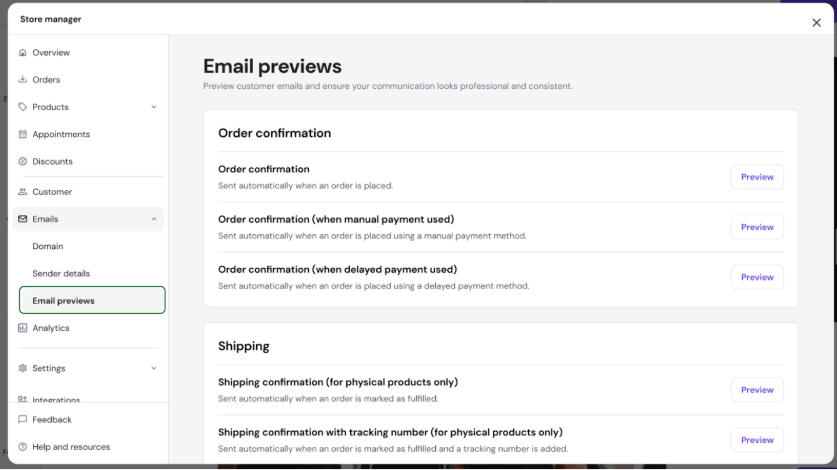
You can preview all automatically sent email notifications in your store management area. Go to: Store settings → Emails → Email previews.
Additional Information
- Emails are sent in the language specified in Checkout settings.
- Customers receive order confirmation emails immediately after submitting an order.
- Appointment confirmations and digital download emails are sent only after successful payment (once the order is marked as Paid).
- If a customer replies to a transactional email, the reply will be forwarded to the email address specified in: Store settings → Company information.