Hostinger Website Builder includes a variety of pre-made templates that help you start building a website quickly. Templates provide a ready-made layout and structure that you can customize later using the drag-and-drop editor.
Choose a template during setup
To start building your website with a template:
- Go to hPanel → Websites.
- Locate your hosting plan and select Add website → Hostinger Website Builder.
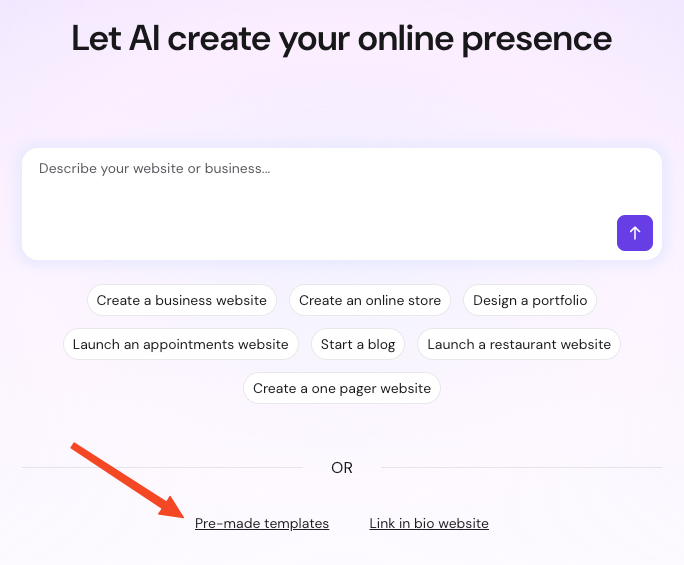
- Click Pre-made templates.
Browse the available designs in the All templates section. Templates are also organized into categories such as Portfolio, Fashion, Marketing, Events, eCommerce, and others.
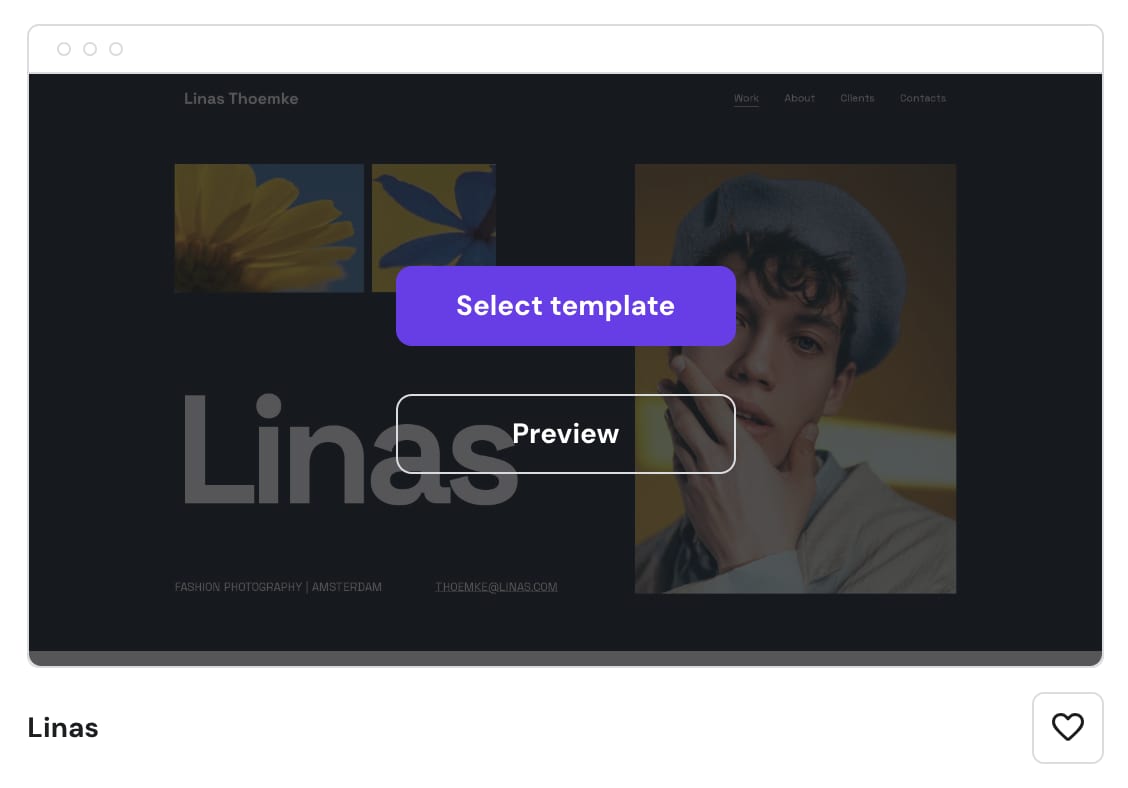
Hover over a template and click Preview to open the demo and explore its layout. Once you find a template you like, click Select template to start editing your website.
Template flexibility
Template categories are intended only to help you browse designs. All templates include the same tools and features and can be customized using the editor. You can modify sections, text, images, colors, and layout elements to match your needs.
Using a template provides a starting structure for your website while still allowing you to adapt the design to your content.
After a template is selected and the website is created, the template choice is fixed and cannot be changed later.
Choosing a template gives you a structured starting point for your website, allowing you to begin editing content and building your pages right away.