Hostinger Website Builder: How to Add More Pages

Learn how to add more pages to your website

Updated 2 weeks ago

Hostinger Website Builder allows you to create a website with an unlimited number of pages, sections, and elements. You can add new pages at any time to expand your site structure and organize your content. Follow the steps below to add additional pages to your Hostinger Website Builder website.

  1. Go to the Hostinger Website Builder platform.
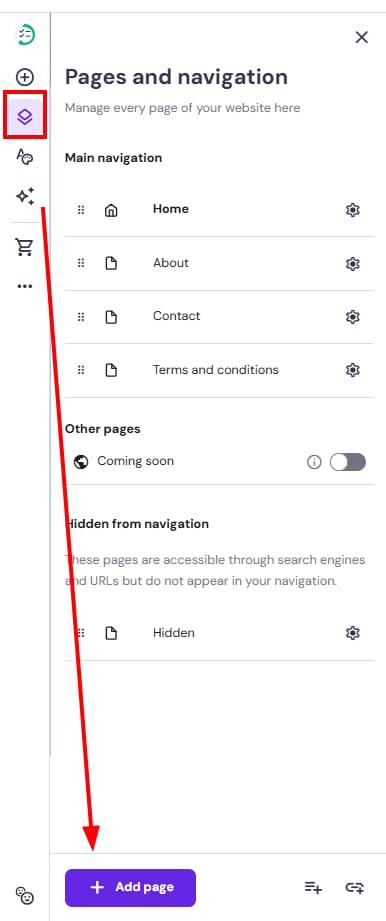
  2. Expand the Pages and navigation panel on the left and click on Add page.
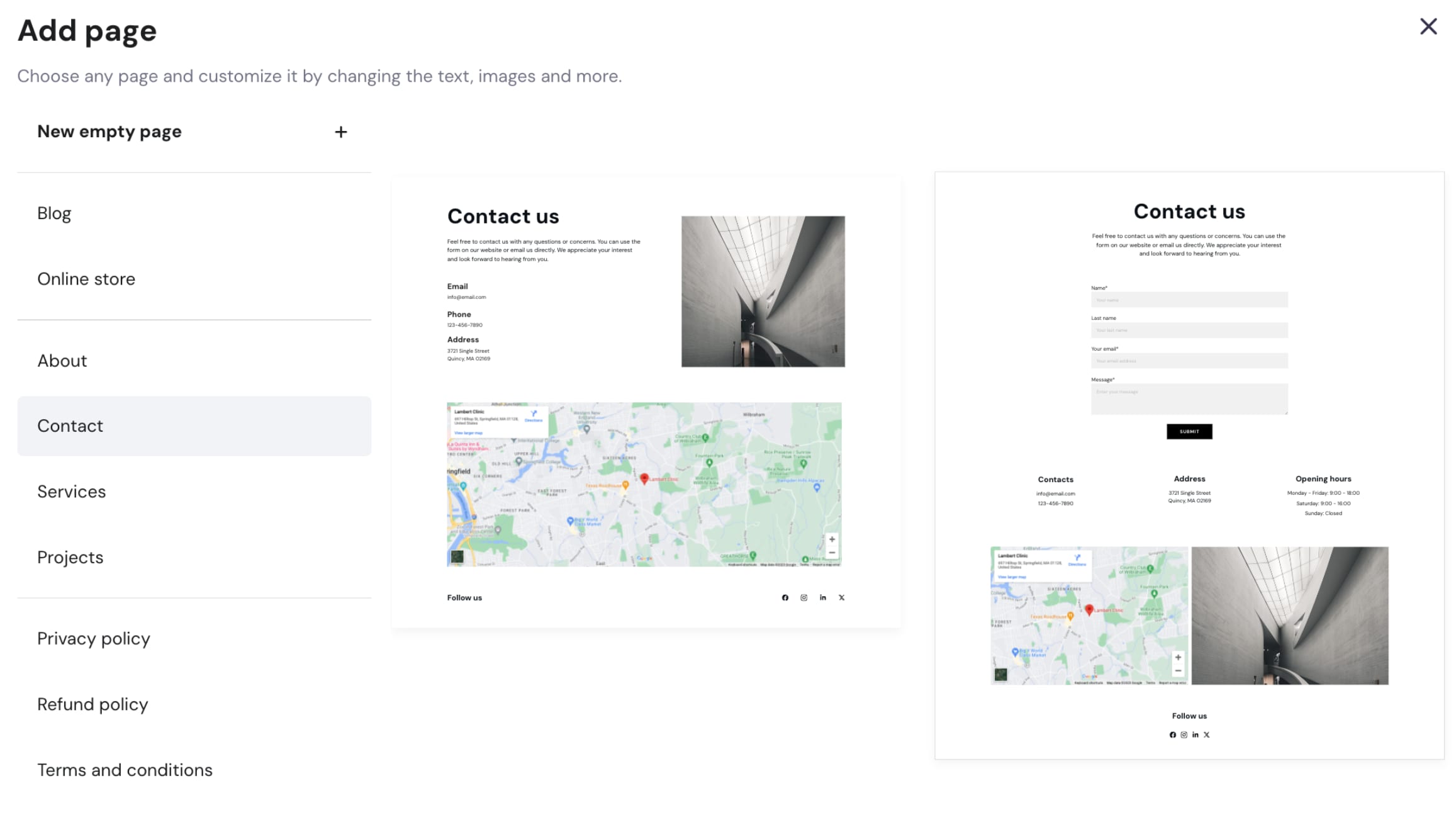
  3. Select the type of page (on the left) and click on a page thumbnail (on the right) to add it to your website.Adding a new page in Hostinger Website Builder
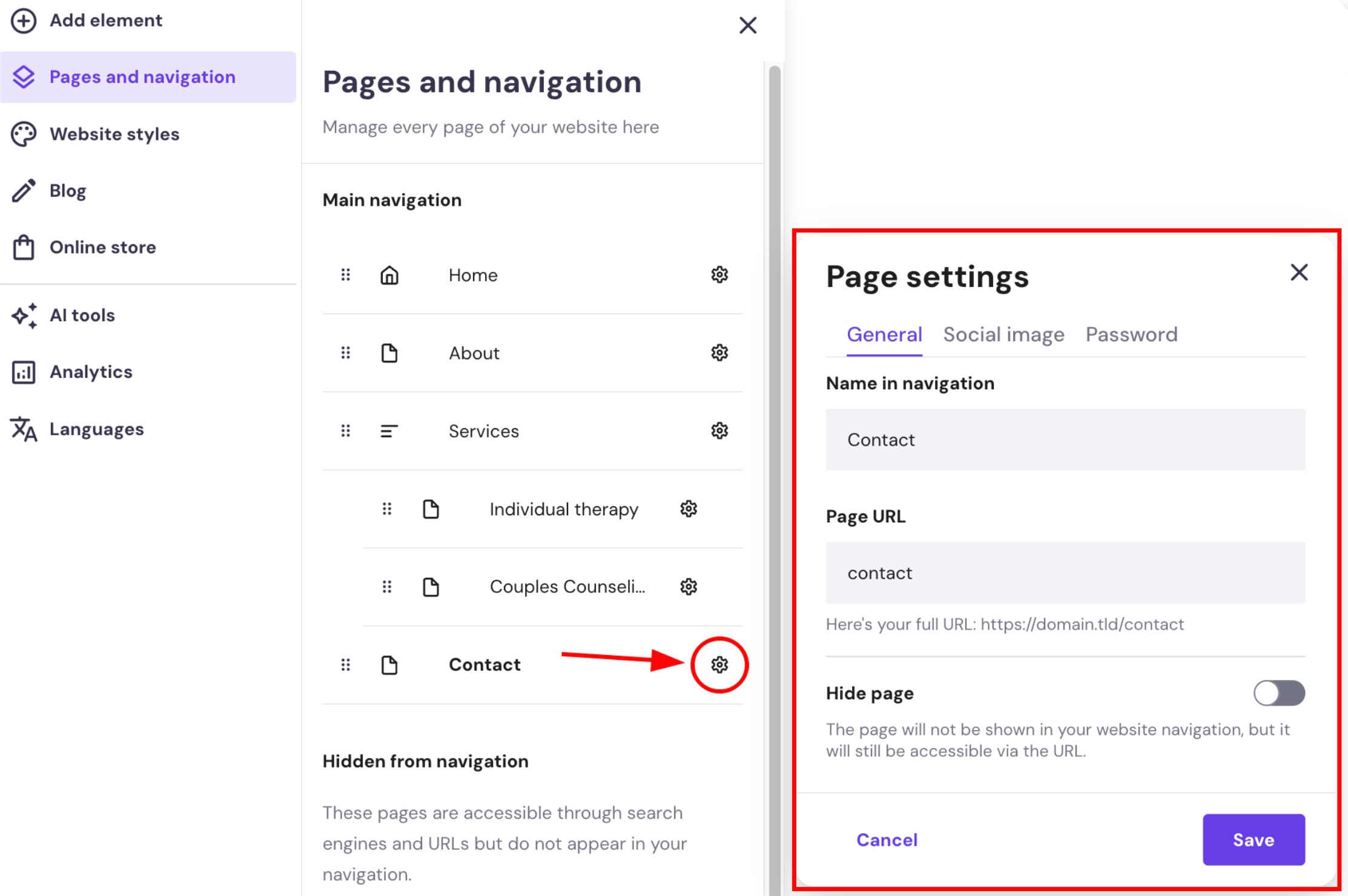
  4. Edit the page settings if necessary and save the changes.Adding a new page in Hostinger Website Builder
  5. When ready, update your website for the changes to reflect online.


There are three main tabs in the page settings pop-up:

General

Social image

Password

  • Rename the page

  • Edit the page URL

  • Hide the page from the website’s navigation menu

Alternatively, you can skip this customization and come back to it later.