Email filters automatically apply actions to incoming messages based on rules you define.
You can use filters to:
-
Move emails to folders (for example, Spam).
-
Organize messages from specific senders.
-
Reduce inbox clutter.
-
Apply actions without manual sorting.
Filters run automatically when a message arrives.
Create a new email filter
-
Sign in to Hostinger Mail at https://mail.hostinger.com
-
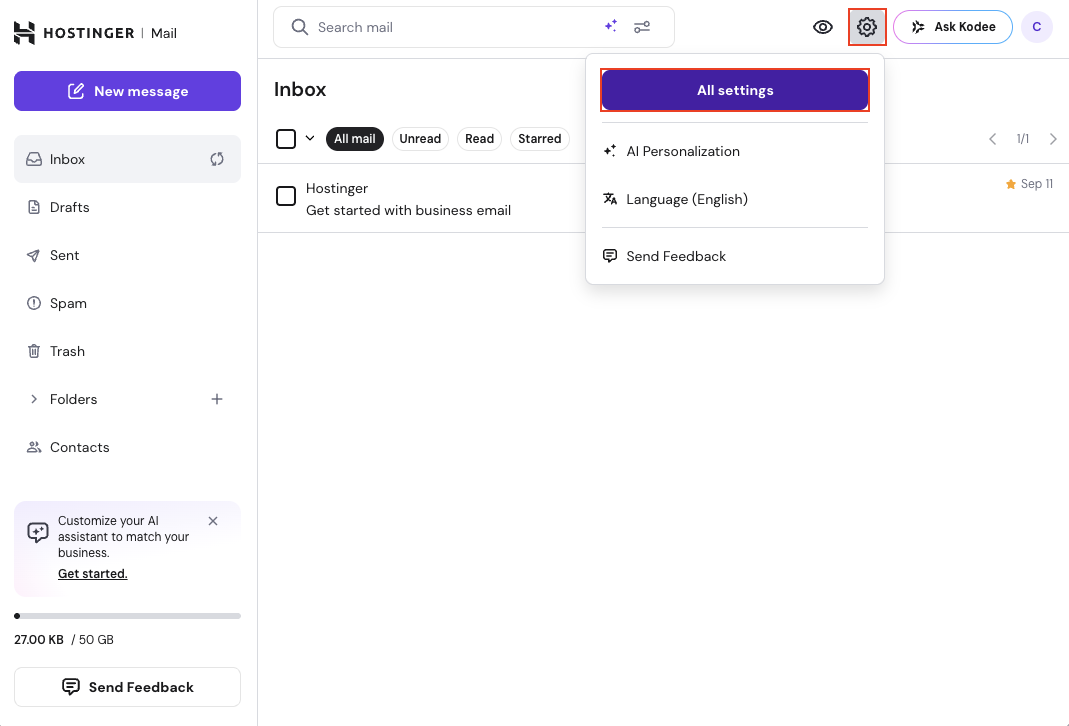
Click the settings (⚙️) icon in the top-right corner.
-
Select All settings.
-
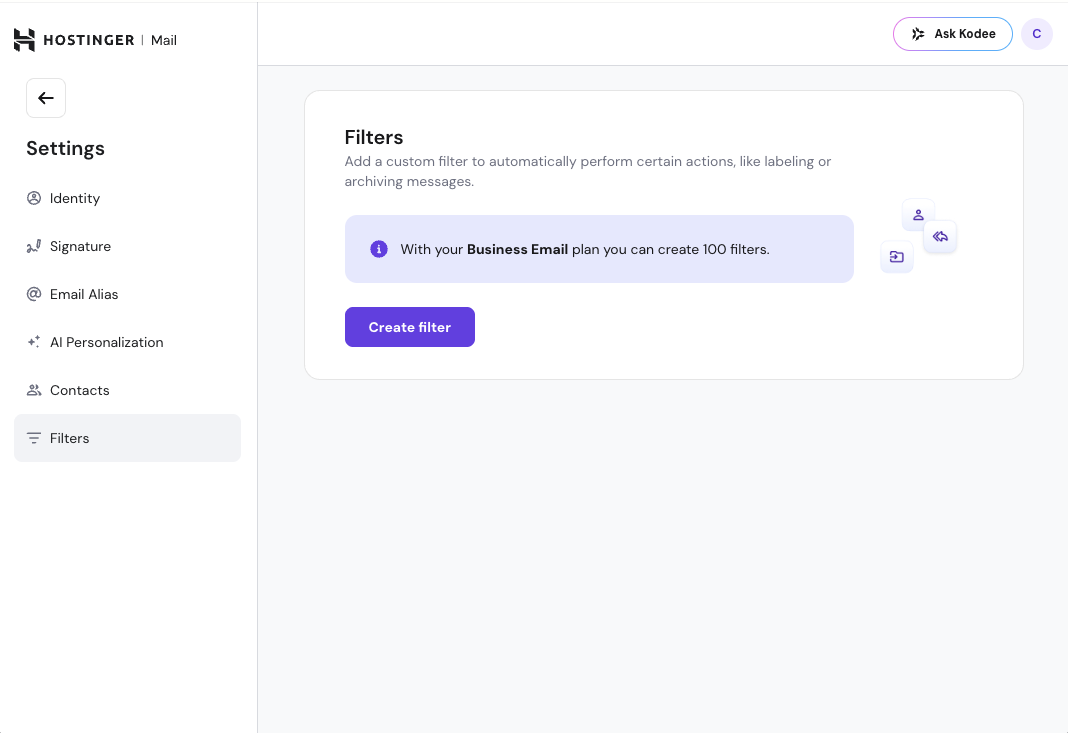
In the left menu, click Filters.
You will see the Filters page with the Create filter button.
-
On the Filters page, click Create filter.
-
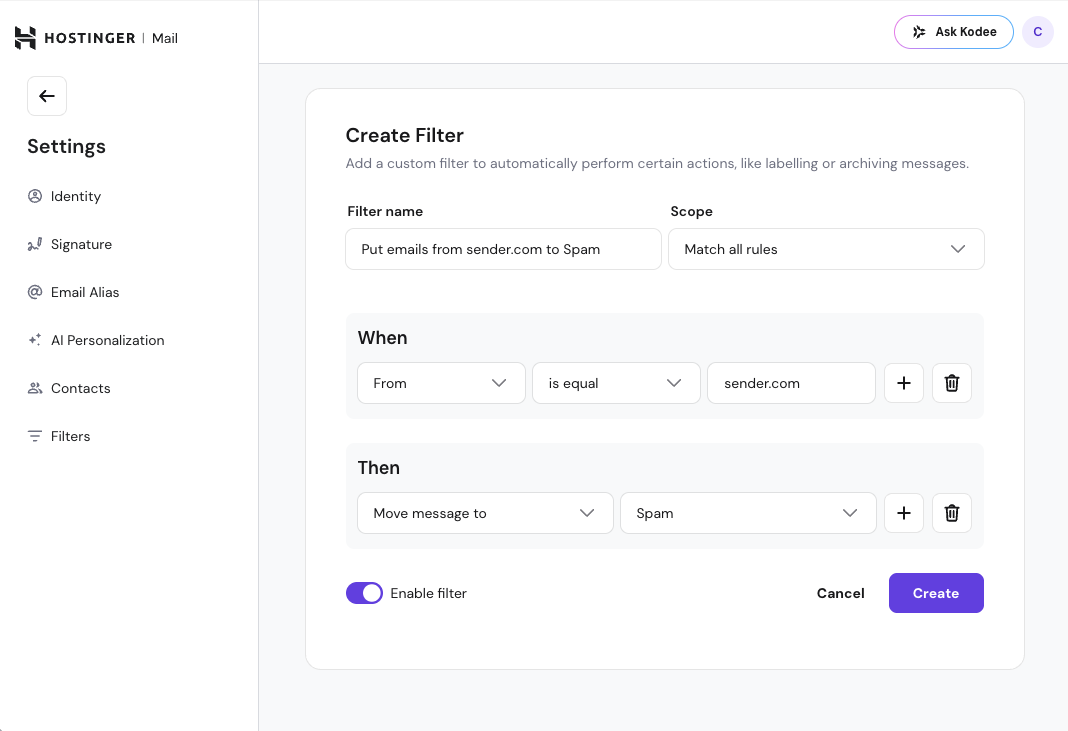
Enter a Filter name that clearly describes its purpose.
-
Choose the Scope:
-
Match all rules – all conditions must be true.
-
Match any rule – at least one condition must be true.
-
Define filter rules (When)
Under When, choose the condition that triggers the filter.
-
Select a message field (for example, From, Subject, or To).
-
Select a condition (for example, is equal, contains).
-
Enter the value (for example,
sender.com). -
Click + to add more rules if needed.
-
Click the trash icon to remove a rule.
Choose filter actions (Then)
Under Then, choose what happens when a message matches the rules.
-
Select an action (for example, Move message to).
-
Choose the destination folder (for example, Spam).
-
Click + to add additional actions if required.
-
Remove actions using the trash icon if needed.
Enable and save the filter
-
Make sure Enable filter is turned on.
-
Click Save.
The filter becomes active immediately and applies to new incoming emails.
Manage existing filters
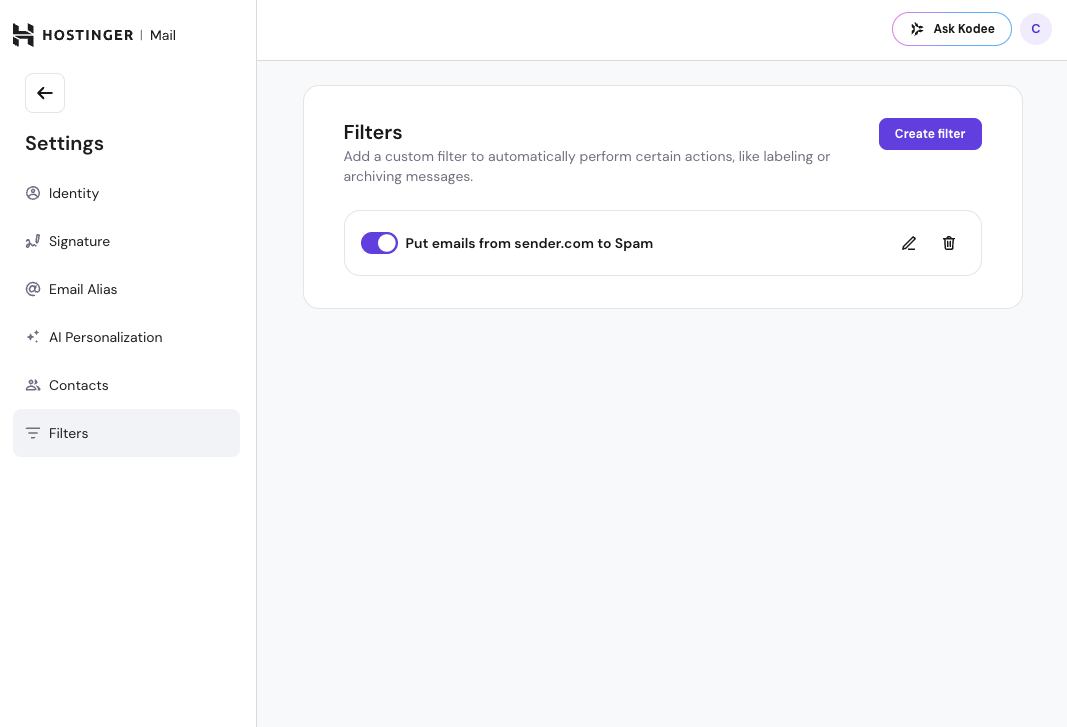
From Settings → Filters, you can:
-
Enable or disable a filter using the toggle.
-
Edit a filter using the pencil icon.
-
Delete a filter using the trash icon.
-
Create additional filters using Create filter.
Changes take effect as soon as you save them.
Tips and limitations
-
Create one filter per recipient if you manage multiple addresses.
-
Keep filters simple for best results.
-
Avoid adding unnecessary rules to a single filter.
-
Filters only apply to new incoming emails, not existing messages.