If you need help with your Hostinger services, you can contact support directly from your account or explore additional contact options.
Contact support from hPanel
The fastest way to get help is through hPanel.
- Log in to your Hostinger account.
- Click Ask at the top of any hPanel page, Website Builder or Reach.

- In Horizons, the button is labeled Ask Kodee.

Clicking the button opens a chat window where you can start a conversation with Kodee, Hostinger’s AI assistant.
Describe your issue clearly and include any error messages.Kodee can:
- Answer common questions.
- Guide you through troubleshooting steps.
- Provide relevant help articles.
- Help clarify error messages.
- Perform selected account actions after you confirm the request.
On Business Web and Cloud hosting plans, Kodee can also perform WordPress admin actions directly from the chat — no need to open the WordPress dashboard. This includes:
- Plugin management – install plugins from WordPress.org, activate, deactivate, and update installed plugins.
- Theme management – install new themes, switch the active theme, and update installed themes.
- WooCommerce coupon management – search, view, create, and update discount coupons, including batch operations on multiple coupons in a single request.
If additional assistance is needed, a Customer Success Specialist can join the chat to continue helping you.
💡 If you cannot access your account, refer to this guide to restore access: Recover your Hostinger account.
Using the Kodee chat widget
Use the text box at the bottom of the chat to enter your message and start the conversation.
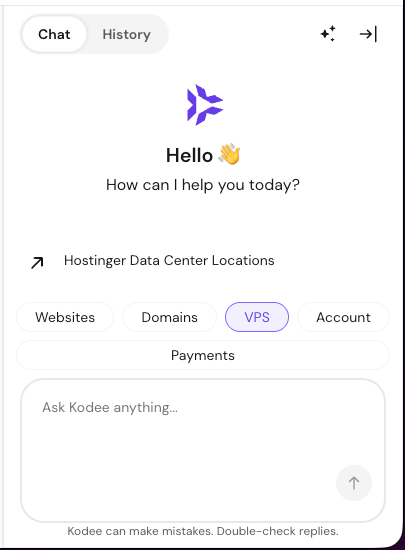
After sending your first message, you can attach images using the + icon next to the send button.
Additional chat features
- History – Access previous conversations.
- Suggestions – You may get clickable suggestions based on the selected topic. Click on the topic buttons to update the suggestions. You can either use a suggestion or type your own question.
- ✨ Personalization – Share additional context to help Kodee provide more relevant responses.
- Collapse – Use the collapse icon to hide the chat window. You can reopen it anytime by clicking Ask again.
- 📄 Download chat – Save the current conversation.
- 📝 Start a new chat – Begin a new conversation. The current one will be saved in History.
Contact support without an account
If you don’t have a Hostinger account, visit the Contact page for available contact options.
You can also reach out via email at support@hostinger.com.
Other helpful resources
You may also find answers in:
-
Knowledge Base – Step-by-step guides for common tasks.
-
Tutorials – In-depth articles about Hostinger services.
-
Hostinger Academy – Video tutorials.