Your Sender Name (also called Display Name) is the name that appears in the “From” field when you send an email.
It helps your recipients recognize who the message is from – for example, instead of seeing info@domain.com, they’ll see Your Company <info@domain.com>
Adding a clear sender name builds trust and makes your emails look more professional. Recipients will see this name next to your email address in their inbox, helping them easily identify you as the sender.
Change your sender name
-
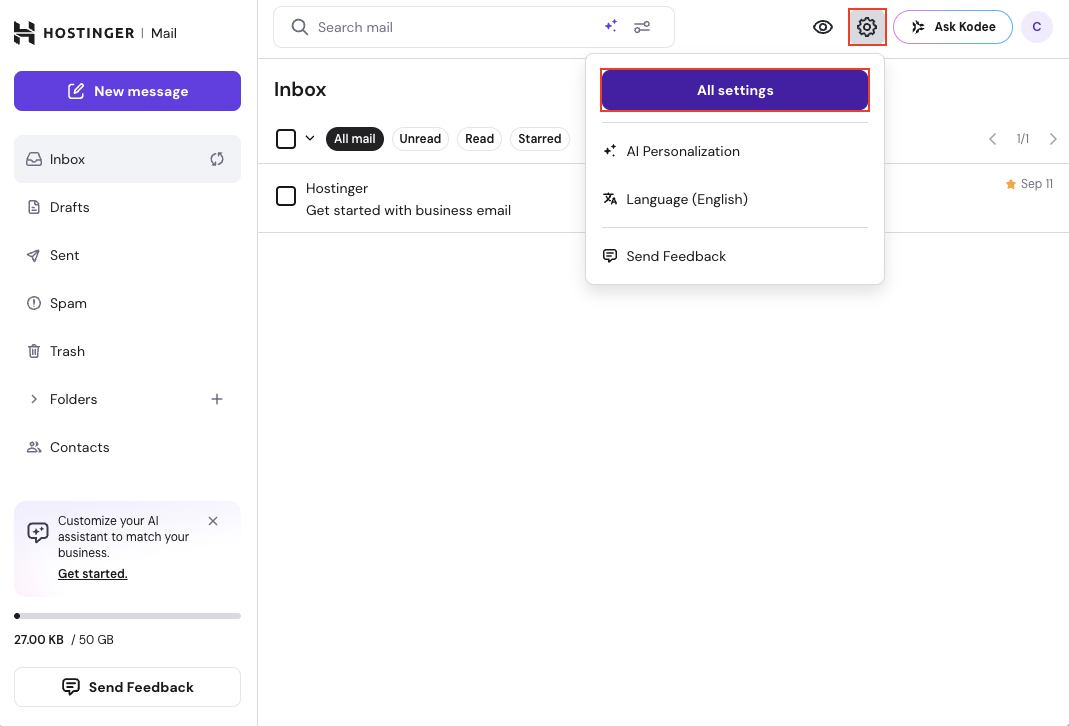
Click your Account icon in the top-right corner.
-
Select Settings from the dropdown menu.
-
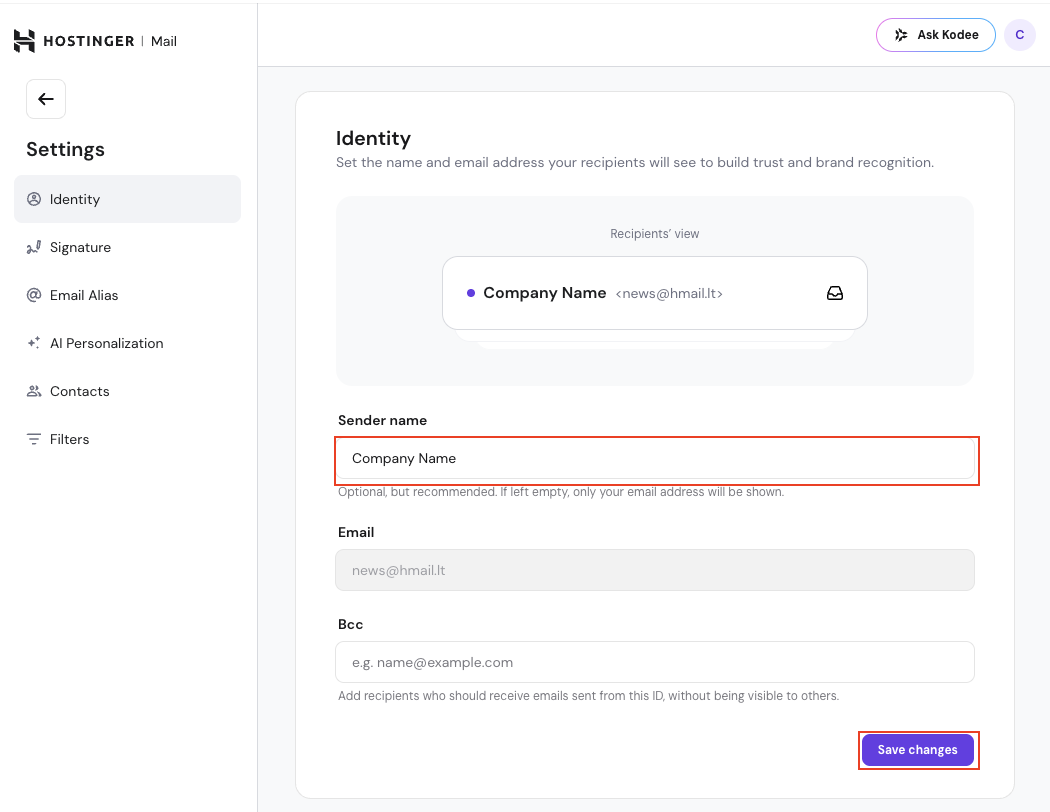
In the left-hand menu, click Identity.
-
Enter your preferred name in the Sender name field.
-
If you leave it empty, only your email address will be shown to recipients.
-
-
Click Save changes.
Once completed, your updated sender name will now appear in the From field of every new email you send.
Tips
-
Choose a name that matches your personal or business identity.
- You can update your sender name anytime; changes take effect immediately.
-
Keep it short and recognizable – long names may be shortened by some email clients.