If your project is growing and needs more resources, you can upgrade your web or cloud hosting plan from the Websites of Billing pages of hPanel at any time.
You can’t directly upgrade a Web or Cloud hosting plan to a VPS. To use a VPS, you’ll need to purchase a VPS plan separately and then migrate your website content manually. 💡
Agency hosting also doesn’t support direct upgrades. You’ll need to purchase an Agency plan separately and then move your websites using the Clone Website tool, which is available with Agency plans only. Please note that your IP address will change when moving to an Agency plan.
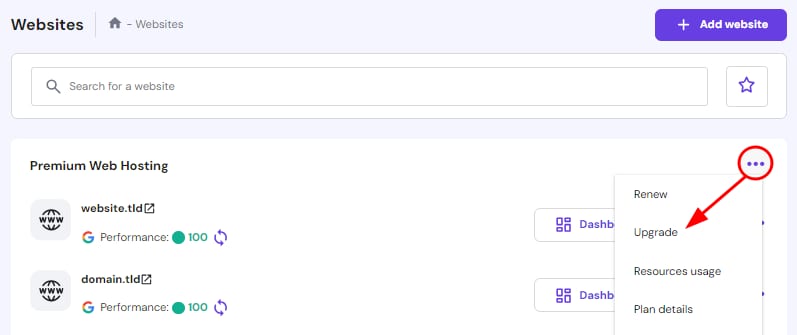
Option 1 – From the Websites section
In your Hostinger account, go to the Websites section, click on the ellipsis button (⋯) next to the name of your hosting plan, and select Upgrade:
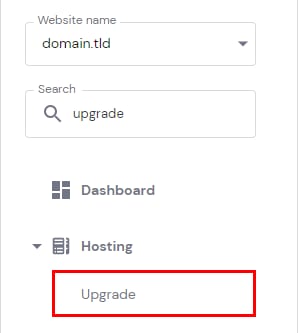
Alternatively, you may click on Dashboard next to your website in the Websites section. Then, search for Upgrade on the left sidebar and click on it:
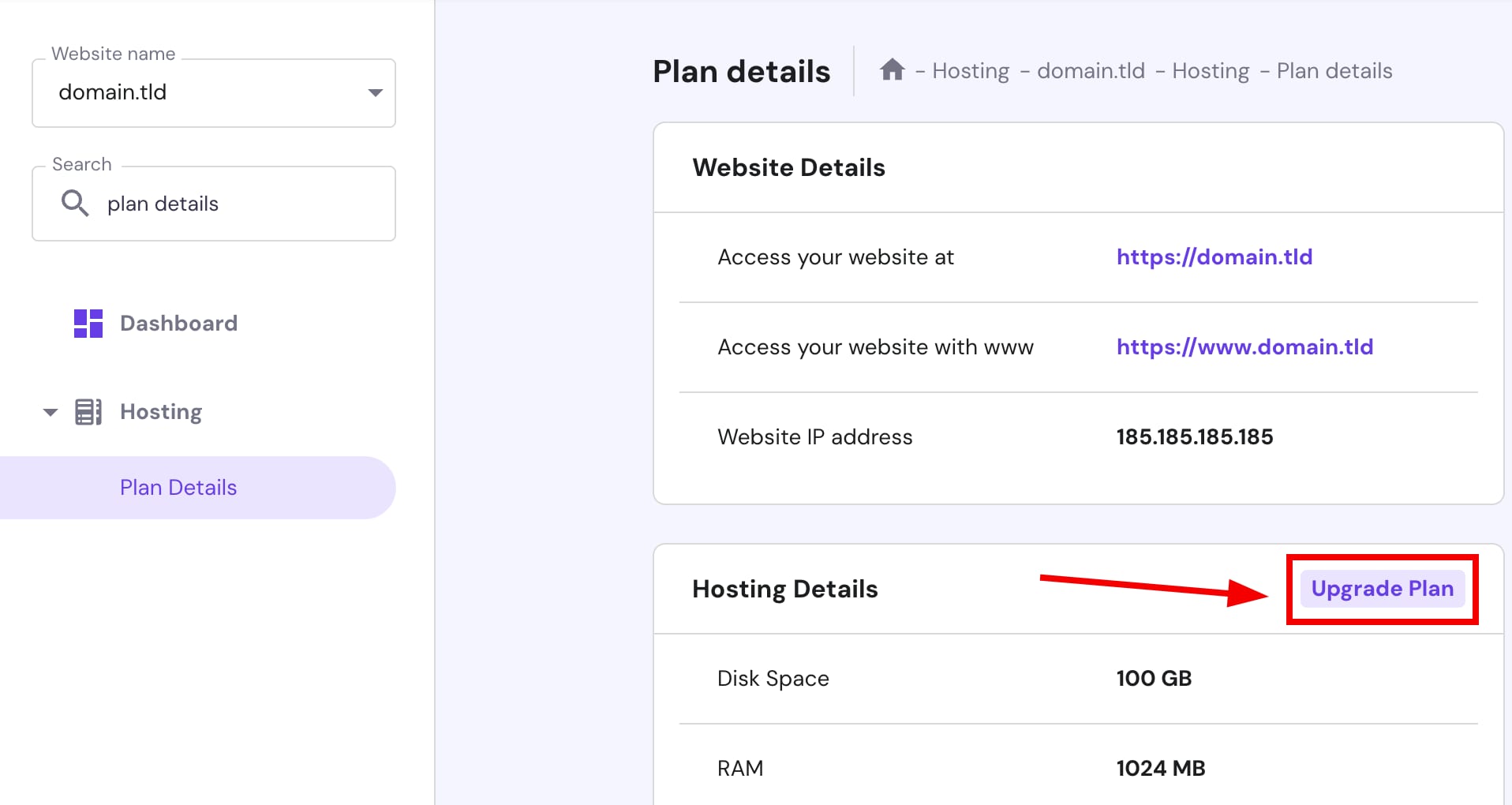
Or, search for Plan details and click on Upgrade Plan:
If your website is created with Hostinger Website Builder or you are upgrading a VPS, you can do so from the Billing section 👇
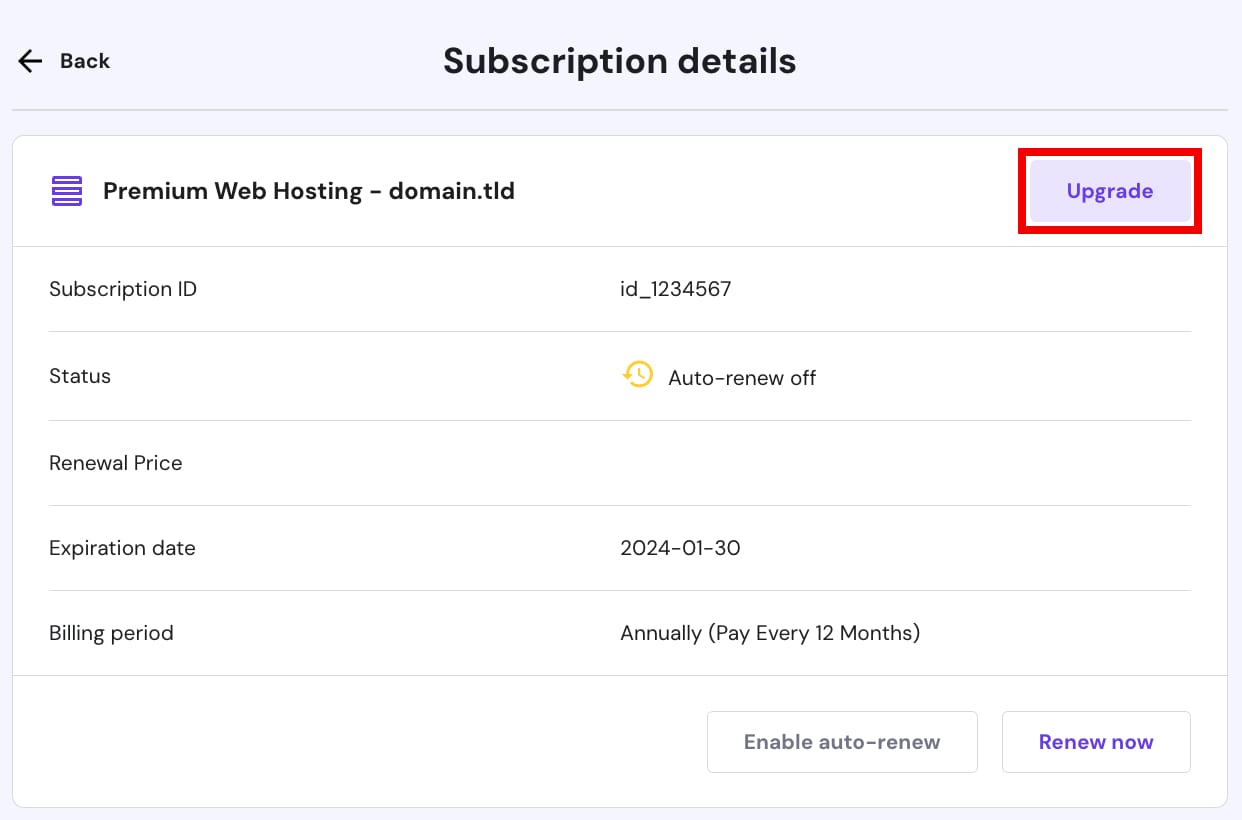
Option 2 – From the Billing section
In your Hostinger account, go to Billing → Subscriptions, and click on the ❯ arrow next to the hosting plan in question to see the subscription details. Once there, click on Upgrade:
On the upgrades page, select your new hosting plan from the dropdown list –you can compare the increased resources side by side. Next, click on Complete upgrade payment to proceed.
If upgrading from Web to Cloud hosting, you will also get a new IP address. For more details about the upgrade, refer to this guide: What happens after upgrading a hosting plan?
NOTE
-
Upgrades are not available for the Cloud Enterprise plan. Alternatively, you can consider migrating to a VPS.