While building your project with Hostinger Horizons, you might occasionally come across small issues — but don’t worry! Most of them are easy to fix, and this article is here to guide you step by step.
💡 In many cases, basic errors are automatically fixed by Horizons. If the first attempt doesn’t work, avoid repeating the same action. Follow the steps below instead.
First up: quick wins
- Use Ask to Fix
If Horizons shows a pop-up suggesting a fix, click Ask to Fix and wait (it counts toward your daily message limit.)
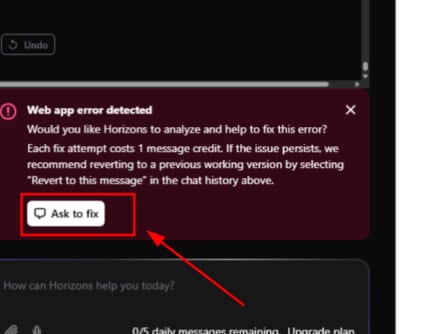
- Revert to the last known good message
In general, the best practice to fix errors is to click on “Revert to this message” button to the message in prior to the one you started facing errors. Please note, reverting permanently discards messages after that point and still counts toward your message limit.
- Give Horizons the right context. If auto-fix fails, send one clear message that includes:
- What you did (exact steps)
- Where it broke (page/URL/button)
- The Network request (URL + Payload + Error)
- The Console error (copy as text)
- Example message to Horizons
“When I log in and add a new customer, I get a console error ‘Network request failed’. Network tab shows POST /token?grant_type=password with payload { username: ‘test’, password: ‘test’ }, response { code: 400, error_code: ‘invalid_credentials’ }. Please fix.”
For quick tips on troubleshooting prompt errors, check this video.
Capturing useful logs to help the AI fix the issue
- Open your site → Right-click → Inspect.
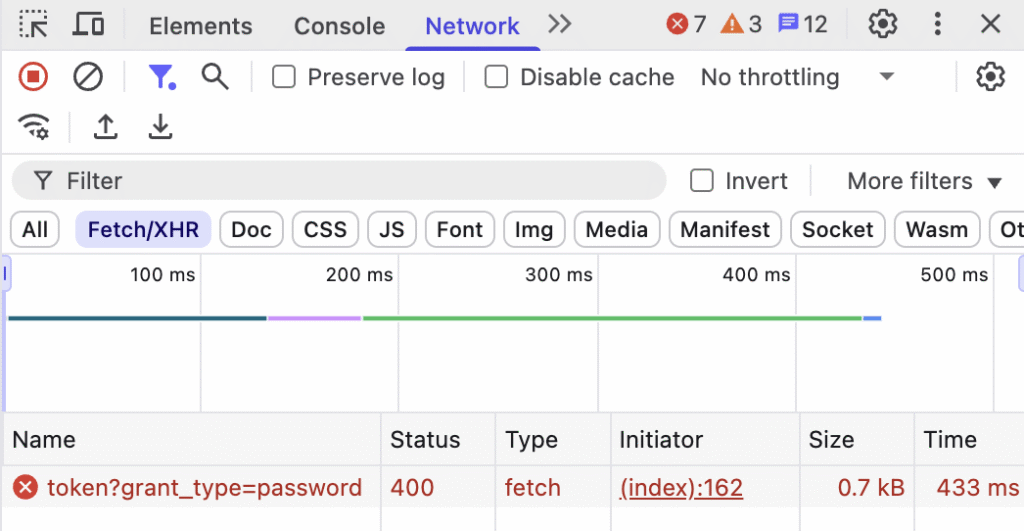
- Network tab: reproduce the issue → click the failing request → copy:
- Request URL
- Request Payload (body)
- Response/Error
- Console tab: copy the latest error logs.
Paste everything into one message. Screenshots help, but plain text is best.
You can combine all the information into one message for the AI.
Example: “When I log in and add a new customer, I get console error ‘Network request’. Network tab shows request to token?grant_type=password with payload { username: ‘test’, password: ‘test’ }, error { code: 400, error_code: ‘invalid_credentials’ }. Can you fix the issue?”
Additional help
If you need additional help, reach out to our Customer Success team: How to contact Hostinger support.
Additionally, explore the most common mistakes users make when developing web apps with Hostinger Horizons. By learning from these examples, you’ll be able to create functional, efficient, and well-structured apps from the start.