Basic SSH commands: SSH command examples, options, and cheat sheet
Sep 28, 2026
/
By Justina B.
/
10 min Read

SSH commands let you securely connect to a remote server, run Linux commands, transfer files, manage SSH keys, and troubleshoot server access from the command line.
They send your instructions through the Secure Shell protocol, which encrypts every keystroke and file between your computer and the server, so you can log into a VPS, edit configs, restart services, and move backups without exposing your password.
Mastering SSH commands lets you connect to a server and run Linux commands once you know the syntax and options. From there, you can manage SSH keys, transfer files with SCP, SFTP, and rsync, save server details in a config, set up tunnels, and fix connection issues.
The most useful SSH commands you’ll reach for daily:
- ssh user@host – connects to a remote server.
- ssh -p port user@host – connects through a custom SSH port.
- ssh -i key_file user@host – connects with a private key.
- ssh user@host command – runs a remote command without opening a full session.
- ssh-keygen – generates SSH keys.
- ssh-copy-id user@host – copies a public key to a server.
- scp file user@host:/path – copies files over SSH.
- sftp user@host – opens a secure file transfer session.
- ssh -L local:host:remote user@host – creates a local SSH tunnel.
- ssh -v user@host – debugs an SSH connection.
What are SSH commands?
SSH commands are instructions you run to use or configure the Secure Shell protocol, which encrypts the connection between your computer and a remote server. The term refers to two related concepts:
- Commands that directly use or configure SSH, such as ssh, ssh-keygen, ssh-copy-id, scp, and sftp. You run these on your local machine to start a session, manage keys, or move files.
- Linux commands you run after connecting to the remote server, such as ls, cd, cat, and rm. These behave the same as they would on any Linux system, but they act on the server, not your local computer.
In both cases, the SSH protocol encrypts everything you send and receive. That’s what makes it safe to manage servers over the public internet.
How to connect to a remote server with SSH
You connect to a remote server with SSH by running the ssh command followed by your username, the server’s host or IP address, and optionally a port number. The basic form is:
ssh [options] user@hostFor example:
ssh -p 2222 user@hostEach part of the command has a clear meaning:
- Username – the account you’re logging into on the server, such as root or admin.
- Host – the server’s IP address or domain name, like 203.0.113.10 or srv-123.example.com.
- Port – the SSH port on the server. The default is 22, but many providers use a custom port for security.
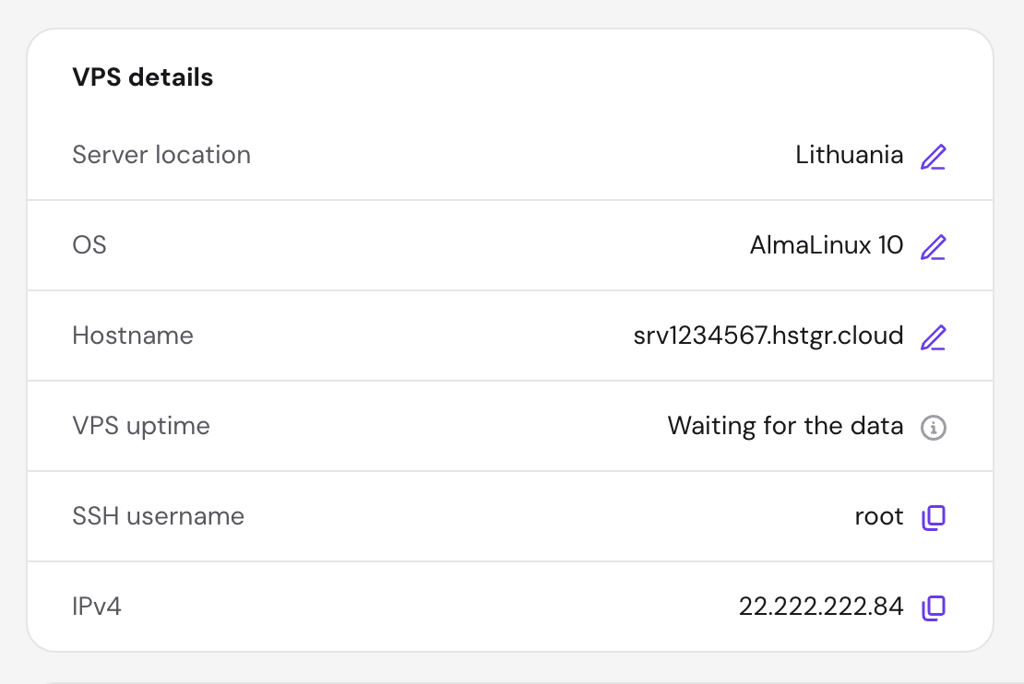
If you’re a Hostinger VPS customer, you can find your SSH details in Hostinger dashboard. Go to VPS, click Manage, and open the Overview tab. You’ll see the IP address, port, username, and password under VPS details, ready to copy.

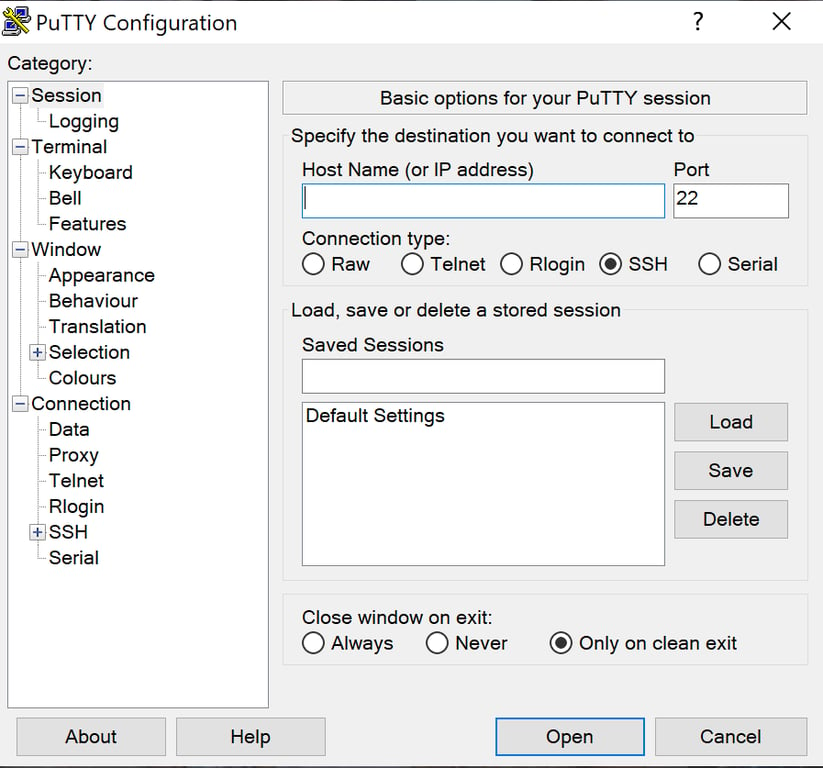
On macOS, Linux, and Windows 10 or later, open the terminal and paste your ssh command. For older Windows or a graphical client, use PuTTY for SSH and enter the host, port, and login details in its session window.
The first time you connect, SSH shows a fingerprint warning to confirm the server’s identity. Type yes only if you trust the server. The fingerprint is then saved to your known_hosts file, and the warning won’t return unless the server’s key changes.
Basic SSH command syntax and options
SSH commands follow a simple structure: the ssh command, any options you want, the user and host, and optionally a command to run on the remote server:
ssh [options] user@host

                Code


                    Copy
Options change how SSH behaves. You can pick a custom port, map a specific key, turn on debug output, or forward ports. Here are the most useful ones you’ll reach for as a beginner:
| Option | What it does | Example |
| -p | Connects on a custom SSH port. Useful when you change the SSH port for security. | ssh -p 2222 user@host |
| -i | Uses a specific private key file. | ssh -i ~/.ssh/id_ed25519 user@host |
| -v | Turns on verbose mode for debugging. Add more vs for more detail (-vv, -vvv). | ssh -v user@host |
| -C | Compresses data during the session, which can help on slow connections. | ssh -C user@host |
| -4 or -6 | Forces IPv4 or IPv6. | ssh -4 user@host |
| -J | Connects through a jump host. | ssh -J jump@bastion user@target |
| -L | Sets up local port forwarding. | ssh -L 8080:localhost:80 user@host |
You can combine options as needed. For example, ssh -p 2222 -i ~/.ssh/id_ed25519 user@host connects to a custom port using a specific key.
Basic Linux commands to use after connecting with SSH
Once you’re logged in, you’ll use standard Linux commands to move around the server, manage files, and check the system. These commands run on the remote server, not your local machine. Here are the most common ones grouped by what they do.
Navigation
Knowing where you are and how to move between folders is the first thing you’ll do after logging in.
- pwd prints the full path of your current directory. It answers the question “where am I right now?” and is the safest command to run first on an unfamiliar server.
pwd- ls lists files and folders in the current directory. Add -la to see hidden files, permissions, owners, and sizes, which is useful when checking config files or log directories.
ls -la /var/log- cd changes the current directory. Use cd .. to go up one level, cd ~ to jump to your home folder, and cd – to return to the previous directory.
cd /var/www/htmlFile and directory creation
You’ll often need to create folders for projects, backups, or config files.
- mkdir creates a new directory. Add -p to create nested folders in one go without errors if a parent already exists.
mkdir -p /home/user/backups/2025- touch creates an empty file or updates the timestamp on an existing one. It’s handy for placeholder files or for testing write permissions.
touch /var/www/html/test.txtFile viewing and editing
When you’re troubleshooting a server, most of the work is reading log files and editing configs.
- cat prints the full contents of a file to the screen. It’s best for short files. For large logs, use less instead, so you can scroll.
cat /etc/hostname- less opens a file for scrolling. Use the arrow keys or Page Up and Page Down to move, /word to search, and q to quit.
less /var/log/nginx/error.log- tail shows the last lines of a file. Add -f to follow new lines as they’re written, which is the standard way to watch logs in real time.
tail -f /var/log/nginx/access.log- head shows the first lines of a file. Useful for checking the top of large CSVs or log files without loading the whole thing.
head -n 20 /var/log/syslog- nano opens a simple text editor right in the terminal. Press Ctrl+O to save, Ctrl+X to exit. It’s the easiest editor for beginners.
nano /etc/nginx/nginx.confFile management
These commands copy, move, rename, and delete files. Some of them can overwrite data without asking, so read the safety notes carefully.
- cp copies a file or folder. Add -r to copy a directory and all its contents. Add -i to be asked before overwriting.
cp -r /var/www/html /var/www/html_backup- mv moves or renames a file. There’s no separate rename command in Linux. Watch out: if the destination file already exists, mv overwrites it silently.
mv config.old.conf config.bak- rm deletes files. Add -r to delete a folder and its contents. rm does not move files to a trash bin. Deleted files are gone immediately.
rm /tmp/old-log.txt
Warning! Never run rm-rf / or rm -rf /*. These commands delete every file on the server. Always double-check the path before running rm -r, especially when using wildcards like *.
Search
Finding the right file or the right line in a large file saves hours of scrolling.
- find searches for files by name, type, size, or date. It’s the most flexible search tool in Linux.
find /var/www -name "*.php" -mtime -7- grep searches inside files for a word or pattern. Add -r to search recursively and -i to ignore case.
grep -ri "error" /var/log/nginxArchives and downloads
You’ll often need to compress files for backups or grab installers from the internet.
- tar creates and extracts archive files. The most common usage is tar -czvf to create a compressed .tar.gz archive and tar -xzvf to extract one.
tar -czvf backup.tar.gz /var/www/html- wget downloads files from a URL straight to the server.
wget https://example.com/installer.sh- curl also downloads files and is the standard tool for testing APIs and HTTP responses.
curl -O https://example.com/file.zipSystem checks
When something goes wrong, you’ll need to check disk space, running processes, and active services.
- df shows free and used disk space on each mounted filesystem. Add -h for human-readable sizes (GB, MB).
df -h- du shows the size of files and folders. du -sh * is the quickest way to see which folders are eating up your space.
du -sh /var/log/*- top shows running processes in real time, sorted by CPU usage. Press q to exit. For a nicer interface, install and use htop.
top- systemctl controls services on systems that use systemd, which covers most modern Linux distributions. Use it to start, stop, restart, and check the status of services such as NGINX or MySQL.
systemctl status nginxWant to go beyond the basics? This video walks through 50+ commands covering permissions, process monitoring, package managers, and networking diagnostics:
SSH key commands
SSH keys are a pair of files that let you log in without a password. The private key stays on your computer; the public key goes on the server. When you connect, the server uses the public key to verify that your machine holds the matching private key. This is safer than passwords because keys can’t be guessed or brute-forced.
You can set up SSH keys in three short steps.
Generate an SSH key pair
Use ssh-keygen to create a new key pair. The Ed25519 algorithm is the modern default, faster and more secure than older RSA keys:
ssh-keygen -t ed25519 -C "your_email@example.com"The command asks where to save the key (press Enter to use the default ~/.ssh/id_ed25519) and lets you add a passphrase for extra protection.
Copy your public key to the server
ssh-copy-id is the easiest way to install your public key on a remote server.
ssh-copy-id user@hostAfter this runs, you can set up passwordless SSH and log in without typing your password.
Connect with a specific private key
If you have more than one key, use -i to pick the one you want.
ssh -i ~/.ssh/id_ed25519 user@hostManage keys with ssh-agent
ssh-agent keeps your decrypted keys in memory so you don’t have to type your passphrase every time you connect.
eval "$(ssh-agent -s)"

ssh-add ~/.ssh/id_ed25519
Once keys are working reliably, you can disable SSH password login to block password-based attacks entirely.
Warning! Your private key file is the equivalent of a password. Never share it, email it, paste it into chat, or upload it to a public repository. If you think a private key has been exposed, remove the matching public key from every server it was installed on and generate a new pair.
How to run remote commands over SSH
You can run a single command on a remote server without opening a full interactive session by adding the command to the end of your ssh line. The server runs it, prints the output, and closes the connection.
ssh user@host "df -h"This is useful for quick checks and for scripting. Common examples include:
- Checking disk space: ssh user@host “df -h”.
- Listing files in a folder: ssh user@host “ls -la /var/www”.
- Checking a service status: ssh user@host “systemctl status nginx”.
- Restarting a service: ssh user@host “sudo systemctl restart nginx“.
Wrap longer commands in quotes so your local shell sends them as one string. For example, ssh user@server “ls -la /var/log” runs the full ls command on the remote server rather than breaking it apart locally.
For commands with their own quotes, wrap the outside in single quotes and keep double quotes inside, or escape them with a backslash. Both ssh user@server ‘grep “error” /var/log/syslog’ and ssh user@server “grep “error” /var/log/syslog” work the same way.
SSH file transfer commands
SSH isn’t just for running commands. It also handles secure file transfers between your computer and the server. There are three main tools, each one suited for a different job.
Copy files with SCP
SCP (secure copy) is the simplest way to move a single file or folder over SSH. The SCP command follows the same pattern as cp, except one side is on a remote server.
Copy a local file to the server:
scp report.pdf user@host:/home/user/Copy a file from the server to your local machine:
scp user@host:/var/log/nginx/access.log ./Copy a whole folder with -r:
scp -r ./website user@host:/var/www/Modern OpenSSH versions use SFTP under the hood when you run scp, since the original SCP protocol was deprecated in OpenSSH 9.0. The command and syntax still work the same way.
Transfer files with SFTP
SFTP (SSH File Transfer Protocol) opens an interactive session in which you can list, upload, download, and rename files using commands such as ls, get, put, and cd. It’s a good choice when you want to browse the remote filesystem before deciding what to move.
You can use SFTP to transfer files securely via both the command line and graphical clients such as FileZilla.
sftp user@hostOnce connected, try:
ls

cd /var/www

get index.html

put new-page.html

exit
Sync folders with rsync
For large transfers, recurring backups, or keeping two folders in sync, the rsync command is the right tool. It only copies files that have changed, saving time and bandwidth.
rsync -avz ./local-folder/ user@host:/var/www/site/The -a flag preserves permissions and timestamps, -v shows what’s being transferred, and -z compresses data on the fly.
Also, the trailing slash on the source folder matters. With it, rsync copies the folder’s contents. Without it, rsync copies the folder itself into the destination.
SSH config file shortcuts
The SSH config file lets you save server details such as host, username, port, and key path so you can connect using a short alias instead of typing the full command every time.
The file lives at ~/.ssh/config on your local machine. If it doesn’t exist, create it. Here’s an example:
Host myvps

HostName 203.0.113.10

User admin

Port 2222

IdentityFile ~/.ssh/id_ed25519
With that saved, you can connect by typing:
ssh myvpsYou can add as many Host blocks as you want, one per server. This is also handy when you use jump hosts or different keys per server.
SSH tunneling and port forwarding commands
SSH tunneling forwards network traffic through an encrypted SSH connection. It’s useful for reaching services that aren’t exposed to the public internet, such as a database that only listens on the server’s local interface.
There are three main types of tunnels:
- Local port forwarding sends traffic from a port on your computer to a port on the remote server. Use it to access a remote service as if it were running locally.
ssh -L 3306:localhost:3306 user@host- Remote port forwarding does the opposite: it sends traffic from a port on the remote server to a port on your local machine.
ssh -R 8080:localhost:80 user@host- Dynamic port forwarding turns SSH into a SOCKS proxy, which you can configure in your browser to route all traffic through the server.
ssh -D 1080 user@host
Warning! Before opening a tunnel, know what service you're exposing and to whom. Forwarding a database or admin panel for your own use is fine, but leaving a tunnel open or pointing at the wrong port can expose sensitive services to the wrong network.
How to troubleshoot SSH connection errors
Most SSH errors fall into a handful of categories, and the verbose flag -v is your best tool for spotting the cause. Run ssh -v user@host to see exactly where the connection breaks.
| Error | Likely cause | What to try |
| SSH connection refused | SSH service isn’t running, or the firewall is blocking the port. | Check the server’s status and confirm the port is open. |
| Connection timed out | Wrong IP or host, or the server is unreachable. | Ping the host and confirm you’re using the correct address. |
| Permission denied (publickey) | Your key isn’t authorized on the server, or the key file has the wrong permissions. | Run chmod 600 ~/.ssh/id_ed25519 locally. On the server, confirm your public key is in ~/.ssh/authorized_keys and check that ~/.ssh is set to 700 and authorized_keys to 600. |
| Permission denied (password) | Wrong username or password, or password login is disabled. | Double-check credentials and confirm PasswordAuthentication settings in /etc/ssh/sshd_config. |
| Port 22: Connection refused | You’re using the default port, but the server uses a custom one. | Add -p with the correct port. |
| Host key verification failed | The server’s key has changed since your last visit. | If you trust the change (like a server rebuild), remove the old entry with ssh-keygen -R host. If you didn’t expect a change, stop and investigate before connecting. |
Warning! A sudden host key change can mean the server was rebuilt, but it can also mean someone is intercepting your connection. Don't blindly accept new host keys for servers you've connected to before. Verify with your hosting provider first.
Next steps for using SSH on your server
You now have the SSH commands and Linux basics to manage a remote server. The next step is to log in and practice. Move between directories with cd, list files with ls, and watch logs with tail -f until it feels natural.
Then focus on three habits: switch to SSH keys instead of passwords, keep local backups of important config files with SCP or rsync before making changes on the server, and run ssh -v first whenever a connection fails.
A few things worth exploring next:
- Run long tasks without losing them if your SSH session drops by using Linux Screen or tmux.
- Save common server details in your ~/.ssh/config so you can connect with short aliases.
- Automate routine checks with short remote commands, like a daily disk space report.
The more you use SSH, the more it becomes a quiet background tool: you stop thinking about the protocol and just focus on running your server.
This article is a localized version of Basic SSH commands: SSH command examples, options, and cheat sheet, originally published in English.
All of the tutorial content on this website is subject to Hostinger's rigorous editorial standards and values.

Justina is a Content Writer passionate about marketing, with a background in social media and customer success management. She also loves reading books, traveling and exploring new places as well as cooking, and trying out new recipes. Follow her on LinkedIn.