A 502 Bad Gateway error occurs when a server acting as a gateway or proxy receives an invalid response from the upstream server. Common causes include an overloaded server, a problem with the application behind the proxy, or an incorrect proxy setting.
If you’re visiting the site, reload the page and check whether it’s down for others. If the error only appears on your end, try a private window, clear your browser or DNS cache, or test from another device or network.
If you own the site and multiple visitors see the error, start with your error logs. Check for recent plugin or theme changes, CDN issues, and PHP timeouts. If the error persists, verify that the proxy can reach the application or ask your hosting provider to check the connection.
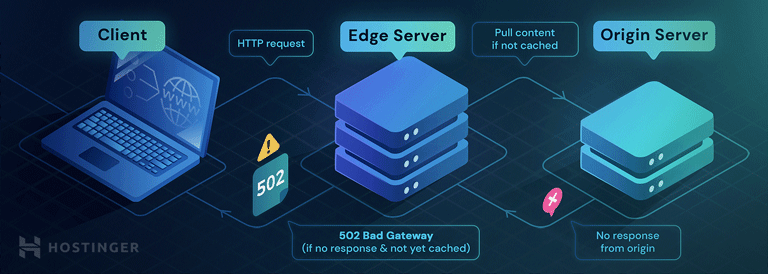
What causes a 502 Bad Gateway error?
A 502 Bad Gateway error is an HTTP status code that occurs when one server is not able to communicate properly with another server.
The root cause can be server communication problems, network connectivity issues, overloaded servers, misconfigurations, or faulty applications that prevent proper data exchange between systems.
Here are the main causes and what they mean:
| Cause | Description |
| Server overload | The upstream server is receiving too many requests and can’t respond in time. |
| Network connectivity issues | Problems with internet connections between servers, including timeouts or dropped connections. |
| Server downtime | The upstream server is temporarily offline for maintenance or has crashed. |
| Firewall restrictions | Security settings blocking communication between servers. |
| DNS problems | Domain name resolution issues preventing servers from finding each other. |
| Proxy or gateway misconfiguration | Incorrect settings on the intermediate server handling requests. |
| Application errors | Bugs or crashes in the web application code causing invalid responses. |
| CDN issues | Problems with content delivery network servers distributing your content. |
| Database connection problems | The web server can’t connect to the database to retrieve information. |
| PHP or other script timeouts | Scripts taking too long to execute and timing out before completion. |
The tricky part is that 502 errors can look the same to users even when they have completely different underlying causes. That’s why troubleshooting often involves testing multiple solutions to find what works.
This video walks you through the most common ways to troubleshoot a 502 Bad Gateway error.


How to fix the 502 Bad Gateway error as a visitor
To fix a 502 Bad Gateway error as a visitor, reload the page and check whether the site is down for others. If it’s working for them, clear your browser cache, try a private window, flush your DNS cache, or test on another device.
1. Refresh the page
A 502 Bad Gateway error is usually temporary, stemming from a sudden traffic surge. A quick refresh can resolve the issue.
On Windows, press F5 or CTRL + F5. On Mac, use CMD + R.
2. Check the site status
If the 502 error code is still showing, it is possible that the website’s server might be experiencing downtime.
Luckily, there are many tools to identify whether a site is actually down, including Down for Everyone or Just Me and IsItDownRightNow. Simply input the URL to check the website’s status.
3. Clear your browser cache
If the site works for others but you still see a 502, your browser may be showing a cached error page. Clear your browser’s cached files by selecting Cached images and files if your browser offers that option. Then reload the page that showed the error.
Keep in mind that removing cached files might result in losing important browser data, including bookmarks and settings preferences. To prevent this, export your data from the browser and import it back afterwards.
4. Try in Incognito mode
Access the website in Incognito or private mode to determine whether the 502 gateway timeout appears due to a browser-related issue. To open an Incognito window in Chrome, click on the three-dots button on your browser screen and choose New Incognito Window.
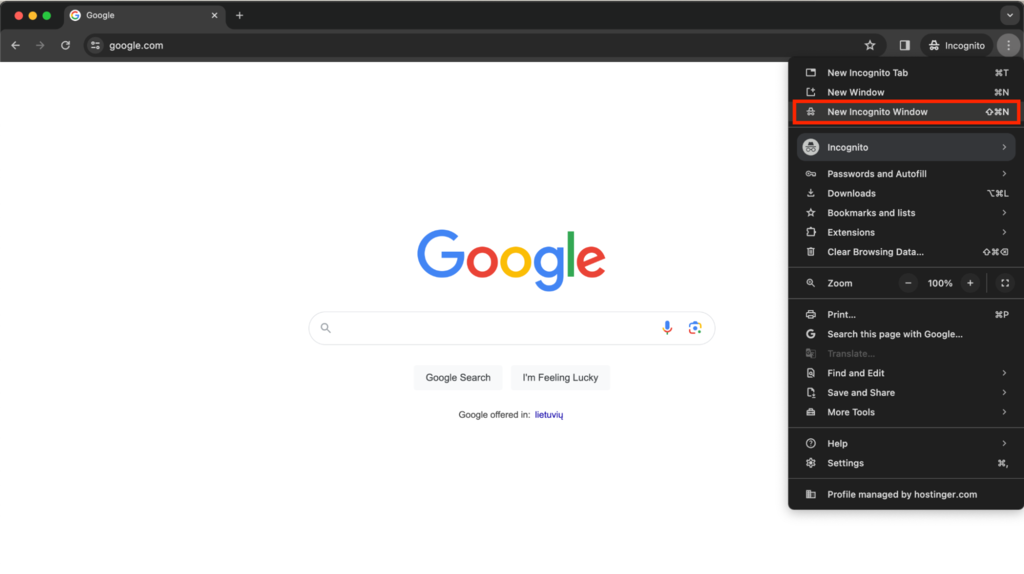
If the error doesn’t occur in Incognito mode, a browser extension is likely causing the problem.
Try to disable your add-ons or extensions one by one. Once you’ve disabled the extension causing the error, you should be able to access the website. From our experience, an ad-blocker extension is usually the culprit.
If disabling browser extensions doesn’t help, try a different browser. For example, if you’re currently on Google Chrome, try using Mozilla Firefox.
If the page works on the new browser, your previous browser might be causing the error. To solve the problem, try deleting and reinstalling your faulty browser.
5. Flush the DNS cache
Other common causes of 502 Bad Gateway are DNS problems, such as incorrect IP addresses and unresponsive DNS servers.
In this case, flushing your DNS cache can be the answer. This method works similarly to clearing your browser’s cache. It will remove faulty IP entries from your DNS cache.
Consider also temporarily or permanently changing your DNS servers. Your ISP assigns your DNS servers by default. However, you can always change them to a third-party server, such as Google Public DNS.
6. Test on another device
If none of the above 502 error fixes work, test your internet connection on another computer or a mobile device, ideally connected to a different network.
Additionally, try restarting your computer and router. This will show whether the error is related to your networking equipment or if the problem lies elsewhere.
How to fix the 502 Bad Gateway error as a website owner
To fix a 502 Bad Gateway error on your website, start by checking the error logs. Use what you find to narrow down the cause, whether it’s a plugin or theme, your CDN, a PHP timeout, or the server or application behind your proxy.
7. Check error logs
If you encounter a 502 error on a website after a change or an update, you might be dealing with a web server error. The best approach to solving this issue is to check your website error log.
Usually, your hosting service lets you access your website’s error log files through an admin dashboard. You can also enable error logging on your WordPress website by adding the following lines in wp-config.php:
define( 'WP_DEBUG', true );
define( 'WP_DEBUG_LOG', true );
define( 'WP_DEBUG_DISPLAY', false );
After enabling debug logging, reload the page that showed the 502 error. Then open wp-content/debug.log and look for entries recorded around the time of your test. If the WordPress log has no relevant entries, check your hosting or web server error logs. Turn off WordPress debugging when you finish.
8. Check plugins and themes
Sometimes, faulty plugins or themes can cause the error.
This is because poorly coded plugins and themes can conflict with each other. When this happens, your server will stop every script and query on your website, making it inaccessible.
For some websites, the issue usually comes from caching or security plugins. There is a good chance that these plugins block communication between servers, causing the error to persist.
If you don’t have a caching or security plugin installed but still encounter the HTTP 502 error, it’s best to disable your plugins and re-activate them one by one. To do so, go to Plugins and click Deactivate from the Bulk Actions menu.
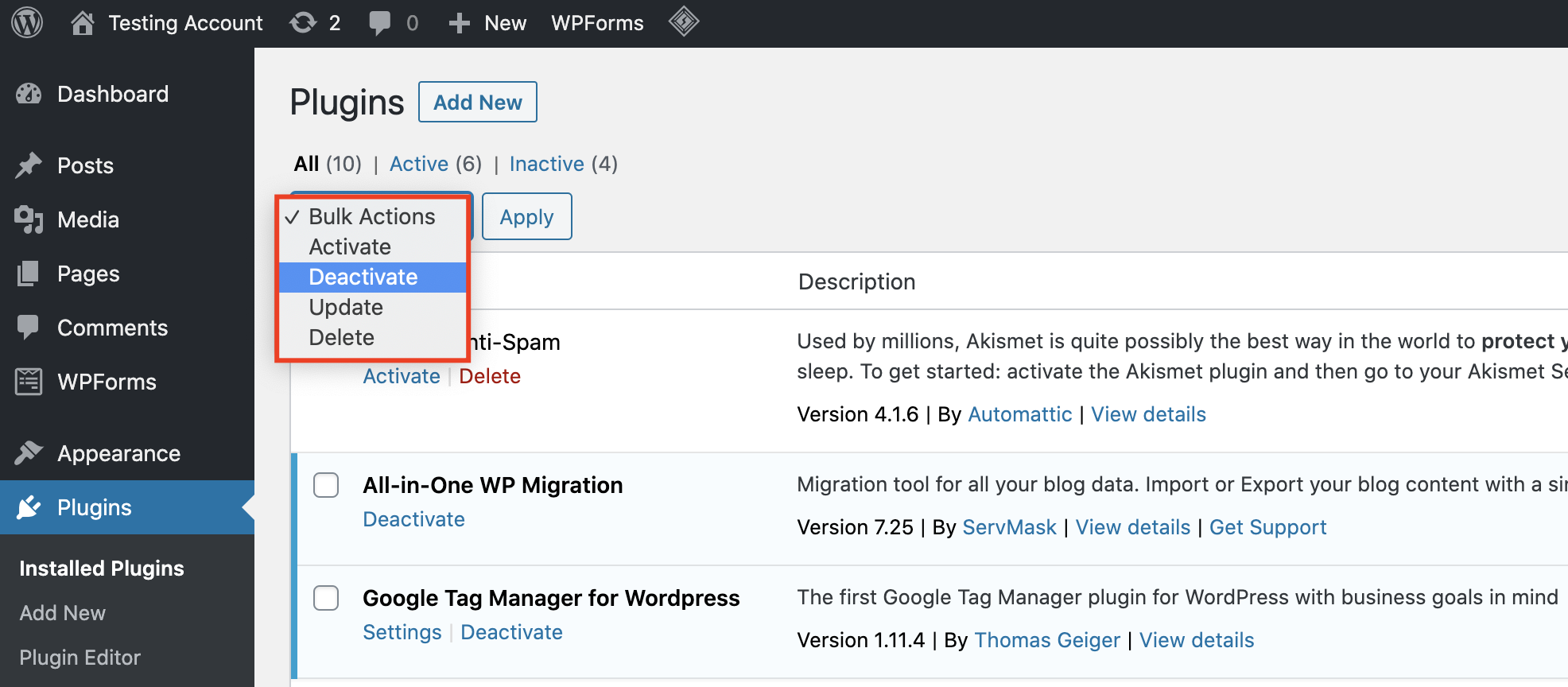
Then, activate each plugin while refreshing your WordPress site after each one. Once the 502 error pops up again, you will find the problem plugin.
However, if you can’t access your WordPress dashboard, you can try disabling them from your hosting panel or FTP program. Navigate to the wp-content directory and rename the plugins directory, for example, plugins-disable.
Or, if you use Hostinger, access your Hostinger dashboard and click on Files. From there, go to File Manager → public_html → wp-content.
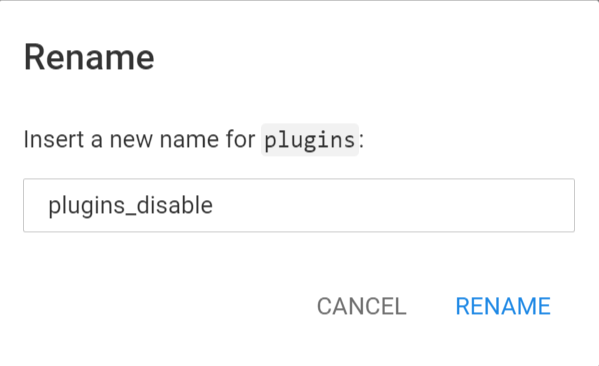
If your site starts working after all plugins are disabled, rename the folder back to plugins. Then, try enabling the plugins one by one to determine which one caused the error in the first place.
If the website still doesn’t work, and you’re using a custom, premium, or child theme, try activating one of the default WordPress themes. Simply go to Appearance → Themes, click Add Theme, find one of the WordPress default themes you don’t already have installed, like Twenty Twenty-Five, then click Install. Wait a few seconds, then click the Activate button once it is available.
Check to see if the problem persists. If it does, it isn’t related to the site’s theme, so you can safely re-activate the theme you were using previously.
9. Check your content delivery network (CDN)
Issues with your content delivery network (CDN) or DDoS mitigation services can also cause 502 Bad Gateway errors.
A CDN adds an extra layer between your server and browser to deliver web content efficiently. However, this layer can run into an issue when connecting with your origin server, resulting in 502 Errors.
One notable example is Cloudflare, where the 502 Bad Gateway can occur in two different variations depending on the issue.
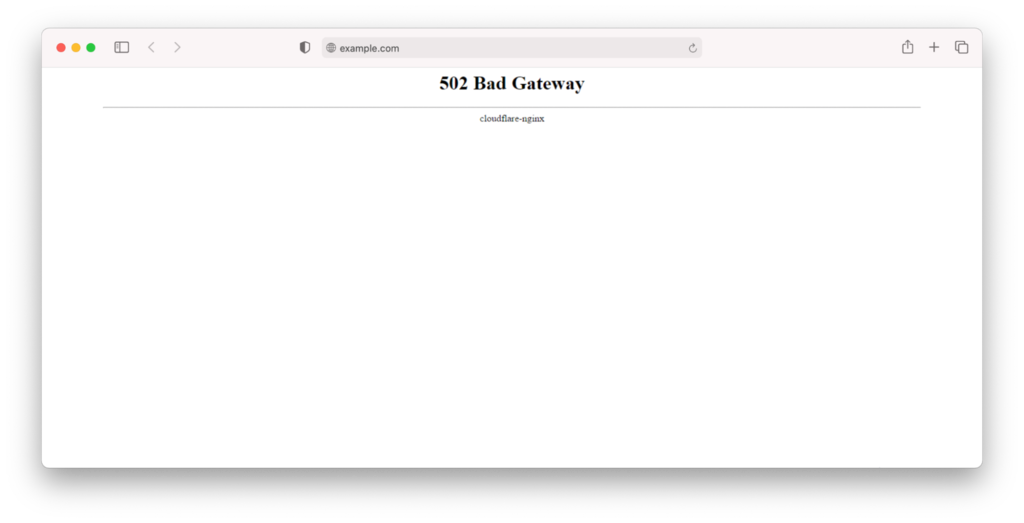
The screen above indicates that the issue is on Cloudflare’s side. To fix it, you’ll need to reach out to their customer support team. Remember to check the Cloudflare System Status page before doing so.
Alternatively, you can disable Cloudflare. However, keep in mind that your DNS propagation may take a couple of hours.
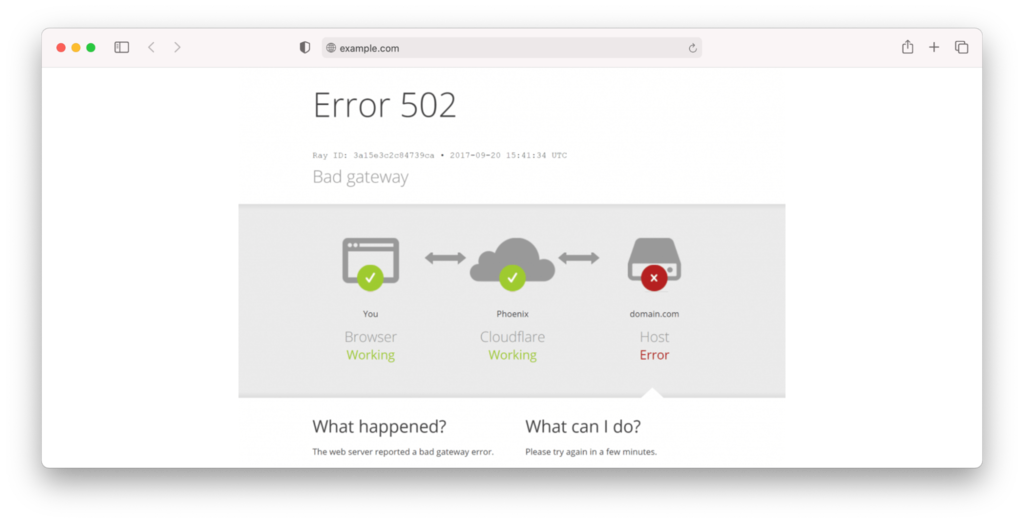
If you see the Cloudflare error shown above, it means that the issue is with your current web hosting provider. In this case, try contacting your web host support team for assistance.
10. Investigate PHP timeouts
If your logs show a PHP timeout, note which page or action triggered it. If the error started after a plugin update or code change, investigate that change first.
If a task such as a large import legitimately needs more time and the log shows that PHP reached its maximum execution time, check the current max_execution_time setting. If you use managed hosting, ask your provider whether you can increase it. After making a change, retry the same task to see whether the error returns.

11. Check the service behind your proxy
Check that the application behind your proxy is running and listening where the proxy expects it. If you use Nginx, verify that proxy_pass points to the correct application address and port. If Nginx sends PHP requests to PHP-FPM, check that fastcgi_pass matches the PHP-FPM pool’s listen address or socket.
If PHP-FPM has stopped, check its logs for the cause before restarting it. Then reload the URL that showed the 502 error.
If your hosting provider manages the server, send them the affected URL, the time and time zone when the error occurred, and any relevant log entries. Ask them to check whether the proxy can reach the application.
502 Bad Gateway error variations
A 502 error can appear on any device or service, but the exact message might differ. Here are some variations of this HTTP status code you might see:
- Simple – Temporary Error (502), 502 Error.
- Descriptive – HTTP Error 502 Bad Gateway, 502 Server Error, with an explanation.
- Technical – 502 Web server received an invalid response, HTTP 502, 502 Proxy Error.
- Overload – 502 Service Temporarily Overloaded.
- Server-specific – 502 Bad Gateway Nginx, depending on server software.
- Blank screen – some websites show a plain white screen.
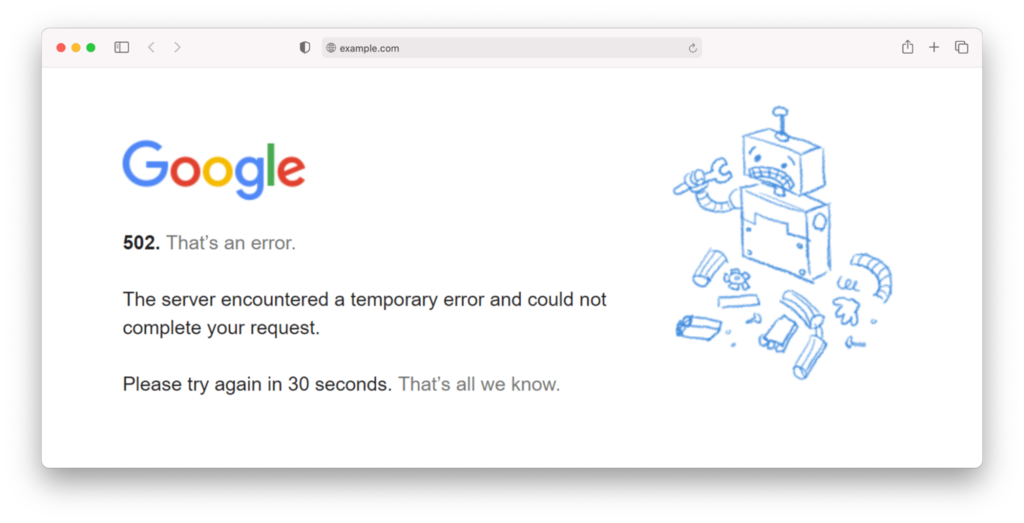
Some browsers, websites, or platforms offer up unique error pages with additional information. For instance, Chrome offers troubleshooting tips and suggests retrying.
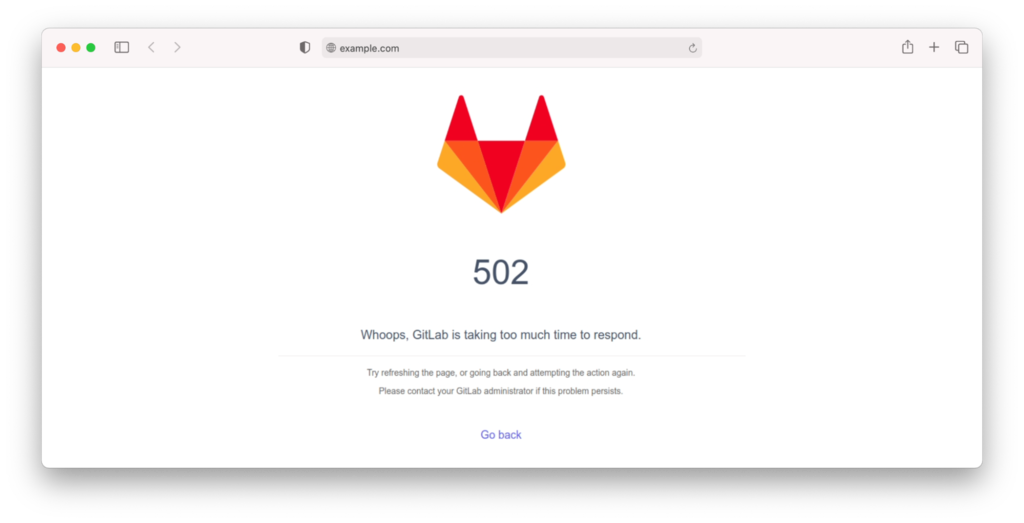
GitLab explains the communication issue and provides solutions.
X (previously Twitter), on the other hand, displays a friendly message with an illustration.
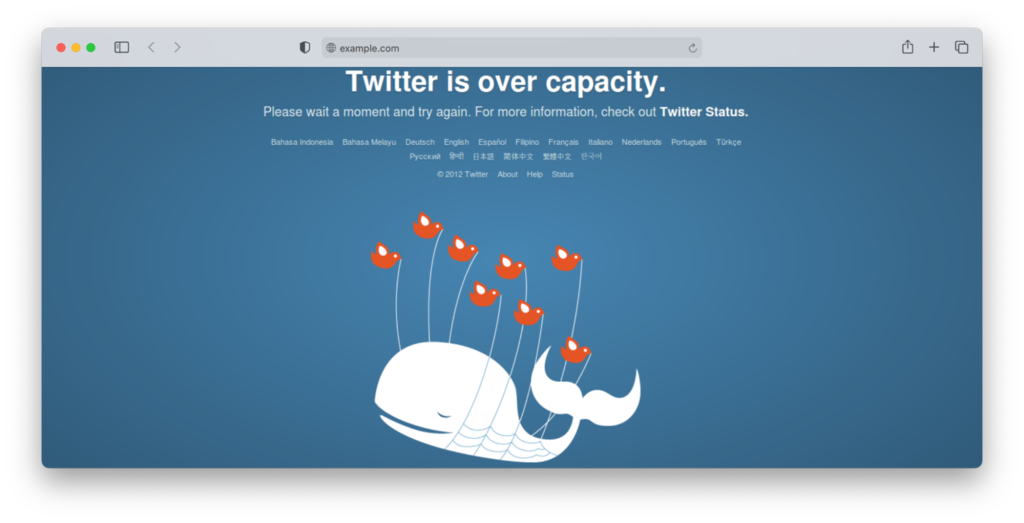
Improve your user experience with customized error pages
We recommend customizing your pages with error codes. This way, you can improve your user experience by providing helpful content for your visitors.
Is a 502 Bad Gateway permanent?
A 502 Bad Gateway error is usually not a permanent website failure. Most of these errors clear up on their own within minutes, or you can fix them quickly by refreshing the page, clearing your cache, or trying one of the other solutions we covered.
Does a 502 Bad Gateway error affect SEO?
While 502 errors are temporary, they can hurt your search engine rankings if they stick around too long.
Search engines like Google want to give users a good experience, so pages that are frequently inaccessible due to server errors can see their rankings drop. Learn more about the many factors that influence your rankings in our SEO guide.
How can you catch recurring 502 errors?
Once your site is working again, set up uptime alerts for the affected URL. Monitor both your homepage and the page that returned the error. Your homepage may load normally while a specific page or feature still fails.
If a 502 returns, note the affected URL and the time it started. Compare the alert with your web server and application logs, CPU and memory usage, and any recent deployments or updates. A 502 that affects several pages during a traffic spike gives you a reason to check for resource limits. If it consistently affects one page or action, start with the application handling that request.
After you make a fix, keep monitoring the affected URL through the conditions that originally triggered the error. If the 502 appeared during peak traffic, for example, check whether the page stays available during the next busy period.
This article is a localized version of How to fix the 502 Bad Gateway error, originally published in English.
All of the tutorial content on this website is subject to Hostinger's rigorous editorial standards and values.

Nabilla is a website hosting and development enthusiast. She loves to share her knowledge with others in order to help them grow their online presence. When she's not busy writing, Nabilla enjoys exploring nature and going on adventures. She is passionate about helping people achieve their online goals.

Simon has spent more than 10 years helping small business owners figure out which tools and ideas are worth their time. Today, he writes about AI through the stories of people already growing with it and shows you how to do the same, no tech wizardry required. Connect with Simon on LinkedIn.