How to block IP by country: restrict access to your website from specific countries using .htaccess
Sep 15, 2026
/
By Elvinas S.
/
2 min Read
This quick and easy tutorial will show you how to control site access based on visitors’ location. With some tweaks to the .htacess file, it’s possible to allow or block visitors from certain countries. Keep reading!

Allowing or Blocking Visitors From Specific Countries Using .htaccess
Once launched, a website is available worldwide. However, in many cases, it’s necessary to control your site access, especially when you want to stop spammers and hackers from particular countries.

Fortunately, you can use your WordPress .htaccess file to allow or block visitors from specific countries. Let’s learn how to do so.
Step 1: Generate the Country’s IP Addresses
Plenty of online tools are available to allow or block visitors according to their country. In this tutorial, we’ll be using IP2Location.
- Head to the IP2Location Firewall IP list tool.
- Select the country you want to block or allow.
- Choose between IPv4 and IPv6 in the IP Version menu.
- Choose the format in the Output Format menu. The choice depends on whether you want to block or allow visitors from those countries.
- Click Download.

- The tool will download the Access Control List (ACL) into your computer.
- If you are using the allow function, make sure to insert the line deny from all above the list of allowed IPs.
Step 2: Insert the Generated IP Addresses into the .htaccess File
Finally, paste the IP addresses of the countries you want to block or allow to .htaccess file. Here’s how to do it using Hostinger dashboard:
- Go to Files → File Manager.
- Select your domain and hit Go To File Manager.
- Navigate to the public_html folder and double-click the .htaccess file.
- Open the ACL file on your computer, paste it to your .htaccess file, and hit Save. Your .htaccess file will look like this:
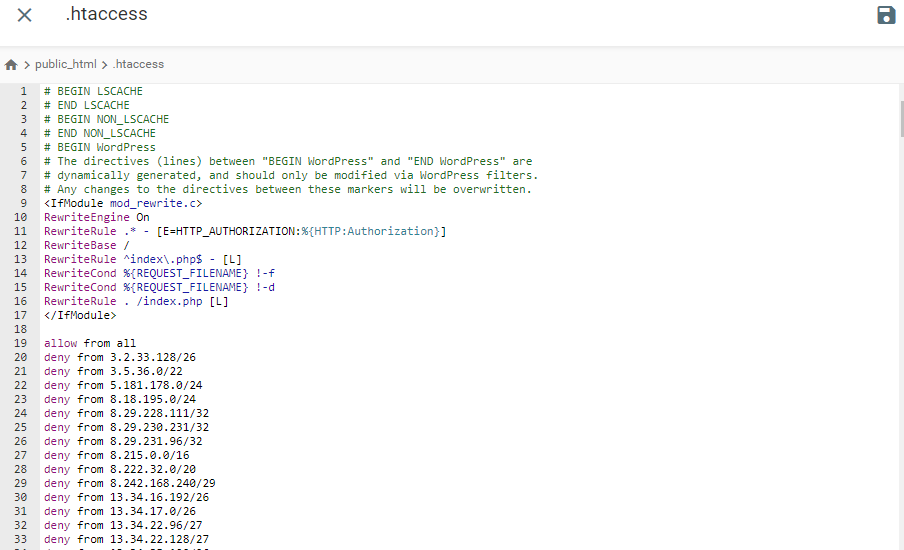
You can also use an FTP client to edit the .htaccess file.
Important! If you cannot access your website after inserting the generated IP addresses, check whether your IP address is included on the block list. You can find your IP address via What Is My IP Address
Conclusion
In this tutorial, you’ve learned the easy way to block or allow visitors from specific countries. All you need to do is generate the country’s IP address via IP2Location, then insert an ACL into your .htaccess file.
We hope that this guide was helpful. Let us know in the comments if you have any questions.
This article is a localized version of How to block IP by country: restrict access to your website from specific countries using .htaccess, originally published in English.

Elvinas is a senior server administrator at Hostinger. He monitors the infrastructure’s well-being and keeps the uptime at a maximum. Besides server management, web development has always been one of his biggest passions.