WordPress blocks: what are they and how to customize your site using them
Sep 09, 2026
/
By Astari S. & Leonardus N.
/
11 min Read
WordPress blocks provide a new way of customizing the website’s content and appearance. These blocks allow WordPress users to add and edit content elements like paragraphs, images, and widgets.
There are over 90 default blocks available in the current WordPress version. They cover texts, media, widgets, theme elements, and embeds.
In addition to that, the Gutenberg block editor has drag-and-drop functionality and a better visual preview of the content than the classic editor.
As a result, this new block-based editing approach provides a more user-friendly experience and a larger variety of customization options than the old editor. If you want to expand the functionality of the block-based editor, installing a WordPress block plugin will add even more content block options.
This article will explain all you need to know about blocks and how to use the new WordPress block editor. We’ll also list 10 plugins to expand the block collection and provide more customization possibilities.
What Are WordPress Blocks?
Blocks are components used for creating and editing elements in a WordPress post or page. Various block types are available in the WordPress editor to add text, media files, and layout elements, giving you more flexibility to build content.
Why Use WordPress Blocks?
The old WordPress editor was a TinyMCE editor focused on text editing. The interface was similar to a text editor software, with no visual elements to provide a page or post preview.
In comparison, content blocks allow you to alter the page layout and seamlessly insert various visual and interactive elements – tasks that were not possible using the old classic editor.
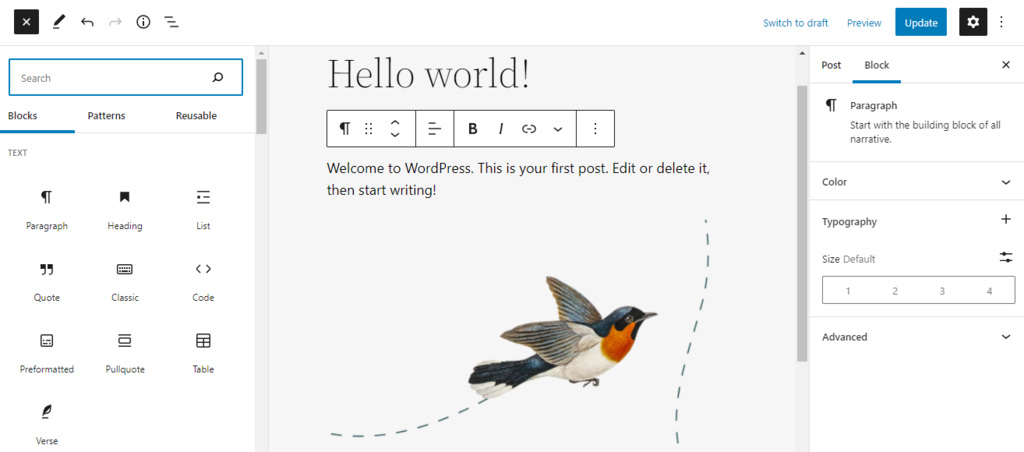
Blocks have also improved ease of use in many aspects. For example, embedding external media such as YouTube videos is now as simple as adding the specific block to the content and pasting the video URL.
With the previous editor, such content customization might have required extra HTML code.
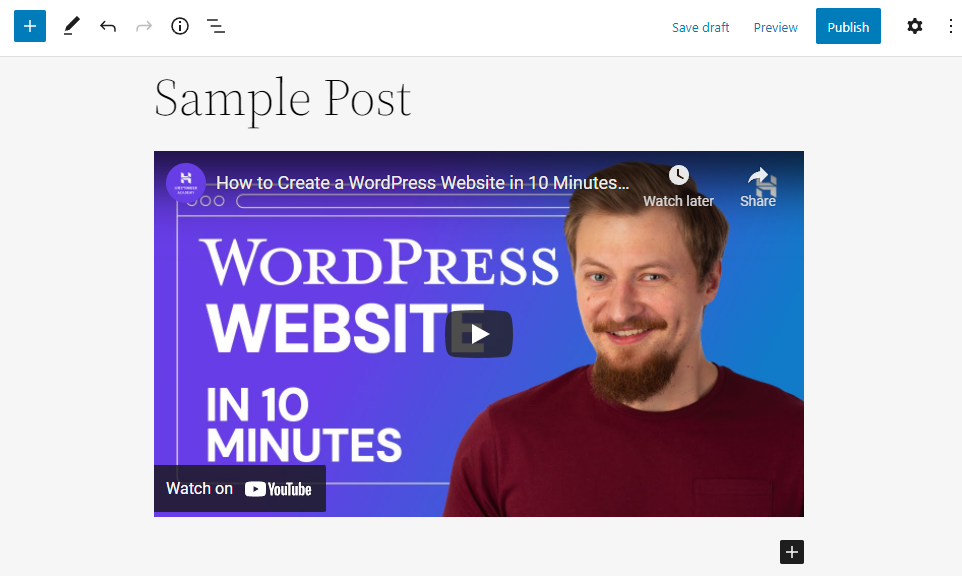
The synced block pattern feature lets you save a pre-customized block for future use, so you don’t have to recreate the content from scratch.
Another option is to use regular or unsynced block patterns – pre-built block layouts available for different purposes.
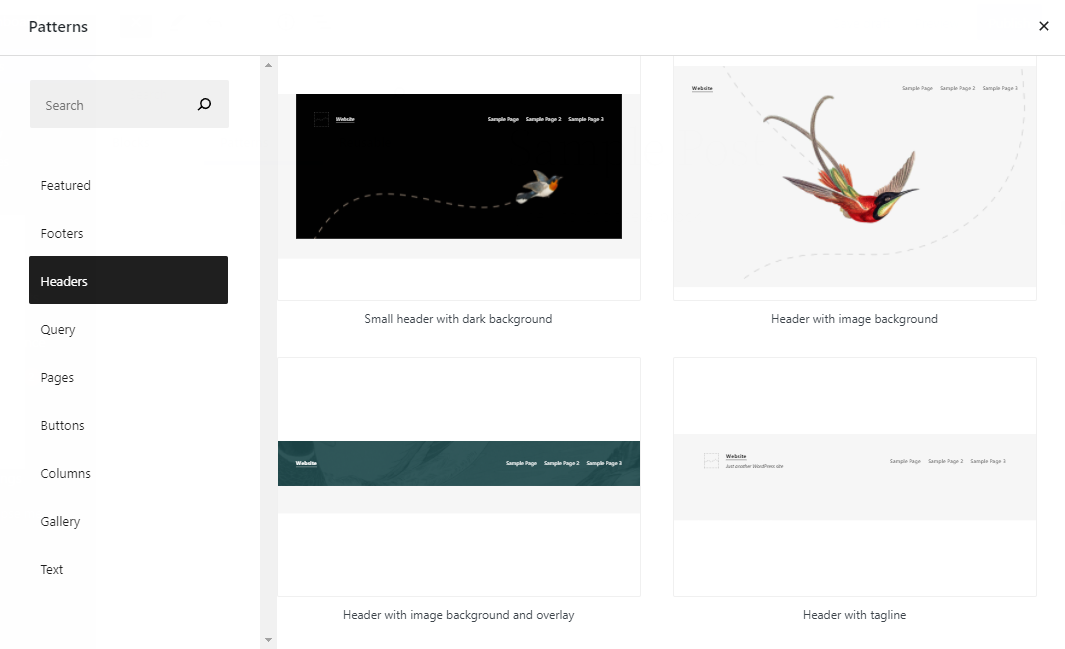
Using a block-based WordPress theme is also a great way of customizing templates with the block editor and its global styles interface. It makes it easier to change the templates or even the layout of the entire site by simply rearranging the content blocks.
Overall, the new WordPress editor provides a better user experience for content editing. It’s also a more user-friendly platform for new users to learn WordPress.
What Types of WordPress Blocks Are Available in the Block Editor?
There are over 90 blocks available in the latest WordPress version, divided into six categories – text, media, design, widgets, theme, and embeds.
Let’s check out all the blocks in the WordPress block editor and their main customization options.
Text Blocks
Text blocks let you add headings, paragraphs, and other text elements to the content. Some of the main text blocks available are:
- Paragraph
- Heading
- List
- Quote
- Pullquote
- Classic
- Details
- Preformatted
- Code
- Table
- Verse
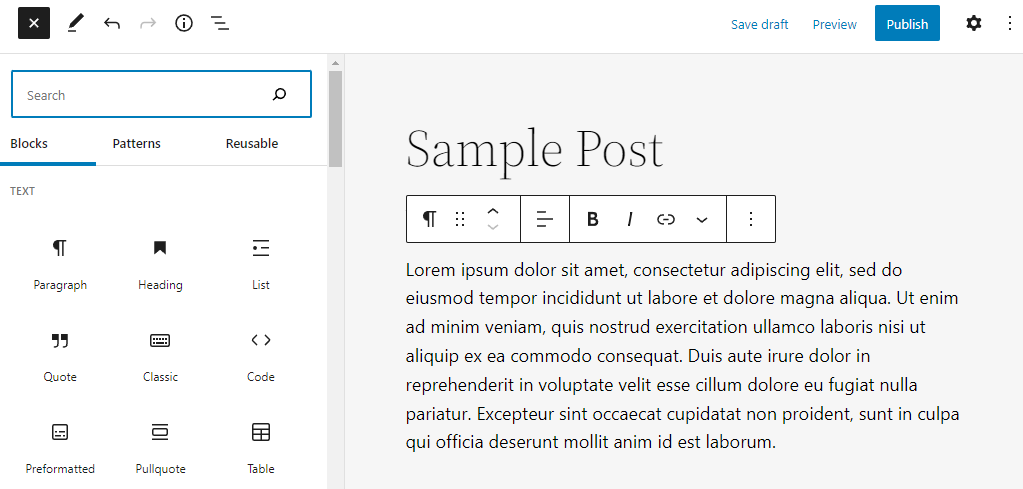
Some of the text blocks also provide different ways to display the text. For example, the pullquote block helps to draw attention to a text excerpt, while the table block makes it easier to present and compare any information.
Other blocks like code and preformatted allow you to highlight code snippets.
Pro Tip
Check out our article on adding tables in WordPress to learn how to use Gutenberg's table block.
Media Blocks
Media blocks let you upload various files to the media library and embed them in the content. There are seven media blocks:
- Image
- Gallery
- Audio
- Cover
- File
- Media and text
- Video
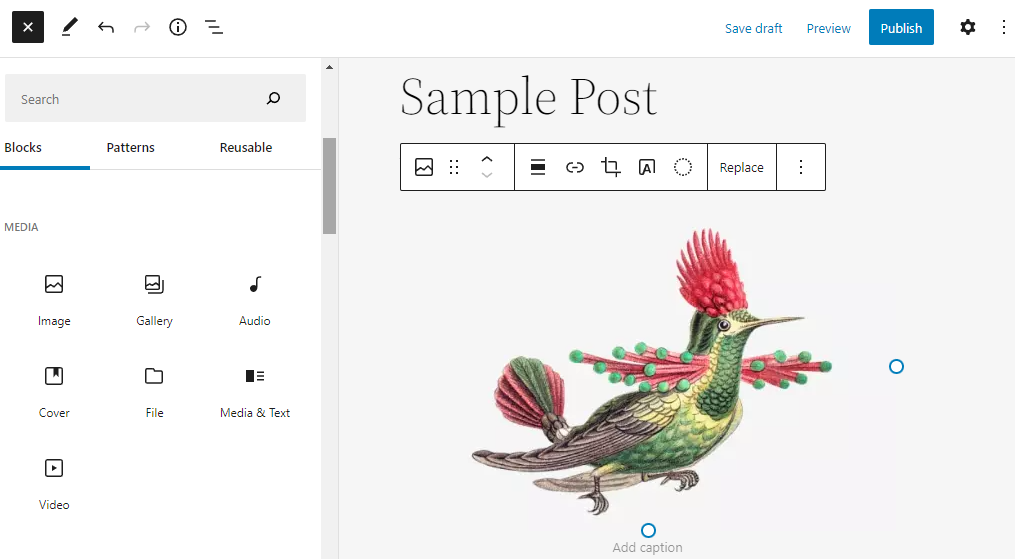
Image and gallery blocks are among the most common media blocks.
While the image block displays an individual image, the gallery block allows you to create a cluster of images. That said, the images in the gallery are treated as independent blocks with their own alt text fields.
The file block can accept any file type and embed them on the site. A notable feature of this block is the PDF viewer, which allows you to embed a PDF file that visitors can read directly on the site or download.
Design Blocks
Using the WordPress block editor, it’s possible to customize the content layout easily using design blocks. While this block type doesn’t add content, it helps shape how the content will appear to site visitors.
There are nine design blocks available:
- Buttons
- Columns
- Group
- Row
- Stack
- More
- Page break
- Separator
- Spacer
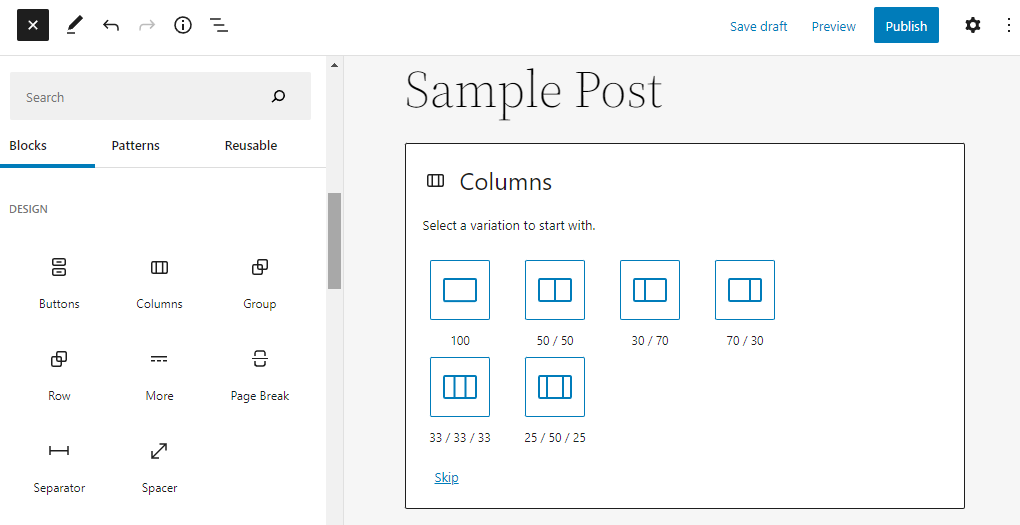
Columns, group, and row are also WordPress container block types, meaning they can host individual blocks inside them.
For example, use the columns block to create a sidebar. You can divide the width of the page to a 70:30 ratio, add content to the larger side, and insert WordPress widgets and other elements into the smaller side.
Using the row block, add multiple blocks in the same horizontal position. For example, use it to add elements to the header and footer.
Widgets Blocks
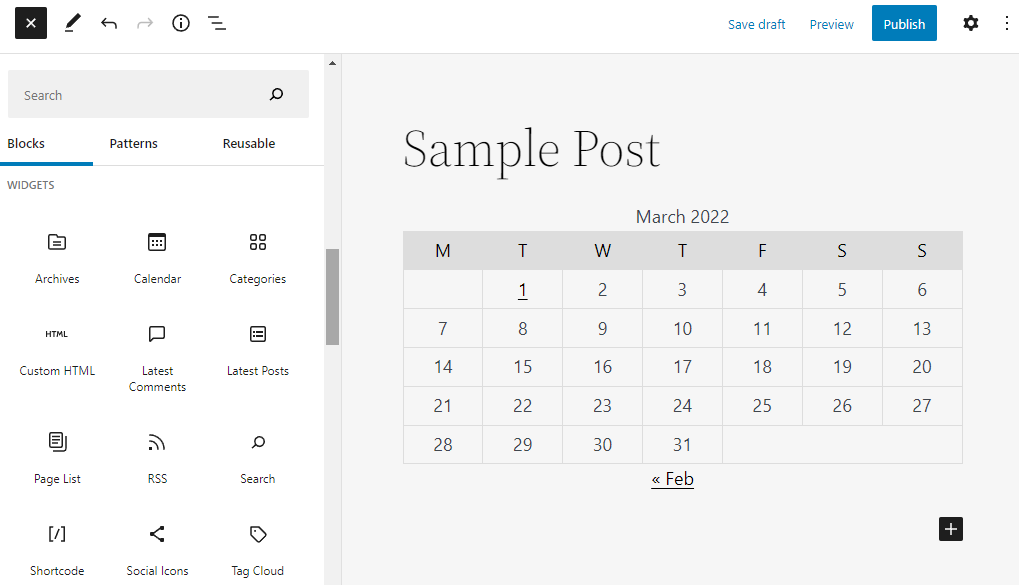
Widgets now come as blocks that you can insert anywhere on the page, including the footer and sidebars.
The 13 widget blocks available in the Gutenberg block editor are:
- Archives
- Calendar
- Categories List
- Custom HTML
- Latest comments
- Latest posts
- Page list
- RSS
- Search
- Shortcode
- Social icons
- Tag Cloud
Theme Blocks
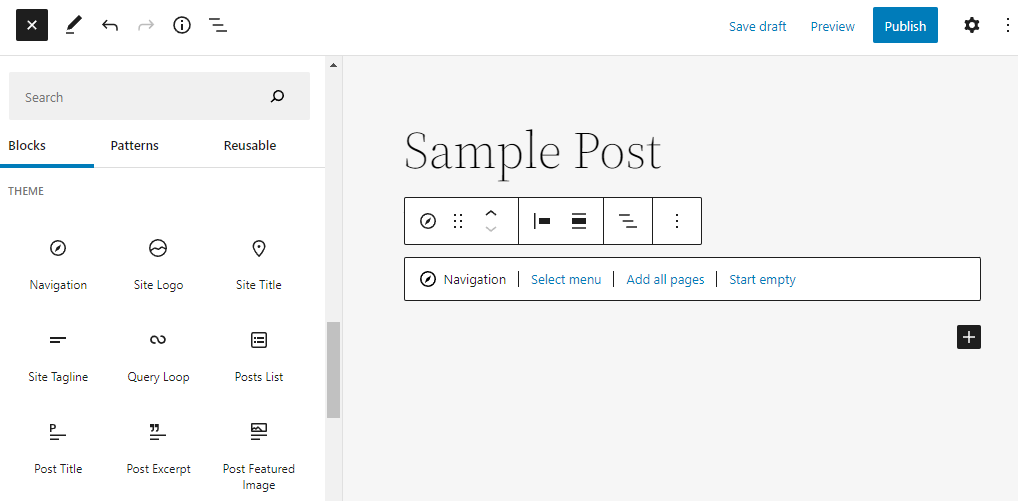
Most theme blocks are dynamic, pulling in content information like post content, query loop, and post comments and displaying them on the site. Several of them are also essential to display the site identity, including the site logo, site title, and site tagline.
There are 23 theme blocks in total. The blocks that relate to the site and theme design in general are:
- Navigation
- Site logo
- Site title
- Site tagline
- Header
- Footer
- Template part
- Login/out
There are also blocks that fetch content information from blog posts:
- Post title
- Post excerpt
- Post featured image
- Post content
- Post author
- Post date
- Post categories
- Post tags
- Next post
- Previous post
Embeds Blocks
The new block editor lets you easily embed external content by copying and pasting URLs. For example, there’s a dedicated block for embedding a video from YouTube.
Some of the embed blocks the new editor offers are:
- YouTube
- Vimeo
- Spotify
- SoundCloud
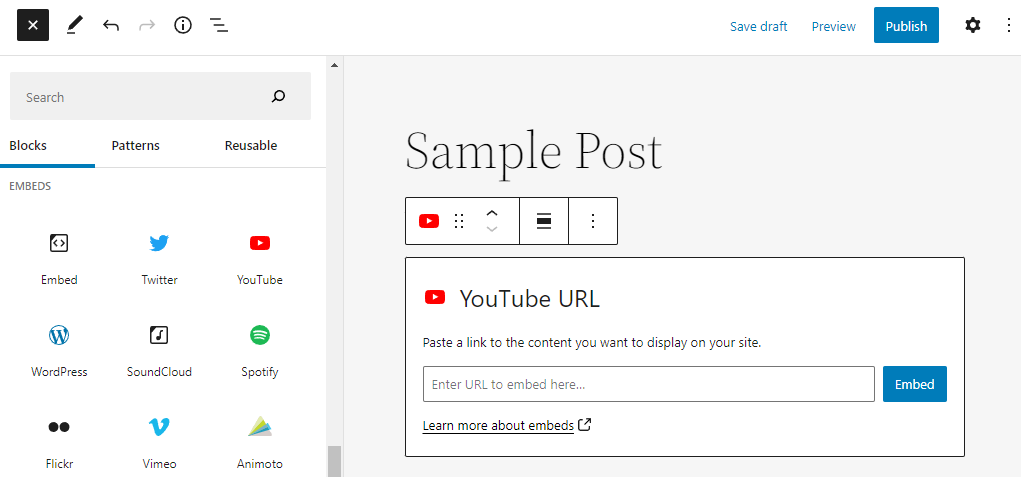
If you can’t find the desired platform, use the embed block and paste the URL to embed the media.

How to Use WordPress Blocks to Customize Your Site
The Gutenberg block editor is the default WordPress editor for post and page creation. The block editor is also available for full site editing when using a block theme.
When adding a new blog post or page, the editor will provide a paragraph block by default so that you can start writing straight away. When you press Enter, the paragraph block is also the default new block, making the writing process seamless.
Alternatively, add a new block by clicking on the plus (+) button in the content area. A small pop-up will appear with six recently used blocks and a search bar. Use the search bar to find a specific block and click on it to insert it into the content.
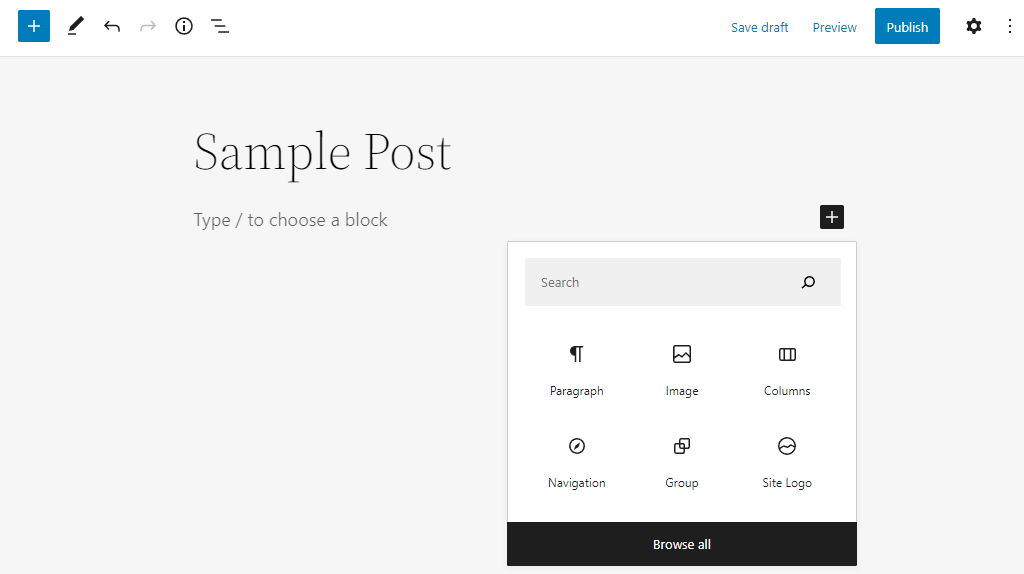
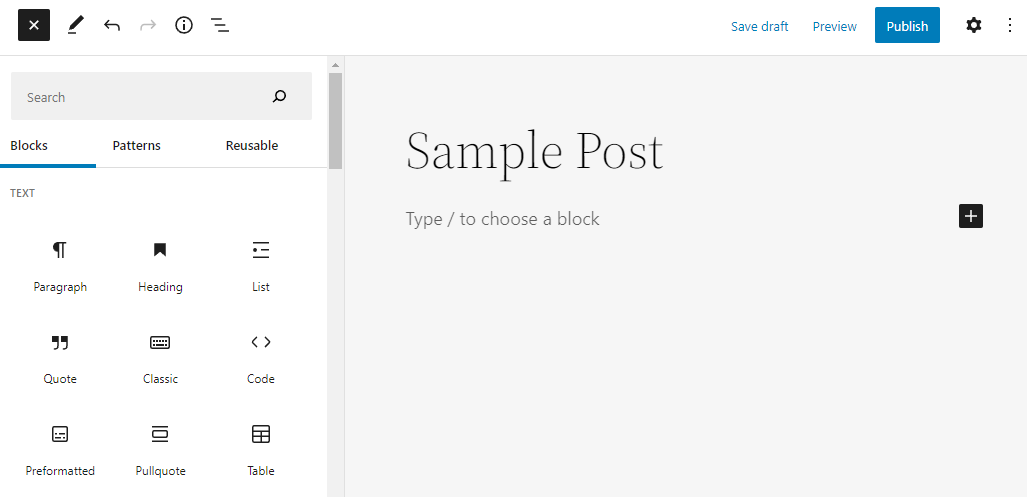
Another option is opening the block inserter by clicking on the plus (+) button on the top-left corner of the screen.
A new panel will appear on the left side with all the available blocks – you can use the search bar to locate the desired option. Then, click on the block to add it to the content.
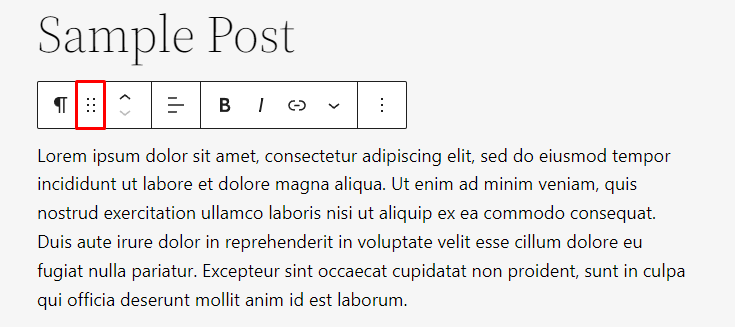
To rearrange blocks, the WordPress block editor has a drag-and-drop feature. Select any block, click the Drag icon on its toolbar, and drop it in the desired place.
Alternatively, use the up and down arrows on the block’s toolbar.
All WordPress content blocks have different setting tools. To configure any of them, select a block, and open the block settings panel by clicking on the Settings button in the top-right corner of the screen.
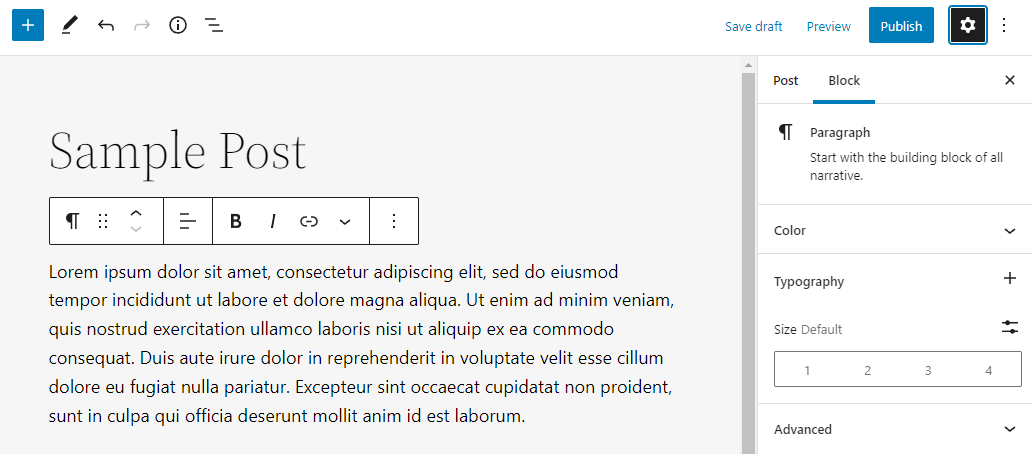
The settings panel will appear on the right side. For example, the paragraph block has options to customize the color, typography, and other design elements.
Once you’re comfortable with blocks in the post editor, Full Site Editing takes them further, you can design headers, footers, and templates with the same block-based approach. Here’s a walkthrough:


The Best WordPress Theme Frameworks for 2026
Installing a WordPress plugin is a great way of adding different block options to the WordPress editor.
Several WordPress plugins are available to expand the block library with additional content blocks, customization tools, and even layout templates.
However, each block plugin offers a different set of blocks. Thus, to help you find the best option, we’ll list the top 10 WordPress block plugins.
1. Genesis Blocks
Plugin Stats:
- Downloads: 60,000+
- Rating: 4.5/5
- Notable features: pre-built pricing table and call-to-action blocks
- Best suited for: blogs and small businesses
- Price: freemium (from $360/year)
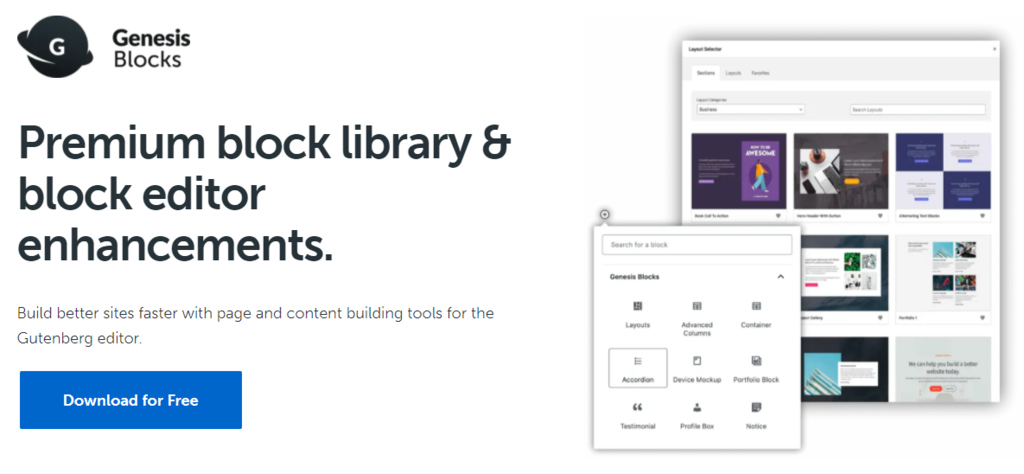
The Genesis Blocks plugin adds 14 new blocks to the WordPress block editor. It may not seem like many, but its set of blocks can help take a business website to the next level.
The Pricing block is one of the main new additions. The block helps create a pricing table without building it from scratch using the table block. It lets you add up to four pricing columns, complete with a call-to-action button.
The call-to-action block lets you add a call-to-action section to the site. It supports an image background and full-width layout to make it stand out from the rest of the content.
The plugin’s premium version, Genesis Pro, adds two more blocks and block-level user permissions so that only selected users will have access to certain blocks. All in all, this plugin is suitable for blogs and small business websites that look for simple additional blocks.
2. Getwid

Plugin Stats:
- Downloads: 50,000+
- Rating: 5/5
- Notable features: pre-designed templates, wide variety of content blocks
- Best suited for: blogs, small businesses, portfolios
- Price: free
Getwid is the free block plugin with the widest range of additional Gutenberg blocks. It offers 38 unique blocks and over 35 pre-made templates to help you create a beautiful web design without having to install too many plugins.
Blocks like image slider, image box, and image stack gallery provide new ways to present images on your content. Getwid also comes with Instagram and Google Maps blocks that extend the existing embedding options.
The pre-made templates are similar to the WordPress block pattern. However, Getwid uses the template library block instead of the pattern inserter to select and insert the template into the content.
You can disable unused blocks to maintain the speed and simplicity of your editor. Go to Dashboard -> Settings -> Getwid and open the Blocks tab to select which blocks to disable.
3. Spectra – WordPress Gutenberg Blocks
Plugin Stats:
- Downloads: 500,000+
- Rating: 4.9/5
- Notable features: schema blocks, full-page templates, and block patterns
- Best suited for: blogs, small businesses, restaurants
- Price: free and paid
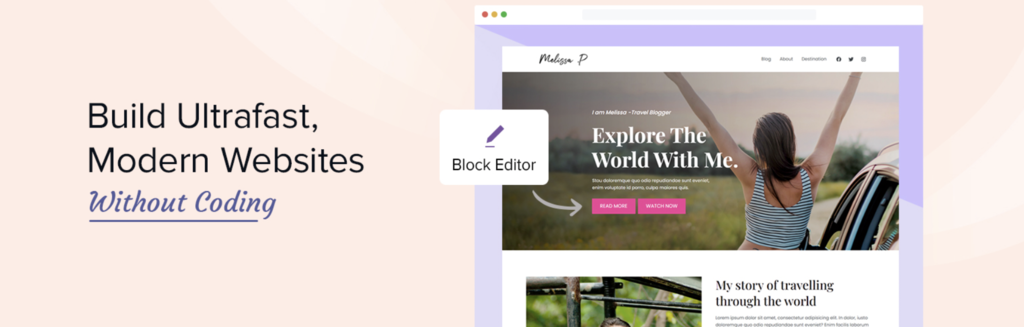
Spectra – WordPress Gutenberg Blocks is one of the most compelling WordPress block plugins. Along with 33 different blocks, Spectra also provides 81 full-page templates, 284 block patterns, and 56 wireframes.
Blocks like post grid, post masonry, and post carousel display your posts in various formats. The price list block is perfect for listing a restaurant’s menu or other product prices. It’s also possible to insert an image for each item using the block’s design tools.
Spectra comes with several schema blocks for how-to, review, and FAQ content. These blocks not only help set up the content faster but improve the content’s ranking on search engines.
The plugin’s templates, patterns, and wireframes are available for posts and pages and include options such as portfolios and testimonials. Click on the Spectra Templates button at the top of the editor to find all the available options.
4. Premium Blocks for Gutenberg
Plugin Stats:
- Downloads: 3,000+
- Rating: 5/5
- Notable features: block manager, dedicated design tools for each block
- Best suited for: small businesses
- Price: free
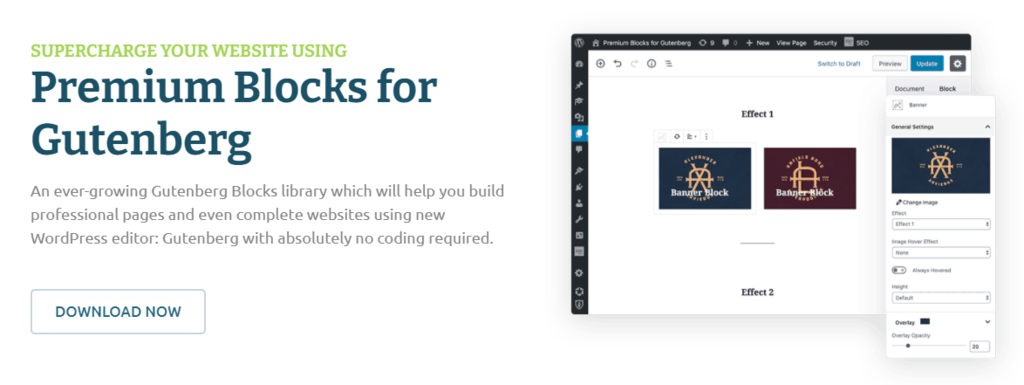
Premium Blocks for Gutenberg is a free plugin that adds 14 new blocks that have minimal impact on the website’s performance and speed.
One of the unique blocks this plugin offers is Dual Heading, which splits headings into two parts that you can customize individually. The Fancy Text block lets you add animation between parts of the text.
Offering limited additional blocks, this plugin focuses on each block’s setting options to help you adjust, edit, and design content.
For example, you can modify each block’s responsiveness and container style, while several blocks also come with unique design tools.
There is an option to enable or disable blocks to minimize the impact of the plugin. Head to Dashboard -> Premium Blocks for Gutenberg -> Block Settings, then choose the blocks to activate and deactivate.
5. JetEngine Dynamic Blocks
Plugin Stats:
- Downloads: 100,000+
- Rating: 4.6/5
- Notable features: custom post types, dynamic listings, profile builder.
- Best suited for: developers building directories, listing sites, or dynamic content-heavy projects.
- Price: from $43/year
JetEngine is a powerful plugin designed to supercharge WordPress websites with dynamic content capabilities – especially when used with block-based builders like Gutenberg. Unlike traditional block plugins that focus on styling or layout, JetEngine specializes in custom post types, taxonomies, meta fields, and dynamic listings. It allows you to build complex, database-driven websites such as directories, listings, membership platforms, and more – all visually and without touching code.
JetEngine also includes an AI Website Structure Builder, a smart assistant that helps users generate complete website data models based on natural language prompts. This tool is especially helpful for beginners or those planning complex sites, as it lays out the needed custom post types, fields, and relationships in seconds – giving you a solid foundation for development.
6. PublishPress Blocks
Plugin Stats:
- Downloads: 30,000+
- Rating: 4.7/5
- Notable features: block access, email opt-in, blocks settings interface
- Best suited for: businesses, multi-author blogs, online stores
- Price: free
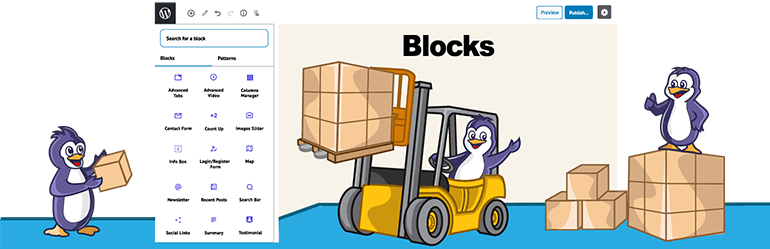
PublishPress Blocks comes with 22 advanced blocks that you can customize via the WordPress admin dashboard.
One of the unique blocks is the Login/Register Form, providing a pre-made login interface within the block editor. PublishPress Blocks also offers Newsletter and Contact Form blocks for lead generation.
This plugin has a block access feature to activate or deactivate specific blocks for each of your WordPress user role. Navigate to Blocks -> Settings to enable the feature and manage it via the Block Access panel on the plugin setting page.
The Block Settings section lets you modify the global styles for each PublishPress block. Each block has its own settings, but they mainly cover color, border options, and other design options.
If you want to use custom CSS for your WordPress site, this plugin also has a Custom Styles panel to add CSS classes.
7. Stackable
Plugin Stats:
- Downloads: 70,000+
- Rating: 4.9/5
- Notable features: pre-built layout templates and UI kits, detailed block customization settings
- Best suited for: all types of websites
- Price: freemium (from $49/year)
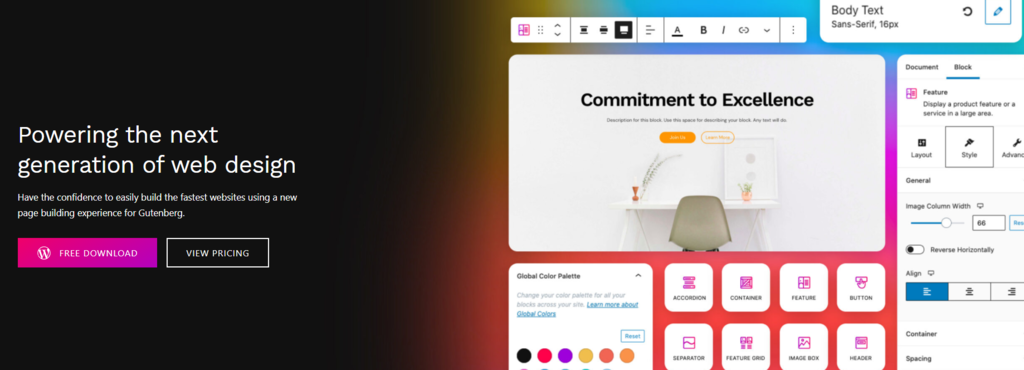
Stackable is one of the most versatile block plugins. Its free version adds 35 blocks, 100 pre-built block layouts, eight UI kits, and 37 wireframes, while Stackable premium increases the design options with 403 pre-built block layouts and 33 UI kits.
The pre-built block layouts and UI kits are available for posts and pages. Find all the options available by clicking on the Design Library button at the top of the editor screen.
Stackable provides a wide range of block customization tools with the Block, Style, and Advanced settings for each block.
The Block settings contain some basic layout configurations like border, alignment, and spacing, while the Advanced settings let you configure the block’s responsiveness and HTML tag. It’s also possible to add motion effect with the premium version.
8. Ultimate Blocks

Plugin Stats:
- Downloads: 40,000+
- Rating: 4.9/5
- Notable features: blocks manager, schema markup, community support
- Best suited for: bloggers, marketers
- Price: free
Ultimate Blocks focuses on bloggers and marketers. It adds 22 blocks like Review, Social Share, and Call to Action to increase the website’s engagement. The plugin also includes schema markup on Review and How To blocks to improve SEO.
The block manager feature lets you enable and disable blocks. Open the block manager by navigating to Dashboard -> Ultimate Blocks -> Block Manager.
Ultimate Blocks has an active community forum with over 400 members. If you encounter difficulties when using the plugin, check the existing discussions or post your questions on the forum.
A contact form is also available on Dashboard -> Ultimate Blocks -> Contact Us.
9. Kadence Blocks
Plugin Stats:
- Downloads: 200,000+
- Rating: 5/5
- Notable features: custom editing section, block manager, pre-built sections
- Best suited for: all types of websites
- Price: freemium (from $69/year)
Kadence Blocks offers tools to make creating complex layouts in blog posts or pages easy. The free version adds 15 blocks to the editor, while Kandace Blocks Pro comes with 12 premium blocks, including a product carousel and video pop-up.
Kadence also offers pre-built sections and starter templates. Open the Kadence Design Library by clicking the Design Library button at the top of the post or page editor.
Moreover, it’s possible to set global styles for the blocks by clicking on the Kadence Blocks logo next to the Settings icon. It allows you to change the color palette and the global styles for each block.
10. Otter Blocks
Plugin Stats:
- Downloads: 100,000+
- Rating: 4.7/5
- Notable features: default block setting, pre-built sections, block manager
- Best suited for: blogs, small businesses
- Price: free
Otter Blocks is a lightweight free plugin that adds 29 new blocks to the editor, including Google Maps and add-to-cart blocks.
There’s an option to set the Section block as the default block for new pages. Alternatively, open the Template Library to choose from 51 pre-built sections to create content quickly.
Adjust the default block settings by clicking on the Otter Blocks logo on the right corner of the header and selecting Global Defaults. You’ll be able to change each block’s default color, typography, and spacing.
The plugin also has animation and custom CSS features applicable to Otter blocks and default WordPress blocks. For example, when writing a number using the default paragraph block, you can add a counting animation to it.
The custom CSS feature is also different from the default CSS class, as it allows you to write the CSS code straight in the editor.
Conclusion
Combining the new WordPress features and block-based themes, blocks are now the basis for full site editing and improved user experience.
WordPress blocks make content customization easier by letting you build attractive layouts and visual designs without using extra code or plugins.
There are also several other benefits when comparing it to the previous editor. For example, the block patterns let you save a pre-designed block for future usage, simplifying the page and post-creation process. The drag-and-drop functionality, available in the block toolbar, allows you to quickly rearrange the content.
Currently, WordPress has over 90 default blocks, split into six categories. While they are sufficient to create a basic WordPress site or blog, WordPress block plugins can expand the block library and provide more customization tools to fulfill your design needs.
WordPress Blocks FAQ
Here are frequently asked questions about WordPress blocks.
How Do I Get More Blocks in WordPress?
To get more blocks in WordPress, you can install third-party block plugins such as Ultimate Addons for Gutenberg, Atomic Blocks, or CoBlocks. These plugins add additional blocks to the WordPress editor, allowing you to create more complex layouts and designs on your website.
What Is a WordPress Block Template?
A WordPress block template is a pre-designed layout that uses the WordPress block editor to create custom pages or posts. It consists of multiple pre-designed blocks arranged in a specific layout, allowing users to quickly create and customize pages without having to design each block individually.
Can I Turn Off Blocks in WordPress?
Yes, you can turn off blocks in WordPress by using a classic editor plugin, which disables the block editor and allows you to use the classic editor interface. Alternatively, you can use the Disable Gutenberg plugin, which selectively disables certain blocks or entire block categories.
This article is a localized version of WordPress blocks: what are they and how to customize your site using them, originally published in English.

Astari is a digital marketing expert, with a focus on SEO and WordPress. She loves to share her wealth of knowledge through her writing, and enjoys surfing the internet for new information when she's not out in the waves or hiking a mountain. Her mission is to learn something new every day, and she firmly believes that there is no such thing as too much knowledge.

Leo is a Content SEO Specialist and WordPress contributor. Armed with his experience as a WordPress Release Co-Lead and Documentation Team Representative, he loves sharing his knowledge to help people build successful websites. Follow him on LinkedIn.


