What is reCAPTCHA and how does it work?
Oct 15, 2026
/
By Astari S.
/
6 min Read
reCAPTCHA is a Google security service that helps protect websites from spam, bots, and automated attacks by identifying potentially suspicious interactions. It’s commonly used on login pages, registration forms, contact forms, and comment sections.
reCAPTCHA works by analyzing user behavior and, depending on the version, asking visitors to complete a verification challenge or assessing their activity in the background. reCAPTCHA v2 uses checkbox or invisible verification, sometimes requiring image challenges, while reCAPTCHA v3 assigns risk scores without interrupting users. Google also offers reCAPTCHA Enterprise for more advanced bot protection.
Although reCAPTCHA can reduce automated abuse, it doesn’t guarantee complete protection and may occasionally challenge legitimate visitors.
How does reCAPTCHA work?
reCAPTCHA works by analyzing website interactions to assess whether they’re coming from legitimate users or automated bots. Depending on the version, it can evaluate signals such as user behavior and interaction patterns to identify potentially suspicious activity.
Some versions ask visitors to complete a verification challenge, such as selecting images or checking an “I’m not a robot” box. Others assess activity in the background and provide a risk score that websites can use to decide whether additional verification is necessary.
The website then processes the reCAPTCHA response through server-side verification to determine whether to allow the requested action, such as submitting a form or logging in.
While verification challenges help distinguish legitimate visitors from bots, they can also create barriers for people with disabilities. Website owners should consider website accessibility when choosing a verification method, ensuring that visitors using assistive technologies can complete protected forms.
What are the different versions of reCAPTCHA?
Google has introduced several versions of reCAPTCHA, each using different methods to distinguish legitimate website visitors from automated bots. The main differences involve how users are verified and whether they need to complete a visible challenge.
reCAPTCHA v1
reCAPTCHA v1 was the original version, which required users to recognize distorted text and enter the correct characters to prove they were human.
Google discontinued reCAPTCHA v1 in 2018, so it’s no longer available for new implementations.
reCAPTCHA v2
reCAPTCHA v2 uses interactive verification to distinguish legitimate visitors from bots. It supports two main approaches:
- Checkbox reCAPTCHA: Displays the familiar “I’m not a robot” checkbox. Users may pass verification immediately or be asked to complete an image challenge, such as identifying traffic lights or bicycles.
- Invisible reCAPTCHA: Runs when a user performs an action, such as submitting a form. It doesn’t require clicking a checkbox but may display a challenge when suspicious activity is detected.
reCAPTCHA v2 is useful for websites that want a straightforward verification method for forms, logins, or registrations.
reCAPTCHA v3
reCAPTCHA v3 analyzes user interactions in the background and assigns a risk score rather than requiring visitors to complete a traditional CAPTCHA challenge.
Website owners can use this score to decide how to handle potentially suspicious activity, such as requesting additional verification, blocking an action, or sending a submission for moderation.
Because it doesn’t rely on visible challenges, reCAPTCHA v3 can reduce interruptions for legitimate visitors. However, website owners must configure how their applications respond to the risk scores.
reCAPTCHA Enterprise (Google Cloud reCAPTCHA)
Google Cloud reCAPTCHA provides additional bot protection and fraud prevention capabilities, including advanced risk assessments, security monitoring, and tools for protecting sensitive interactions.
It supports different verification approaches, including score-based assessments and checkbox challenges. This makes it suitable for websites and applications that need more control over automated abuse and security policies.
Google Cloud now uses terms such as score-based keys and checkbox keys, which broadly correspond to the traditional v3 and v2 verification methods.
Advantages and disadvantages of reCAPTCHA
reCAPTCHA helps to prevent bots from spamming website pages. It will always be beneficial to install this test to protect your site if you have open registration and comment sections.
However, the system does feature certain disadvantages as well. Here are some of the pros and cons of using reCAPTCHA on your site.
Advantages of reCAPTCHA
reCAPTCHA actively protects the integrity of your site by preventing spam, abuse, and data theft from bots.
Here are some of the most significant pros of using reCAPTCHA:
- Free. Everyone can use this service free of charge.
- Security. The test protects websites from spam, fraud, and abuse. This test is a very effective additional layer of security for websites with sign-up forms and comment sections.
- Options. There are different types of tests available and an option to use various tests for different kinds of forms.
- Integrity. Help protect the integrity of your site by avoiding attacks that might spread malware or redirect your visitors to malicious sites.
- Time. Save time by only providing services to real users. The test prevents bots from overflowing your business or comment section with fake users.
- Adaptive. As bots become more advanced, reCAPTCHA constantly adjusts its tests using a machine learning algorithm. This way, reCAPTCHA tests can adapt to what the bots are capable of doing.
Disadvantages of reCAPTCHA
While reCAPTCHA provides different options and ways to protect a site from spam and abuse, the test is not without its faults. Here are some of the cons of using the tool:
- User experience. The test interrupts the flow of what a user is trying to do, possibly resulting in a negative user experience. The test might even cause visitors to abandon the site altogether.
- Efficacy. Some bots can fool some of the older reCAPTCHA tests.
How to install reCAPTCHA on a website
Installing reCAPTCHA can be done in different ways, either manually or by using a WordPress plugin. Before installing the test, there are a couple of things to consider as well, such as the type and location of the test.
There are different types of reCAPTCHA tests available. Select which type works best for your site. We suggest you consider your visitors and what kind of test would be best for their user experience.
Then, think about where you would like to add the test. reCAPTCHA services are often available next to online forms, such as sign-up or contact pages. Knowing the location of the test beforehand will help with the installation process.
With any reCAPTCHA installation, the first step is to get the API key pair from the reCAPTCHA admin panel.
There, fill out the form according to your website’s needs:
- The Label can be anything you want and used to differentiate your reCAPTCHAs.
- Select the reCAPTCHA type that you want to use on your website.
- It is possible to add more than one website. This can be done under the Domains section.
- As a Google tool, the email under Owners will automatically be selected to your Gmail account. You may change or add more email addresses if necessary.
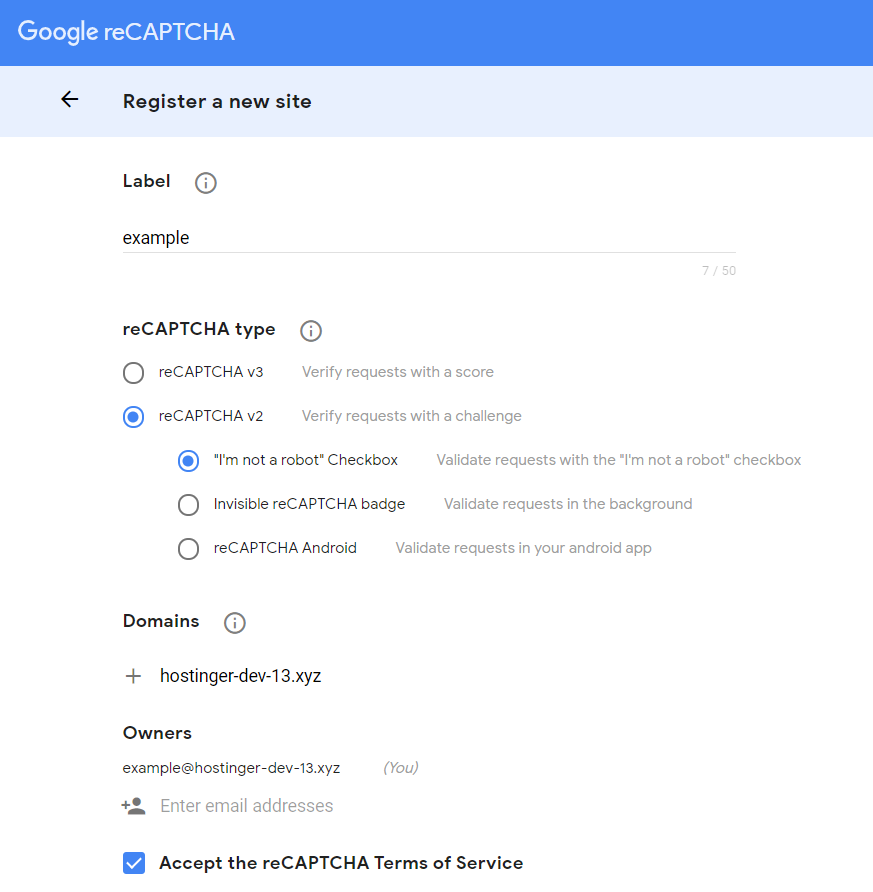
After you fill out the form, click on the Submit button. Google will generate a site key and a secret key. Use the site key in the HTML code of your site and the secret key for communication between your site and reCAPTCHA.
Once you have the site key and the secret key, the next step is to start the installation process.
How to install reCAPTCHA manually
One of the ways to install reCAPTCHA v2 manually is by using a PHP or HTML file. The first step is to access the root folder of your website. Then add the following code in the header of your form’s PHP or HTML file, preferably after the “title” line:
<script src="https://www.google.com/recaptcha/api.js" async defer></script>
On the same file, paste the following code inside the form, before the submit line:
<div class="g-recaptcha" data-sitekey="your_site_key"></div>
Change your_site_key with the Site Key from Google. Make sure to keep the key inside the quotation marks.
Then, add the secret key to the DNS records. If you use Hostinger as your web hosting provider, head to the DNS Zone Editor on your domain’s Hostinger dashboard. On Manage DNS records, add data-sitekey under Name and your secret key under TXT value. Click on the Add Record button.
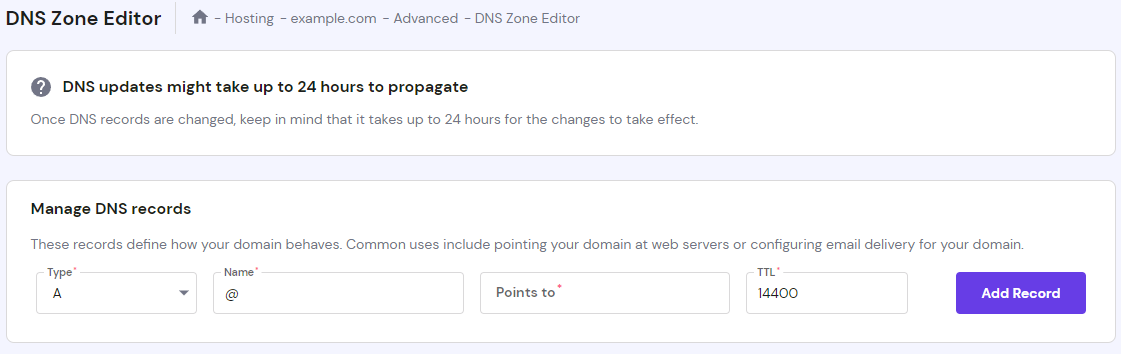
Remember that it might take up to 24 hours for changes to take effect.
How to install reCAPTCHA using a WordPress plugin
If you’re installing reCAPTCHA on WordPress, the easiest way is to use a plugin. Several plugins support reCAPTCHA integration, although Google doesn’t offer an official WordPress plugin for it.
To look for all the reCAPTCHA plugins available, head to Dashboard -> Plugins -> Add New. Input reCAPTCHA search box – most of the search results will come up as contact form plugins.
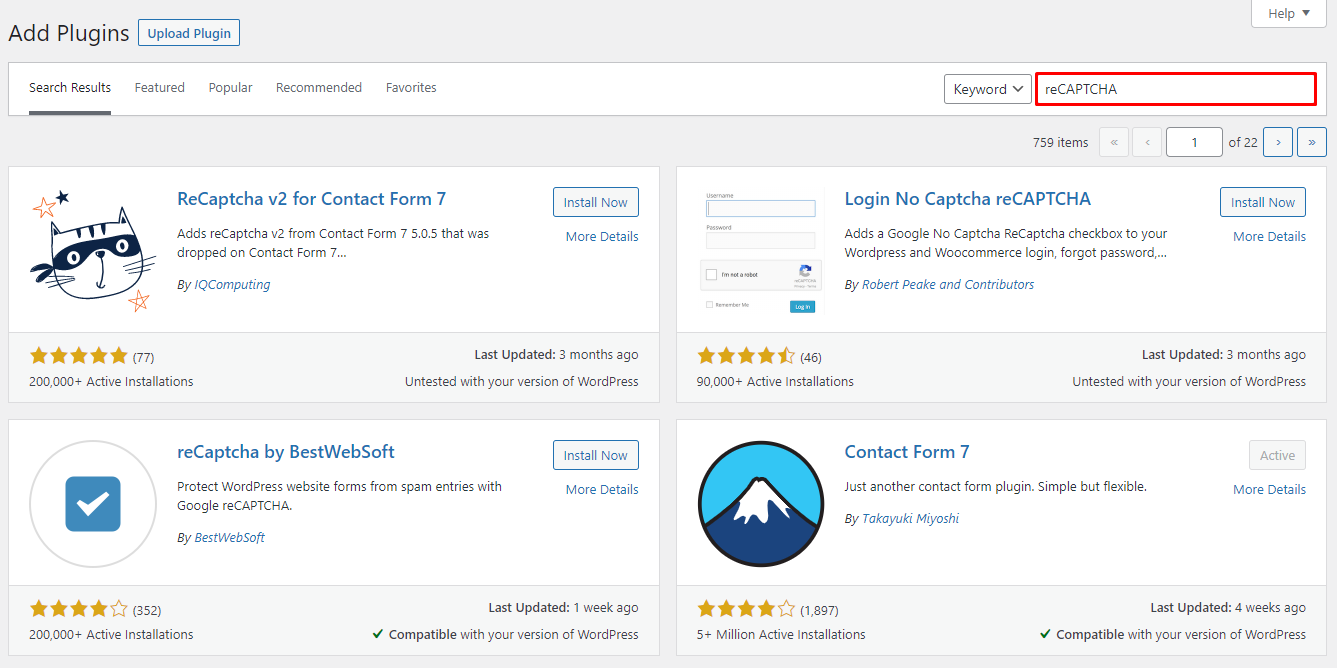
Before selecting the plugin, make sure that it is compatible with your version of WordPress. For this example, we will be using the Contact Form 7 plugin.
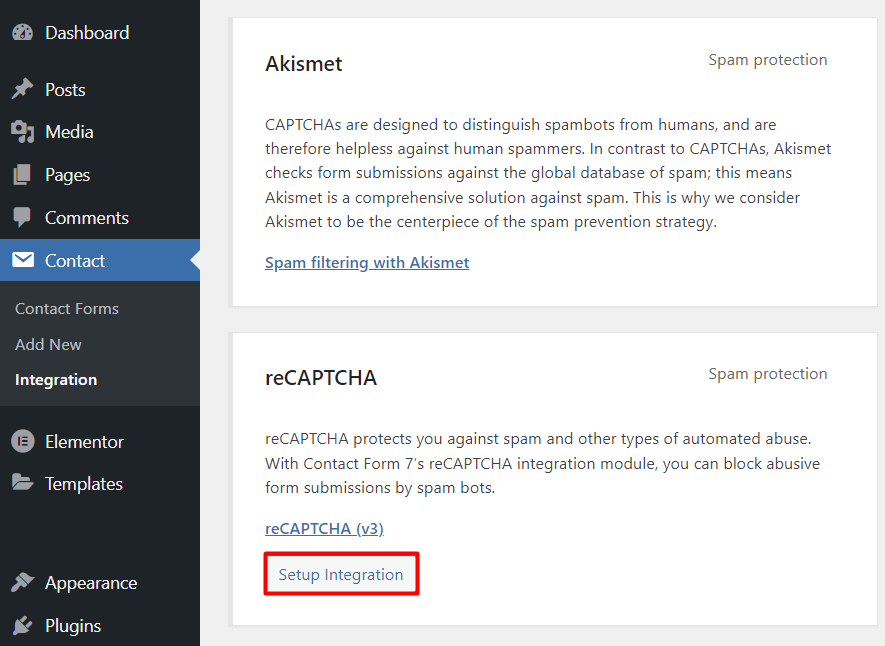
The Contact Form 7 plugin has the option to integrate reCAPTCHA protection on all of its forms. To do so, head to the Dashboard -> Contact -> Integration after you install and activate the plugin. Under the reCAPTCHA section, click on the Setup integration button.
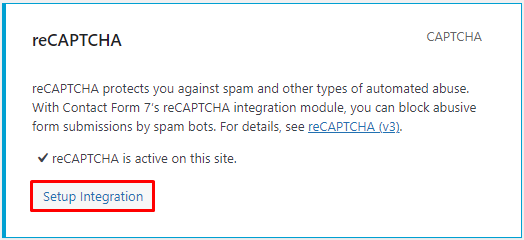
There, add the site key and the secret key from earlier. Once you’re done, click on the Save Changes button. Hit the Setup Integration button again.
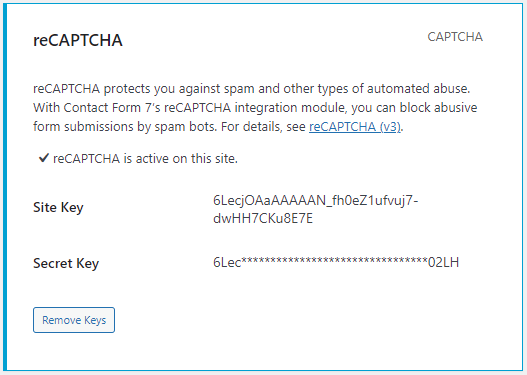
Once the integration process is complete, WordPress will show you the two keys.
Then, head to Dashboard -> Contact -> Add New to add the necessary information for the form. Add a title in the Enter title here section to differentiate between the forms.
Once you edit the content of the form field, add “[recaptcha]” before the “[submit “Submit”]” line. Click the Save button. There will be a generated shortcode under the title.
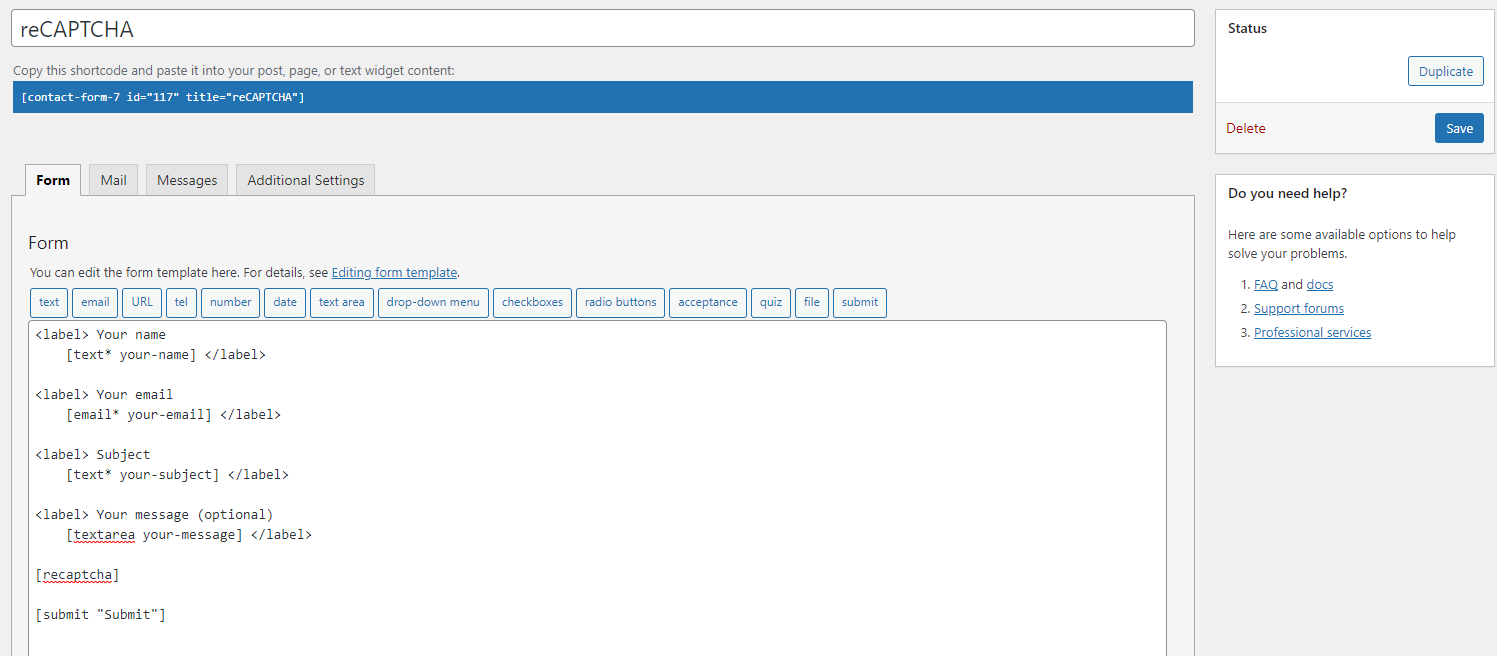
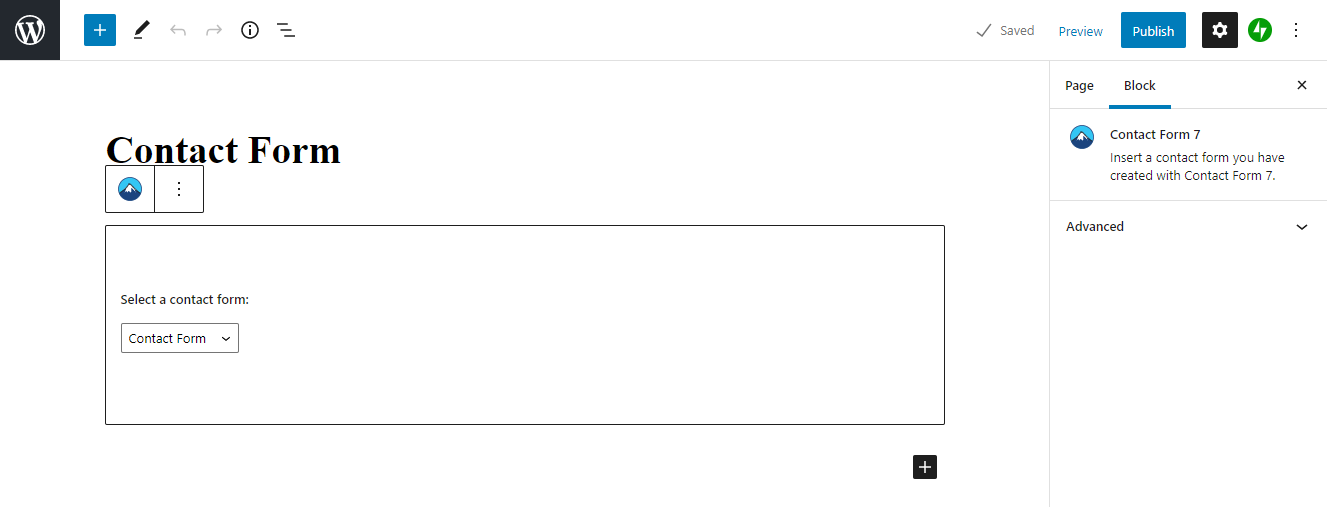
Copy the shortcode and head to the WordPress editor to add the form field you have created. On the Gutenberg editor, simply paste the shortcode, and the form will be automatically added, integrating your reCAPTCHA test as a result.

Next step: Test your reCAPTCHA protection
After adding reCAPTCHA to your website, test the protected forms to make sure legitimate visitors can still submit them successfully and that invalid verification responses are rejected.
Monitor spam submissions over the next few days to see whether reCAPTCHA is reducing automated activity. If you’re using reCAPTCHA v3, review its risk scores and adjust how your website handles suspicious submissions without unnecessarily blocking legitimate users.
reCAPTCHA is only one layer of website security. Once you’ve confirmed it’s working, perform a website security audit to identify other vulnerabilities, review your security settings, and strengthen your website’s overall protection.
This article is a localized version of What is reCAPTCHA and how does it work?, originally published in English.

Astari is a digital marketing expert, with a focus on SEO and WordPress. She loves to share her wealth of knowledge through her writing, and enjoys surfing the internet for new information when she's not out in the waves or hiking a mountain. Her mission is to learn something new every day, and she firmly believes that there is no such thing as too much knowledge.