How to launch a WordPress site in 5 steps
Sep 11, 2026
/
By Larassatti D. & Marco C.
/
6 min Read
Whether for your career, a hobby, or anything in between, a website can help you connect with a global audience and unlock new opportunities.
With its unmatched versatility, WordPress has become a go-to platform for millions looking to create websites. But don’t just take our word for it! Stick around as we walk you through the five easy steps on how to launch a WordPress site.
How to launch a WordPress site with Hostinger
In this guide, we’ll focus on launching a WordPress site with a Hostinger Managed WordPress hosting plan. It’s optimized specifically for WordPress and offers handy tools for easy setup.
1. Set your website creation goal
Before you launch a WordPress site, decide what you want to achieve with it.
You may want to start a blog, build an online store, or showcase your work portfolio, and each requires a different treatment. Whether your goal is to monetize the site or simply establish an online presence, it will influence how you plan and launch your website.
For example, it could affect how you choose your domain name and determine your website’s overall tone and mood.
Let’s look at some website ideas from our WordPress hosting clients.
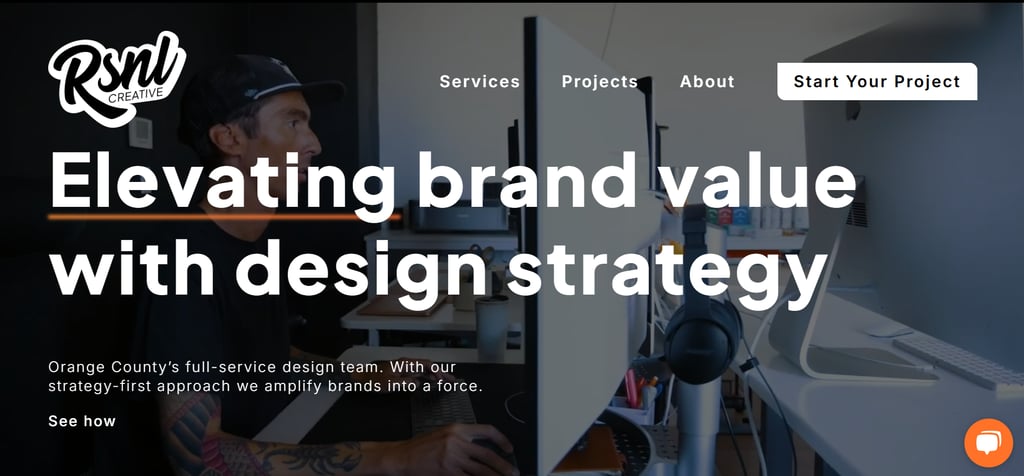
RSNL Creative’s website uses action-oriented language in its website copy, reflecting a results-driven approach. As a business profile of a design agency, the website’s appearance gives off a trendy aesthetic with a touch of playfulness through dynamic animations.
Meanwhile, Be-Mag is a community-driven website about inline skating culture. Its blog posts use a conversational voice, appealing to its audience with a relaxed tone. The overall website mood feels energetic, driven by its prominent images.

2. Get a hosting plan and a domain name
WordPress is a self-hosted platform, so you’ll need web hosting and a domain name to get your website online.
Choose a web host based on your website’s needs, expected growth, and budget. Most importantly, make sure the host offers reliable uptime, an easy-to-use control panel, and responsive customer support.
Meanwhile, a domain name acts like an address that will take visitors to your website simply by typing it into a browser. As it represents your brand, make it short, unique, and easy to remember.
If you need help coming up with domain name ideas, use our AI business name generator. Then, use our domain name checker below to check if your desired domain name is still available:
Domain Name Checker
Instantly check domain name availability.
With our Managed WordPress hosting plans, you can get a free domain by choosing annual subscriptions.
The Business plan is the most popular pick, as it only starts at CA$ 5.59/month, and you can get a bunch of AI tools to help you create content, troubleshoot issues, and navigate the WordPress admin dashboard. Even better, it includes the AI Website Builder for WordPress.

3. Set up your WordPress installation
After payment, you’ll be redirected to our onboarding setup wizard, which will let you automatically install WordPress by taking all the steps.
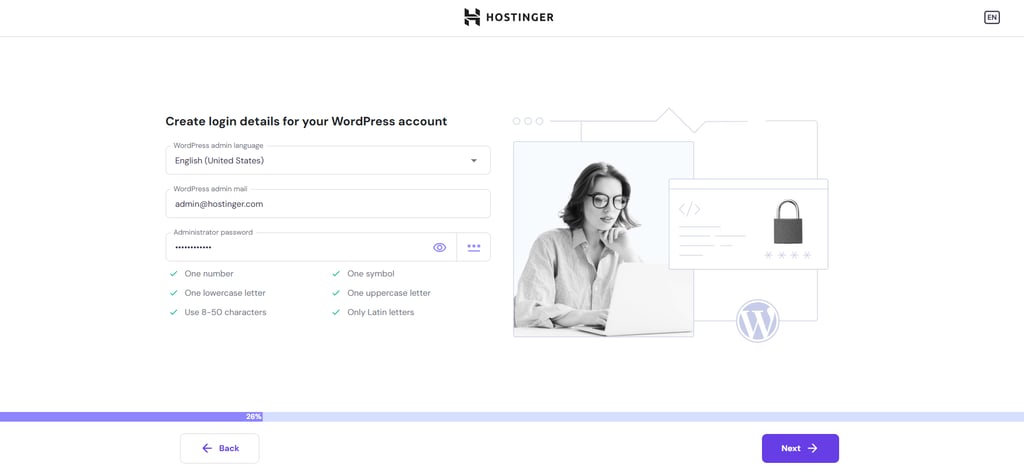
First, you have to answer some simple questions about the website you want to build and create a WordPress admin account.
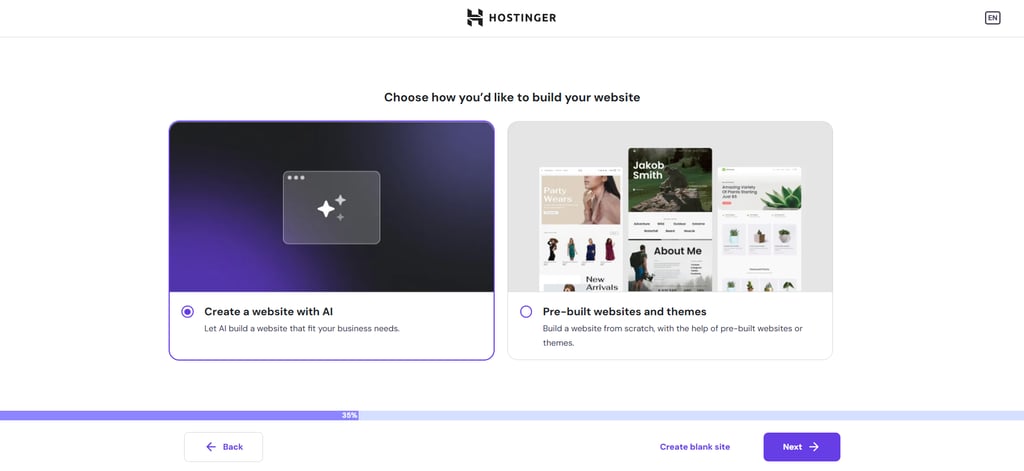
Next, choose how you want to build the website. We provide three methods:
- Using the AI Website Builder for WordPress. By purchasing the Business and Cloud hosting plans, you can instantly create a website with AI.
- Using a pre-built website template. This means all your site pages, along with the content placeholders, are already set up.
- Building your website from scratch. You can develop your site from a blank canvas or install a WordPress theme as a base for your website design. In our onboarding, you can select popular WordPress themes such as Astra.
Prefer the traditional route over AI generation? This video walks through picking a pre-built template and customizing it with Elementor, including setting up pages, menus, and your first blog post.
In this tutorial, we will go with the AI Website Builder for WordPress, which allows for a quick WordPress website launch.
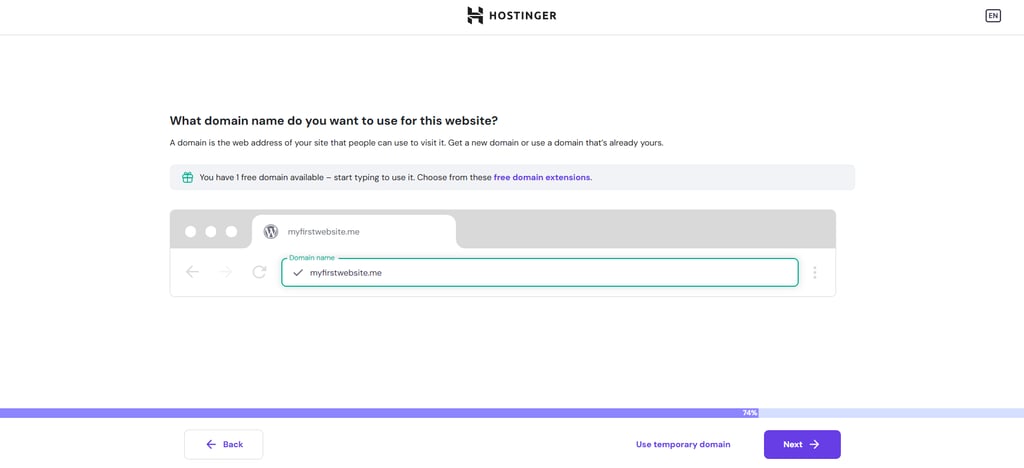
The next step is to connect a domain name with your site by typing it into the box. Clicking Use temporary domain will let you quickly proceed to set up your website. You can always connect your actual domain name later.
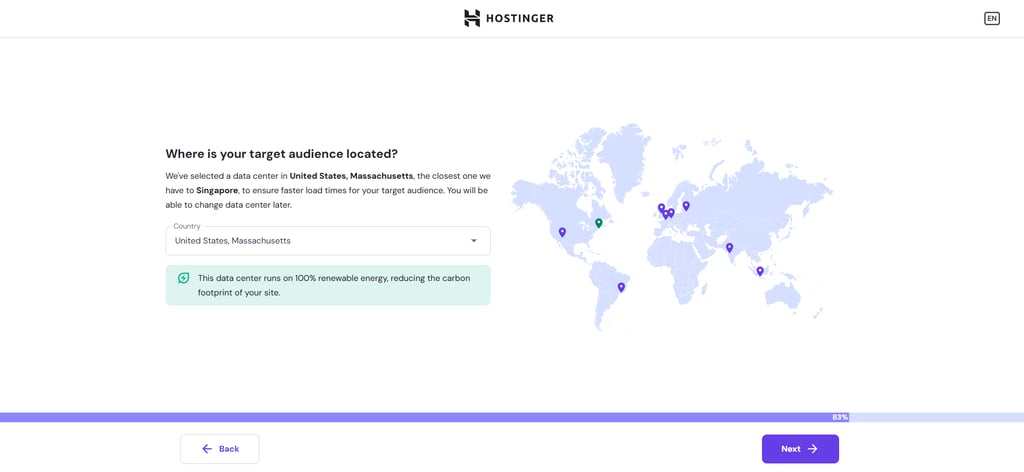
After that, choose the data center closest to your target audience to ensure optimal loading speed.
Wait while WordPress is automatically installed and set up. You’ll then see the AI Website Builder page, where you need to describe what your website is about.
Select a Website type from the drop-down menu. We currently provide AI website templates for portfolios, business profiles, and blogs, with even more templates coming soon.
Describe your website in detail. Here’s a prompt example for creating a personal travel blog:
This blog is a collection of my travel records from around the world. I’m passionate about exploring new destinations, immersing myself in local cultures, and discovering hidden gems each place has to offer. I plan to use the blog to share my travel experiences, tips, and insights.
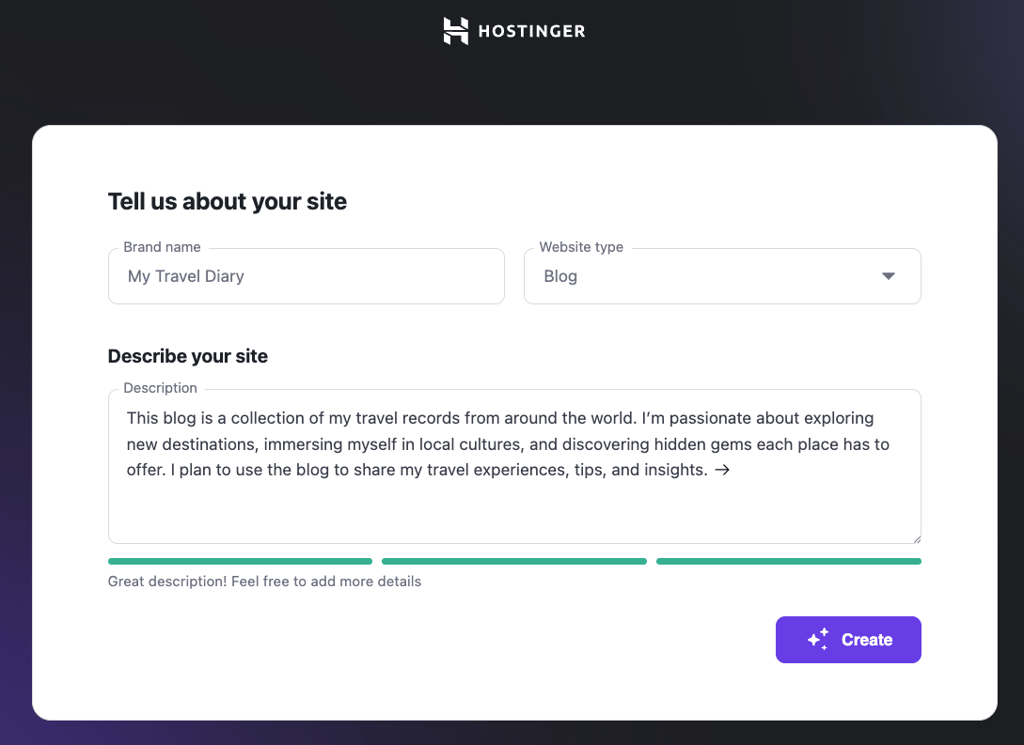
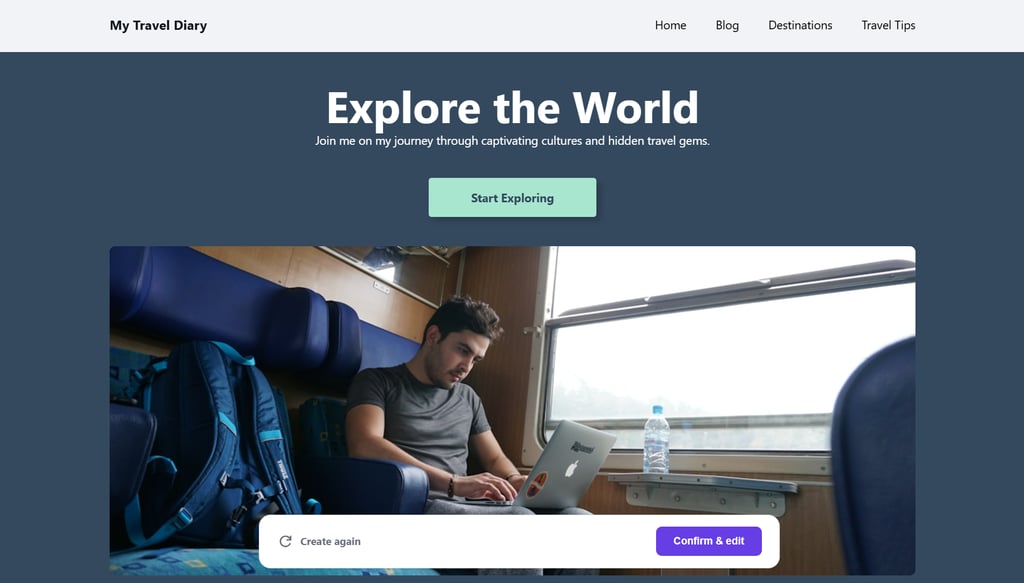
Once you’re done, hit Create. Wait for a few seconds, and then you’ll see a complete website already made for you. Click Confirm & edit to enter the WordPress Site Editor area.
4. Customize your website
Hostinger AI Website Builder for WordPress uses a block theme, so you can customize the website with Gutenberg or the block editor.
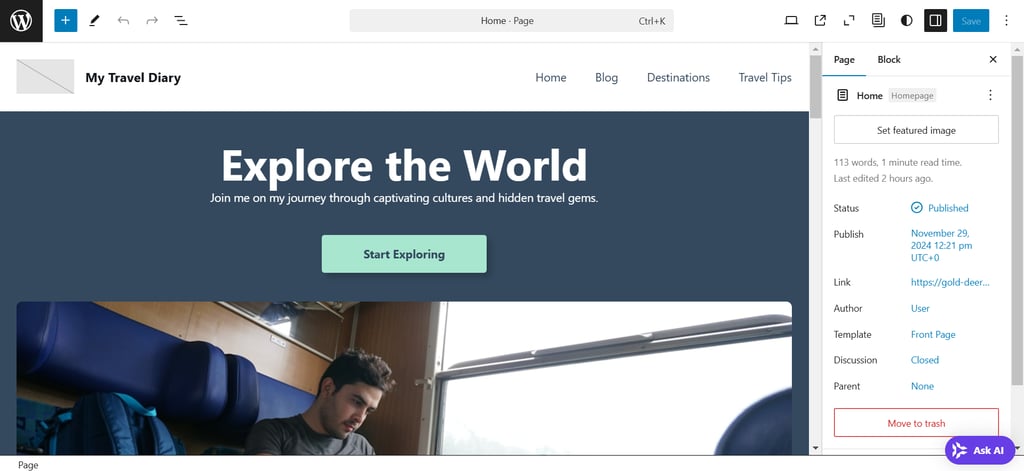
To edit the content, click on any website element, such as headings, buttons, or images, and the toolbar settings will appear. If you want to add a new block, hover over any blank area on the page and hit the plus (+) button.
Remember to hit Save once you finish editing the page.
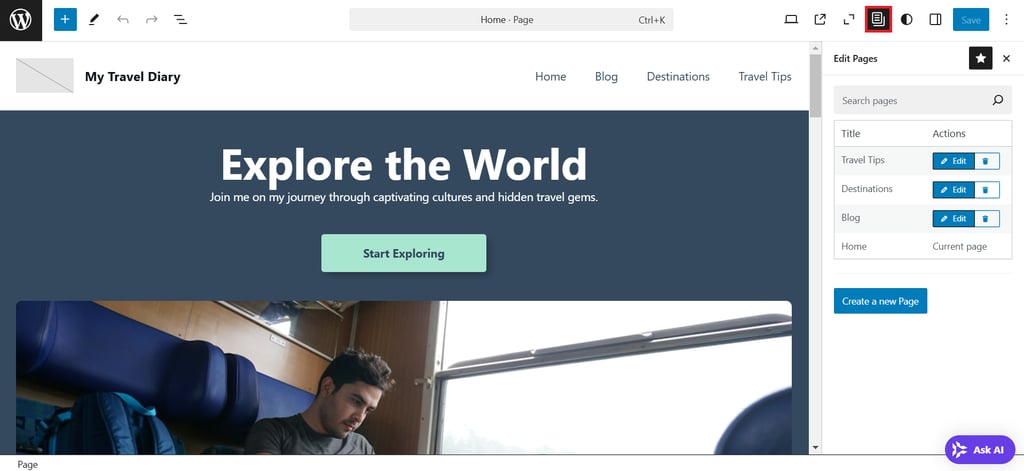
Next, click the Edit Pages button on the top toolbar to see other pages to customize, and select Edit on the one you want to design first.
If you want to create new pages, exit the page editor interface by clicking the WordPress logo in the left corner of the top toolbar. You will then enter the WordPress full Site Editor area.
Go to Pages → Add New Page, give it a name, and hit Create draft. From there, you can start designing the new website page by arranging WordPress blocks.
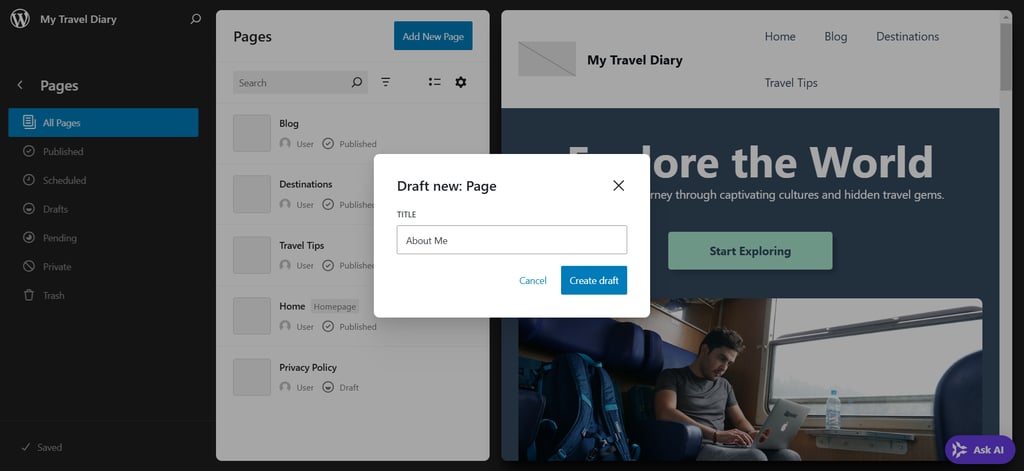
Don’t forget to hit Publish once you’re finished designing the page.
Did you know?
Pages are for static content that you won’t edit often, whereas posts are time-sensitive entries typically used for blogs or news. Find out more about how WordPress pages differ from posts.
5. Install WordPress plugins
With WordPress plugins, you can extend your site’s functionality, like enhancing the admin area, improving security, adding interactive features for visitors, and more.
Installing and activating them is as easy as going to Plugins → Add New Plugin from your WordPress dashboard. There, you can search thousands of free plugins in the official repository.
Alternatively, if you get a premium plugin from another source, you need to upload the downloaded .zip file to install it. To do so, simply click the Upload Plugin button.
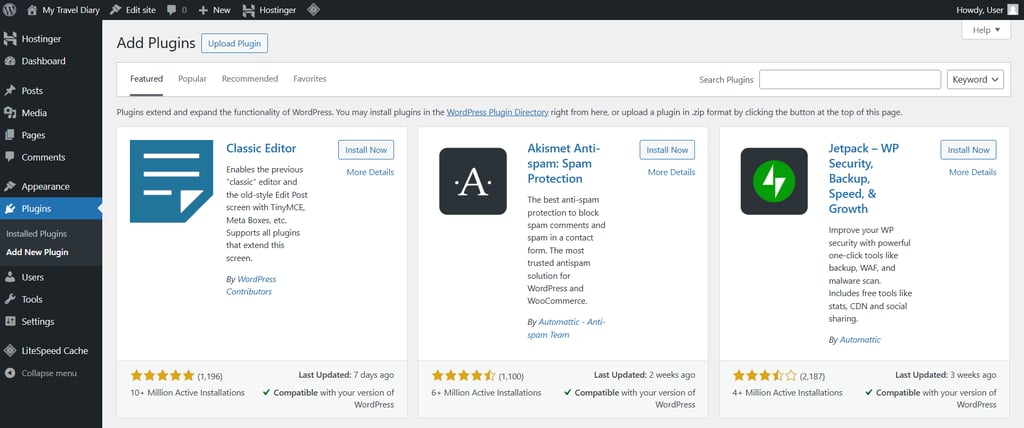
Important! Download plugins only from trusted sources and avoid cracked versions, as they can put your site’s security at risk.
Here are some of the best WordPress plugins you can consider installing:
- Yoast SEO – one of the best plugins to enhance your site’s search engine optimization (SEO).
- Wordfence – adds multiple security features to protect your site.
- Google Site Kit – connects Google services like Google Analytics to your site without hassle.
- WooCommerce – a reliable plugin for setting up an online store. Perfect for selling your products or services through your WordPress site.
What are the next steps?
Congratulations on your website’s launch! While it’s only the beginning of your online journey, here are the next steps to make it better:
Optimize your site for search engines
Implementing WordPress SEO best practices helps your website gain visibility through organic search.
Therefore, it’s essential to research what keywords your audience might use to find your website. Using them throughout your website content is the first step toward ranking higher in search results.
Installing a plugin like Yoast SEO will add multiple SEO features to your WordPress dashboard. This makes it easier to optimize your content with keywords, meta descriptions, and alt tags for images.
Then, submit your website to search engines so they can index your site quickly.
Monitor your site’s traffic
Understanding your site’s performance is the first step towards improving its effectiveness to help achieve your goal. Setting up Google Analytics lets you monitor traffic, user behavior, and popular content.
At the same time, heatmap tools like Hotjar can show which elements on your site visitors interact with the most, such as buttons, links, forms, or images. This helps you pinpoint areas with the most and least engagement, so you can improve user experience to keep visitors on your site longer.
Expand your site’s content
Creating relevant, helpful content is also part of SEO best practices, which can attract new visitors to your website. To maximize its impact, publish new WordPress posts regularly, and consider developing a content calendar to stay organized.
Alternatively, consider starting an email newsletter to share updates, exclusive content, or promotions directly with your audience.
Engage your audience
Interaction with your audience helps build a loyal community around your site. Enabling comments on your posts encourages user engagement through open discussions.
So, be proactive in responding to comments or emails, as this shows your audience that you value their input. You can also run surveys or polls to understand your readers’ preferences and tailor your content accordingly.
Maintain your site regularly
Regular maintenance is essential to keeping your website running smoothly. To prevent security vulnerabilities, update your plugins, themes, and WordPress core files whenever updates are available.
Also, periodically audit your site’s overall performance, testing its loading speed and functionality. From there, make necessary improvements to maintain a high-quality user experience.
Conclusion
Now you know how to launch a WordPress site! It’s really simple, and you can do it faster with Hostinger’s AI Website Builder for WordPress. To recap, here are the steps to take:
- Set your website creation goal
- Get a hosting plan and a domain name
- Set up your WordPress installation
- Customize your website
- Install WordPress plugins
Finally, you can launch your WordPress website and start your online journey!
How to launch a WordPress site FAQ
Can I launch a WordPress site for free?
While the WordPress software is free, launching a WordPress site online requires hosting and a domain name, which is paid.
Do you need to host your WordPress website?
You must host your WordPress site if you want it to go online. Read this guide for a detailed answer to whether you need hosting for WordPress.
Can I build a website on WordPress without hosting?
Yes. You can build a website by locally installing WordPress on your computer, but it won’t be online. You’ll need to set up hosting to make your site accessible on the internet.
This article is a localized version of How to launch a WordPress site in 5 steps, originally published in English.

Larassatti Dharma is a content writer with 5+ years of experience in the web hosting industry. She has populated the internet with over 100 YouTube scripts and articles around web hosting, digital marketing, and email marketing. When she's not writing, Laras enjoys solo traveling around the globe or trying new recipes in her kitchen. Follow her on LinkedIn

Marco Chiesi is the Head of WordPress at Hostinger, with over 20 years of experience as a software engineer in the web industry. He specializes in open-source technologies and the WordPress ecosystem, where he has contributed in different areas: Plugin Developer (with over 10 million downloads), WordCamp speaker and organizer, Meetup organizer, Translator, and Core Contributor. He is passionate about leading his team to create innovative solutions for Hostinger's web hosting product, which hosts over 5 million WordPress installations. Follow him on LinkedIn.


