How to sell products on Instagram in 9 steps
Oct 23, 2026
/
By Bruno S.
/
17 min Read
To sell products on Instagram, switch to a professional account, send shoppers from your bio, Stories, and direct messages (DMs) to product pages on your online store, and promote those products with posts, Reels, and ads. Once Meta, the company behind Instagram, approves your account for shopping, you can also add clickable product tags to posts and Reels.
Links work from the first day. Product tags need an Instagram shop that Meta has approved it, so the shop, catalog, and tagging steps apply only if you want tags.
Either way, buyers pay through your checkout, not Instagram’s, so you need an online store or a payment link to take payments. Your checkout opens in Instagram’s in-app browser, so buyers never leave the app.
Instagram is already a major route into online stores. In the third quarter (Q3) of 2026, at least 17.3% of Hostinger Ecommerce carts containing products were opened in Instagram’s in-app browser.
The nine steps to start selling products on Instagram are below.
- Switch to an Instagram professional account.
- Set up your shop in Meta Commerce Manager.
- Create or connect your product catalog.
- Turn on Instagram shopping features.
- Optimize your Instagram profile for selling.
- Create content that showcases your products.
- Promote products with Reels, Stories, and ads.
- Engage with potential customers.
- Track performance and refine your strategy.
Instagram itself charges nothing to sell. Your costs are your store plan, any ads you run, and payment processing fees, which payment companies charge to handle each sale.
To sell more, use clear product photos, customer posts, and quick replies that answer buyers’ questions and guide them toward checkout.
1. Switch to an Instagram professional account
To switch to an Instagram professional account, open your profile, tap the menu (☰), and go to Settings and activity → Account type and tools → Switch to professional account. A professional account is Instagram’s free account type for businesses and creators, and it gives you ad tools, messaging tools, and access to shopping features.
Like other platforms for selling through social media, Instagram keeps its selling tools behind a business-type account. On a personal account, Ad tools stay locked, and Meta won’t review the account for shopping.
We tested every path and label in this guide in the Instagram app for Android in October 2026. The iPhone app may place some options differently.
Switching makes your profile public, and Instagram notes that your content can then appear in search engines. Archive or delete anything you don't want public before you switch.
Instagram walks you through seven screens in this order.
- Tap Next on the intro screen.
- Pick a category under What best describes you?. Shopping & retail appears in the suggested list, and Display on profile is on by default.
- Tap Switch to professional account.
- Select Business under What type of professional are you? and tap Next.
- Choose whether to receive promotional emails from Instagram, then tap Next.
- Review your contact info and turn on Display contact info to add contact buttons to your profile, or tap Don’t use my contact info.
- Tap Login to Facebook to connect a Facebook Page, or tap Skip.
Tap Skip on the Facebook Page screen if you only sell on Instagram. According to Meta’s guide to setting up a shop, Instagram-only sellers don’t need a Facebook business Page to create a shop. Some ecommerce platform integrations still require one, though, so check your platform’s requirements before you skip this step.
Choose Business if you sell your own products, because Meta’s shop setup asks for an Instagram business account. Creator is meant for public figures, content producers, artists, and influencers.
2. Set up your shop in Meta Commerce Manager
To set up your Instagram shop, create a Meta Commerce Manager account, add your Instagram business account to your business portfolio, and complete the tasks under Set up your shop. Commerce Manager is Meta’s tool for managing the products you sell on Facebook and Instagram.
A business portfolio is the Meta account that holds your business assets, such as your Instagram account, product catalog, and Facebook Page, if you have one. Commerce Manager lets you create a Page and a catalog during setup if you don’t have them yet.
Check that your business meets Meta’s commerce eligibility requirements, the rules for selling on Instagram, before you create your shop. As of October 2026, the requirements cover five areas, and Meta only approves shops that meet all five.
- Policy compliance. Your account and products follow Meta’s terms and commerce policies.
- Your business and domain. Buyers can purchase your products directly on your website, and you sell through one domain, the main web address of your store, such as yourstore.com. Shortened links don’t count, and Meta may ask you to prove you own the domain.
- Supported country. Your business is located in a country where Facebook and Instagram commerce is available.
- Established presence. Your account looks like a real, active business that people can trust. The requirements don’t set a follower minimum.
- Accurate information. Prices and availability aren’t misleading, and your refund and return policies are easy to find on your website or on Instagram.
Connect your own domain before you set up your shop if your store still runs on an address shared with your store builder.
Once you’ve created your account, follow these steps:
- Create shop. Completed automatically when you create your Commerce Manager account.
- Checking your shop info. Shows Not completed while Meta reviews your account, which can take up to four weeks.
- Optimize your catalog. Select the product list your shop uses and add product options, such as sizes or colors.
- Set up shipping profile. Choose the countries you ship to and at least one shipping speed.
- Add checkout URL. Enter the uniform resource locator (URL), meaning the web address, that your ecommerce platform provides for Meta. Meta sends shoppers’ chosen products to it to build their cart on your website, so a regular product page link won’t work. Your shop stays hidden until you add one.
- Optimize shop. Turn on optional extras, such as a personalized layout, ratings and reviews, and offers Meta detects on your website.
- Publish shop. Available once every other task is complete.
As of September 2025, every shop on Facebook and Instagram uses website checkout. The checkout URL sends buyers from your shop to your website, so your store is where every sale completes.
Accounts with few posts or followers risk rejection for lack of an established presence, so keep posting while Meta reviews your shop. Use the review period to add your products and set up your profile.
3. Create or connect your product catalog
To create a product catalog for Instagram, add products in Commerce Manager one at a time, upload a data feed, or sync products from an ecommerce platform that connects to Meta. The catalog is the product list Meta uses for tags. A data feed is a spreadsheet-style file listing every product.
| Method | Best for | How products stay updated |
| Manual entry | Small catalogs and first tests | You edit each item by hand |
| Data feed | Catalogs with dozens of products or more | You upload a new file, or Meta checks a file stored online or a Google Sheet on a schedule |
| Platform sync | Stores on platforms with a built-in Meta connection | Changes copy over automatically |
Meta’s catalog fields reference lists nine core details for each product: a unique product code, title, description, availability, condition, price, product page link, image link, and brand. Some categories need more, such as size for clothing. The product link must point to your website, not to a Facebook Page.
Meta’s commerce policies don’t allow digital products or subscriptions in shops, so sellers of digital products rely on links in the bio, Stories, and DMs.
The catalog only describes your products. Buyers still pay on your website, so you need a working setup for selling products online before Instagram can bring you sales.
Your store is the one system behind every place you sell. When products, stock, orders, and payments live in one place, a sale from any storefront updates the same stock count.
Hostinger Ecommerce runs that system from one dashboard and connects it to your storefronts, the pages where shoppers browse and buy. Its Sales channels page lists every storefront that uses the same products, such as a one-page Quick Link store, a Hostinger AI Builder or WordPress site, or a custom storefront built by a developer.
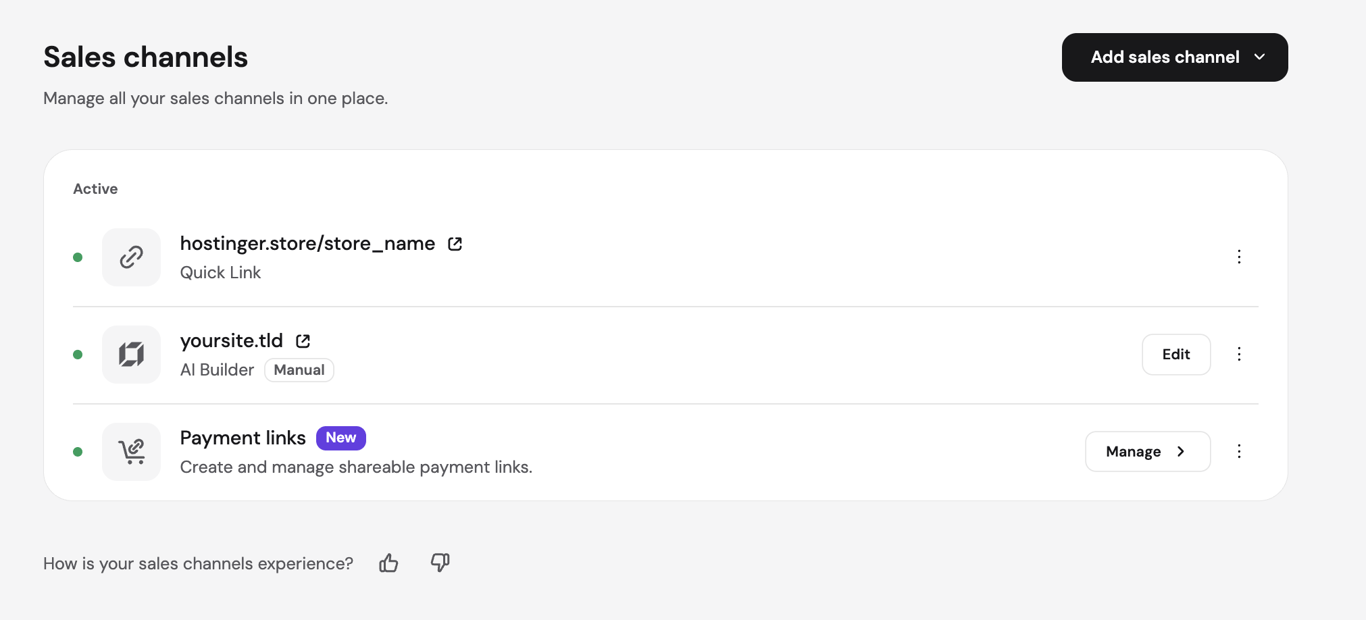
On any platform without a Meta connection, products added to Commerce Manager by hand don’t update when your store changes. Your store still holds the real stock and orders, so keeping inventory up to date in Commerce Manager means editing it by hand whenever stock changes.
Pro tip
Update Commerce Manager on the same day you update your store when a product sells out or changes price. Otherwise, a product tag shows an old price or sends buyers to a sold-out page.
4. Turn on Instagram shopping features
To turn on Instagram shopping features, complete the setup tasks in Commerce Manager, publish your shop once Meta’s review is done, and then tag products from your catalog in your posts and Reels. Shoppers tap a tag to see the product and continue to your website to buy it.
Follow these steps to tag products in a post:
- Create a post and go to the final screen before sharing.
- Tap Tag products, then tap the spot in the photo or video where a product appears.
- Search your catalog and select each product, up to 20 per photo post.
- Share the post.
To tag products in a Reel, tap Tag Products after adding a caption. Then choose up to 30 products or one collection of products you set up in Commerce Manager. Tap Done, then Share. Viewers tap View products at the bottom of the Reel to see them.
Instagram shows no product tagging Meta approves your shop. Check your shop and product review status in Commerce Manager if you can’t find a way to tag products.
Shopping features and checkout options vary by country and account eligibility. Features you see on another seller’s posts aren’t always available on your account.
5. Optimize your Instagram profile for selling
To optimize your Instagram profile for selling, set up your profile photo, name, bio, category, contact buttons, and bio link so visitors see what you sell and where to buy it at a glance. The first five need only small changes.
- Profile photo. Use your logo, or a clear product shot if your brand is built around a single product.
- Name. Match your store’s name so shoppers recognize you on Instagram and on your store.
- Bio. Say what you sell and add one detail that helps buyers decide, such as “Hand-poured beeswax candles. Free shipping over $50.”
- Category. Keep Display on profile on, so Shopping & retail appears under your name.
- Contact buttons. Turn on Display contact info so shoppers can email or call you from your profile.
Your bio link is the route to your store that every profile visitor sees. To add a link in your Instagram bio, go to Edit profile → Links → Add link, enter your product page address in URL and a short label in Title, then tap the checkmark.
Four details stood out when we tested bio links in October 2026:
- Instagram shows the URL, not the title. Your profile displays the first link’s address, shortened, so an address on your own domain looks more trustworthy. The title only appears after someone taps the link and the Links sheet opens.
- The first link gets the top spot. The Links sheet lists links in the order you added them, so add your main product or collection link first.
- Titles work as buttons. Write them as actions, such as “Shop the Terracotta set,” because they’re the text shoppers tap in the Links sheet.
- Links open inside Instagram. Pages load in Instagram’s in-app browser, so check that your product page, cookie pop-up, and cart work on a phone.
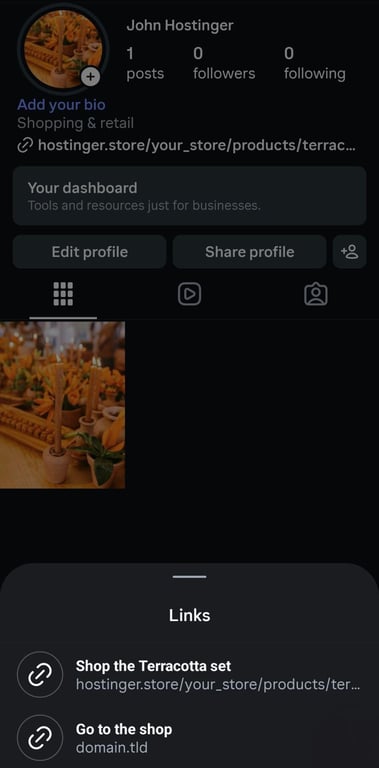
Open your own product link from Instagram and place a test order before you promote it, so you see the checkout exactly the way Instagram shoppers do.
Pro tip
Point your first bio link to the product or collection you're promoting right now instead of your homepage. A shopper who came for one product shouldn't have to search for it again.
6. Create content that showcases your products
To create content that showcases your products, show what shoppers want to know before buying: how the product looks in real use, how big it is, what it’s made of, and how it compares with other options.
Format | Best for | Example |
Reels (short videos) | Demonstrations, before-and-after results, how a product is made | A candle burning through an evening |
Carousels (posts with several swipeable photos) | Colors, sizes, and details | Five shots of one set: each angle, a wax close-up, and the set next to a mug for scale |
Single photos | Launches and main product shots | The product in a styled room |
Stories (posts that disappear after 24 hours) | Restocks, behind-the-scenes moments, polls | A restock announcement with a link to the product |
Live (real-time video, for public accounts with 1,000+ followers) | Question-and-answer sessions and demonstrations | Answering sizing questions as viewers ask |
Match the format to what buyers most need to see in your category. For jewelry, use close-ups and on-body shots that show scale. For art and home decor, show the piece in a real room.
Treat captions as short product descriptions: name the product, give its main benefit, and end with one next step, such as “Tap the link in bio to shop the set.”
Create several posts in one session so you can keep posting regularly. Planning a week of posts at once with social media automation tools takes less effort than creating each post on the day it goes out.
Add alt text, a short written description of an image, under More options → Write alt text before sharing a post. Instagram creates one automatically, but yours names the product precisely for shoppers who use screen readers, which read content aloud.
7. Promote products with Reels, Stories, and ads
To promote products on Instagram, use Reels to reach people who don’t follow you yet, Stories to send followers straight to a product page, and boosted posts to reach buyers through paid ads. A boosted post is a regular post you pay Instagram to show to more people.
Reels reach beyond your followers because Instagram shows them in the Reels tab, where people discover new accounts. Show the product in the first few seconds, because viewers can swipe to the next Reel at any moment.
Meta now allows creators to link your products in their Reels, either from your catalog or with a web address. Businesses in 22 countries will be able to share their catalogs directly with them.
A creator can also show your shop on their profile. You send them a request, and they approve it under Account type and tools → Other → Link profile to shops.
Adding a product link to a Story takes four steps:
- Create a Story and tap the sticker icon.
- Select LINK and paste your product URL.
- Tap Customize sticker text and write a call to action, a short phrase that tells viewers what to do, such as “Shop now.” The sticker then shows your text instead of the link.
- Tap Done and share the Story.
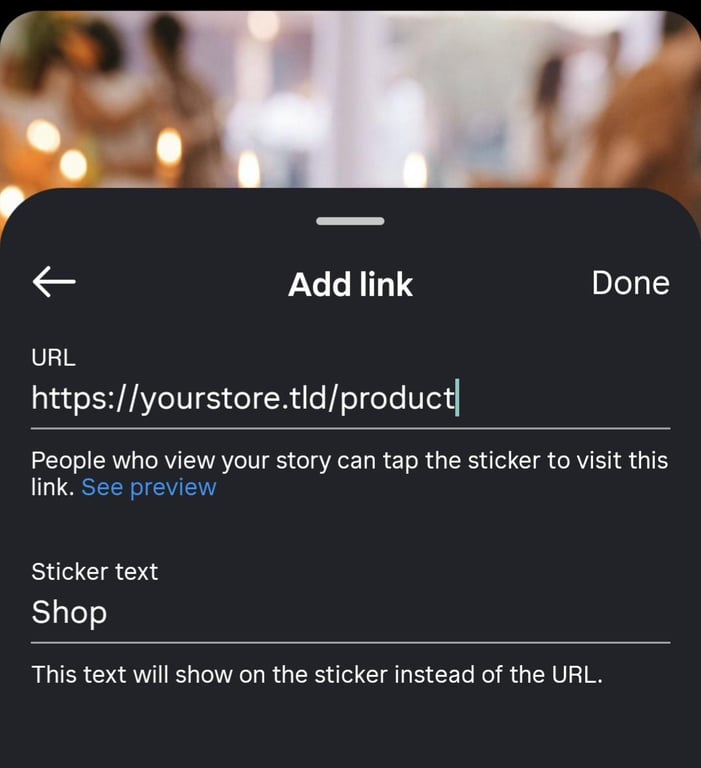
Tapping the sticker opens the product page in Instagram’s in-app browser. On accounts without shopping approval, the LINK sticker is the way to send Story viewers to a product.
Three more stickers help you sell.
- QUESTIONS. Collect pre-purchase questions, then answer the common ones in a follow-up Story.
- POLL. Let followers vote between colors or scents, which also shows you what to stock.
- COUNTDOWN. Build up to a launch or a restock date.
Boosting turns an existing post into an ad, and it works without a Facebook ad account. Tap Boost under a post, choose Without a Facebook ad account to keep your accounts separate, and add a payment method on the final screen.
The boost setup has three settings to check before you pay. Our test showed these defaults in October 2026.
Setting | Default in our test | What to choose to send shoppers to your store |
Goal | Visit your profile | Visit your website, with your product page URL |
Audience | People similar to your followers, in your own country | Your shipping countries, under Create your own → Locations |
Budget and duration | $10 daily, running until you pause it | Set duration for a first test |
In our test, Instagram preselected Visit your profile as the recommended goal, which sends people to your profile instead of your store. Check the goal before you pay, and pick Visit your website to send shoppers to your product page.
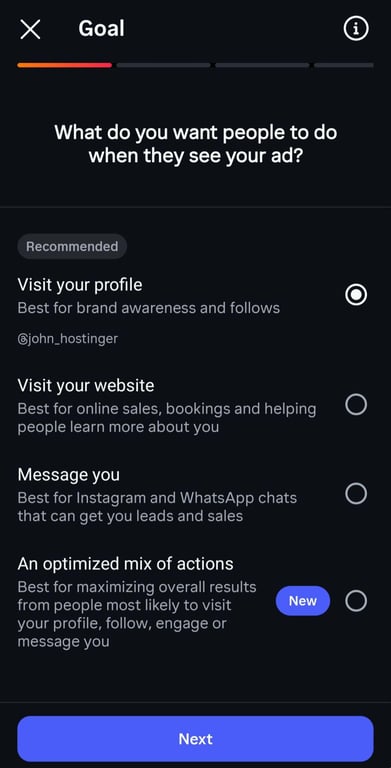
Choose Message you instead if you close sales in DMs. Instagram recommends this goal for starting conversations with potential buyers on Instagram or WhatsApp.
In our test, the ad was set to show on both Instagram and Facebook. Check the Preview ad screen to confirm where yours will appear before you pay.
Instagram states that ads are reviewed within 24 hours, although some take longer.
8. Engage with potential customers
Engage with potential customers by answering their questions about sizing, shipping, and returns quickly and consistently.
For shoppers who message you first after seeing a post or Reel, the ecommerce customer experience starts in a DM, before they ever visit your website. A shopper with a shipping or sizing question has to wait for your reply before deciding.
Instagram groups its reply tools under Settings and activity → Account type and tools → Messaging tools.
- Saved reply. Save an answer under a one-word shortcut of up to 30 characters, with no spaces or symbols. Type the shortcut as the first word of a message, then tap the saved reply icon that appears in the message box to insert the full answer.
- Frequently asked questions. Add up to four suggested questions that appear when someone opens a chat with you, such as “Do you ship internationally?”, and turn on Show questions. Under Additional questions, add questions with answers, and Instagram replies automatically when someone asks one of them or something similar.
- Welcome message. Send an automatic first reply to new conversations.
Pro tip
Save your shipping answer under the shortcut shipping. For example, "We ship across the United States in 3–5 business days. Orders over $50 ship free." Typing the word in any DM then brings up the full answer in one tap.
In our test, a product link sent as the first message to a new contact appeared as plain text, with no preview. The same link showed the product title and the start of its description after the contact replied.
Pro tip
Write the product name and price in the message itself, for example: "Here's the Terracotta Candle and Flower Set, $32," followed by the link. The buyer knows what they're getting before they tap.
Answer general product questions in the comments, where other shoppers can read them, and move individual order questions to DMs. Send your checkout or payment link when the shopper is ready, so delivery details and payment are recorded with the order instead of scattered across messages.
9. Track performance and refine your strategy
To track performance and refine your strategy, follow four numbers (link clicks, store visits, orders, and revenue), then make more of the posts and keep the links that lead to orders. Instagram reports the link clicks, and your store reports the rest.
Instagram’s data is in Settings and activity → Account type and tools → Insights. It shows Views, Interactions, and Total followers for a date range you choose, plus results for each piece of content you shared.
Link taps appear in two places. Insights counts taps on your bio link under your profile activity, and each Story with a LINK sticker shows its own link taps when you swipe up on it.
In Hostinger Ecommerce, store visits, orders, and revenue are in the Analytics section of the dashboard.
Urchin Tracking Module (UTM) parameters label each link so an analytics tool such as Google Analytics shows which route brought each visit, for example:
https://domain.tld/products/candle-set?utm_source=instagram&utm_medium=social&utm_content=bio.
Replace domain.tld/products/candle-set with your product page address, and change the word after utm_content= for each place you share the link, such as bio or story. To see which route led to purchases, turn on ecommerce purchase tracking in your analytics tool.
Pattern | Possible reason | What to check |
Many views, few link taps | The content doesn’t give viewers a reason to click | Show the product earlier and add a clearer call to action |
Many link taps, few orders | Shoppers lose interest on your store | Check the product page, price, shipping cost, and checkout on a phone |
Give each change time to collect data before you judge it. A new account with small numbers takes longer to show a pattern than an established one.
How to sell on Instagram without Instagram Shop
To sell on Instagram without Instagram Shop, send shoppers from your bio, Stories, posts, and DMs to product pages on your online store, and let the store handle checkout. This route works from the first day and doesn’t require Instagram shopping approval or a minimum follower count.
The routes differ in setup, in taps, and in what shoppers see before they reach your product page.
Route | How to link | Taps to reach the product page | What we saw in testing |
Bio | Edit profile → Links | One with a single link, two with two or more links | The profile shows the first link’s address, not its title |
Stories | LINK sticker | One | The sticker shows your custom text instead of the address |
Post and Reel captions | A “link in bio” call to action | Same as the bio route, once shoppers reach your profile | Not tested separately |
DMs | Paste the link | One | No preview on first contact, then title and description after the shopper replies |
Boosted posts | Visit your website goal | Not tested, since we stopped before paying | The default goal was Visit your profile |
Use Stories and DMs when you want the product page one tap away, such as for a launch or a shopper who just asked about an item.
For buyers who are ready to pay, a payment link skips the product page and opens a checkout with the product already added. Most ecommerce platforms and payment providers, including Stripe and PayPal, offer them. Payment links work best in DMs, where you can send one the moment a shopper decides to buy.
In Hostinger Ecommerce, go to Sales channels → Add sales channel → Payment links, then select Manage → Add payment link. The form has four parts.
- Name. A label for the link that only you see.
- Link. A checkout address on checkout.hostinger.com with an ending you can edit, plus a quick response (QR) code that phones can scan.
- Products. The products, variants, and quantities added to the checkout.
- Settings. Switches for the link status, discount codes, and your store logo.
Click Save when the form is complete, then copy the link from the Payment links list. In our test, creating a payment link for an existing product took about 20 seconds and six clicks.
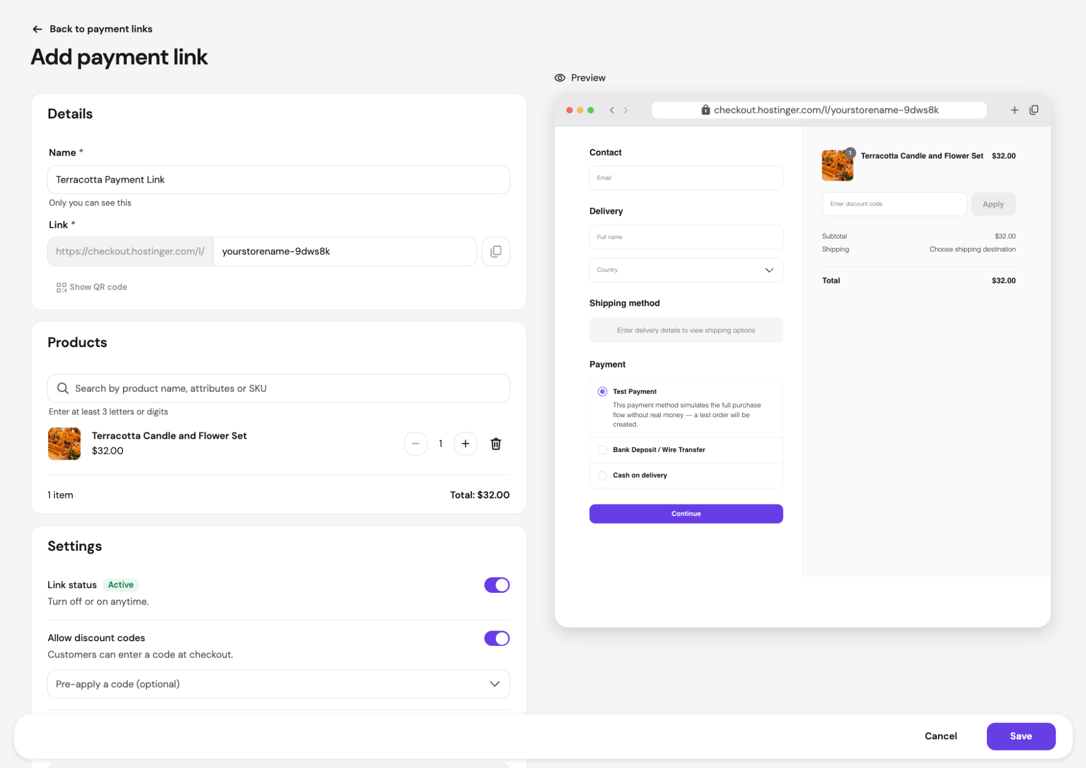
Buyers can’t change the variant or quantity you selected at checkout. Payment links also don’t support products with required custom fields, such as engraving text, or appointment bookings, so share the product page link for those instead.
Test each payment link before you share it. Add the Test payment method under Settings → Payments, open the link, and go through the checkout without real money. Remove the method before you start selling, because customers see it at checkout.
Pro tip
Turn on Allow discount codes and use Pre-apply a code to share a follower-only offer in a Story or DM. Buyers get the discount without typing a code.
Why can’t you see product tagging on Instagram?
You can’t see product tagging when your shop or products aren’t approved and published yet, which comes down to one of six causes.
Cause | Fix |
Shop setup not finished | Complete every task under Set up your shop in Commerce Manager, including the checkout URL |
Shop still in review | Check the status of the Checking your shop info task in Commerce Manager, since the review can take up to four weeks |
Unsupported country | Sell through links to your store, since tagging availability varies by country |
Account doesn’t look established | Keep posting and growing your audience, then request another review |
Products rejected or still in review | Check each product’s status in Commerce Manager and fix the details Meta flags |
Products not eligible, such as digital goods | Sell through links in your bio, Stories, and DMs |
Links to your store work in the meantime, so none of these causes stop you from selling.
What happened to Instagram Shop?
Instagram Shop still exists, but Instagram removed the Shop tab, ended Live Shopping, and moved checkout to sellers’ websites. Product tagging survived those changes and is expanding again through Reels.
The Shop tab left the app’s main navigation in February 2023, and Live Shopping ended on March 16, 2023. As of September 2025, every Meta shop uses website checkout.
According to Meta’s notice on changes to Shops, Meta also stopped handling payments, orders, returns, and disputes for shops, so sellers manage all of them on their own website.
That history is why older guides describe features you won’t find today, such as a Shop tab in the navigation bar or buying during a live video.
Can you sell on Instagram without a website?
Yes, you can sell on Instagram without a website by sending shoppers a payment link, which opens a hosted checkout page with the product already added. Stripe, PayPal, and ecommerce platforms such as Hostinger Ecommerce offer them, and none of them requires a full website.
Selling on Instagram this way still has two limits.
- No product tags from your own shop. Meta’s shop setup requires a checkout URL on a website, and your shop stays hidden without one.
- Limited browsing. A payment link takes shoppers straight to checkout instead of a full catalog. Share product details and customer reviews in your Instagram content, and put your return policy in a Story Highlight or your bio, so shoppers see it before they pay.
The tool you pick also decides how much work each order takes. Payment links from an ecommerce platform record orders and update stock automatically. Taking orders in DMs and tracking them in a spreadsheet works for testing demand, but every sale then means manual updates.
How much does it cost to sell products on Instagram?
Selling on Instagram is free on Instagram’s side, since the professional account, bio,Story links, and Meta’s shop setup carry no fee. Your costs come from your store plan, payment processing fees, and any ads you run.
Cost | Amount (as of October 2026) | Notes |
Professional account | Free | Shown on Instagram’s switch screen |
Online store or payment link tool | Depends on the platform; from $4.99/month with Hostinger Ecommerce | Hostinger Ecommerce renews at $8.99/month. Most store builders charge a plan fee, plus a domain if you use your own |
Commerce Manager shop and product tags | No Meta fee | Meta no longer processes payments for Shops, so every sale goes through your own checkout |
Payment processing with Stripe | 2.9% + $0.30 per transaction | Rate for domestic card payments in the United States (US), listed in Hostinger Ecommerce payment settings |
Payment processing with PayPal | 3.49% + $0.49 per transaction | US rate for PayPal and Venmo payments, listed in Hostinger Ecommerce payment settings |
Boosted posts | Set by you | Our test account suggested $10 per day by default |
Processor fees come out of every order, and the fixed part of each fee weighs most on low-priced products. This calculation uses the US rates for a single payment.
Order value | Stripe fee | Share of order | PayPal fee | Share of order |
$10 | $0.59 | 5.9% | $0.84 | 8.4% |
$32 | $1.23 | 3.8% | $1.61 | 5.0% |
$100 | $3.20 | 3.2% | $3.98 | 4.0% |
On a $10 product, fees take up to 8.4% of the sale, compared with 3.2–4.0% on a $100 order. Bundle low-priced items or set a minimum order, so fewer small sales carry the fixed fee.
Processor rates vary by country and payment method, and these Stripe and PayPal rates apply to US-based stores. International cards or other payment methods can cost more.
Hostinger Ecommerce adds no transaction fee of its own, so the processor’s fee is the only deduction from each sale.
Tips for selling more on Instagram
To sell more on Instagram, make your products easy to trust and quick to buy. Each tip is an Instagram version of a habit that helps increase online sales in any store, such as clear product photos and visible reviews.
- Use sharp, well-lit product visuals. Show each product from several angles and in real use, so buyers know exactly what will arrive.
- Share user-generated content. Repost customer photos and videos with permission, so new shoppers see the product outside your own styling.
- Add social proof. Share customer reviews in Stories and quote short feedback in captions, so new shoppers see that others bought and liked the product.
- End each post with one call to action. Tell people exactly what to do next, such as tapping the link in your bio.
- Post on a regular schedule. Followers who see your products week after week get repeated chances to buy, while long gaps let them forget you.
- Answer questions in public. A quick reply to a product question in the comments helps the person who asked and everyone else reading the thread.
- Test different content formats. Compare Reels, carousels, and Stories by link taps and orders instead of likes, then make more of what sells.
Next steps for selling on Instagram
Your next step is to make your online store the center of your Instagram sales. Whichever Instagram features your account has, your store gives you control over product listings, inventory, checkout, payments, and the customer experience.
Instagram’s selling tools change often and vary by country and account. Your store doesn’t depend on any of that. Every link in your bio, Stories, DMs, and ads points to it, and buyers who reach it complete their purchase whether or not you get shopping approval.
A headless ecommerce platform suits this setup, because it keeps products, orders, and payments separate from the pages shoppers see. One stock count then covers a bio link store, a payment link in a DM, and a full website.
Sellers without a store yet start an online store by adding their products, setting up payments and shipping, and connecting their own domain.
With the store live, every link you add on Instagram leads to a working checkout. Product tags add another route to it for businesses with an approved shop and a compatible checkout setup.
This article is a localized version of How to sell products on Instagram in 9 steps, originally published in English.

Bruno is a Content Writer at Hostinger, focused on creating and optimizing helpful, engaging articles about web development and marketing. With a background in journalism, he combines storytelling with practical insights to make complex topics easier to understand. He has also contributed to publications like MacMagazine and Jornal A Tarde. Outside of work, Bruno enjoys exploring art, cooking, and technology.