What is nslookup and how to use it?
Jun 12, 2026
/
Aris S.
/
5 min Read
The nslookup command is a command-line tool that queries Domain Name System (DNS) servers to find a domain’s IP address, DNS records, nameservers, mail servers, or reverse DNS information. Website owners and system administrators use nslookup to verify DNS configuration, troubleshoot domain resolution issues, and check whether DNS records return the expected values.
Nslookup works by sending a DNS query from a command-line interface, such as Command Prompt, Terminal, or PowerShell, to a default or specified DNS server. The server then returns the requested record, such as an A, MX, NS, PTR, or SOA record.
Common nslookup commands include basic domain lookups, record-specific checks like nslookup -type=mx domain.com, nameserver lookups with -type=ns, reverse DNS checks with PTR records, and queries sent to a specific DNS server.
What is nslookup used for?
The primary purpose of nslookup is to retrieve detailed information about the specified domain. This information is essential for troubleshooting DNS-related problems.
For example, your website is not working, and you want to check if the host server is reachable by pinging it. Use the following command to send a lookup request for the IP address:
nslookup domainname.tld
Check if the DNS server is down using this nslookup syntax:
nslookup domainname.tld dns.server.ip.address
If the DNS server is working normally, you will see the following result:
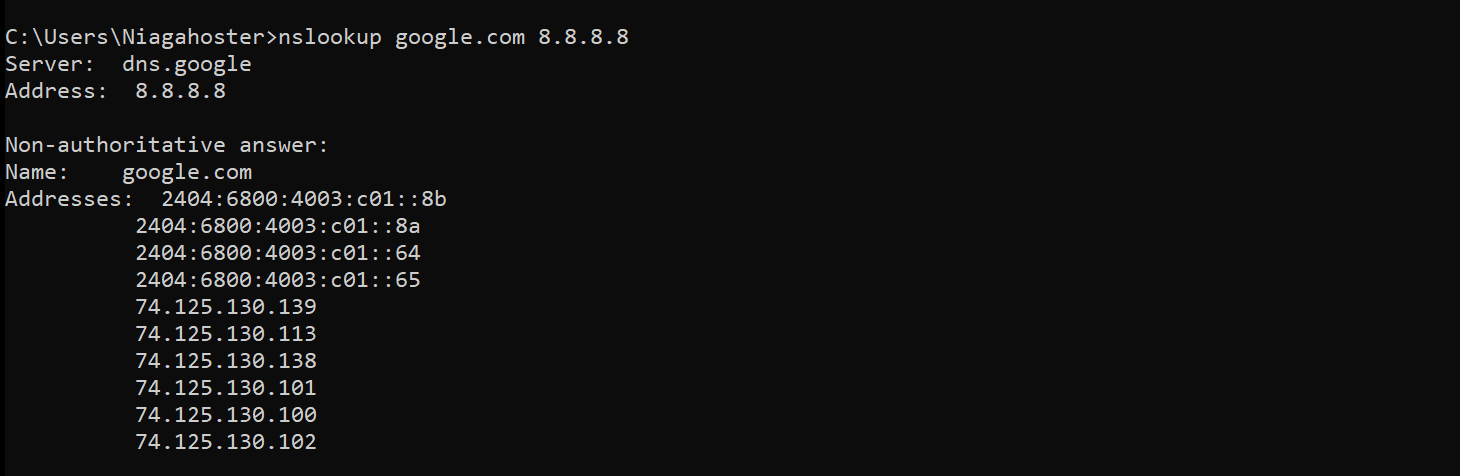
Otherwise, an error message will appear if the DNS doesn’t respond to the query. This may indicate a DNS server failure.
If you omit the DNS server’s IP, nslookup will send a resolution request to the default DNS server on your computer’s settings.
You can switch DNS servers by entering:
nslookup
server dns.server.ip.address
Another DNS-related issue may occur when your domain points to the incorrect nameservers. To check a domain’s nameservers, enter the following:
nslookup -type=ns yourdomainname.tld
Besides nameservers, you can use another query type to look up different resource records, such as A, AAAA, CNAME, LOC, PTR, and MX records.
DNS records are information stored in the DNS nameservers about a domain name. The maximum number of DNS entries varies. It can go up to thousands for a domain with premium DNS hosting. Each record type serves a different purpose:
- A – responsible for mapping a domain name to an IP address.
- AAAA – same as A record, but using IPv6 instead of IPv4.
- CNAME – information about a domain’s alternative name.
- LOC – specifies the geographical location of a domain name.
- PTR – maps an IP address to a hostname and is also responsible for mail exchange. PTR records require the domain to have a dedicated IP address.
- MX – responsible for mail exchange. MX records map domains to mail servers.
A PTR record is essential for reverse DNS lookup, which uses an IP address to ask for a domain name. Reverse DNS lookup helps mail servers confirm whether incoming emails are from valid sources.
To verify that an IP address resolves to your hostname, check the PTR record value by typing nslookup followed by the hostname’s IP address.
For example, you want to do a PTR lookup for google.com. Since its IP address is 142.250.4.113, enter:
nslookup 142.250.4.113
In the following example, we can see that the PTR record of the IP address is sm-in-f113.1e100.net.

Configuring the PTR record is essential for mail exchange. It prevents email bouncing by ensuring that the mail server’s IP address and the forward DNS match.
However, since it requires a dedicated IP, you can only set up PTR records on a domain with virtual private server hosting.
Common nslookup commands
There are various types of nslookup commands for requesting different domain information. The most commonly used commands include:
| Command | What it does | When to use it |
|---|---|---|
nslookup name | Shows information about a domain name or hostname using the default server | Look up a domain’s default DNS record |
server name | Sets a different DNS server as the default, using the current server’s details | Switch the resolver you’re querying |
root | Sets the root server as the default | Query from the top of the DNS hierarchy |
set type=<record type> | Queries a specific DNS record type, such as A, MX, PTR, or SOA; use ANY to show all records | Target one record type (or all of them) |
set debug | Displays debugging information for each query and its response | Inspect the full query and response detail |
set recurse | Asks the nameserver to query other servers when it can’t answer directly | Force a recursive lookup |
help | Shows the list of nslookup commands and their functions | See available commands during a session |
exit | Quits nslookup and returns to the command line | Leave interactive mode |
How to use the nslookup command
You can use nslookup in nearly any operating system’s command-line application, such as the Command Prompt on Windows or Terminal on Linux and macOS.
On different OSs, nslookup works similarly despite looking slightly different. For example, here’s what it looks like on Linux:
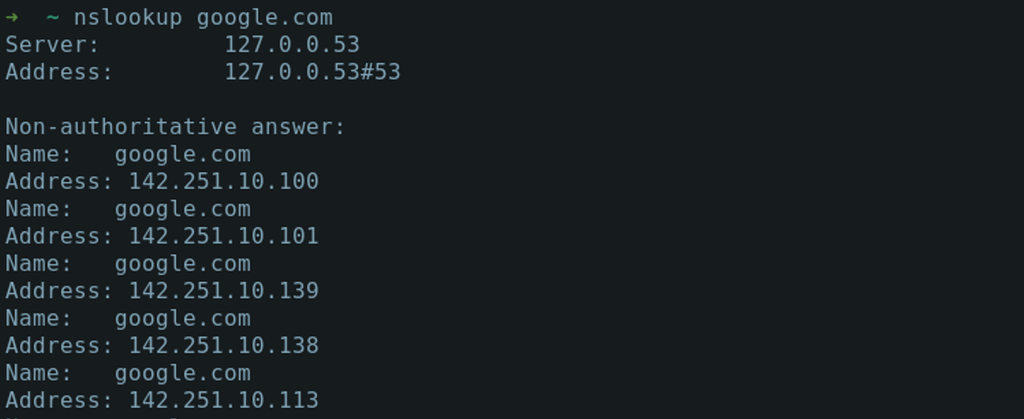
There are two modes of nslookup, interactive and non-interactive. While both serve a similar purpose, they are designed for different use cases.
The interactive mode lets users enter additional parameters, allowing them to query nameservers for multiple information about domains or hosts.
Meanwhile, the non-interactive mode only provides a single piece of information about a domain or host.
To enter the interactive mode, type nslookup without arguments into your CLI. It will display the default server name, addresses, and the line where you can input a domain name or different commands.

To access the non-interactive mode, enter nslookup followed by a domain name as the first argument. You can precede the domain name with various commands to ask for different information or follow it with a nameserver address.
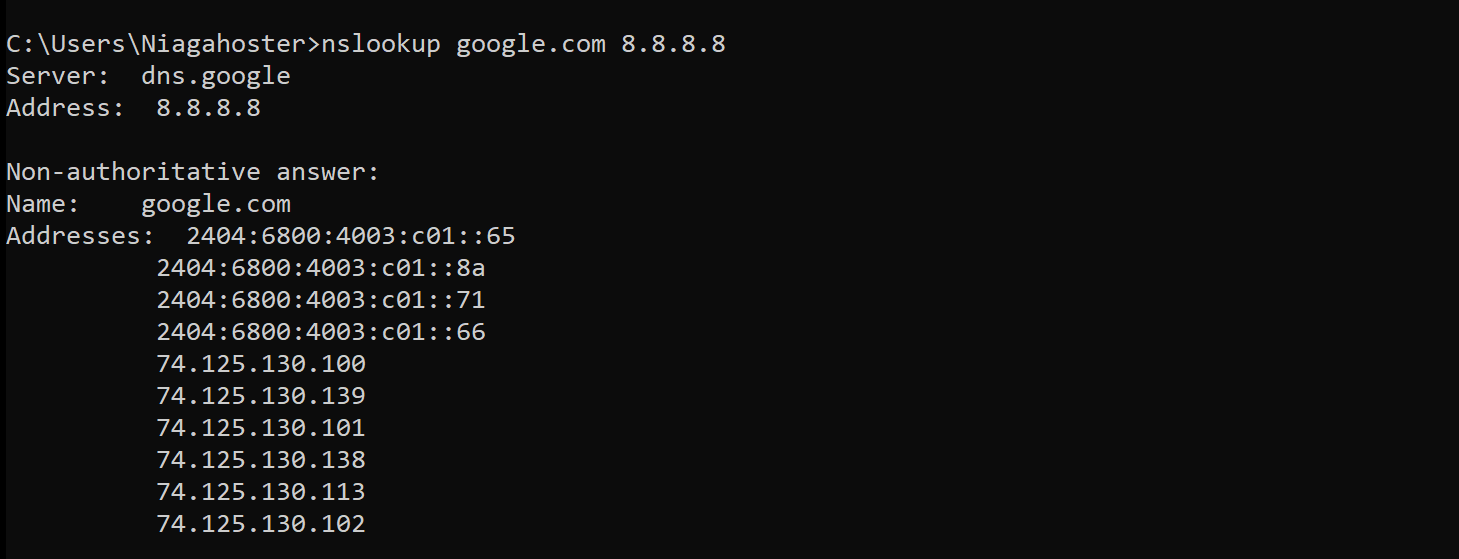
With the non-interactive mode, you should type the domain and commands in the same line. In contrast, the interactive mode uses one line for each domain and argument.
Sometimes, nslookup will return a non-authoritative answer after entering a query. This occurs when nslookup fetches information from your local DNS server cache, not the domain’s authoritative server.

When accessing a website for the first time, your browser will ask the DNS resolver for the domain’s IP address. The resolver will then ask the root server, directing the former to the domain’s top-level domain (TLD) server.
Then, the TLD server will send a response, directing the resolver to the authoritative server. The resolver will ask the authoritative server for information, which includes its IP address and DNS record.
Next, the authoritative server will send the queried domain’s address and DNS records back to the resolver, which forwards it to the client. The web browser can now connect to the domain upon receiving the IP address.
The client and resolver servers will store the domain’s information locally as a DNS cache. Therefore, when the user reaccesses the same domain, there is no need to repeat the entire process. The browser can simply fetch the IP address from the DNS cache.
Non-authoritative answers are possibly outdated because the information is fetched from the cache. They are unsuitable for troubleshooting purposes. To get an authoritative answer, enter:
nslookup -type=soa domainname.tld
This will query the standard of authority (SOA) record containing important information about the specified domain. For example, you want to get an authoritative response for the domain google.com:
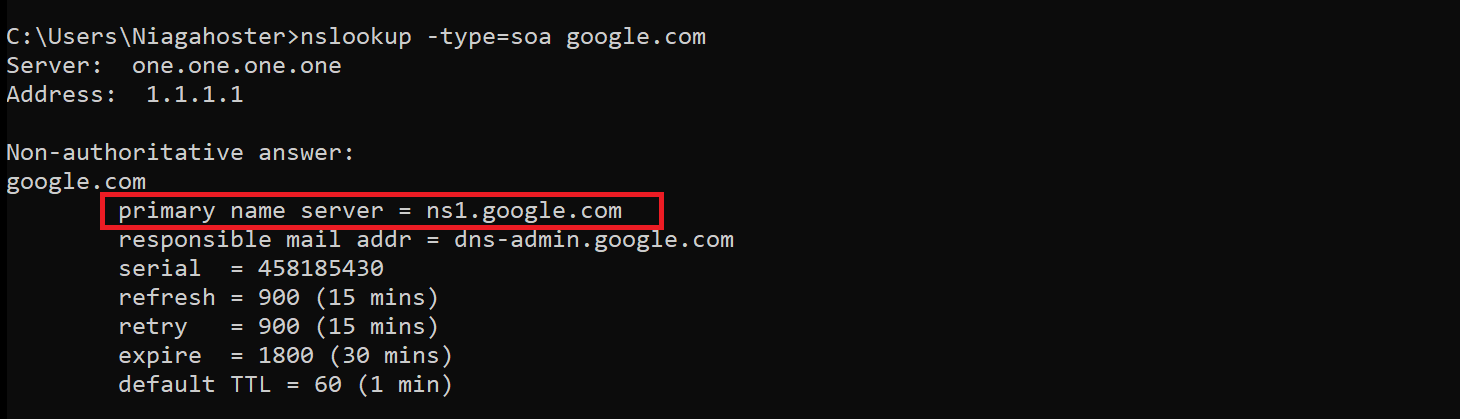
Since you only need the primary name server, there is no need to worry about the non-authoritative answer.
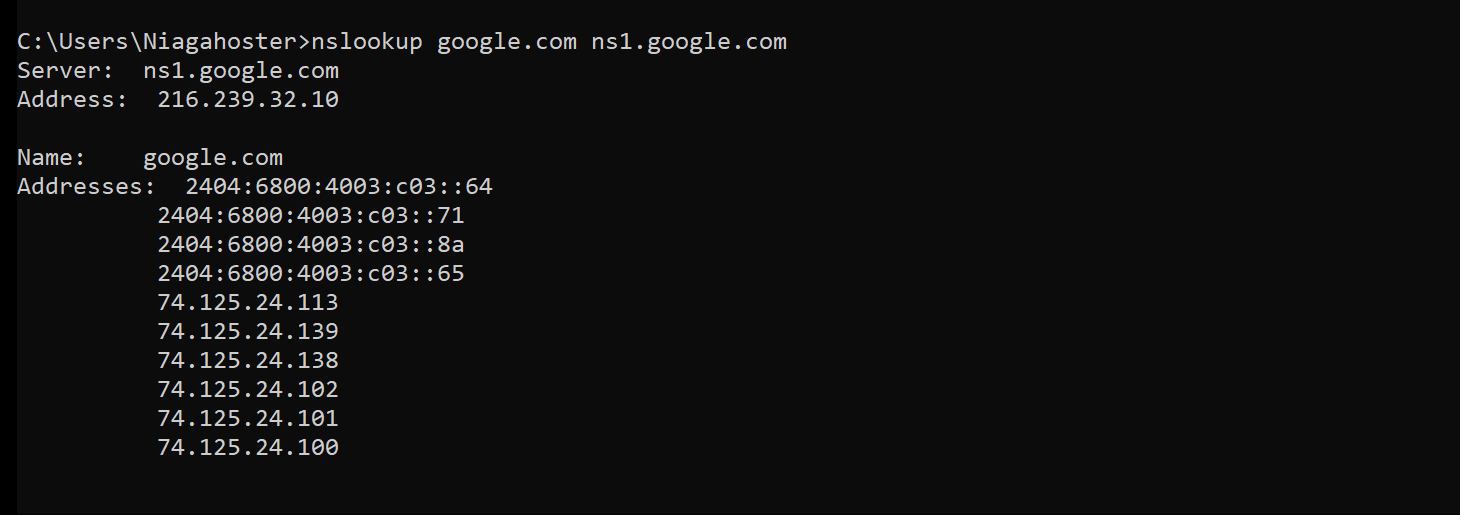
Next, use the primary nameserver to perform the query. The non-authoritative message should disappear:
What’s the difference between nslookup and ping?
Nslookup and ping both help troubleshoot network issues, but they check different parts of the connection process. Nslookup queries a DNS server to find the IP address, nameserver, mail server, or other DNS records connected to a domain. Ping checks whether a specific domain or IP address responds to network requests.
The main difference is that ping must resolve a domain name to an IP address before testing the connection, while nslookup focuses only on the DNS lookup process. For example, if you run ping domain.com, your device first needs to find the domain’s IP address, then send packets to test whether the server responds. If you run nslookup domain.com, the command only asks the DNS server which IP address or DNS record belongs to that domain.
Use nslookup when you need to check whether DNS records are correct, such as A, MX, NS, PTR, or SOA records. Use ping when you need to test whether an IP address or domain is reachable from your network.
For example, if a website is not loading, start with nslookup to confirm whether the domain points to the correct IP address. Then, use ping to check whether that IP address responds to requests. To learn more about the second step, read our guide on pinging an IP address.
All of the tutorial content on this website is subject to Hostinger's rigorous editorial standards and values.

Aris is a Content Writer specializing in Linux and WordPress development. He has a passion for networking, front-end web development, and server administration. By combining his IT and writing experience, Aris creates content that helps people easily understand complex technical topics to start their online journey. Follow him on LinkedIn.


