WordPress export user: how to export to csv file + multisite export
Dec 02, 2025
/
Jordana A.
/
4 min Read

When running a WordPress website, you might need to export your users’ data. Unfortunately, WordPress doesn’t provide built-in functionality for exporting user data. The only way to do it is using an import and export user plugin.
With this in mind, we will cover the steps to exporting users from one WordPress site to another using a plugin. We will also suggest three excellent plugins for the job.
First, let’s look at the reasons why user export is an important feature every administrator should know.
Download all-in-one WordPress cheat sheet
Why Export Users in WordPress
When exporting users in WordPress, you can achieve the following goals:
- Migrate WordPress to a new site.
- Merge multiple websites into a multisite network.
- Back up all of your users’ data.
- Have offline access to your customer or subscriber data.
- Import subscriber or customer data to an email list or CRM.
How to Export WordPress Users Using a Plugin
You can download many WordPress export and import plugins in the official plugin directory. In this tutorial, you’ll learn how to export WordPress users with the Import and Export Users and Customers plugin.
- Navigate to Tools -> Import and export users and customers from your WordPress admin area. Open the Export tab.
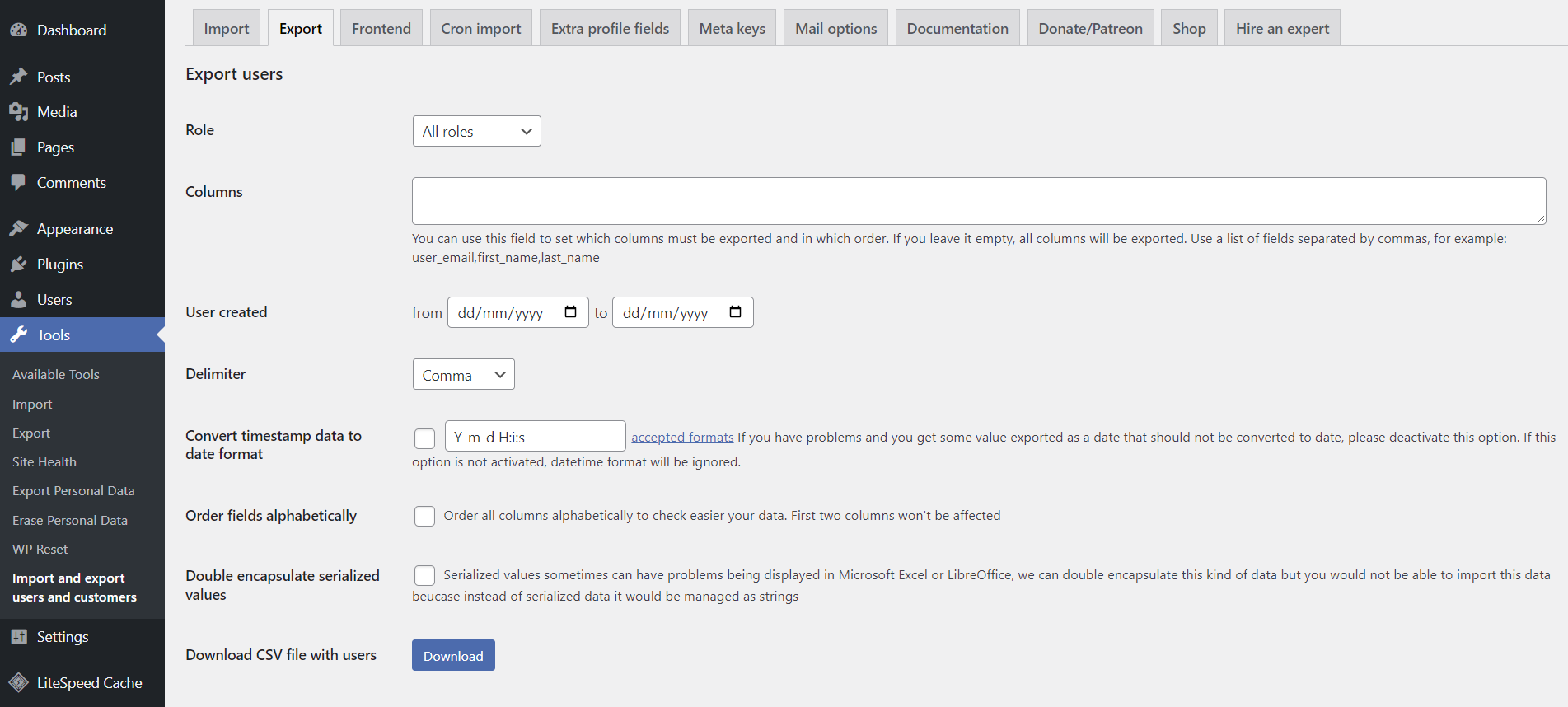
- Fill in the constraints to narrow down the number of WordPress users you want to export:
- Role ‒ export WordPress users based on their user role. Leave the All roles option to export all user roles.
- Columns ‒ determine which columns you want to export and in what order. Leave it empty to export all columns.
- User created ‒ filter WordPress user data based on their registration date.
- Leave the rest of the settings to their default values and select Download to save the CSV file locally. You can open CSV files on Microsoft Excel and Google Sheets.
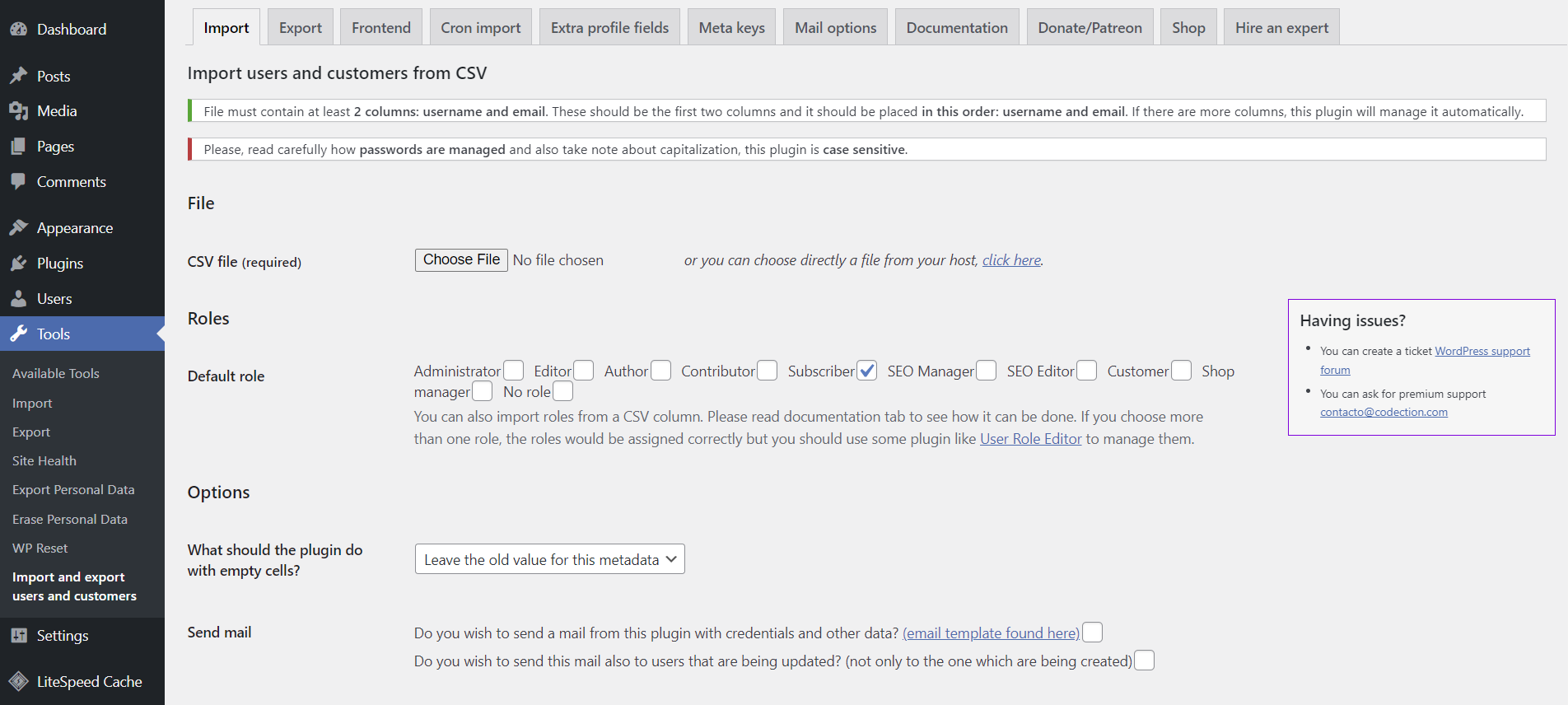
You can easily import users into another standalone site using the same plugin. After installing Import and Export Users and Customers on the other WordPress site, open the Import tab and upload the CSV file containing exported user data.
Navigate to the Documentation tab for a complete breakdown of the plugin settings.
Pro Tip
To transfer WordPress subscribers accumulated using a mailing list plugin, you need to export the list through your plugin first and then import it to another WordPress website.

3 Best WordPress User Export Plugins
One of the advantages of building a website in WordPress is that you have plenty of plugin options to choose from. We have selected the three best plugins for exporting WordPress users based on their price and features.
1. Import and Export Users and Customers
Plugin stats:
- Downloads: 70,000+
- Rating: 4.8/5
- Price: free
You have seen how easy it is to use this free plugin to import and export WordPress users. It also has an email feature to help you notify users of the changes and the site’s data-protection considerations.
If you’re running a WooCommerce store, this export plugin can import data from your WooCommerce customers. Besides WooCommerce, the plugin is compatible with Advanced Custom Fields, Paid Membership Pro, and WP LMS Course.
As for the import feature, it’s possible to create a cron task to do the process periodically if you want to integrate the existing site with an external system. The plugin also offers a shortcode to import WordPress users from the front end.
2. WP All Export

Plugin stats:
- Downloads: 90,000+
- Rating: 4.6/5
- Price: freemium (the premium version starts from $99/lifetime)
WP All Export simplifies the export procedure of WordPress custom data. It has a convenient drag-and-drop interface, making arranging CSV columns and XML elements easier before exporting them.
Unfortunately, you need to upgrade to the Pro plan for $99/lifetime to use the plugin for bulk exporting users. Pro users can send the export file to various cloud storage services, schedule exports, and add rules to filter exported data. The plugin also supports WooCommerce integration, allowing you to export order data.
If you need the import feature, consider getting the Import + Export Pro plan for $299/lifetime. It unlocks all the premium features in WP All Export and WP All Import plugins ‒ convenient for moving user accounts between websites in a WordPress multisite network.
[DOWNLOAD]
3. Import Export WordPress Users and WooCommerce Customers
Plugin stats:
- Downloads: 60,000+
- Rating: 4.7/5
- Price: freemium (the premium version costs $69/year for a single site)
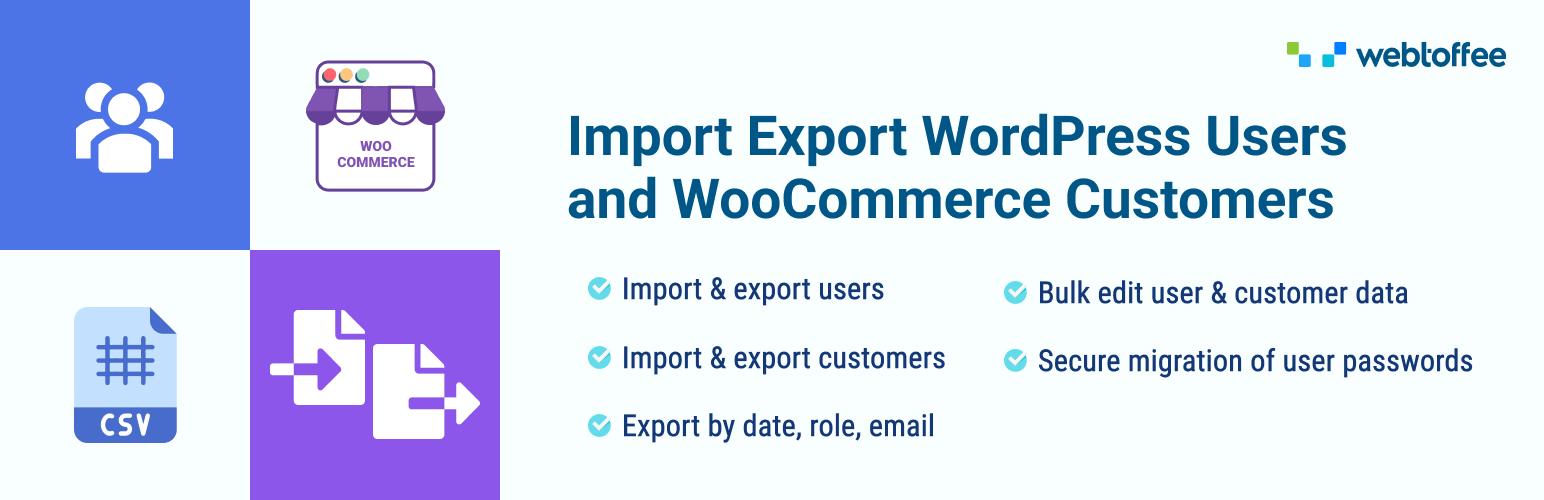
The Import Export WordPress Users plugin is an ideal choice for WooCommerce owners. Like WP All Export, this plugin offers batch export and import features. You can easily export WooCommerce customers, users and guests to CSV while retaining login details.
Upgrading to the Pro plan for $69/year lets you schedule imports and exports, bulk update existing users, and map and transform user fields when importing and exporting users from WordPress.
Besides providing different filter options like user role and date range, the Pro plan also supports import from URLs. The plugin allows you to export WordPress users to CSV, XML, Excel (XLS, XLSX), and TSV files. Use the pre-saved template to save time during each import and export procedure.
[DOWNLOAD]
Conclusion
WordPress user data is essential information that every WordPress admin should manage regularly. Knowing how to export users from WordPress will help preserve and process user details when moving to a new website or wanting to access data offline.
This article has provided the steps to export WordPress users using the Import and Export Users and Customers plugin. We have also gone through the three best WordPress export plugins:
- Import and Export Users and Customers – the most affordable option.
- WP All Export – offers a beginner-friendly drag-and-drop interface.
- Import Export WordPress Users and WooCommerce Customers – ideal for WooCommerce users.
We hope this article answers everything you want to learn about exporting WordPress users. Good luck!
Learn what else you can do with WordPress
How to Speed Up WordPress
How to Use WordPress Tags
How to Install WordPress
How to Enable Maintenance Mode in WordPress
How to Change User Password in WordPress
How to Login to WordPress
WordPress Export Users FAQs
The following frequently asked questions can help you understand WordPress export users better.
How Do I Export Specific User Roles From WordPress?
WordPress does not have a built-in option to export specific user roles. However, you can use a plugin like WP All Export to export the users in a specific role. You can choose to export the data in different formats, such as CSV or XML, and customize the exported fields.
How Do I Export WordPress Users to a CSV File?
Use a plugin like Export Users to CSV. Go to the Users section in your WordPress dashboard and select the users you want to export. Then, click on the Export Users button, and the plugin will generate a CSV file with the selected user data.
Where Are Users Stored in WordPress?
WordPress users are stored in the website’s database, specifically in the wp_users and wp_usermeta tables. The wp_users table contains basic user information such as the username, email address, and password. The wp_usermeta table contains additional user data, such as the user’s display name and profile picture.

Jordana is a Senior Content Writer with a background in Information Systems. She has over five years of experience in WordPress and is casually dabbling with PHP and MySQL. Her passion for writing and technology drives her to create tutorials for anyone wanting to build their online presence. Follow her on LinkedIn.


