Wp-content uploads: what it is and how to upload files in WordPress
Mar 10, 2026
/
Jordana A.
/
3 min Read
The WP-Content directory plays a significant role in all WordPress sites. It houses your website’s content, including file and media uploads as well as the assets of all the plugins and themes installed on your WordPress site. If you delete this directory, your website will crash.
Due to its importance, this folder is a popular target of hackers. To minimize security risks, website owners should know how to access, manage, and protect their WP-Content directory properly.
This article will cover the steps to access and upload the WP-Content directory. We will also teach you how to hide the WP-Content/Uploads folder from the public, preventing hackers from attempting backdoor attacks on your WordPress site.
What Is the WP-Content Folder?
The wp-content/uploads folder is a default directory in WordPress, used to store images and media files uploaded to your posts and pages.
How to Access the WP-Content Folder
You can access the WordPress WP-Content directory using your hosting provider’s File Manager. The following tutorial explains how to do it via Hostinger hPanel:
- Log in to your web hosting account and navigate to Hosting → Manage.
- Upon entering the Hosting Account page, scroll down to the Files section and select File Manager.
- Double-click your root directory (public_html) and locate the WP-Content directory within.

How to Upload the WP-Content Folder
When uploading your site to a different web server, you need to upload the WP-Content folder to the new WordPress installation via File Manager or SFTP. This time, we’ll explain the steps how to do it using the latter method:
- Establish an FTP connection using an FTP client.
- The left panel will display your local computer files, while the right panel will showcase your remote WordPress website directories. Make sure the right panel has your root directory open (public_html).
- Drag-and-drop the WP-Content folder from the left panel to the right panel. A pop-up warning will appear asking for confirmation to overwrite or merge the existing WordPress files. If it’s a fresh WordPress installation, you can choose to overwrite them – click OK.
Pro Tip
This method also works for uploading media files to your WordPress Media Library. If you don’t have access to the admin dashboard, you can use an FTP client to access the WP-Content/Uploads directory and add files there for later use.
How to Hide the WP-Content Folder
Your WP-Content repository is an ideal entry point for hackers to access your website’s sensitive information or inject malicious code into it. To reduce the risk of cyberattacks, we recommend hiding its URL path.
There are two ways to hide the WP-Content folder ‒ using a WordPress plugin or manually.
Many WordPress security plugins have a feature that secures website directories. The following are the steps to secure your WP-Content folder using the WP Hardening plugin:
- Install and activate the plugin.
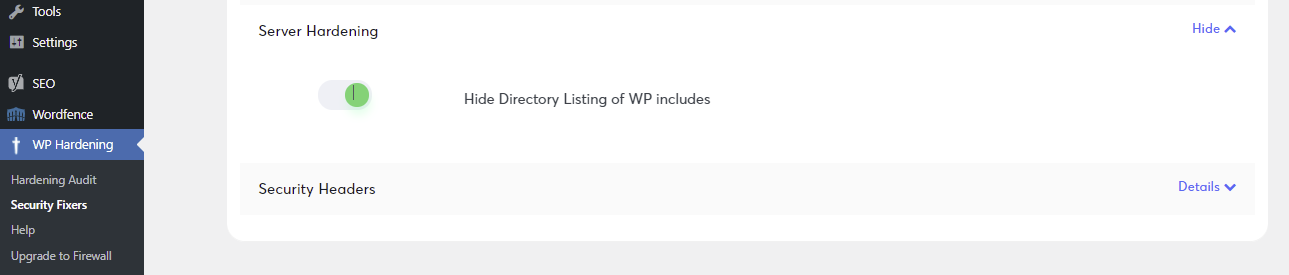
- Navigate to WP Hardening → Security Fixers from your WordPress dashboard.
- Expand the Server Hardening section and toggle the option next to Hide directory listing of WP includes. Doing so will hide your directories’ URL path, preventing third parties from discovering your directory structure and browsing your site’s content.
The manual method requires adding code to the .htaccess file. Here’s how to block access to the WP-Content/Uploads folder and disable PHP execution in it:
- Navigate to your WP-Content/Uploads directory from the root directory using File Manager.
- Locate the .htaccess file (or create a new file in the .htaccess format if there’s none present) and add the following code:
# Kill PHP Execution
<Files ~ ".ph(?:p[345]?|t|tml)$">
deny from all
</Files>
Order Allow, Deny
Deny from all
Allow from all
- Save the changes.
Other Suggested Reading
How to Secure WordPress
How to Add WordPress Related Posts
Guide to WordPress Date Formats
How to Upload a Document to a Website Using File Manager and WordPress
Conclusion
A WordPress site cannot function without a WP-Content directory. By understanding its role on your website and how it works, you’ll be able to maintain its operations and secure the folder from hackers. We hope this article has shed some light on the operation and importance of the WP-Content directory. Good luck.
WP-Content Uploads FAQs
To learn more about wp-content uploads, read the following frequently asked questions.
How Do I Download All WP-Content Files?
To download all wp-content files, connect to your website via FTP or hPanel, navigate to the wp-content folder, select all files and folders within it, and then download them to your local computer using an FTP client or hPanel file manager.
Why Are My WP-Content Uploads Not Showing In WordPress?
If your wp-content uploads are not showing in WordPress, it could be due to incorrect file permissions, a caching issue, a plugin conflict, or a problem with your theme’s code. It’s recommended to troubleshoot each possibility to determine the root cause and resolve the issue.

Jordana is a Senior Content Writer with a background in Information Systems. She has over five years of experience in WordPress and is casually dabbling with PHP and MySQL. Her passion for writing and technology drives her to create tutorials for anyone wanting to build their online presence. Follow her on LinkedIn.


