Don’t miss the New Year’s Sale deals!
search
In this article

How to use Gmail with custom domain: using pop3 and forwarders

Do you own a custom domain email, but want to use Gmail as the main platform to manage all messages? You’ve come to the right place. Stick with us and discover how to integrate your custom domain address with Gmail.

Reasons to Integrate Custom Domain Email to Gmail Account

When you buy hosting, chances are you’ll get a free business email right out of the box. However, it might take time to get used to because the interface is different from Gmail’s.

There are numerous options available for setting up a professional email account. While purchasing a Google Workspace account is one alternative, requiring an investment with plans starting at $6/month per user, other email services offer more budget-friendly solutions, with some starting as low as $0.99/month.

Luckily, it’s possible to use Gmail with your own domains for free. That way, you can have the best of both worlds — a custom domain email with the convenience of Gmail’s interface. You also don’t have to log in to different platforms to manage your personal and business emails.

Using Hostinger Email? If you’re having trouble setting it up, we have a quick guide just for you!

How to Integrate a Custom Domain Email to Gmail?

Now that you know why it’s convenient to integrate Gmail with a custom domain, let’s take a look at the steps to set it up:

1.  Getting POP3 and SMTP Details

Before we can set up a Gmail account to work with a custom domain, first you need to create a domain-based email. In case you haven’t made one, refer to our tutorial to know how to do so.

After creating the email, you need to collect its POP3 and SMTP details. To locate the email protocols in Hostinger’s hPanel, do the following:

  1. Go to Emails -> Manage next to your email account.
  2. Select Connect Apps & Devices from the left sidebar.
The Connect Apps & Devices menu in hPanel's Email Accounts
  1. Find the Manual Configuration section. We’re going to use that information later.
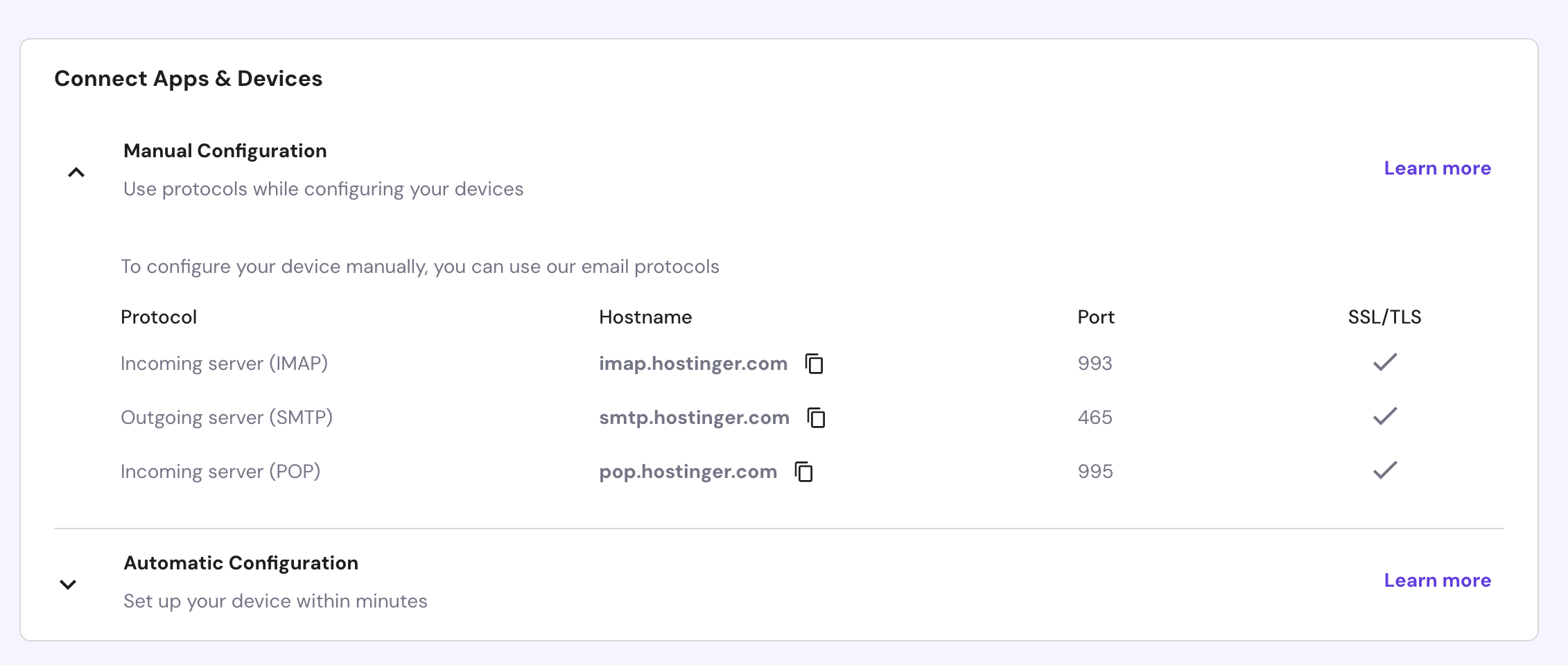
The Manual Configuration section in hPanel

2.  Forwarding Emails to Gmail Account

Now that we have the necessary data, it’s time to set up the Gmail account so it can receive messages sent to your custom domain email. Here’s how:

  1. Log in to your Gmail account, click on the gear icon, and select Settings -> Accounts and Import.
  2. Choose Add a mail account under the Check mail from other accounts section.
  3. After you enter your domain email, click Next -> Import emails from my other account (POP3) -> Next.
  4. Fill in the details using the server information we located earlier. The server we’re using is pop.hostinger.com, and the port is 995.
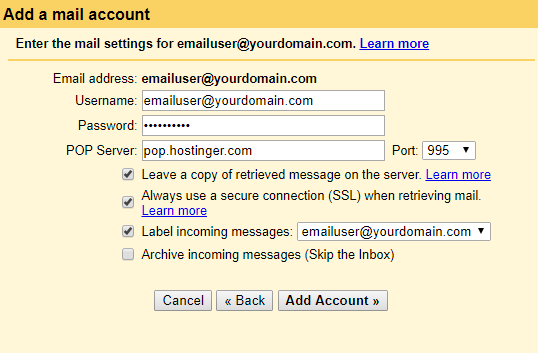
    This is how you set up gmail with your custom domain to receive messages.
  5. Check the boxes as needed, but we recommend ticking the first three boxes. This way, you can keep two copies of the same message on different platforms, use a secure connection, and label incoming messages according to their original email destination.
  6. Click Add Account to finalize the settings.
  7. You’ll be prompted with the option to send emails from your custom address. If you only need Gmail to receive emails and choose No, you’ll be all set. But if you want the platform to be your one-stop destination to receive and send messages, select Yes and continue to the next part.
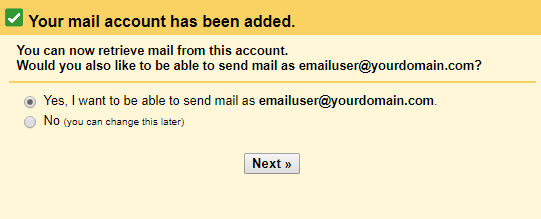
    This is the message prompt that will allow you to set up gmail to send emails from your custom domain.

3.  Configuring Gmail to Send Emails as a Custom Domain

  1. Enter your name and email address and leave the Treat as an alias box checked. This way, you can manage incoming and outgoing messages from the same inbox as your current Gmail address. Click Next.
  2. Set the smtp.hostinger.com as the SMTP server and 465 as the port. Use SSL to secure the connection.
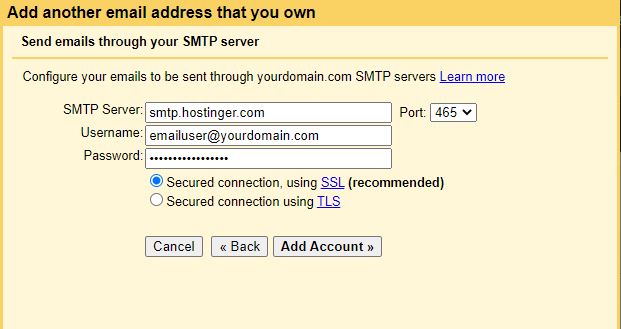
    Configuring Gmail to send emails as a custom domain.
  3. Go to your inbox and open the verification email. Use the link or code to confirm your request.
  4. Once you’re done, you can now use Gmail to send messages as your custom domain address.

Conclusion

Getting the best of Gmail’s interface with the perks of having a personalized domain can be costly, but it doesn’t have to be. In this tutorial, we have learned how to integrate the best of both worlds by tweaking the settings of a Gmail account.

Let us know in the comments below if this guide is useful.

Suggested Reading

Learn how to check if port 587 is open and establish more secure connections between your mail client and server.

Author
The author

Linas L.

Linas started as a customer success agent and is now a full-stack web developer and Technical Team Lead at Hostinger. He is passionate about presenting people with top-notch technical solutions, but as much as he enjoys coding, he secretly dreams of becoming a rock star.

What our customers say

Comments

Author
Andres Quintero

January 07 2018

This was very helpful, thank you so much!

Author
Tran Hai Bang

March 12 2020

Now I can send and receive domain mail right inside my Gmail. Thank you so much

Author
Jordan

August 08 2020

i'm currently paying ionos for both my domain and email service ("Instant email"). Instant email is $15yr. can i drop Instant email and just use gmail as described above (assume that i maintain my custom/private domain)

Author
Derek Lloyd

August 21 2020

Thank you!

Author
WDD.AL

August 26 2020

Well explained. Thanks!

Author
DR

September 19 2020

I get error message “Server denied POP3 access for the given username and password.”

Author
Michelle

October 11 2020

Hi! If I integrate my domain email with Gmail, will I no longer need to set up DKIM and SPF to ensure email deliverability? I have recently added my domain emails to as alternate emails to my Gmail. However, I'm having issues with deliverability. Everything was set up correctly on the SMTP and POP3 settings. I initially added the domain emails as alternate emails so I could get my avatar for the alternate emails. I'm now wondering if creating a Google account for each domain email would have helped in both getting an avatar and in ensuring my emails gets to my recipients' inbox.

Author
Jorge

October 13 2020

Unfortunately, Google is starting to eliminate "Less Secure app access". SMTP.google.com is considered "less secure app" so in the near future we will not longer be able to send emails from google using our domain unless you start paying for the new "google workspace". The other option is to use 2 step verification which involves you will need a cellphone for each account you have.

Author
Diego

April 05 2021

Hi ! This works perfectly , thank you very much. The only issue is that gmail -at least in my case- check for emails only once every hour. Do you know if there is a way to change this ??

Author
T i R u L a

April 29 2021

Hey, Thank you so much for such a simple step-by-step tutorial. With the help of this, I managed to sync my hosting email account to a Gmail account. I can now check all emails through my mobile phone. Keep it up! Waiting for such more stuff to grow. Thanks a ton. Grateful for your work! Have a great time! :)

Author
Shubham Arya

May 18 2021

Sir i bought a domain from godaddy and now i changed my nameserver to hostinger after that i did not recived any email on my business account

Author
Aileen Palaran

May 30 2021

Hi Linas! Thanks for the detailed instructions here. I was able to successfully add my primary hostinger email to my Gmail. However, I'm having trouble adding the alias email. Do you have another set of instructions for adding an alias email though?

Author
Apoorva

June 28 2021

Hey. Thanks for the tutorial. I was able to set up the mailbox with Gmail. I do want to know if there's any way I can add a display picture to my custom webmail. Currently, it shows the default no-avatar icon. I want it to show my site logo. I'm not able to find a way to change this. Thanks in advance.

Author
Leon Kuriah

July 01 2021

Perfect! took me less than 5 mins to setup!

Author
Anmol Poptani

August 09 2021

I am getting an error: Couldn't reach the server. Please double-check the server and port number. While I am following the instructions mentioned above

Author
Abhijit Saha

October 21 2021

I am able to connect with SMTP port 587 as well as switch between TLS connection. However, my outgoing mails are having the gmail extension. Pls advise what to do. Thanks.

Author
Melanie

December 29 2021

Hi, I can't get past step 1 where it says to go into Emails>Email Accounts>Set up devices. I created a domain-based email on Hostinger (it says Titan mail) but when I go into Emails>Email Accounts, I don't see that sidebar menu with "Forwarders..." and "Set up devices." What should I do? I want to forward my domain email to my gmail account. Thank you!

Author
Shubham Sahrawat

January 07 2022

Thanks for the help! Nicely explained.

Author
PavelKoo

March 15 2022

Thanks. Almost work. In my case a step 3.4 Make new mail as "default" in the "Send mail as" gmail configuration was necessary.

Author
Samiksha

April 01 2022

Well explained. I have been struggling to get my website email linked with gmail. But now after following your instructions, I finally nailed it. Thanks, Bro.

Author
Andrea Capecci

April 14 2022

Super helpful - works perfectly

Author
Sofia

April 18 2022

Google are about to charge everyone using their mail services, how does this fit into that new world?

Author
Ian Thompson

November 24 2023

AS far as I can see, although gmail leaves a copy of the received mail on the hostinger server, it doesn't put a copy of any sent mail on the hostinger server, which means you can't use both hostinger webmail and gmail, it has to be one or the other.

Author
Mark Ellse

July 10 2024

Your website has changed. Instead of Configuration Settings, one needs to go to Connect Apps & Devices. Other than that, very clear thanks.

Author
Andy

February 17 2025

Is it possible to send and receive e-mails from Hostinger Aliases using Gmail?

Author
Sean

September 10 2025

So I followed the instructions above with success until the end , when gmail gives me the option of signing in with my domain through a personal account Or a workspace account, so naturally I go for the personnel because I feel google has enough money without mine. And it won't accept my password I brought over and signed up with from Hostinger. I'm hopping it won't be mixed in with my personel gmail account. Where did I go wrong?

Leave a reply

Please fill the required fields.Please accept the privacy checkbox.Please fill the required fields and accept the privacy checkbox.

Thank you! Your comment has been successfully submitted. It will be approved within the next 24 hours.