How to change the logo in WordPress: using customizer, template editor, and custom CSS
Mar 10, 2026
/
Yoga K.
/
4 min Read
A website’s logo is an important tool for brand recognition, helping visitors set the site apart from competitors and form a strong impression. It also makes the website look more legitimate and professional.
After creating a high-quality and relevant logo, you only need to add it to your WordPress website and customize it.
If you are looking for an effective way to add or change a WordPress site logo, we will guide you using different methods. We will also teach you how to replace the default login logo.
Download all-in-one WordPress cheat sheet
How to Change the Logo in WordPress
As there is no default button or shortcut, figuring out how to change a WordPress site logo can be tricky for beginners.
Thus, we will provide detailed instructions to change or add a custom logo in WordPress:
Adding a Custom Logo to a WordPress Theme
There are two ways to add a custom logo to the site’s active theme – via WordPress Customizer or Template Editor.
You can only use the Customizer feature on classic WordPress themes, such as Twenty Fifteen, Twenty Sixteen, and Twenty Seventeen. The steps are quite straightforward:
-
Go to Appearance → Customizer.
-
Click the Site Identity to expand the section.
-
Click Select Logo and upload your logo image.
-
Click the Publish button to apply the change.
Meanwhile, the Template Editor is only available for block themes like Twenty Twenty-Two, Blockbase, and Tove. This method will require adding the Site Logo block to the theme’s template.
Let’s dive into the details.

Adding a Logo With WordPress Customizer
To add a new logo using WordPress Customizer, follow the instructions below:
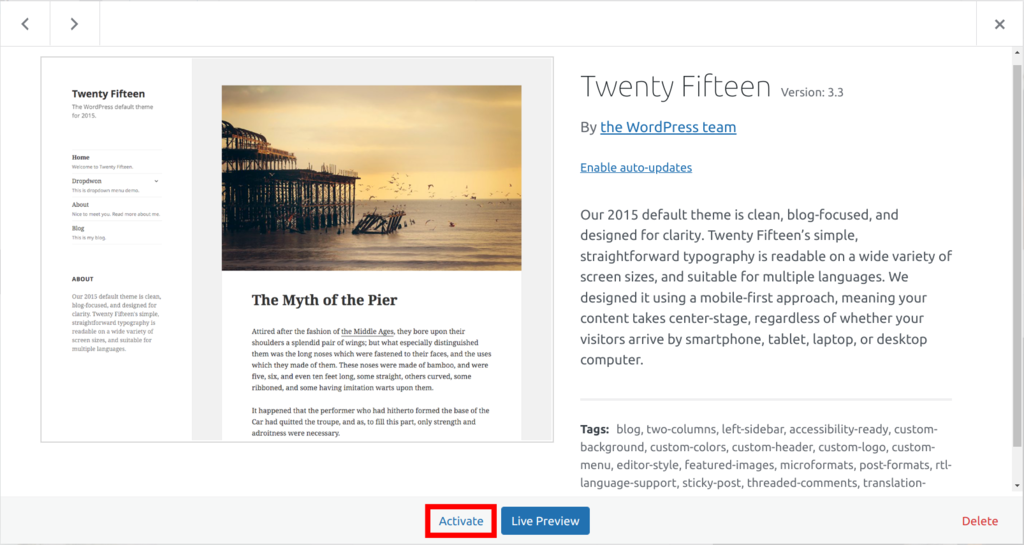
- Install and activate a WordPress theme that supports Customizer via the WordPress dashboard. In this tutorial, we will use the Twenty Fifteen theme.
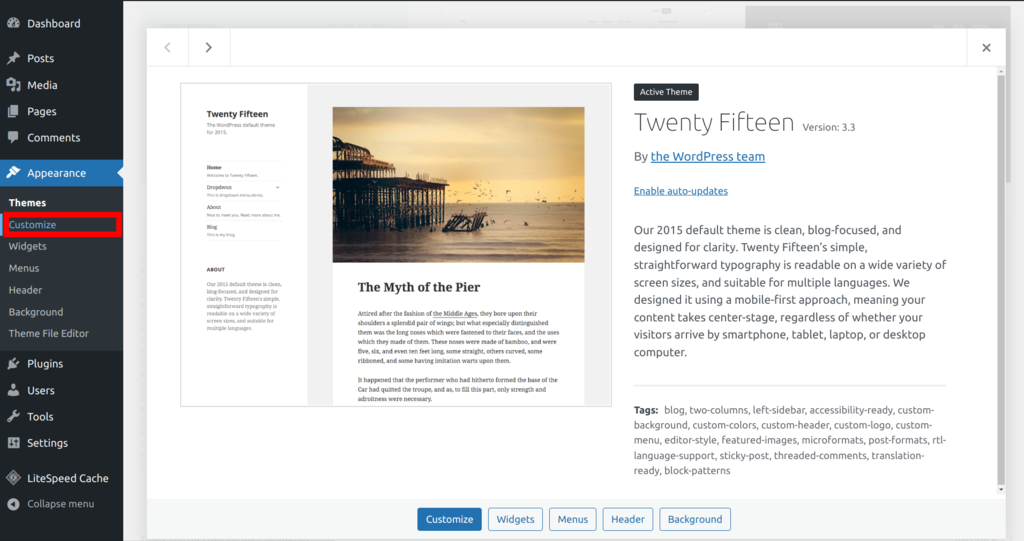
- Navigate to Appearance → Customize.
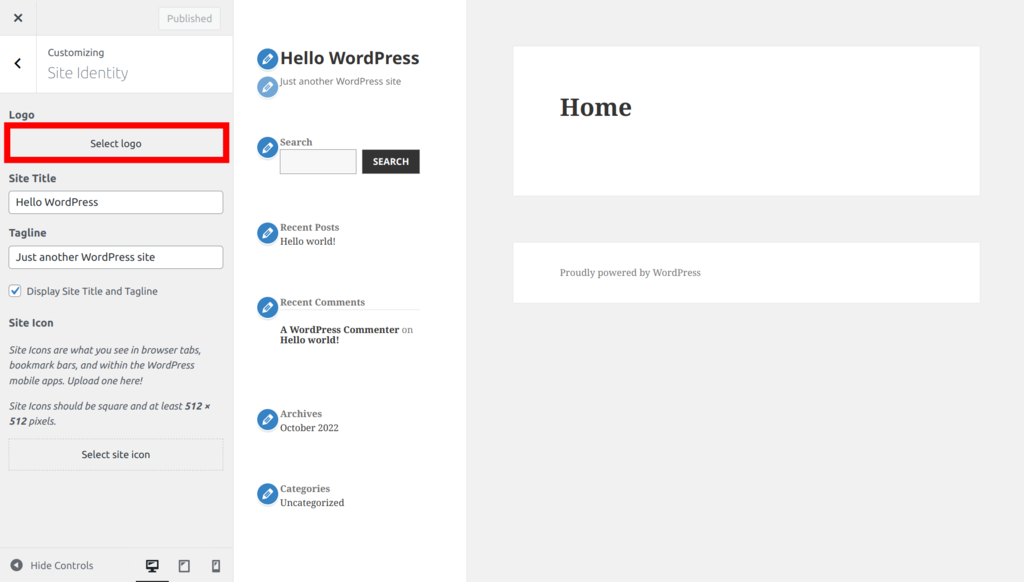
- In the Customizer page, head to the left sidebar and click Site Identity.
- Next, click Select logo to open the media library.
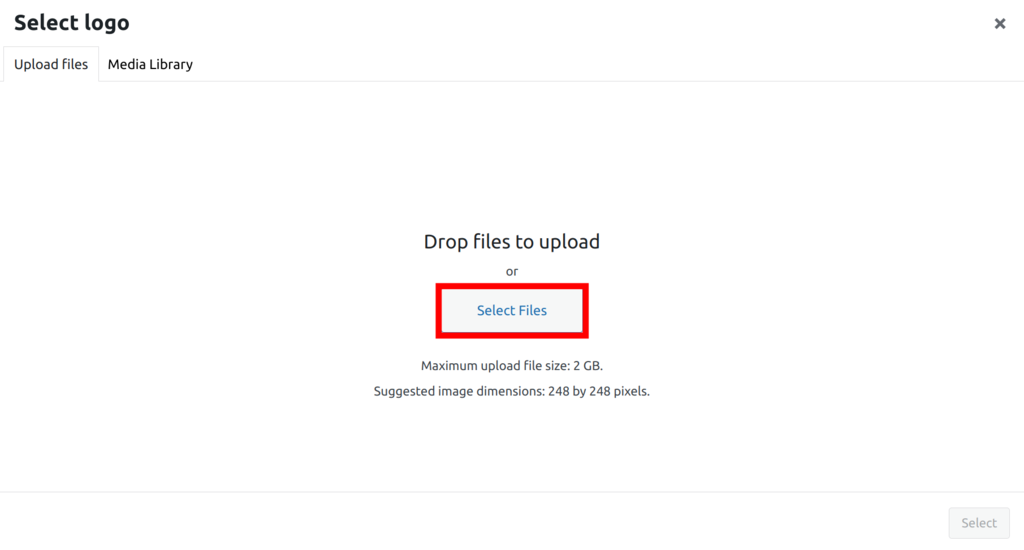
- On the Upload files tab, click Select Files and choose the custom logo file you want to upload.
- Once uploaded, highlight the logo and click Select.
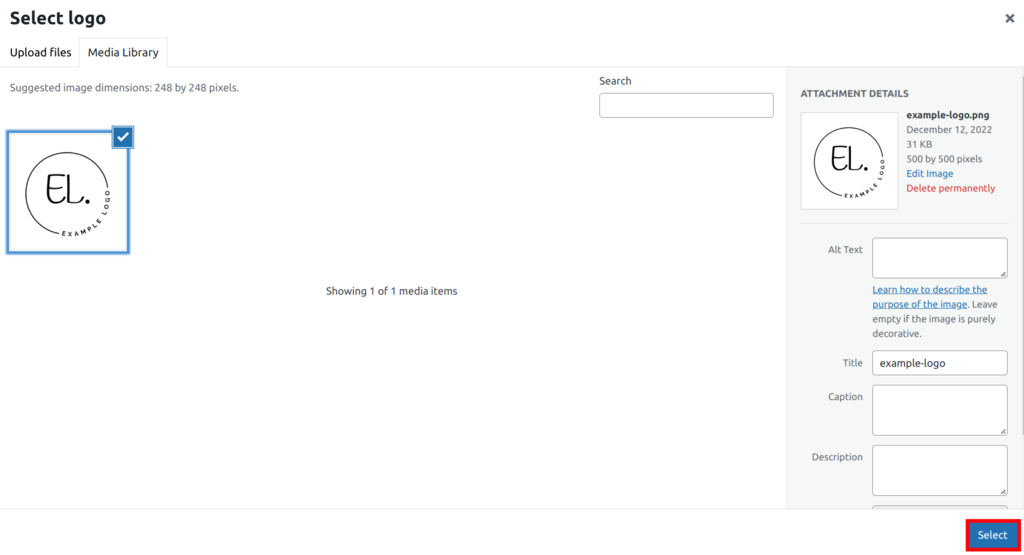
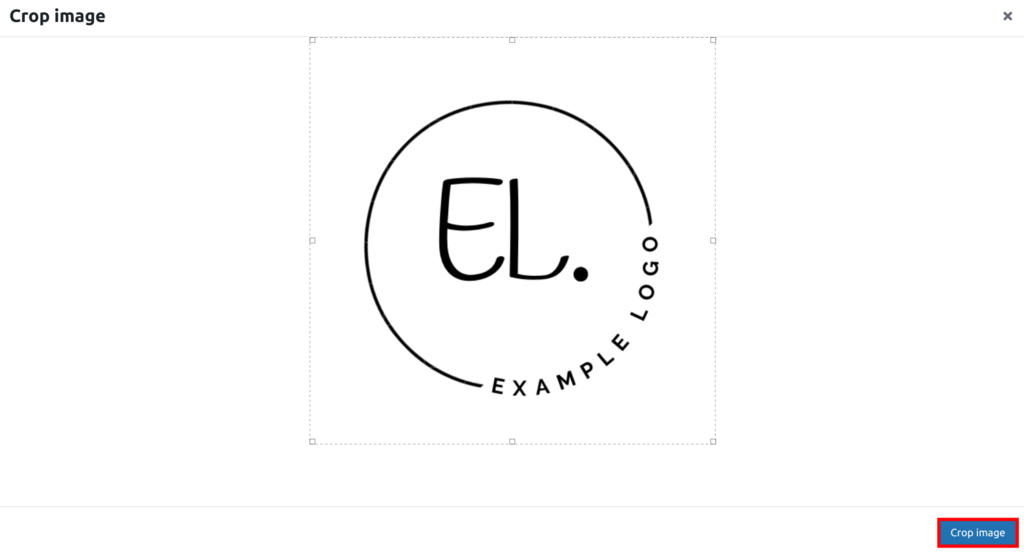
- You might need to adjust the WordPress site logo if it is too large. Once finished, click Crop image to insert the logo into the editor.
- Next, click Publish to save the changes.
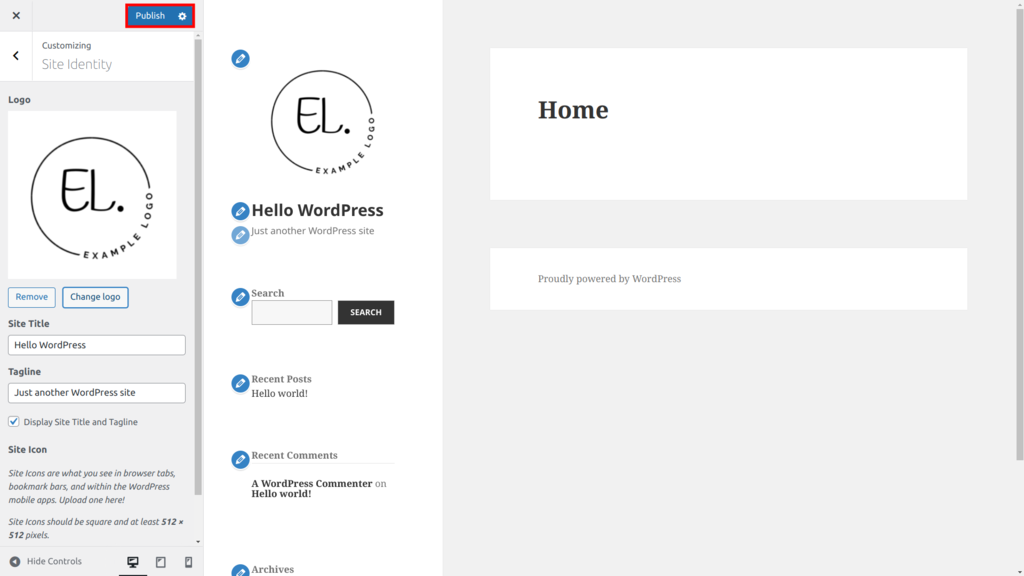
To strengthen your WordPress site identity, you can also use the logo as the site’s favicon, but note that WordPress recommends using at least 512 x 512 pixels.
Adding a Logo via WordPress Template Editor
To add a custom logo using the Template Editor, follow the steps below:
- Install and activate a theme that supports the feature. In this tutorial, we will use Twenty Twenty-Two.
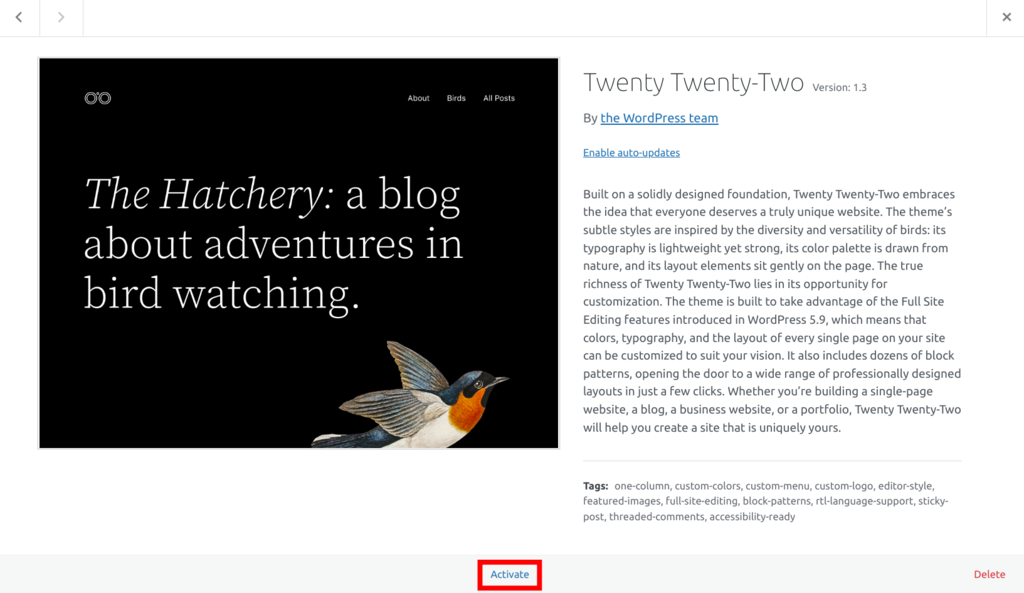
- After activating the theme, go to Pages → All Pages. Then, select your front page.
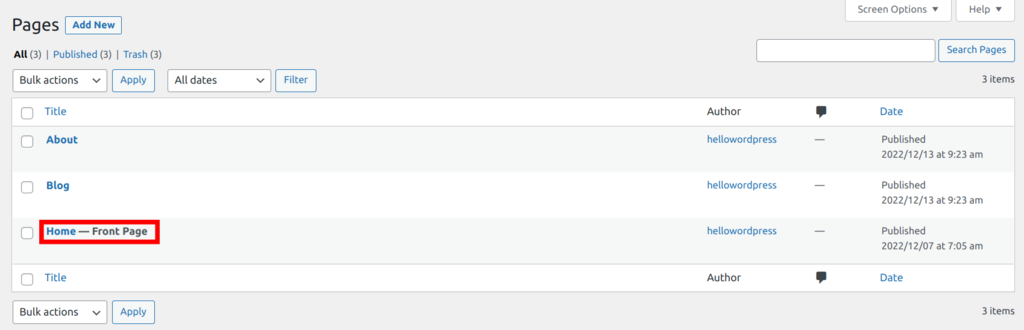
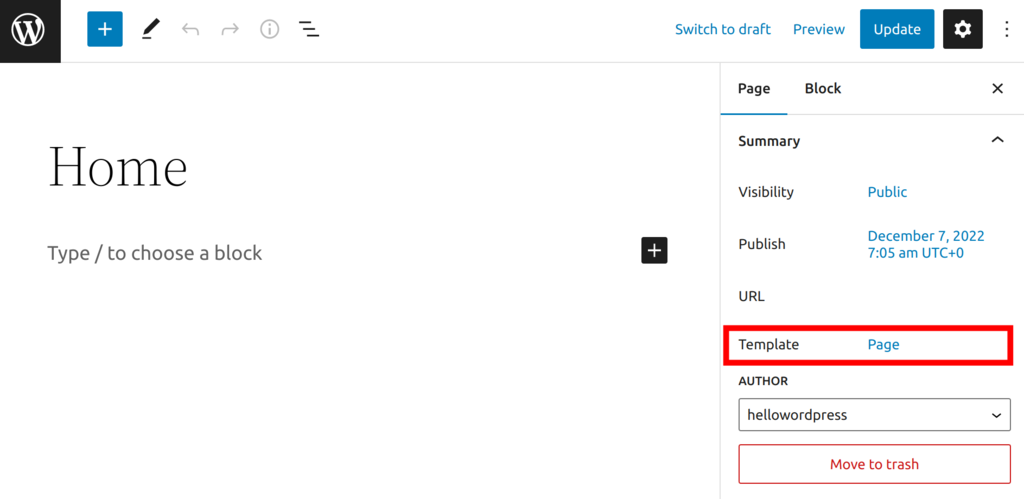
- You will be redirected to the block editor. Navigate to the Settings sidebar → Summary → Template.
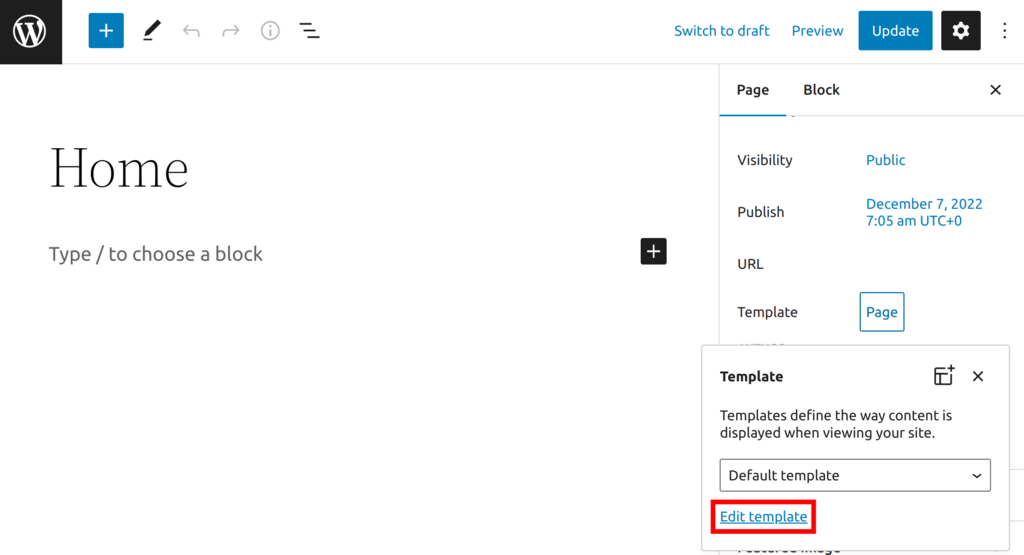
- Next, click on the Page button and select Edit template to open the Template Editor.
- Select the Header template.
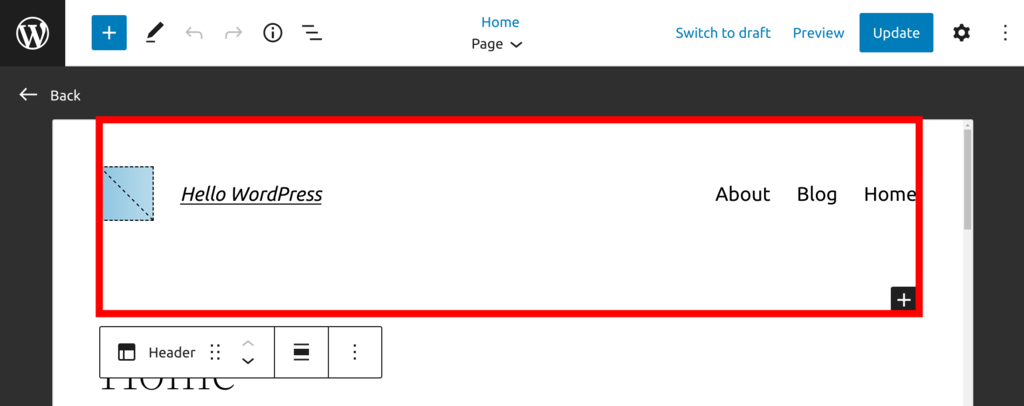
- To add the logo, select the Site Logo block and upload the image. Click Select to insert it into the editor.
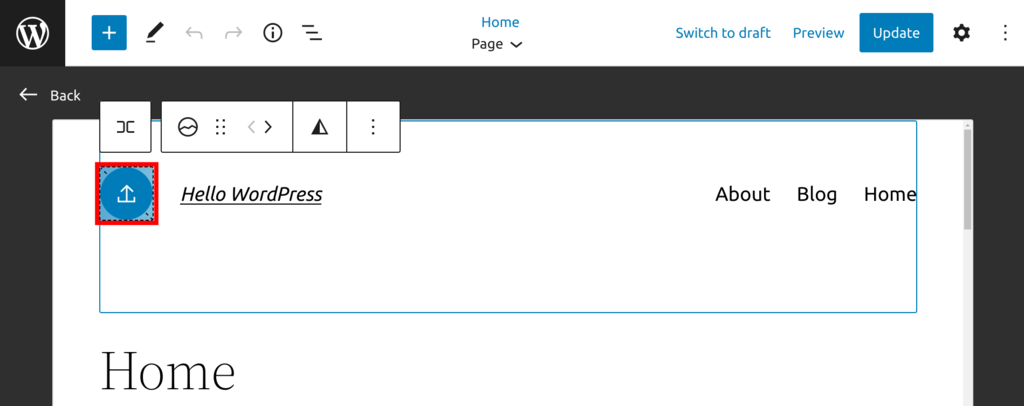
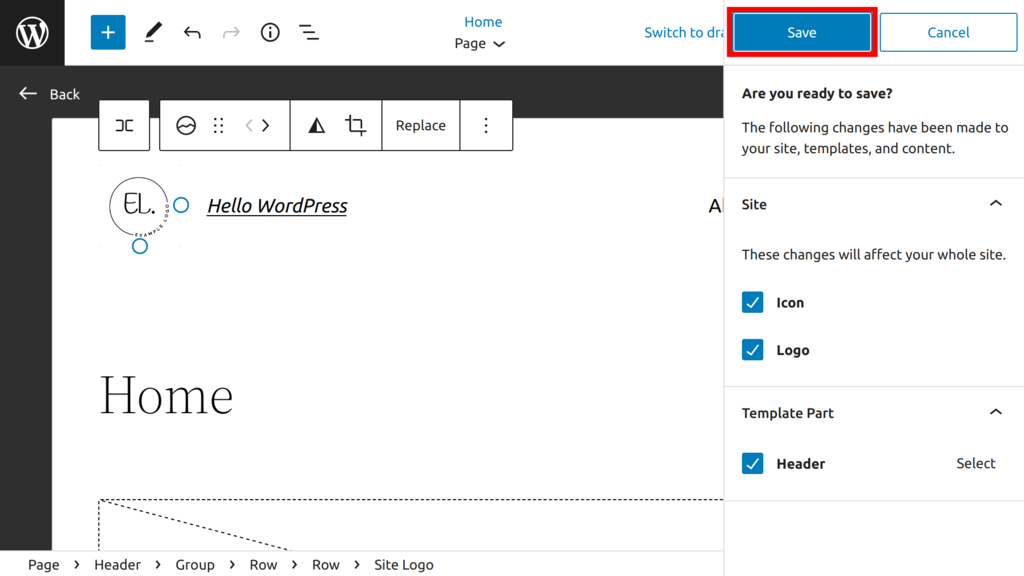
- Next, click the Update button. The editor will inform you that the changes will affect the whole site. Click Save to confirm.
Changing the Logo With Custom CSS Styles
To modify or customize WordPress logo styles further, you can use Additional CSS. This feature lets you add Cascading Style Sheets (CSS) classes to a specific block and style it to suit your needs.
A CSS class groups HTML elements together to simplify styling. Instead of writing the CSS rules within HTML content tags, you can add the code separately as an addition.
Since this feature is only available on WordPress Customizer, we will use Twenty Fifteen as an example. Follow the steps below to add custom CSS code and style your logo:
- Navigate to Appearance → Customize to open the Customizer screen.
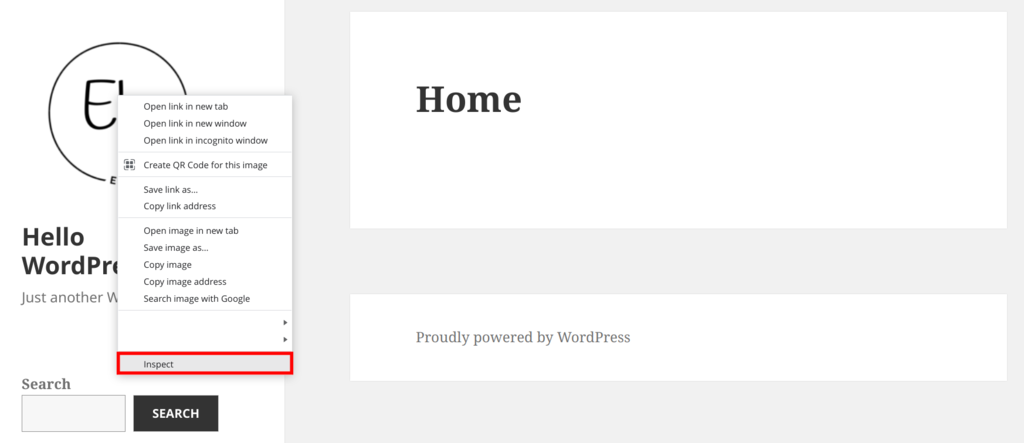
- On the editing area, right-click on the logo image and select Inspect to open the Inspect Element tool.
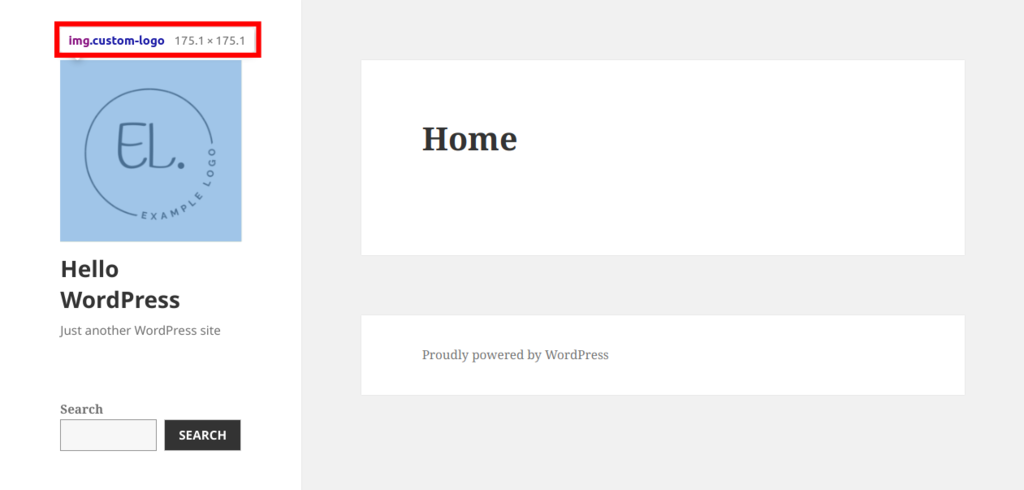
- Hover over the highlighted HTML tag and locate the CSS class shown above the logo. In this case, the CSS class value is img.custom-logo.
- Close the Inspect Element tool and return to the Customizer screen. Then, click Additional CSS on the left sidebar.
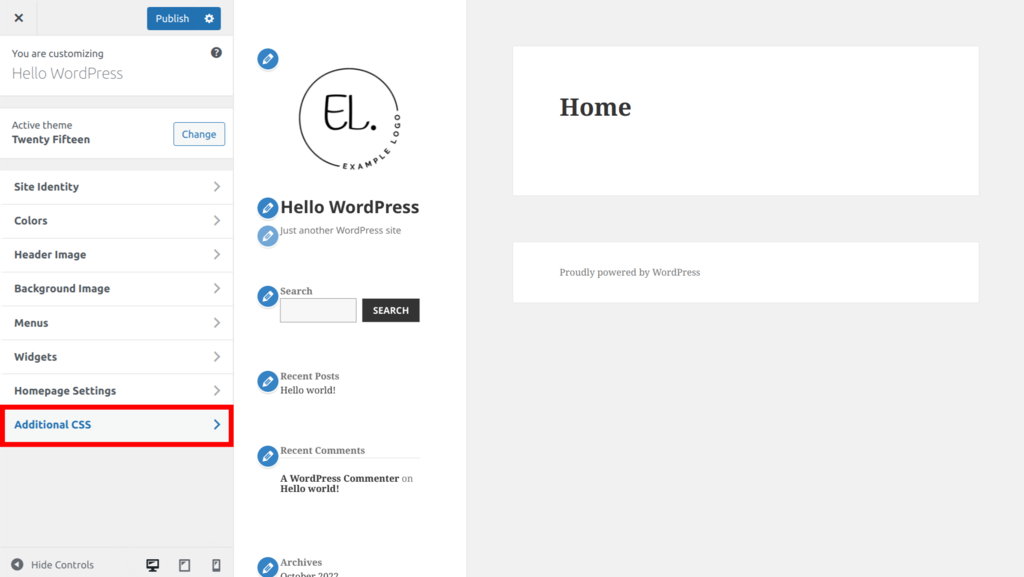
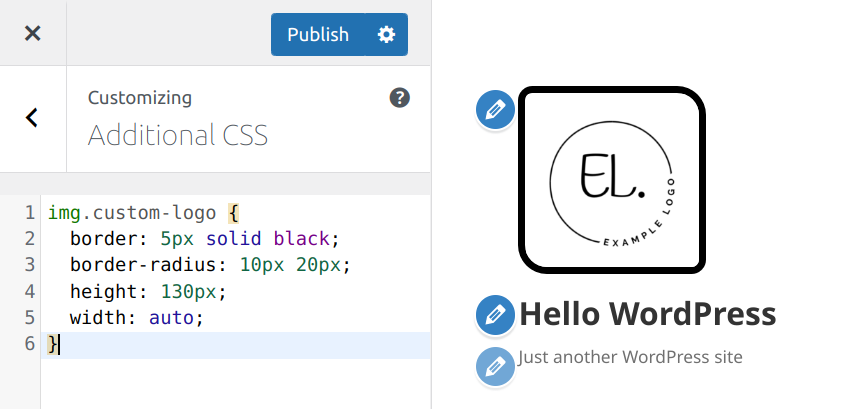
- In the Additional CSS editing area, type the CSS class – img.custom-logo in our case. Then, add your own CSS properties to customize WordPress logo styles. Here is an example:
img.custom-logo {
border: 5px solid black;
border-radius: 10px 20px;
height: 130px;
width: auto;
}- The output should look like this:
- Click Publish to save the changes.
Changing the Logo on the WordPress Login Page
It is also possible to replace the logo on the login page with your custom image. You only need to modify the active theme’s functions.php file using your web hosting control panel or the WordPress theme editor.
We will show you how to change WordPress logo images on the login page via the Hostinger control panel, hPanel:
- From the hPanel Dashboard, open the File Manager.
- Next, navigate to public_html → wp-content → themes. Then, open your active theme directory – we will use the Twenty Fifteen theme.
- Find the functions.php file, scroll down to the bottom, and add the following code snippet:
function custom_loginlogo() {
echo '<style type="text/css">
h1 a {background-image: url(insert_the_logo_url_here) !important; }
</style>';
}
add_action('login_head', 'custom_loginlogo');- Next, copy the URL of the logo file from the WordPress media library. Paste it within the URL value’s brackets, like this: url(https://yourwebsite.com/wp-content/uploads/2022/12/logo-example.png).
- Once finished, click on the Save button.
Pro Tip
Learn how to create a logo with Hostinger AI Logo Maker.
Conclusion
Adding a custom logo to your WordPress website is an important step in establishing an engaging and strong site identity.
In this article, you have learned multiple methods of adding and changing a custom logo in WordPress – using WordPress Customizer, Template Editor, and custom CSS code.
To make the site identity even more consistent, we have also provided instructions on changing the logo on the WordPress login page.
We hope this article has helped you understand how to configure a logo in a WordPress website. Good luck!
How to Change Logo in WordPress FAQ
Find answers to some common questions about changing the logo in WordPress below. If you still have questions about how to change the logo on your website, please leave a comment below.
What Are the Common Logo Sizes in WordPress?
When uploading a logo file via the WordPress media library, you will see suggested image dimensions of 248 x 248 pixels. Thus, we recommend using this logo size for the best result.
Can You Change the Size of the WordPress Logo?
Yes, you can change the logo size by editing the image before inserting it into the page. To do that, open the WordPress media library and select the logo image. On the Attachment details window, click Edit Image to customize WordPress logo sizes.
What File Format Should I Use for the Logo?
We recommend using the SVG format for your logo, as it is lightweight and can be rendered at any size without losing its quality. Moreover, search engines like Google can read the text in the SVG file.

Information Technology and web development are Yoga's passions. He loves nothing more than sharing his experience with readers, and helping them to understand the world of IT. In his spare time, Yoga likes to make music and learn to code. He is always looking for new challenges, and enjoys pushing himself to learn new things.



Comments
December 05 2023
Hello, I'm currently using the Attorney Press theme on WordPress but I am unable to change the logo to the one I want. I have gone through the process stated on this page but I still can't figure it out. Kindly assist. Thank you
December 08 2023
Hi there! To change your logo on the Attorney Press theme, just head to Appearance → Customize in your WordPress dashboard. Find the Header or Logo section, upload your new logo, and save changes. If you still encounter problems, feel free to reach out to our Customer Success Team ?