How to fix WordPress mixed content Error using plugins and the .htaccess file
Mar 10, 2026
/
Jordana A.
/
5min read
The mixed content warning is a common WordPress error often caused by incorrect Secure Socket Layer (SSL) settings. It indicates that your WordPress website has insecure assets from non-HTTPS URLs.
Resolving mixed content warnings on your WordPress site should be a priority. It can harm the user experience and cause search engines to flag your site as unsafe, potentially affecting your rankings. More severe cases can also make your site susceptible to unauthorized tracking and on-path attacks.
This tutorial will explore the potential causes of the mixed content error in WordPress and how to identify it. Then, we’ll explain three effective methods to fix mixed content warnings: using a plugin, updating website URLs from HTTP to HTTPS, and modifying the .htaccess file.
Download all-in-one WordPress cheat sheet
What Is the WordPress Mixed Content Error?
The WordPress mixed content warning appears when a website serves both secure (HTTPS) and non-secure (HTTP) content due to incorrect SSL settings. To resolve it, you must force WordPress to display all content from secure HTTPS connections, which can be accomplished by using a plugin, updating HTTP links to HTTPS, or modifying the .htaccess file.
What Causes the Mixed Content Error in WordPress
Enabling HTTPS/SSL is a common security practice for WordPress websites. Setting up a WordPress SSL certificate lets you encrypt data between your site and visitors for a secure connection.
Many web hosts, including Hostinger, bundle free SSL certificates with their hosting plans. Alternatively, you can buy an SSL certificate from a third-party provider and install it yourself.
Unfortunately, you may encounter WordPress mixed content warnings even with a valid SSL certificate. They occur when an HTTPS site uses an absolute path to load HTTP scripts. An absolute path specifies the precise location of a directory or file. Here’s an example:
http://domainname.com/featured-image.jpg
How to Identify the Mixed Content Error in WordPress
The easiest way to spot a mixed content error in WordPress is by looking at your browser’s site address bar.
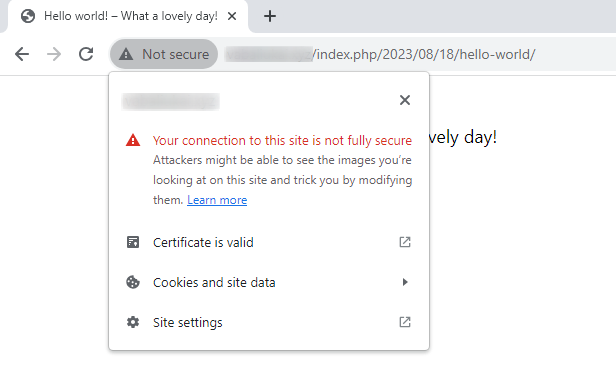
Depending on your browser, a Not secure warning or a broken padlock icon may appear next to your site’s URL with a message saying, “Your connection to this site is not fully secure.”
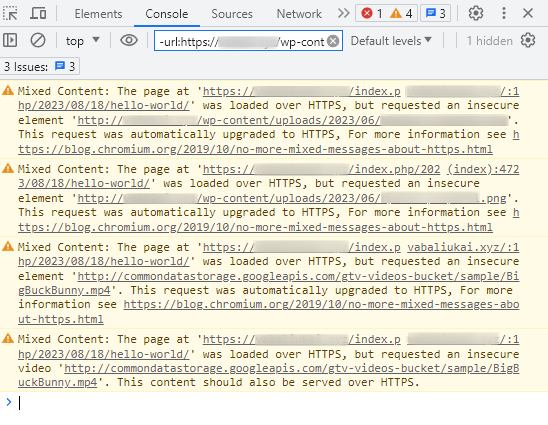
Using Developer tools in the Google Chrome browser, you can identify which assets are loading with the HTTP connection.
To access it, click the three vertical dots on Chrome’s top menu bar and choose More tools → Developer tools. Alternatively, press Ctrl+Shift+I for Windows or Linux and Cmd+Option+I for macOS.
Open the Console tab in Developer tools to see all the flagged insecure WordPress content on your website.
How to Fix the WordPress Mixed Content Error
We will walk you through three possible solutions to debug your WordPress website for mixed content errors, starting with the simplest method.
How to Fix the WordPress Mixed Content Error Using a Plugin
If you can access your WordPress admin dashboard, install an HTTPS/SSL plugin to fix the mixed content warning. Many of these plugins offer a free version that has features to resolve insecure content issues with a few clicks.
For this tutorial, we’ll show you how to troubleshoot mixed content errors in WordPress using the SSL Insecure Content Fixer plugin:
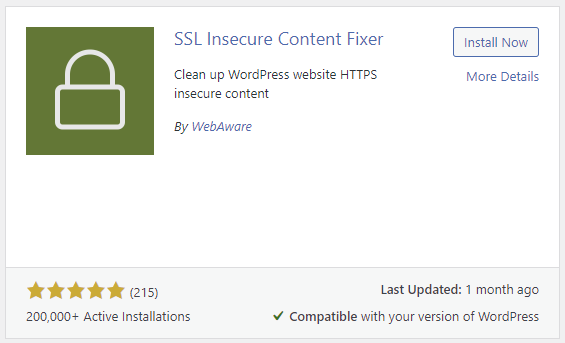
- Install and activate SSL Insecure Content Fixer from the WordPress plugin directory. Refer to our article on how to install WordPress plugins.
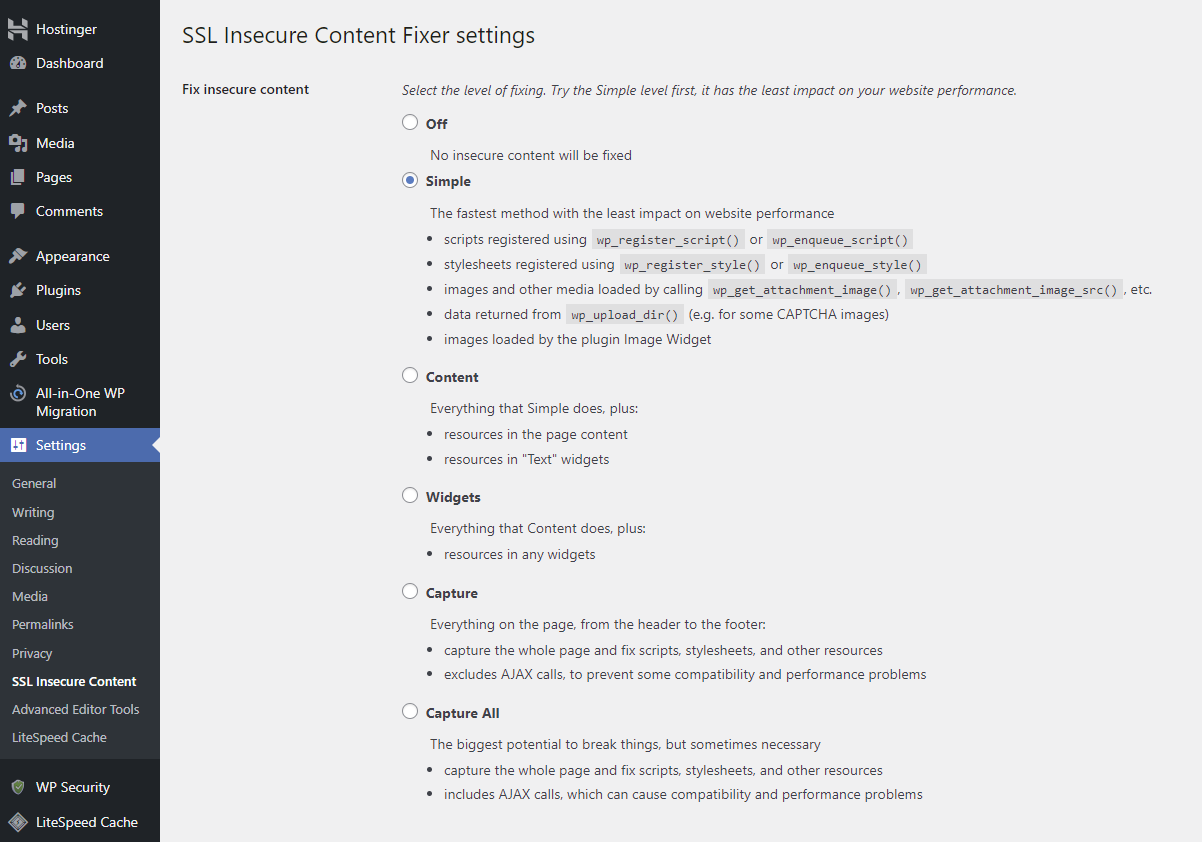
- Navigate to Settings → SSL Insecure Content from your admin dashboard to configure the plugin.
- The Fix insecure content field determines the level of fixing that the plugin will apply. The Simple option focuses on scripts, stylesheets, and WordPress media files, which minimizes impact on website performance. Start here and escalate if needed until the warning is resolved.
- The HTTPS detection field dictates how your WordPress site identifies HTTPS pages. You can set it to the standard WordPress function or choose another option below it if you’re using a reverse proxy like NGINX or Cloudflare CDN.

- Leave other settings as they are and click Save Changes.
- Visit your WordPress site to check if the mixed content error has been resolved.

How to Fix the WordPress Mixed Content Error by Updating Links
If an HTTPS/SSL plugin doesn’t resolve the problem, certain URLs might be hard-coded in your WordPress database or files. In this case, you need to replace all the URLs with HTTPS.
If there are only a couple of insecure links, remove them manually. If there are a lot of them, use a search-and-replace plugin to update all the insecure links in your database tables.
Important! Backup your WordPress website before making any changes to your database.
Follow these steps to perform bulk updates in your WordPress database using the Better Search Replace plugin:
- Install and activate Better Search Replace from the WordPress plugin directory.
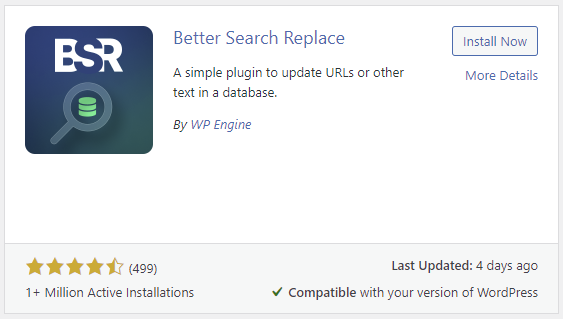
- Navigate to Tools → Better Search Replace from your admin dashboard.
- Fill the Search for field with your HTTP website address, and add the HTTPS version to the Replace with field.
- The Select tables field determines which tables to update. Press Ctrl and click each entry to select all the tables.
- Leave additional settings as they are. The form should look like this:
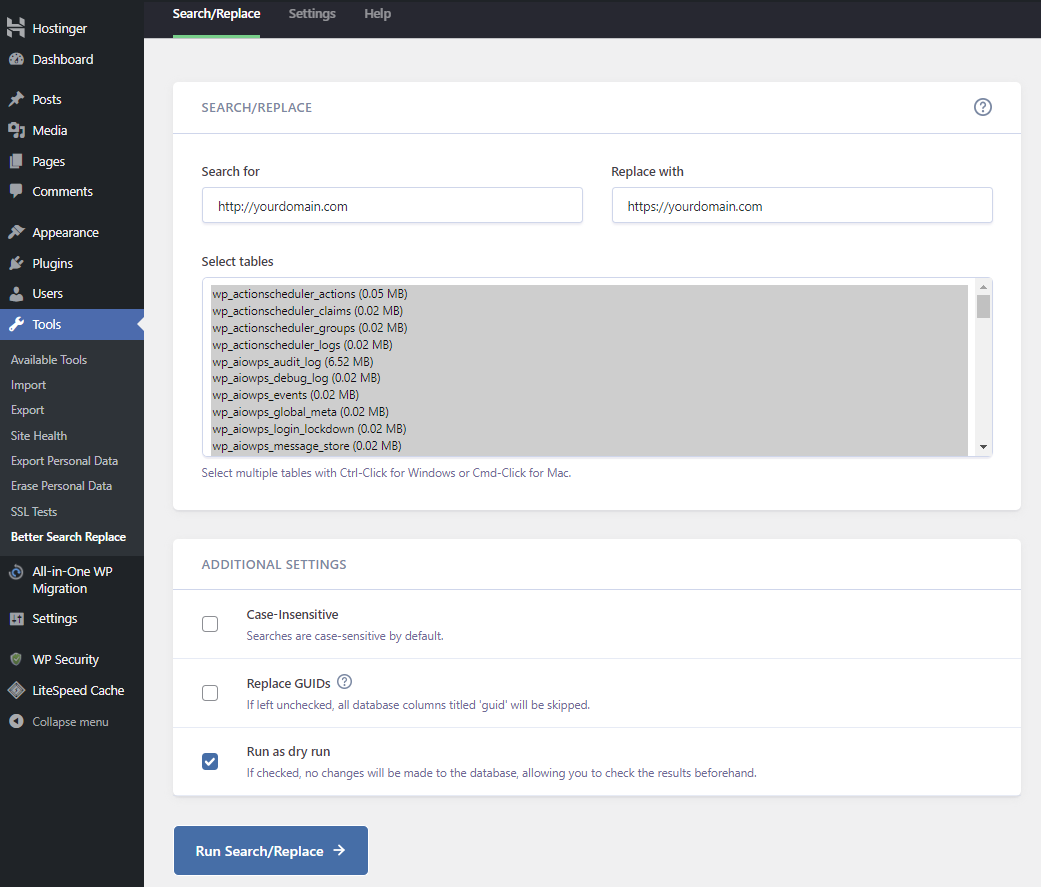
- Click Run Search/Replace to start the update process.
- Since the Dry run mode is on, the plugin will only present its findings. Verify that they are indeed HTTP URLs.
- Deactivate the Dry run mode and rerun the search and replace process.
Pro Tip
Clear browser cache before testing your WordPress website to ensure it loads the latest data.
How to Fix the WordPress Mixed Content Error via the .htaccess File
The final method to address mixed content warnings in WordPress is to force a secure HTTPS connection through the .htaccess file.
This file configures various functions for websites hosted on several web servers, including Apache. One key function is to enforce WordPress to redirect visitors from insecure HTTP connections to HTTPS.
You can find or create the .htaccess file in your website’s root directory, which houses all the WordPress core files.
This tutorial will show you how to modify .htaccess using Hostinger’s File Manager. However, you can also use an FTP client like FileZilla. Here’s how:
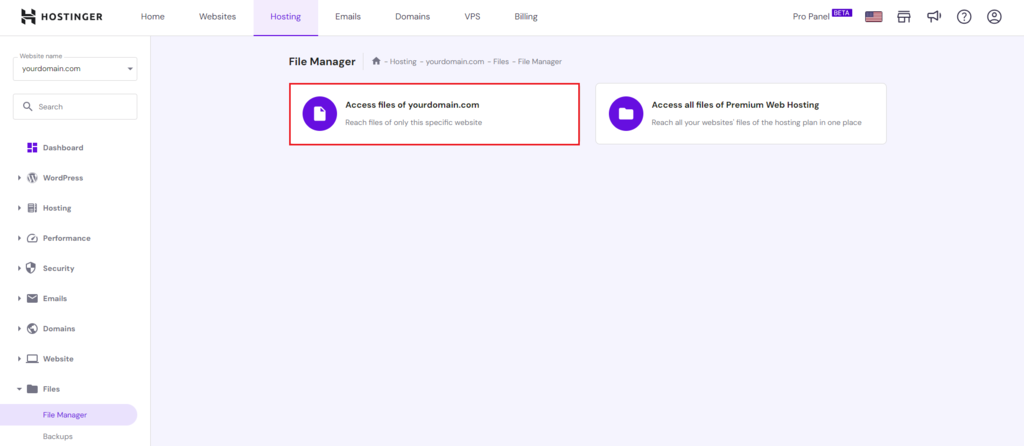
- Navigate to Files → File Manager on hPanel.
- Select Access files of yourdomain.com to view that specific website’s files.
- Double-click on the public_html folder and locate the .htaccess file. Remember, you can create a new one if there isn’t any.
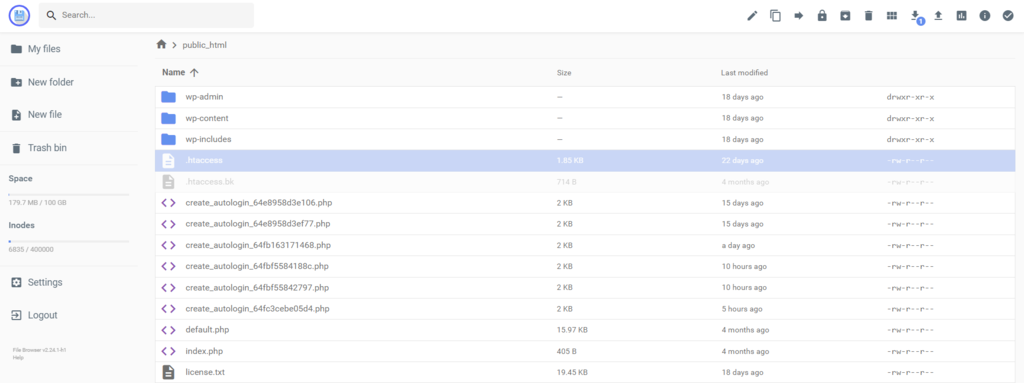
- Right-click on the file and select Edit.
- Paste the following code snippet at the bottom of the file.
RewriteEngine On
RewriteCond %{HTTPS} !=on
RewriteRule ^(.*)$ https://%{HTTP_HOST}%{REQUEST_URI} [L,R=301,NE]
Header always set Content-Security-Policy "upgrade-insecure-requests;"- Click Save and reload your WordPress site to check if the mixed content errors have been resolved.
If the process is successful, users visiting your website through an insecure HTTP link will be redirected to a secure HTTPS connection.

Suggested Reading
Do I Need an SSL Certificate? How SSL Can Protect Your Site
Types of SSL Certificates: Which One Should You Pick?
How to Fix WordPress HTTP Error When Uploading Images
How to Improve WordPress Security
Conclusion
A mixed content warning can happen after installing an SSL certificate. If left unresolved, it can hurt your SEO and user experience and create vulnerabilities on your website. Therefore, fixing it at the earliest opportunity is essential.
Thankfully, there are three solutions to fix mixed content errors in WordPress:
- Use a plugin for a hassle-free fix.
- Manually update hard-coded HTTP links to HTTPS.
- Force WordPress to redirect from HTTP to HTTPS through the .htaccess file.
We hope this article helps secure your WordPress site and provide a seamless experience for visitors. If you have more questions, check our FAQ section or leave a comment. Good luck!
WordPress Mixed Content Error FAQ
This section answers some of the most frequently asked questions about troubleshooting mixed content warnings in WordPress sites.
How Do I Fix Mixed Content on a WordPress Site?
There are three ways to fix the mixed content error in WordPress. The easiest fix is by using a plugin. Alternatively, you can manually update HTTP to HTTPS for hard-coded URLs or modify the .htaccess script to force secure HTTPS connections.
Why Is Fixing the Mixed Content Warnings Important?
Fixing WordPress mixed content warnings is essential. They can harm your SEO and user experience. It can even lead to security vulnerabilities, making your site susceptible to unauthorized tracking and cyber attacks.
How Can I Find Mixed Content Errors on My Site?
Look for a Not secure warning or a broken padlock icon on your browser’s address bar. In Google Chrome, open the Console tab in Developer tools to identify HTTP-loaded assets.

Jordana is a Senior Content Writer with a background in Information Systems. She has over five years of experience in WordPress and is casually dabbling with PHP and MySQL. Her passion for writing and technology drives her to create tutorials for anyone wanting to build their online presence. Follow her on LinkedIn.



Comments
April 06 2023
Thanks for these tips, but when linking to plugins to help, it might be worth checking the plugins first as WordPress HTTPS (SSL) hasn't been updated for 5 years, has been closed as of June 13, 2022 and is not available for download. Reason: Security Issue!
April 07 2023
Hello there! Thank you for noticing, I've forwarded this to our team and we will replace the plugin listing as soon as possible.