How to locate and create the WordPress .htaccess file on cPanel and Hostinger dashboard
Oct 23, 2026
/
By Domantas G.
/
5 min Read

When you install WordPress on your hosting account, the software adds a list of directories to your web server. From wp-admin that stores administrative files to the wp-content directory where themes and plugins are kept – these keep your pages up and running.
Aside from the core directories, WordPress also comes with the .htaccess file. In short, it is a configuration file that controls how your server is running. We will give you the details about this configuration file and information on how to locate it or create a new file entirely.
In particular, we’ll guide you through the process of locating your WordPress site’s .htaccess file in both Hostinger dashboard and cPanel. Please note that Hostinger no longer uses Apache as its main web server. Instead, LiteSpeed has become its drop-in replacement with .htaccess file support, and it is used for all Hostinger’s hosting services, including managed WordPress plans.
Download all-in-one WordPress cheat sheet
What Is the .htaccess File
The .htaccess (hypertext access) is a critical WordPress core file used to enable or disable features of websites hosted on Apache. The .htaccess files are also referred to as server configuration files located in your WordPress root directory. By default, WordPress uses the .htaccess files to manage redirects and permalink structures.
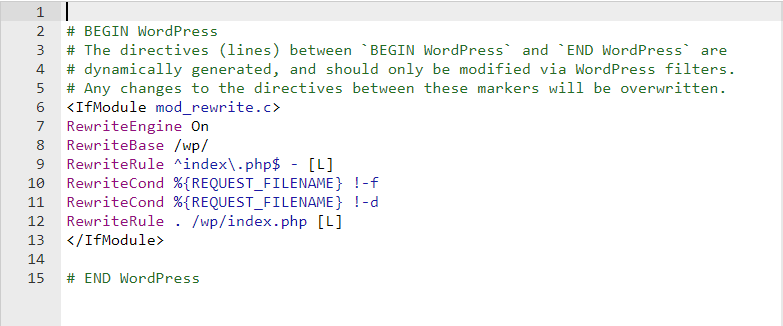
Many WordPress plugins also use .htaccess files to operate, including most security plugins and caching plugins. These plugins modify and rewrite the .htaccess files to perform their functions.
The .htaccess file allows you to perform configuration changes per-directory basis, from altering your default index page to changing your website’s timezone. More advanced server configuration changes include the ability to:
- Set up redirects – you can set a 302 redirect to your temporary domain or a 301 redirect to move all HTTP traffic to your HTTPS site.
- Rewrite URL – create SEO-friendly URLs to improve search engine indexability and crawlability.
- Enable hotlink protection – the .htaccess file allows you to prevent hotlinking from your site and protect your bandwidth usage.
- Modify access restriction – deny specific IP addresses from your site, make a certain type of files inaccessible, or completely restrict access to your site.
- Serve custom error pages – customize the message that appears on your 404 error not found or 403 Forbidden pages.
- Password-protect directories – command every directory to require a valid user by setting up a password and creating a .htpasswd file.
Access this free .htaccess generator page to generate code snippets and set up more advanced rules on your site.
How to Locate the .htaccess File
When you install WordPress on Apache Web Server, the .htaccess file is automatically added to your root directory, generally labelled as public_html or www. However, since the file is usually hidden, you will need to use the Show Hidden Files option to find it.
The following sections will walk you through the steps of locating your WordPress site’s .htaccess file in both Hostinger dashboard and cPanel.
Hostinger dashboard
Here’s how to find and edit your .htaccess file via Hostinger File Manager:
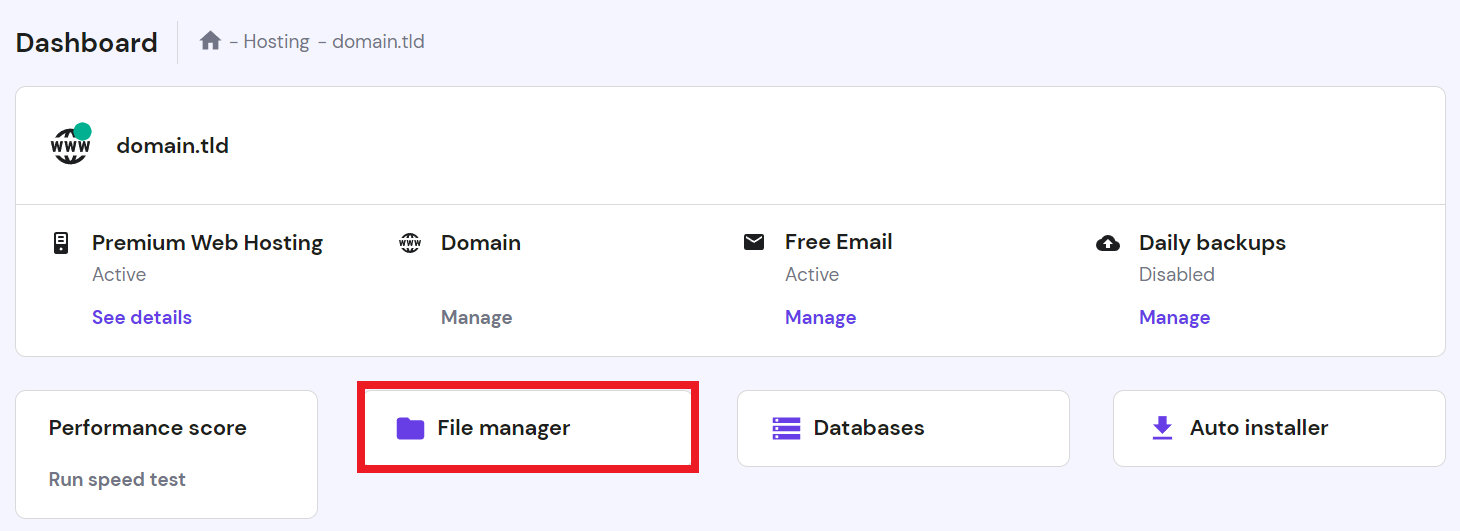
- Access your Hostinger dashboard. Click on File Manager on your Hostinger dashboard.
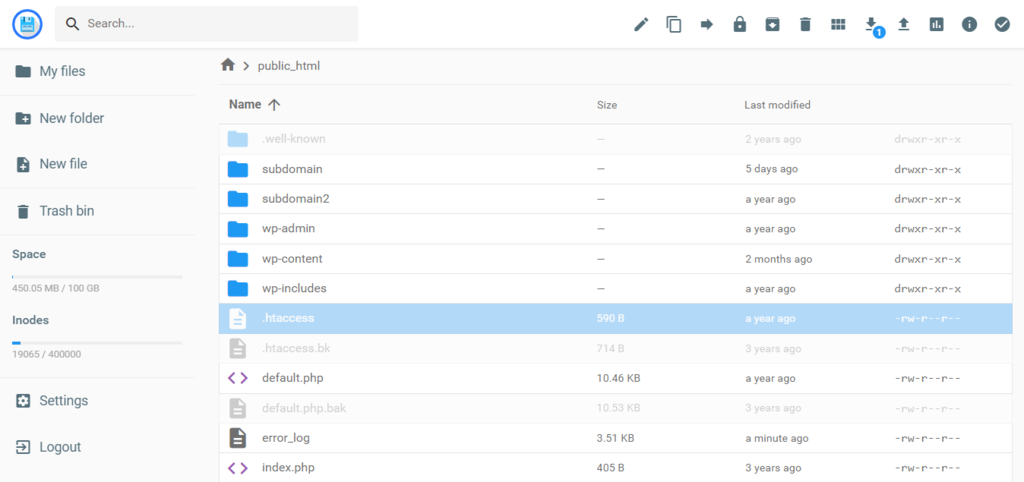
- By default, the .htaccess file is not hidden in Hostinger dashboard. Thus, simply click on your public_html directory and look for a file labeled as .htaccess.
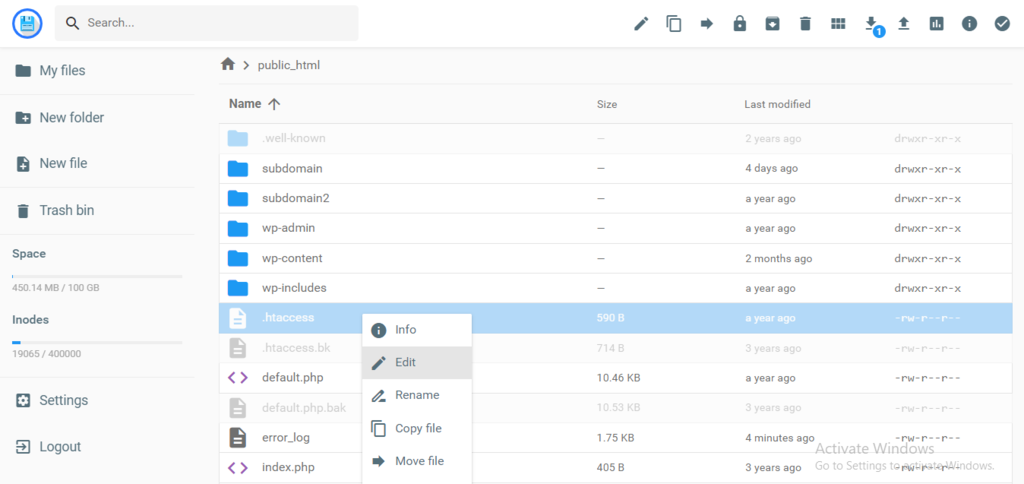
- Access the file and its content by right-clicking and selecting Edit.

cPanel
If you use cPanel, the process is more or less similar:
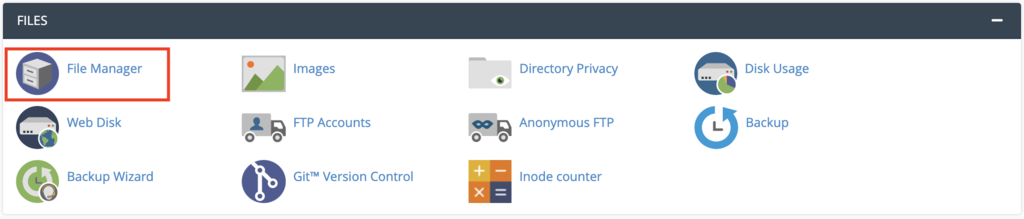
- Log into your cPanel account. Locate the Files section and click File Manager.
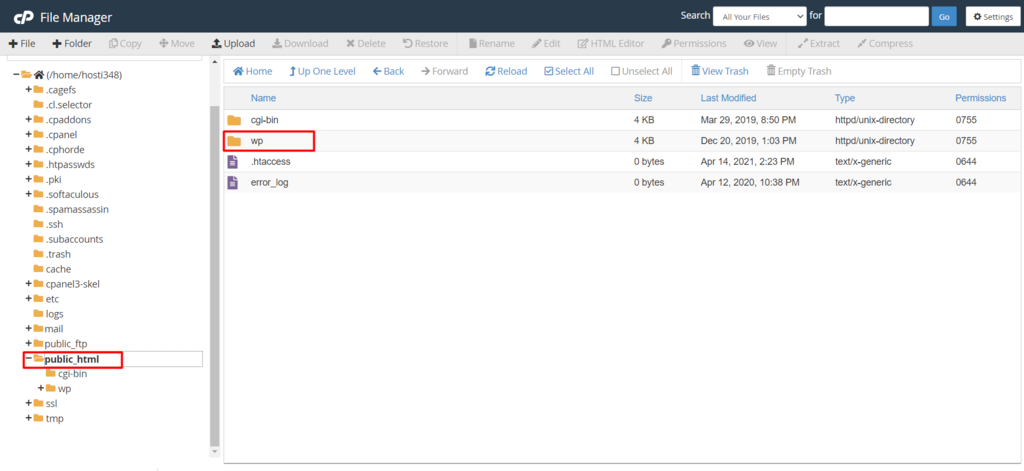
- Access the public_html directory. Click on your WordPress folder. In this case, it’s labeled as wp. Then, look for the .htaccess file.
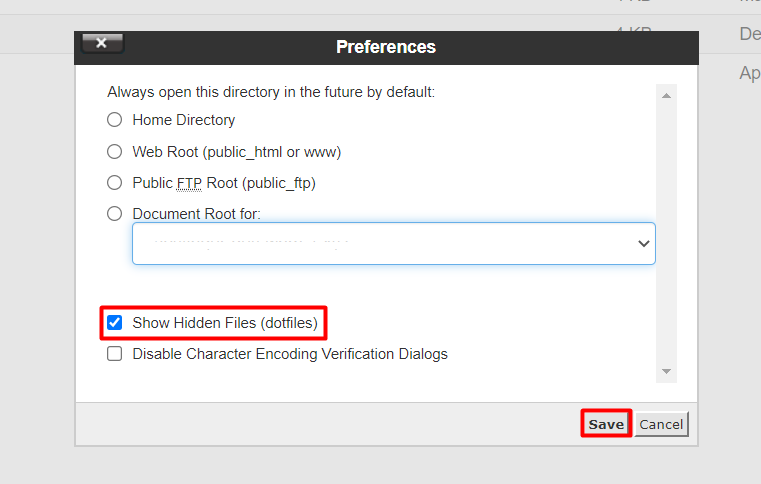
- If you can’t find the .htaccess file, go to Settings on the upper right menu and tick the Show Hidden Files option to enable viewing.
- The system will begin to fetch your directories’ content, and you will soon see the .htaccess file on the list.
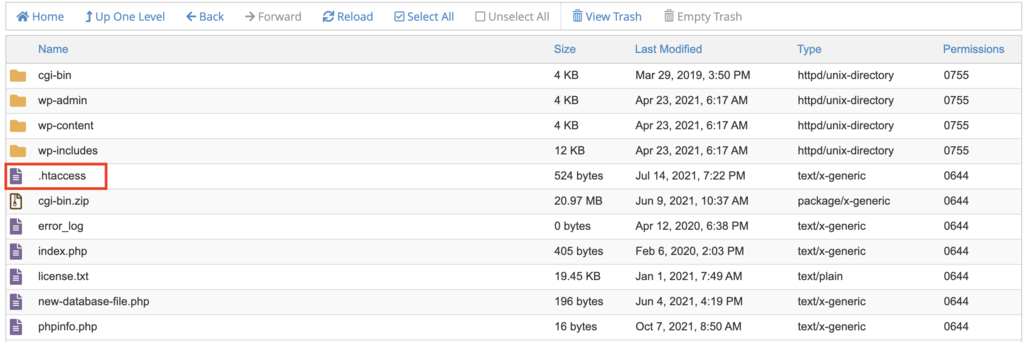
- Simply click on the file and check the Edit button to open it.
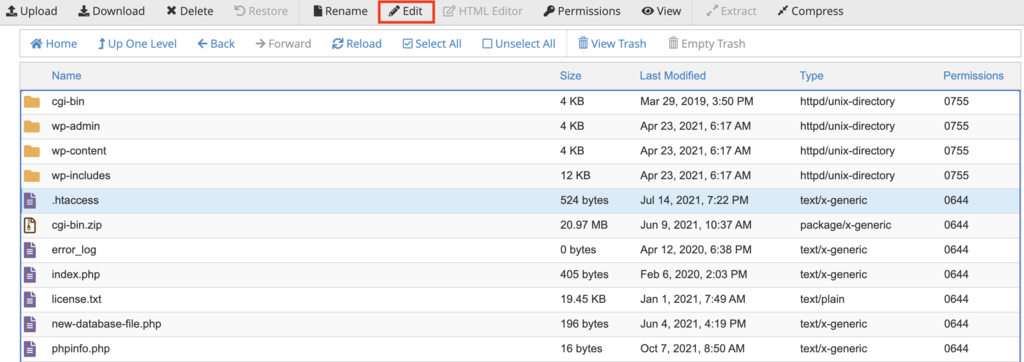
Now that you have located your .htaccess file, you can start editing the file. Start adding code snippets above or below the existing code to enhance the functionality of your WordPress site. However, before you make any configurations, there are several factors worth paying attention to:
- If you have more than one domain in your hosting plan, each domain will have its own .htaccess file in its public_html directory.
- Since .htaccess is a server configuration file, messing up the code can cause server errors.
- It is highly recommended to create a backup. This way, you can restore your WordPress site to its stable state whenever an error happens.
How to Create a .htaccess File
There are a few instances where your WordPress installation will not include the .htaccess file by default. Alternatively, a broken plugin might corrupt this server configuration file and disrupt your site. In these cases, you will need to create a new file from your hosting control panel manually.
Hostinger dashboard users will locate the New file button on the left sidebar menu on your File Manager page.
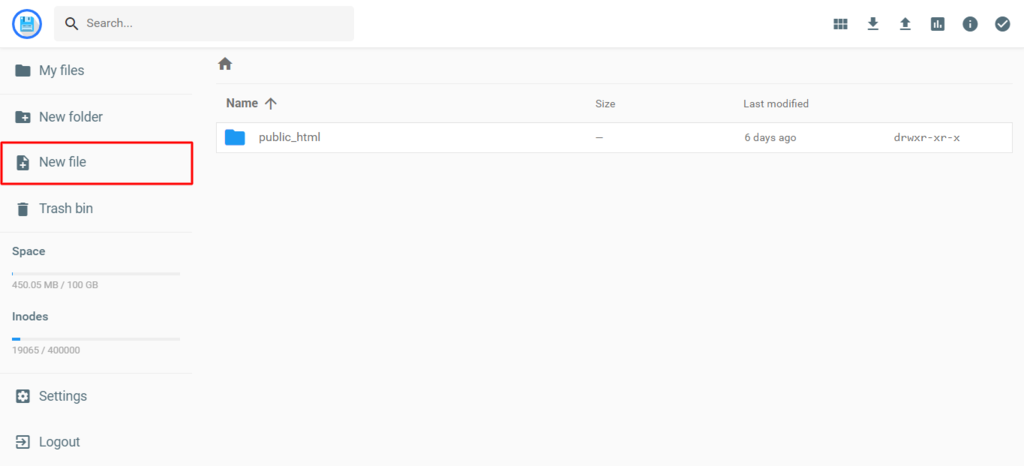
If you use cPanel, choose the New File button on the upper-left corner of your screen.

Enter .htaccess as the file name, then insert the code below:
# BEGIN WordPress

<IfModule mod_rewrite.c>
RewriteEngine On
RewriteBase /
RewriteRule ^index.php$ - [L]
RewriteCond %{REQUEST_FILENAME} !-f
RewriteCond %{REQUEST_FILENAME} !-d
RewriteRule . /index.php [L]
</IfModule>
# END WordPress
Once you’ve added the code, press Create to save your changes. Keep in mind that the code is universal for all WordPress sites. However, other content management systems (CMSs) will have different code for their .htaccess files.
Aside from the method above, you can also use a text editor such as Notepad to create a .htaccess file, then upload it to your web server using an FTP client.
Conclusion
The .htaccess file is a configuration document for use in WordPress websites. This file plays an important role in keeping your site accessible, as it determines how the server runs and functions.
Every WordPress installation will include a .htaccess file that you can access through your hosting control panel or FTP client. When you host multiple sites, your web server will also have multiple .htaccess files.
By making full use of your .htaccess files, you can perform various configuration changes on a per-directory basis. This includes blacklisting or whitelisting specific IP addresses, redirecting traffic from HTTP to HTTPS, and setting up a password on every directory.
In this guide, you have learned how to locate the .htaccess files on your server. If the .htaccess files are not present for some reason, you need to manually create one and upload it to your server. Simply create a new file in the public_html directory, label it as .htaccess, and fill out the default code.
Give it a try, and should you have any further questions, please leave them in the comments below.
Learn Other Expert WordPress Techniques
WordPress Multisite
Headless WordPress
WordPress REST API Tutorial
How to Use Xampp
How to Become a WordPress Developer
How to Perform a WordPress Search and Replace in the Database
WordPress .htaccess FAQ
Learn more about WordPress .htaccess from these frequently asked questions.
How Do I edit .htaccess in WordPress?
To edit .htaccess in WordPress, access the file via an FTP client or File Manager, then make changes using a text editor. It’s important to back up the file before editing and to use proper syntax to avoid errors.
What Is the Default WordPress .htaccess File?
The default WordPress .htaccess file is a configuration file used by Apache web servers to control website access and URL structure. It includes rules for WordPress permalinks and security settings to help prevent unauthorized access and protect against malicious attacks.
This article is a localized version of How to locate and create the WordPress .htaccess file on cPanel and Hostinger dashboard, originally published in English.

Domantas leads the content and SEO teams forward with fresh ideas and out of the box approaches. Armed with extensive SEO and marketing knowledge, he aims to spread the word of Hostinger to every corner of the world. During his free time, Domantas likes to hone his web development skills and travel to exotic places.


