Error 522 is an HTTP status code indicating a connection timeout between a CDN service, like Cloudflare, and your website’s origin server. This error means Cloudflare tried to connect to your server to fetch content for a visitor, but the server took too long to respond.
Common causes include an offline or overloaded origin server, a firewall that blocks or rate-limits Cloudflare requests, and a DNS record that points to the wrong server IP address. The connection can also time out if KeepAlive is disabled on the origin server.
To fix Error 522, first check whether your web server is online and responding. Then review your Cloudflare DNS records, firewall rules, and KeepAlive settings. After making a change, reload the affected page with Cloudflare active to confirm the error is gone.
Here’s a quick summary of the error:
| Error code | Error 522 |
| Error type | Server error |
| Error variation | Connection timed out |
| Error causes | Server overload Firewall blocking Cloudflare IPs Incorrect DNS KeepAlive disabled |
What causes the Cloudflare Error 522?
A Cloudflare Error 522 is an HTTP status code commonly associated with origin server issues, such as resource overload, firewall restrictions, DNS misconfigurations, and network connectivity problems.
- Server overload. The origin server is overwhelmed with too many requests and can’t respond to new ones, including Cloudflare’s. This is common on shared hosting plans, especially during sudden traffic spikes.
- Server offline. The origin server is down or offline due to a crash, maintenance, or other technical issues. If the server is offline, it can’t respond to any requests.
- Firewall blocking Cloudflare requests. A firewall on your server, a security plugin, or your hosting provider’s network might be blocking Cloudflare’s IP addresses. Since Cloudflare acts as a proxy, its IPs must be whitelisted.
- Incorrect DNS settings. The A record (or AAAA record) in your Cloudflare DNS settings doesn’t point to the correct IP address of your origin server. This sends Cloudflare’s requests to the wrong place.
- Network issues. Connectivity problems between Cloudflare and your server, or issues with your hosting provider’s network, can interrupt the connection.
- KeepAlive disabled. Cloudflare uses KeepAlive headers to maintain a stable, persistent connection. If this setting is disabled on your origin server, the connection can fail, leading to a 522 error.
Please note that the problem almost always lies with your origin server, not with Cloudflare or the visitor’s connection.
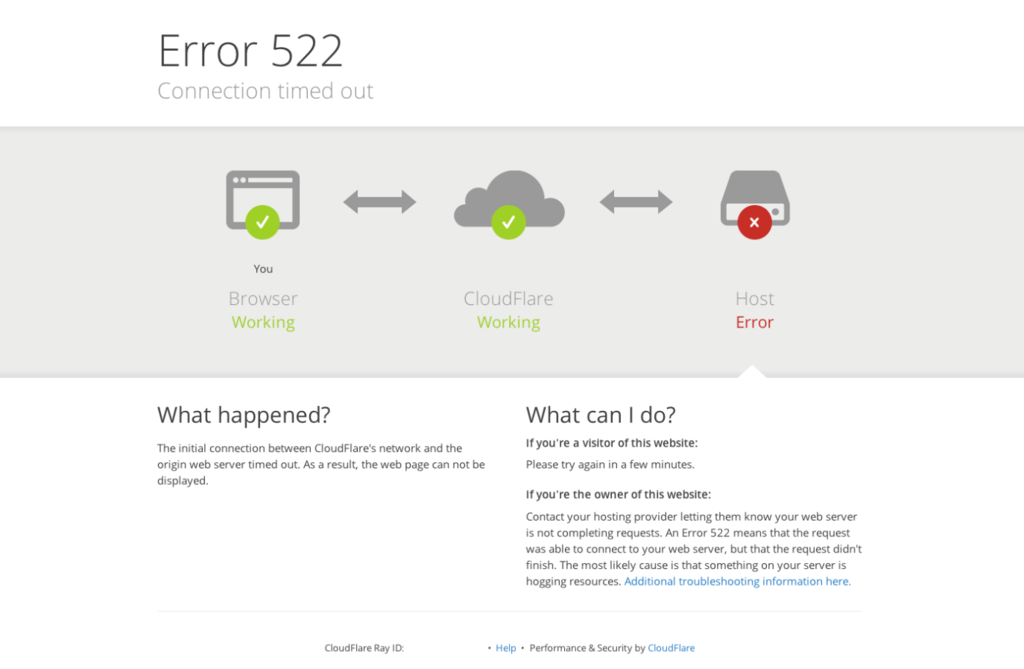
How to fix Error 522 Connection timed out
To fix a “Connection timed out” error 522, first, check if your web server is online and not overloaded. Then, verify that your Cloudflare DNS settings point to the correct server IP address. Finally, review your server’s firewall settings to confirm Cloudflare’s IPs aren’t blocked and check that KeepAlive is enabled.
If you prefer a visual guide, our video tutorial walks you through fixing Error 522:


Important! Before you start, it’s a good idea to check if your website is down for everyone using a tool like Uptrends and confirm that Cloudflare’s system status is operational.
1. Check if the web server is working
Check your hosting dashboard for outages and review your server’s error logs around the time the 522 appeared. If your host provides a way to test the origin directly, check whether it responds to an HTTP or HTTPS request.
Next, check your site’s resource usage. If your server is hitting its CPU or RAM limits, it won’t be able to respond to new requests. Hostinger users can find this in their Hostinger dashboard:
- In the Hostinger dashboard, go to Websites and select Manage site for the affected website.
- In the sidebar, open Hosting plan → Resources Usage.
- Check whether CPU, memory, or process usage reached your plan’s limits around the time the error appeared.
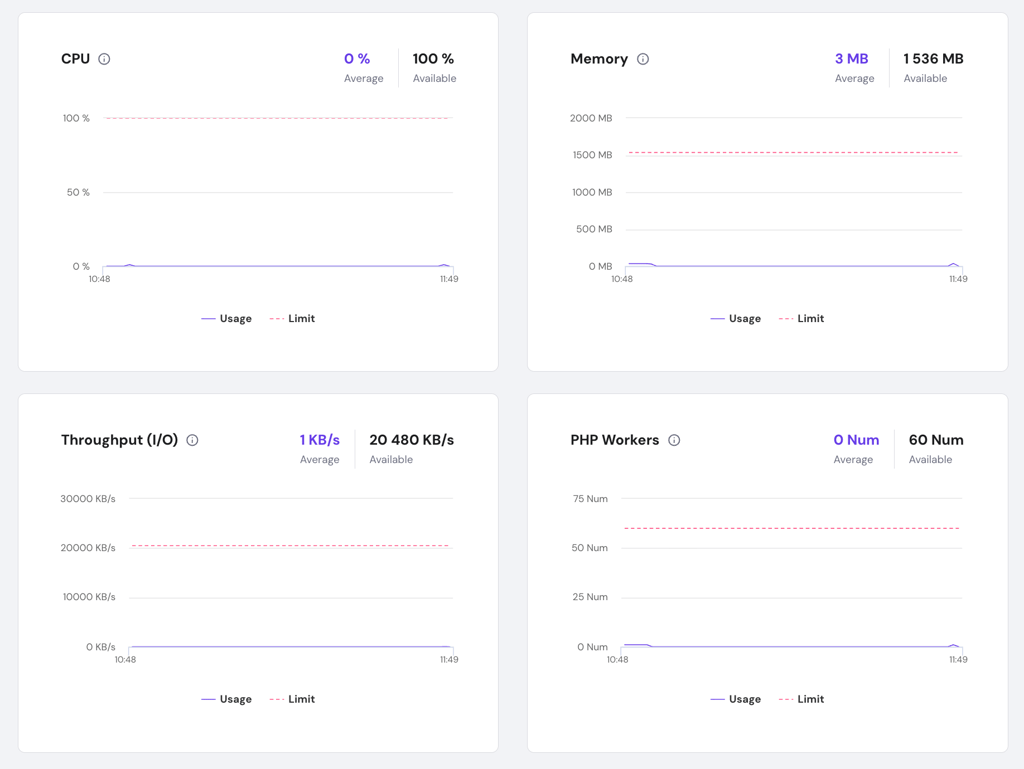
If you’re hitting the limits, it will slow your site and cause this error. To fix this:
- Optimize your site. Remove unnecessary plugins, as some create a high load on the server.
- Revise code. Poorly optimized code can cause high CPU usage.
- Upgrade your plan. If you regularly hit your limits, you may need to upgrade your hosting plan to get more resources.

2. Review Cloudflare DNS settings
Check that the Cloudflare DNS record for the hostname showing Error 522 points to the correct origin server. For example, if the error appears on www.example.com, start with the record for www.
First, find your website’s IP address in your hosting dashboard. If you use Hostinger, go to Websites → Manage site → Hosting plan → Plan details and copy the Website IP address.
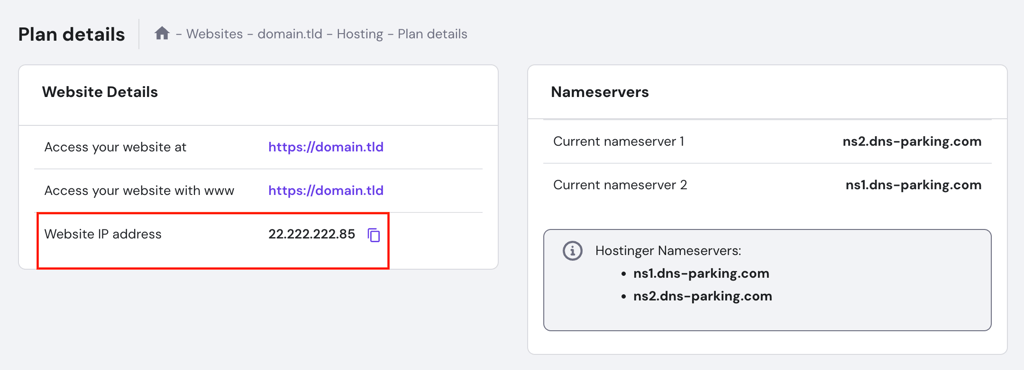
Then compare that information with your Cloudflare DNS settings:
- Select your domain in Cloudflare and go to DNS → Records.
- Find the record for the hostname showing Error 522.
- Compare the Content field with the information from your host. An A record should match your server’s IPv4 address, and an AAAA record should match its IPv6 address. If the hostname uses a CNAME record, check that it points to the hostname your provider gave you.
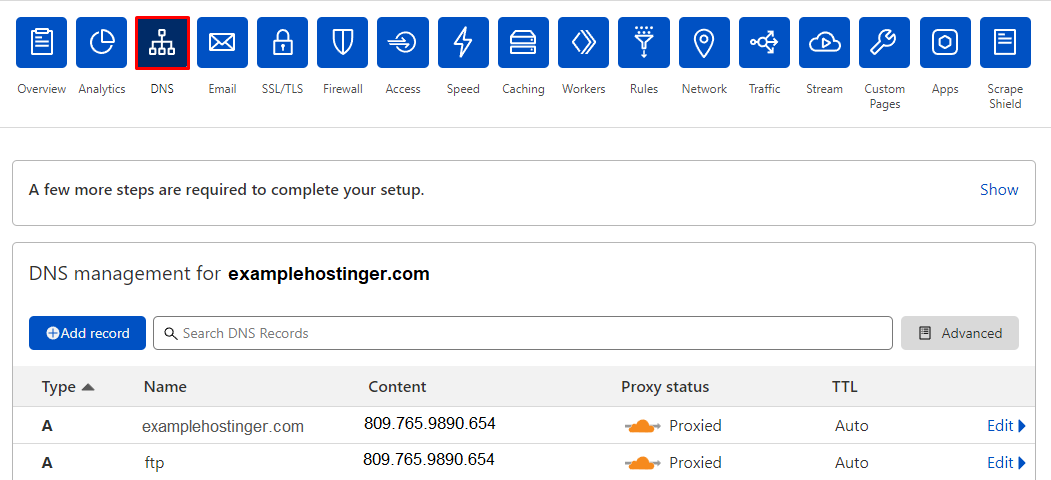
If the record is incorrect, click Edit, enter the correct value, and click Save. Then reload the URL that showed the error.
DNS changes can take up to 24 hours to propagate, but this often resolves the 522 error. You can also try purging the Cloudflare cache to speed things up. Additionally, we recommend setting your Cloudflare encryption mode to Full to prevent other issues.
3. Allow Cloudflare IP ranges through the origin firewall
Your server’s firewall can block or rate-limit Cloudflare requests. Check the firewall logs around the time the 522 appeared for blocked connections from the official Cloudflare IP ranges.
If you manage the firewall, update the rule to allow traffic from those ranges on the HTTP or HTTPS ports your website uses. If your hosting provider manages the firewall, send them the error timestamp and ask them to check whether Cloudflare’s requests were blocked or rate-limited. Then reload the affected page with Cloudflare active.
4. Check KeepAlive on your origin server
KeepAlive lets Cloudflare reuse an existing connection to your web server for multiple requests. If it’s disabled, Cloudflare has to open a new connection for each request.
If you manage an Apache server, check your KeepAlive settings and confirm that KeepAlive On is set in the server or virtual host configuration. If you change the setting, reload Apache and test the page that showed Error 522. If your hosting provider manages the web server, ask them to confirm that KeepAlive is enabled.
5. Pause Cloudflare briefly to test your origin server
If Error 522 persists, you can briefly pause Cloudflare to see whether your origin server responds to direct requests. Use this test only if your origin accepts direct traffic and has an HTTPS certificate browsers trust. While Cloudflare is paused, requests go straight to your server without Cloudflare’s firewall protections.
- In Cloudflare, select your domain and go to Overview → Advanced Actions → Pause Cloudflare on Site.
- Once the pause takes effect, reload the URL that showed Error 522.
- Re-enable Cloudflare as soon as you finish testing.
If the page loads only while Cloudflare is paused, ask your hosting provider to check the connection between Cloudflare and your server. Share the affected URL, the time the error occurred, and the Cloudflare Ray ID from the error page.
How do I know if Error 522 has been fixed?
You’ll know Error 522 has been fixed when your website loads normally in your browser without the “Connection timed out” message.
To be certain, you can clear your browser cache and test the site again. You can also use online tools like Uptrends or GTmetrix to test your website’s accessibility from different locations.
If the site loads successfully, and you’ve confirmed your server isn’t overloaded and Cloudflare’s IPs are whitelisted, the error is resolved.
Troubleshooting other Cloudflare errors
For specific Cloudflare errors like 520 (unknown error), check for server application crashes and incompatible headers; for 521 (web server is down), verify that your origin server is active and not blocking requests; and for 524 (connection timed out), investigate long-running server processes.
Error 520: Web server is returning an unknown error
A 520 error often results from a crash in the web server application or from response headers that are incompatible with Cloudflare.
To troubleshoot it, first, double-check that your Cloudflare DNS records are correct. If they are, try temporarily disabling your .htaccess file to see if a rule is causing the problem. You can also inspect your server’s response headers and cookies to check they are formatted correctly and not too large.
Error 521: Web server is down
This error means Cloudflare could not connect to your origin server at all. The most common causes are that your server is genuinely offline or that your firewall is actively blocking Cloudflare’s requests.
To fix Error 521, verify your origin server is running and responsive. Then, test the connection to the server and, most importantly, check your firewall or security settings to confirm all of Cloudflare’s IP addresses are whitelisted.
Error 524: A timeout occurred
A 524 error is similar to a 522, but with a key difference: it means the server did establish a connection with Cloudflare but took too long to send back an HTTP response.
This almost always results from a long-running process on your server, like a complex database query or a script that is taking minutes to execute. To resolve this, you must investigate your server’s resource usage and logs to identify and optimize that slow process.
Keep your hosting environment running smoothly
Maintaining a smoothly running hosting environment requires a proactive approach, and fixing Error 522 is a key part of that. By resolving this connection timeout, you’ve restored the link between your server and Cloudflare, making your site accessible to visitors again.
To prevent this and other issues from happening in the first place, it’s important to regularly check your server’s resources, keep DNS settings accurate, and confirm your firewall rules are correct.
We also recommend you to monitor website uptime and set up instant alerts. This way, you’ll be the first to know if your site is down – from a 522 error or anything else – and can fix it before it affects your audience.
This article is a localized version of What is Error 522 and how to fix it?, originally published in English.
All of the tutorial content on this website is subject to Hostinger's rigorous editorial standards and values.

Astari is a digital marketing expert, with a focus on SEO and WordPress. She loves to share her wealth of knowledge through her writing, and enjoys surfing the internet for new information when she's not out in the waves or hiking a mountain. Her mission is to learn something new every day, and she firmly believes that there is no such thing as too much knowledge.

Arif is a Technical Content Writer for Hostinger Tutorials with an educational background in Informatics. He specializes in Linux server administration, VPS hosting, and web development, and has authored more than 200 technical articles. Follow him on LinkedIn.