How to fix “Error establishing a database connection” in WordPress
Sep 15, 2026
/
By Aris S. & Ariffud M.
/
7 min Read
“Error establishing a database connection” in WordPress means your website cannot communicate with its MySQL database, preventing the site from loading and showing an error message instead.
This problem usually comes from incorrect database credentials in the configuration file, a corrupted database, or an unresponsive server. To fix it, check your credentials, repair the database, and make sure your server is running correctly.
- Check your database credentials.
- Verify the database server status.
- Repair the WordPress database.
- Replace corrupted core files.
- Create a new database and restore it from a backup.
- Update the WordPress website URL.
- Confirm that your domain points to the correct host.
- Contact your hosting provider or reboot the server.
If you prefer a visual guide to solve “Error establishing a database connection,” check out this video from Hostinger Academy. It covers how to match your database login credentials, verify where your domain is pointing, and fix corrupted files.


What is “Error establishing a database connection”?
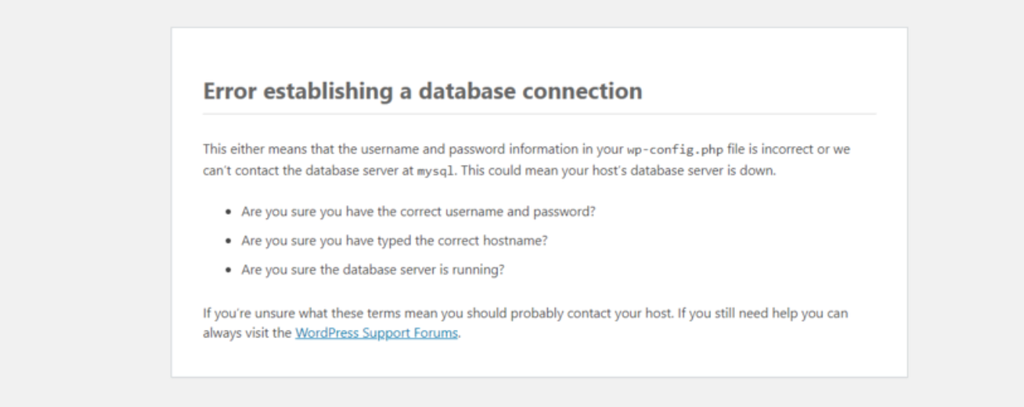
“Error establishing a database connection” is a common WordPress issue that occurs when your website’s files (PHP) fail to communicate with its MySQL database.
Your WordPress site runs on the PHP programming language, while all of its content and settings live in a MySQL database.
When a visitor opens your website, PHP code runs a request to fetch the necessary information from the database. The database then returns the data, and WordPress assembles it into a complete web page.
If the PHP code cannot connect to the database, the process stops, and the error message appears.
Sometimes, you may not see this error immediately on the front end if your site serves a cached version of a page.
A clear sign of the problem is when you can’t access your WordPress admin dashboard, since the backend almost always requires a live database connection.
What causes “Error establishing a database connection” in WordPress?
Several issues – such as incorrect database credentials, a corrupted database, or an overloaded server – can disrupt the connection between WordPress and its database.
- Incorrect database credentials is the most common cause. The wp-config.php file stores the database name, username, password, and host. If any of these details are wrong, WordPress cannot log in to the database.
- A corrupted database can also block the connection. WordPress database tables may become corrupted after a faulty plugin or theme update, or because of an unexpected server shutdown.
- An overloaded or unresponsive MySQL server may fail to handle connection requests. This usually happens when your hosting server experiences a traffic spike that exceeds its resources or when the database server itself goes down.
- Corrupted WordPress core files can disrupt your site’s operation. If essential files are damaged or modified incorrectly, WordPress may fail to initiate a database connection.
- A misconfigured website URL after a site migration often breaks the database link. If you move your site to a new host or domain, outdated URL values in the database can cause redirect loops or connection failures.
How to fix the WordPress “Error establishing a database connection”
To fix “Error establishing a database connection” in WordPress, start by verifying your database credentials in the wp-config.php file and checking if the database is online and accessible.
If the problem persists, repair the WordPress database or replace any corrupted core files. If that doesn’t work, create a new database, update your site’s URL, and confirm that your domain points to the correct host.
If none of these steps solve the issue, reboot your server yourself or contact your hosting provider for assistance.
Before trying any of these solutions, we strongly recommend creating a backup of your WordPress site. This way, you can restore your site if something goes wrong during troubleshooting.
1. Check your database credentials
The most common cause of a database connection error is incorrect credentials in your wp-config.php file. This often happens after migrating your site to a new host.
First, locate your correct database credentials in your hosting control panel. Then, compare them with the values in your wp-config.php file.
For Hostinger’s managed WordPress customers, here’s how to do it in Hostinger dashboard:
- Log in to Hostinger dashboard using your Hostinger account, then navigate to Websites → Website list → Dashboard.
- From the dashboard’s left sidebar, go to Databases → Management.
- Under the List of Current MySQL Databases and Users section, note your MySQL database name and user.
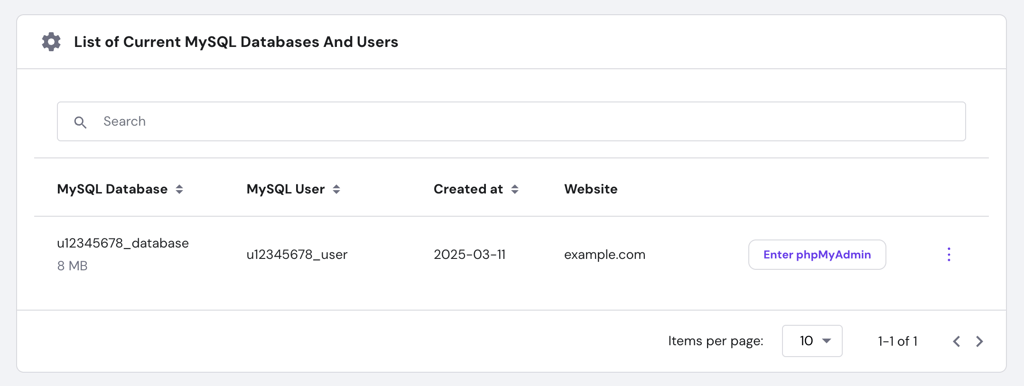
- If you don’t know the password, create a new one by clicking the three-dot icon next to the user and selecting Change Password.
- Next, navigate to Files → File Manager and open your site’s root directory, typically public_html.
- Right-click on the wp-config.php file and select Edit.
- Compare the following values with the ones in your database management panel:
- DB_NAME – your MySQL database name.
- DB_USER – your MySQL database username.
- DB_PASSWORD – your MySQL database password.
- DB_HOST – your MySQL database host (usually localhost or 127.0.0.1, but confirm with your provider).
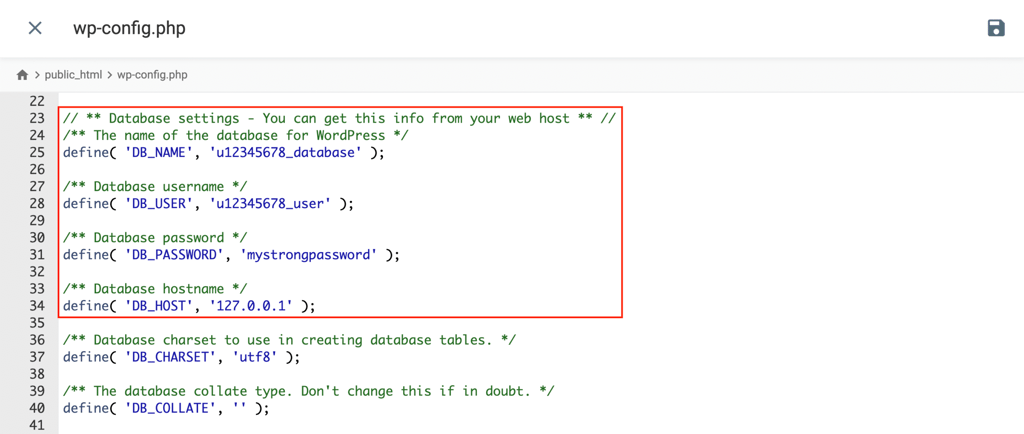
- If any values are incorrect, update them directly in the file and click the Save icon. Then refresh your website to check if the error is fixed.

2. Check the database server status
If your credentials are correct, the problem stems from the MySQL database server itself. The server could be down or unable to process requests because of a traffic surge.
To confirm this, contact your hosting provider’s support team. Ask if other users on the same server are having issues or if the MySQL server is offline.
If you host another site on the same server, run a quick test to see if those sites are working. If they’re also down, it’s a strong sign that the issue is on your hosting provider’s side.
At Hostinger, you can check the status page for any ongoing server maintenance or reported issues.
3. Repair the WordPress database
If your database tables are corrupted, WordPress can’t retrieve data from them. Fortunately, WordPress includes a built-in database repair mode that you can activate.
Follow these steps to repair your database:
- Open your wp-config.php file using the File Manager.
- Add the following line of code at the bottom of the file:
define('WP_ALLOW_REPAIR', true);- Save the changes.
- In your browser, go to http://your-site-domain.com/wp-admin/maint/repair.php, replacing your-site-domain.com with your actual website URL.
- On that page, you’ll see two options. Click Repair Database.
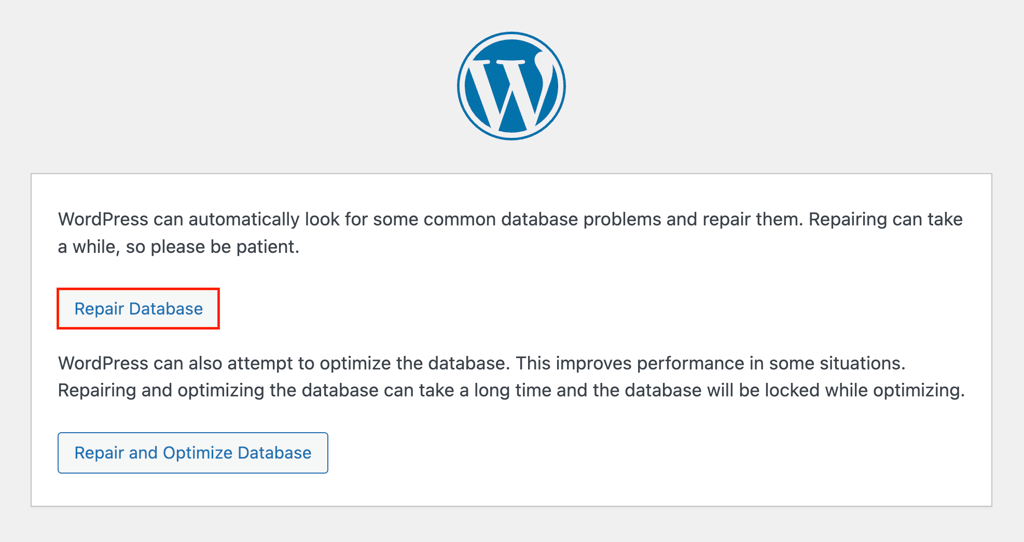
Once the process finishes, revisit your website. If it loads correctly, remove the line define(‘WP_ALLOW_REPAIR’, true); from your wp-config.php file immediately. Leaving it enabled is a security risk because anyone could access that repair page.
4. Replace corrupted core files
Corrupted WordPress core files can also interfere with the database connection. This often happens during a manual update or due to a file transfer error. You can fix it by replacing your core files with a fresh copy.
Here are the instructions:
- Go to the official WordPress.org website and download the latest version.
- Extract the ZIP file on your computer.
- Inside the extracted folder, delete the wp-content folder and the wp-config-sample.php file.
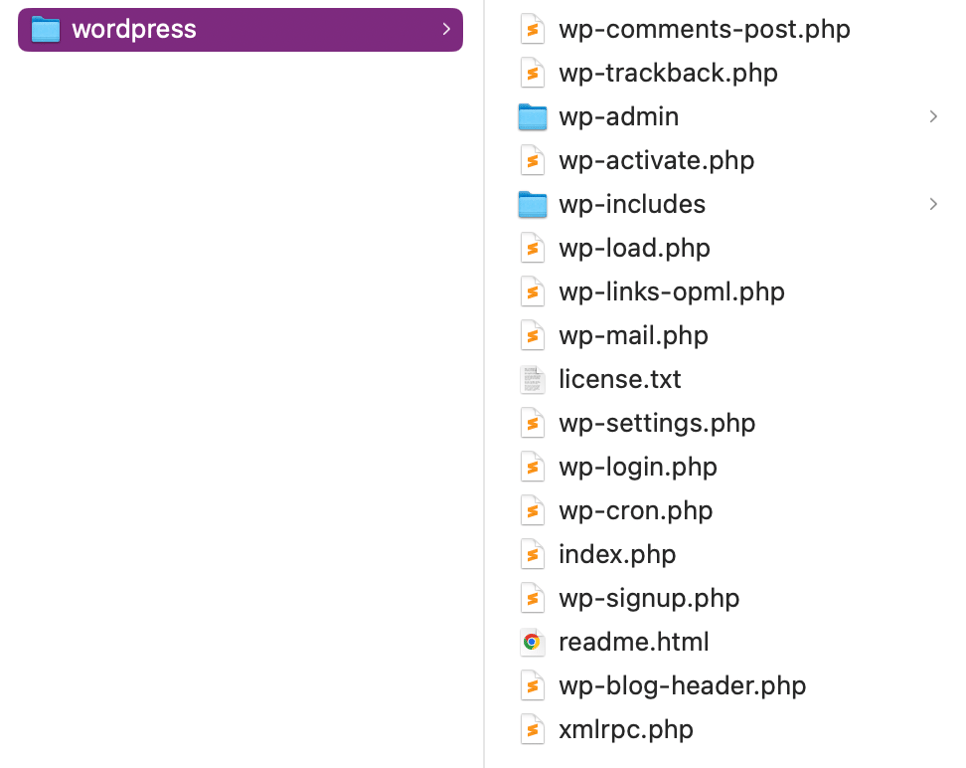
- Connect to your website using an FTP client like FileZilla or your host’s File Manager.
- Upload the remaining files and folders to your website’s root directory, overwriting the existing ones.
This process replaces all the core files without touching your content, themes, or plugins. After the upload is complete, check your website again.
5. Create a new database and restore from backup
If your database is severely corrupted and can’t be repaired, the best solution is to restore it from a backup. This process involves creating a new, empty database and importing your backup file into it.
Here’s how to do it with Hostinger:
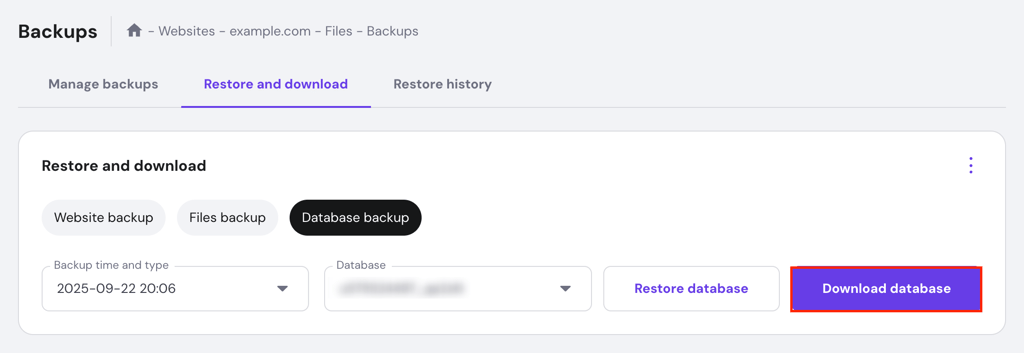
- In Hostinger dashboard, go to Files → Backups → Restore and download.
- Select Database backups, choose the latest clean backup, and click Download database.
- Navigate to Databases → Management, enter a new database name, username, and password, then click Create.
- Scroll down to your new database and click Enter phpMyAdmin.
- Select the Import tab, choose your downloaded backup file, and hit Import.
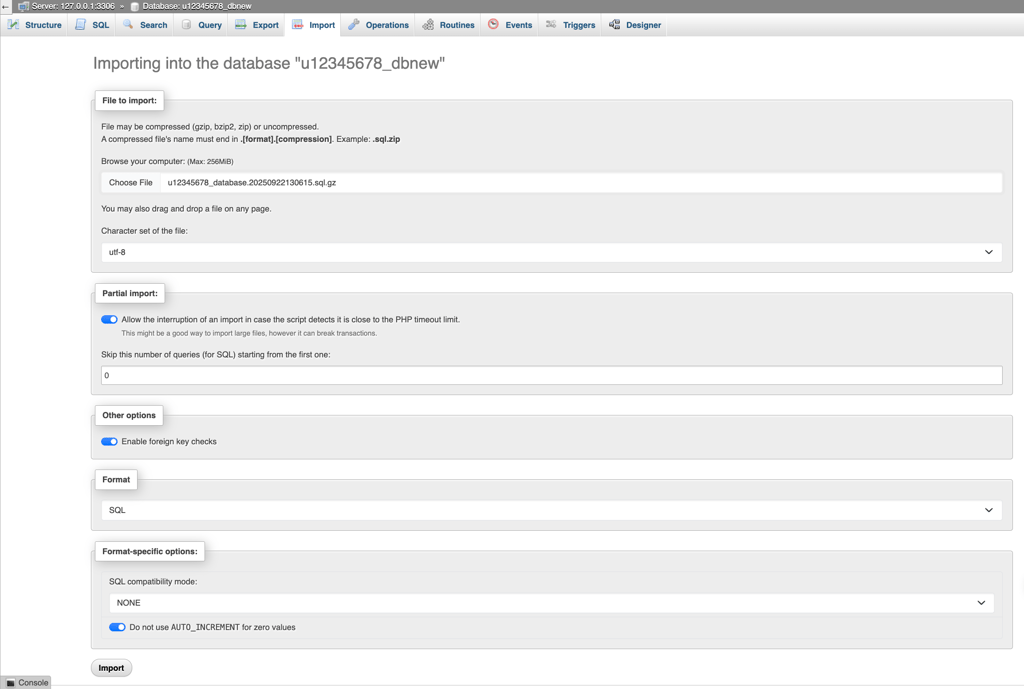
- Open your wp-config.php file and update the DB_NAME, DB_USER, and DB_PASSWORD values to match the new database you created.
6. Update the WordPress website URL
If the error appears right after migrating your WordPress site to a new server or domain, it indicates a misconfigured site URL in the database. You can fix this by updating the WordPress site URL in phpMyAdmin.
Warning! Running SQL queries directly can be risky if you’re not careful. Always back up your database before making changes in phpMyAdmin.
Follow these steps:
- Open phpMyAdmin from your hosting control panel.
- Select your WordPress database from the list on the left.
- Click the SQL tab.
- Enter the following queries, replacing http://www.old-domain.com with your old URL and http://www.new-domain.com with your new one:
UPDATE wp_options SET option_value = replace(option_value, 'http://www.old-domain.com', 'http://www.new-domain.com') WHERE option_name = 'home' OR option_name = 'siteurl';
UPDATE wp_posts SET guid = replace(guid, 'http://www.old-domain.com','http://www.new-domain.com');
UPDATE wp_posts SET post_content = replace(post_content, 'http://www.old-domain.com', 'http://www.new-domain.com');
UPDATE wp_postmeta SET meta_value = replace(meta_value,'http://www.old-domain.com','http://www.new-domain.com');
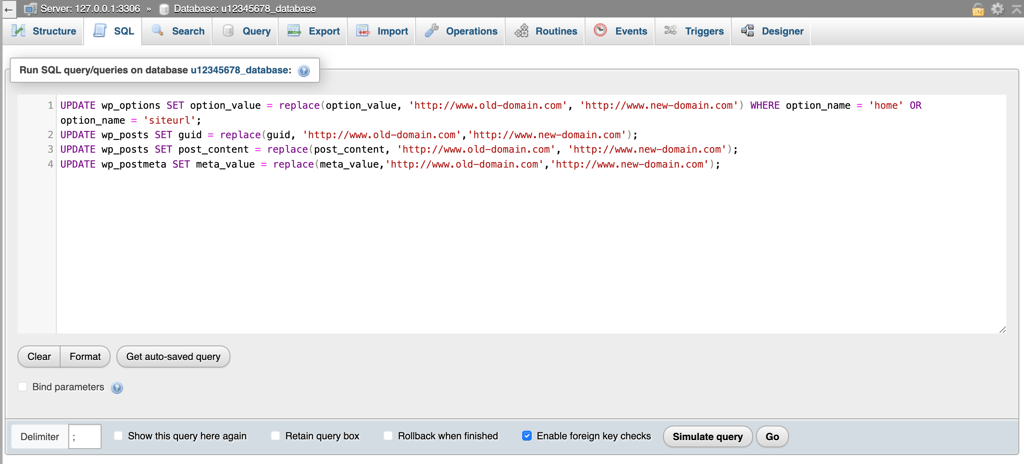
- Click Go to execute the queries.
7. Make sure your domain points to the right host
After a migration, it’s crucial that your domain’s DNS settings point to your new hosting provider. If your domain still points to the old host, WordPress will attempt to connect to the old database, which causes an error.
To check this, verify your domain’s nameservers. If both your domain and website are hosted at Hostinger, the nameservers are set automatically. In this case, you don’t need to change anything.
If you host your website with Hostinger but registered your domain elsewhere, you can find your nameservers under Websites → Website list → Dashboard → Hosting Plan → Plan details.
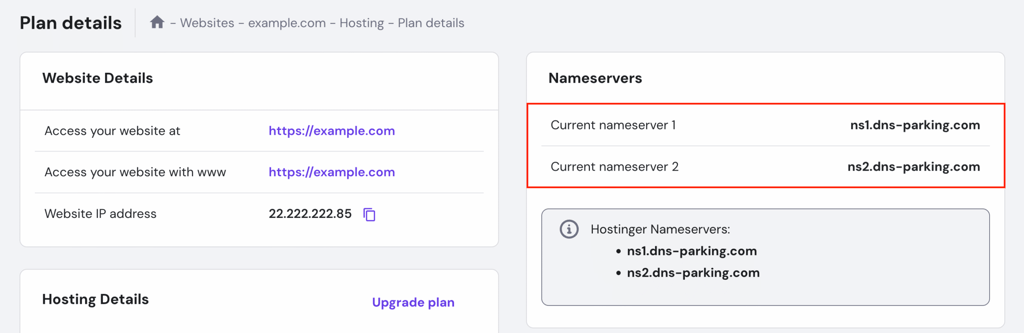
Next, use a tool like DNS Checker to confirm where your domain is currently pointing. If the nameservers are incorrect, log in to your domain registrar’s control panel and point them to Hostinger’s nameservers.
If you registered your domain with Hostinger but host your site with another provider, the process is similar but reversed. You’ll need to get the correct nameservers from your hosting provider, then update them in Hostinger:
- Go to Domains → Domain portfolio → Manage.
- In the DNS / Nameserver section, open the DNS records tab.
- Click Change nameservers and enter the new nameservers provided by your host.
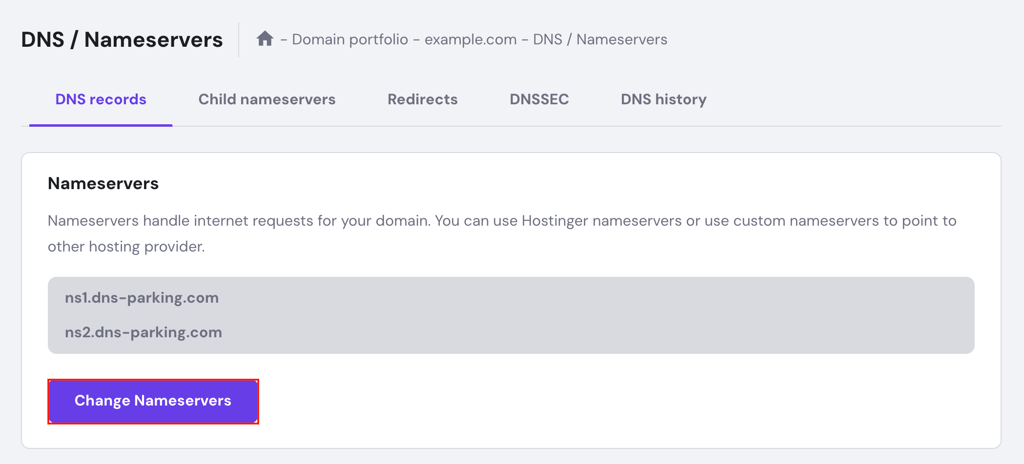
After changing nameservers, keep in mind that DNS updates can take up to 24 hours to propagate worldwide.
8. Contact your hosting provider or reboot the server
If you’ve tried all the previous steps and the error still persists, it’s time to contact your hosting provider. Their support team has server-level access and the right tools to diagnose complex issues.
Hostinger’s Customer Success team is available 24/7 to help resolve these problems.
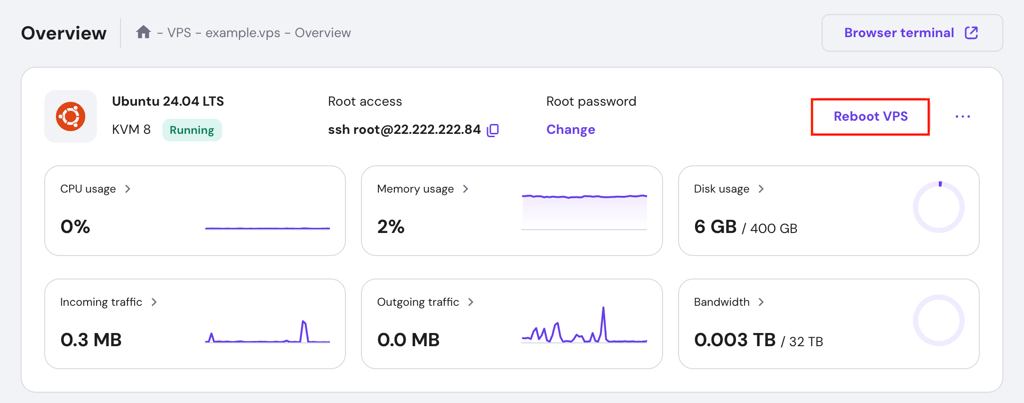
If you use a virtual private server (VPS), you also have the option to reboot it. A reboot can clear temporary glitches or stop processes that are consuming too many server resources and blocking the database from responding.
For Hostinger VPS customers, the Reboot VPS button is available on your VPS Overview page.
💡 Pro tip
Always back up your VPS before rebooting it. This way, you can quickly restore your site if something unexpected happens during the restart.
How to prevent database connection errors in WordPress
Preventing database connection errors in WordPress involves enabling automated site backups, optimizing database tables, using trusted plugins and themes, choosing a reliable hosting provider, and monitoring your site’s resource usage.
- Enable automated backups. This lets you quickly restore your database if it becomes corrupted. Hostinger plans include automatic daily or weekly backups, so you always have a recent version of your site to fall back on.
- Regularly optimize database tables. Over time, your database accumulates unnecessary data. Use a plugin like WP-Optimize to clean up your database, improve performance, and reduce the risk of corruption.
- Use trusted plugins and themes. Only install plugins and themes from reputable sources like the official WordPress repository. Poorly coded software is a common cause of database conflicts and corruption.
- Choose a reliable hosting provider. A quality web host like Hostinger provides an optimized server environment for MySQL, minimizing the risk of server-side errors and downtime.
- Monitor database traffic and load. Keep an eye on your site’s resource usage. If you consistently hit your server’s limits, consider upgrading your hosting plan to prevent the database server from becoming overloaded.
What to do after fixing “Error establishing a database connection”?
After fixing “Error establishing a database connection” in WordPress, the next step is to keep your database running smoothly to avoid future problems.
A clean and optimized database not only reduces the risk of corruption but also improves your site’s overall speed.
To maintain long-term site health, learn how to optimize your WordPress database using the right tools and best practices. This will help your site stay stable and perform at its best as it grows.
Ang artikulong ito ay isang lokal na bersyon ng How to fix “Error establishing a database connection” in WordPress, orihinal na inilathala sa Ingles.
All of the tutorial content on this website is subject to Hostinger's rigorous editorial standards and values.

Aris is a Content Writer specializing in Linux and WordPress development. He has a passion for networking, front-end web development, and server administration. By combining his IT and writing experience, Aris creates content that helps people easily understand complex technical topics to start their online journey. Follow him on LinkedIn.

Ariffud is a Technical Content Writer with an educational background in Informatics. He has extensive expertise in Linux and VPS, authoring over 200 articles on server management and web development. Follow him on LinkedIn.