How to add AdSense to WordPress
Oct 15, 2026
/
By Domantas G.
/
5 min Read

To add Google AdSense to WordPress, create an AdSense account, connect your website, and add the AdSense code using a plugin such as Site Kit by Google or a manual installation method. Once your site is approved, you can enable Auto ads to let Google place ads automatically or create individual ad units for more control over their placement.
Google AdSense is an advertising platform that lets website owners earn revenue by displaying ads alongside their content. Before you can start showing ads, your website must meet Google’s AdSense eligibility and content policies.
This guide explains how to connect AdSense to WordPress, choose an ad placement method, and verify that your ads are working correctly.
1. Create a Google AdSense account
First, sign up for a Google AdSense account using your Google account.
- Visit the Google AdSense website and click Get started.
- Sign in with your Google account and enter your WordPress website’s URL.
- Choose whether you want to receive personalized help and performance suggestions from AdSense.
- Select your payment country or territory, then review and accept the terms and conditions.
- Click Start using AdSense to create your account.
Make sure you select the correct payment country, as Google doesn’t allow you to change it later.
After creating your account, complete the required setup information in your AdSense dashboard. You’ll connect your WordPress website to AdSense in the next step.
To make your WordPress website eligible for Google AdSense, ensure it has original, high-quality content and complies with Google’s publisher policies. If your website isn’t eligible yet, you can explore other website monetization methods while building your content and audience.
2. Connect Google AdSense to WordPress
After creating your AdSense account, you need to connect it to your WordPress website. You can use Site Kit by Google to add the AdSense code automatically or insert the code manually.
Connect AdSense using Site Kit by Google
Site Kit by Google is a free WordPress plugin that connects your website to AdSense without requiring you to edit theme files. Google recommends it for WordPress users because it automatically places the required AdSense code on your website.
Follow these steps:
- Open your WordPress dashboard and navigate to Plugins → Add New Plugin.
- Search for Site Kit by Google, then click Install Now and Activate.
- Click Start Setup and follow the instructions to connect your Google account.
- Navigate to Site Kit → Settings → Connect More Services.
- Find AdSense and click Set up AdSense.
- Follow the instructions to connect your AdSense account and allow Site Kit to place the AdSense code on your website.
Once connected, open Site Kit → Settings → Connected Services → AdSense and confirm that the code has been placed successfully.
Connect AdSense manually using HTML
Alternatively, you can connect your website by manually inserting the AdSense code into its HTML.
- On the Connect your site to AdSense page, there’s a set of code which you should embed to your site’s header. Remember, only copy the code and don’t click Done. Avoid closing the page, as well.
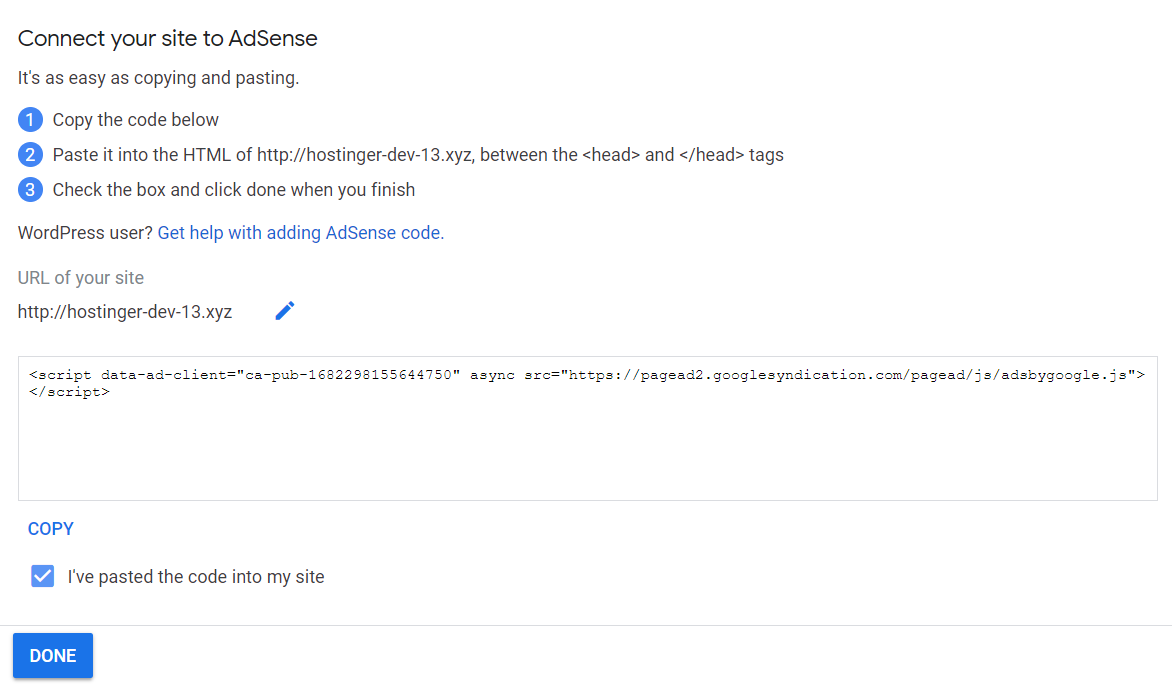
- Enter your WordPress admin dashboard.
- Click Appearance → Theme Editor, then choose Theme Header in the Theme Files section.
- Insert the code just above the </head> tag.
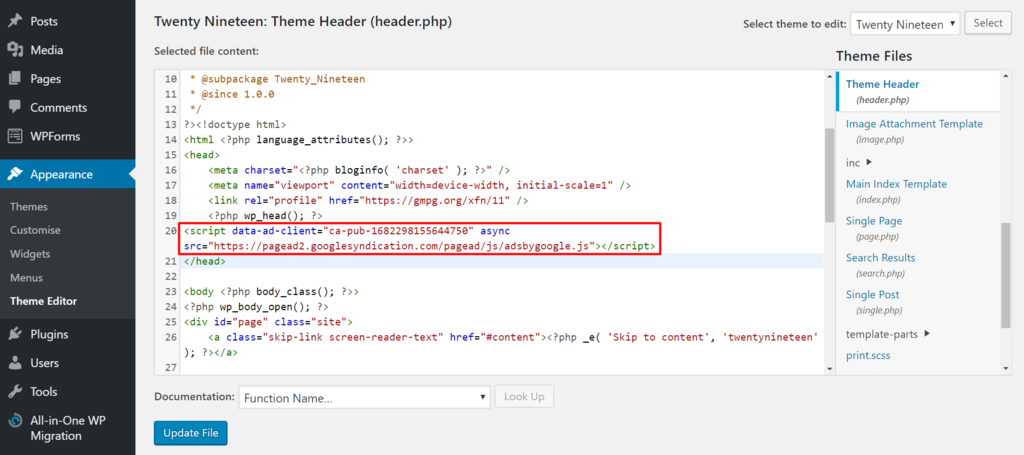
- Select Update File.
- Go back to the AdSense page, tick the I’ve pasted the code into my site checkbox, and press Done.
- A dialog box will pop up to tell you that your account approval is in progress. Click Got it.

3. Configure AdSense ads on WordPress
After connecting your website to Google AdSense, choose how you want ads to appear. You can enable Auto ads to let Google place ads automatically or create individual ad units to control their placement.
Set up Auto ads
Auto ads automatically identifies potential ad placements on your website, making it the easiest option for beginners.
- Sign in to your Google AdSense account and open Ads.
- Find your website in the list and click the Edit icon next to it.
- Under Ad settings, turn on Auto ads.
- Review the available ad formats, placements, and exclusions in the preview.
- Click Apply to site, then choose Apply now and Save.
If you’ve already connected WordPress using Site Kit, you don’t need to insert the AdSense sitewide code again.
Create and place ad units manually
Manual ad units let you choose specific locations for displaying ads, such as within articles or in your website’s sidebar.
- Access the Adsense dashboard and click on My Ads in the left sidebar.
- Navigate to Content → Ad units and click the New ad unit button.
- Pick the Ad type. As an example, let’s choose Text & Display ads.
- Customize the necessary settings and make it suitable for your website design:
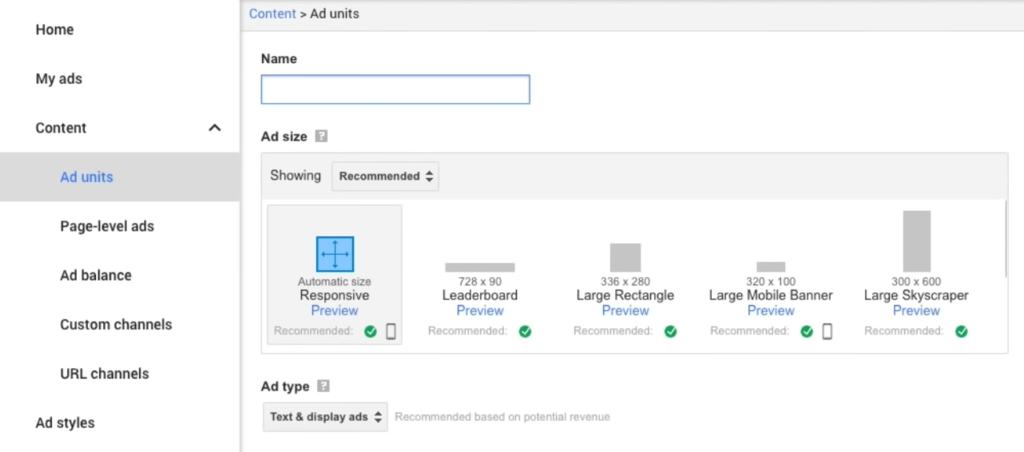
- Name – enter a unique name to represent the ads. It will be easier to manage multiple ads in the future.
- Ad size – the shape and size of the ads will affect the view of your website. It’s recommended to select Responsive so the ads can adapt to all screen sizes.
- Ad type – you can use this option to switch to another ad type, such as in-feed or in-article ads.
- Press Save and get code. A new window with your AdSense code will appear:
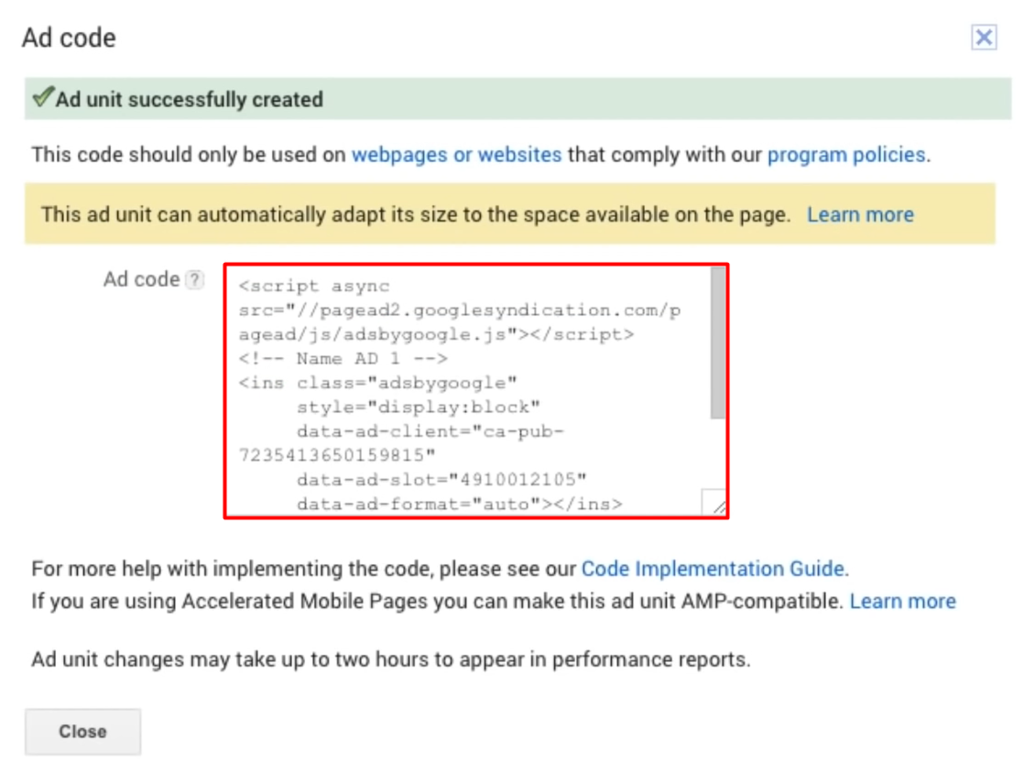
- Select and copy the code – you will need it for the next step.
4. Embed AdSense ad code in WordPress
If you’ve enabled Auto ads, Google can automatically determine where to display ads on your website, so you don’t need to place individual ad units.
If you’ve created a manual ad unit, you’ll need to insert its code into the specific WordPress location where you want it to appear. There are two ways to do it – manually or using a plugin:
Adding AdSense code manually
Here’s how you can add the ad code manually by using a widget:
- Log in to your WordPress dashboard and navigate to Appearance → Widgets.
- To add a new widget, select Text to choose where you want to display the ads. In this example, we will place it at the footer. Then, press the Add Widget button.
- Fill in the Title (or leave it empty) and paste the Google AdSense code in the Content field.

- Once done, Save your changes.
Adding AdSense code using Plugin
One of the easiest ways to insert AdSense code to WordPress is by installing a plugin.
Here are some of the most popular ones from the WordPress plugin directory:
- Ad Inserter – is an excellent ad placement plugin. It offers options to insert ads on your site – including before and after post, or between posts on blog pages. If you want to get additional features like sticky sidebar ads and sticky ad animation, you can purchase the Pro license, which starts from $22.31/year.
- Advanced Ads – offers great ad management features, such as displaying unlimited ads, saving ads draft, and scheduling ads. If you purchase the Pro plan that starts from $43.51/year, you will get features like click fraud protection and alternative ads for ad-block users.
- Woody code snippets – allows you to create snippets and put ads into them. You can also insert ads to posts, pages, or categories. It’s free, but you can purchase the pro plan for $19/year to get access to the snippets library that contains a vast collection of pre-built snippets.
Google AdSense best practices
Aside from what you’ve learned so far, here are a few best practices that can help you when using Google AdSense on your WordPress site:
Do’s
- Your website should follow the webmaster quality guidelines and AdSense program policies to get your site approved quickly.
- Use AdSense heatmaps, which will help you with ad placement.
- Look at the sizes of the top-performing ads. Choose the one that suits best with your website layout.
- Write engaging content that would attract users to your website. This will increase the chances of getting clicks on your ads.
- Conduct Google experiments to see which ad works.
- Make sure that both your website and the ads are responsive.
Don’ts
- Clutter your site with too many ads as this will bounce off the visitors.
- Click your own ads. Fraudulent clicks will get your account banned.
- Force users to click on your ads by using call-to-action texts like “Click on ads.”
- Place ads that do not yield better earnings. Track the ads’ performance regularly.
- Insert ads on empty pages.
- Bring automated traffic to your website to avoid account closure.
- Make multiple AdSense accounts with the same payee name.
Next step: Monitor your AdSense performance
Once Google AdSense is active on your WordPress website, start monitoring how your ads perform. Open your AdSense dashboard to review impressions, clicks, and estimated earnings, and identify which ad formats and placements generate the most revenue.
You can also track your WordPress website traffic using Google Analytics to understand which pages attract the most visitors and how users interact with your content.
Use these insights to improve your ad strategy. Experiment with different ad placements and formats, but prioritize readability and user experience over displaying more ads. Continue publishing useful content to grow your audience and create more opportunities to earn from AdSense.
This article is a localized version of How to add AdSense to WordPress, originally published in English.

Domantas leads the content and SEO teams forward with fresh ideas and out of the box approaches. Armed with extensive SEO and marketing knowledge, he aims to spread the word of Hostinger to every corner of the world. During his free time, Domantas likes to hone his web development skills and travel to exotic places.