How to set up blogger with a custom domain (using CNAME Records and a records)
Mar 10, 2026
/
Domantas G.
/
3 min Read
Blogger is a free publishing tool from Google that’s mainly used for blog creation.
Generally, blogs are hosted by Google as a subdomain of blogspot.com – for example, www.myawesomeblog.blogspot.com. However, users can also host them on a custom registered domain, like domain.tld.
In this tutorial, we will go through the process of pointing a custom domain name to Blogger.
Before you begin this guide, make sure you have the following requirements:
- A Blogger account.
- A new registered domain name.
- Access to a domain name system (DNS) editor. If you don’t have access, contact your domain provider for assistance.
Why Use a Custom Domain Name for Blogger
Here are a few reasons why you should opt for a custom domain name for your Blogger website:
- Brandable and Easy to Remember. A Blogger custom domain is much easier to remember than a lengthy subdomain. A shorter and simpler domain name is also preferable when it comes to advertising and promoting your blog.
- Looks Professional. Custom URL domains can help to convey professionalism. Users are more likely to visit the blog URL MyAwesomeBlog.tld instead of myawesomeblog.blogspot.com.
- Multiple Uses. Owning a custom domain name allows you to create your own business email account. Another benefit is that if you ever decide to make an online shop, you can purchase hosting and publish your store there while keeping the blog page intact.
Domain Name Checker
Instantly check domain name availability.
How to Set Up a Custom Domain for Blogger
This section will cover the steps on how to set up a custom domain for Blogger.
Step 1. Purchase a Domain Name
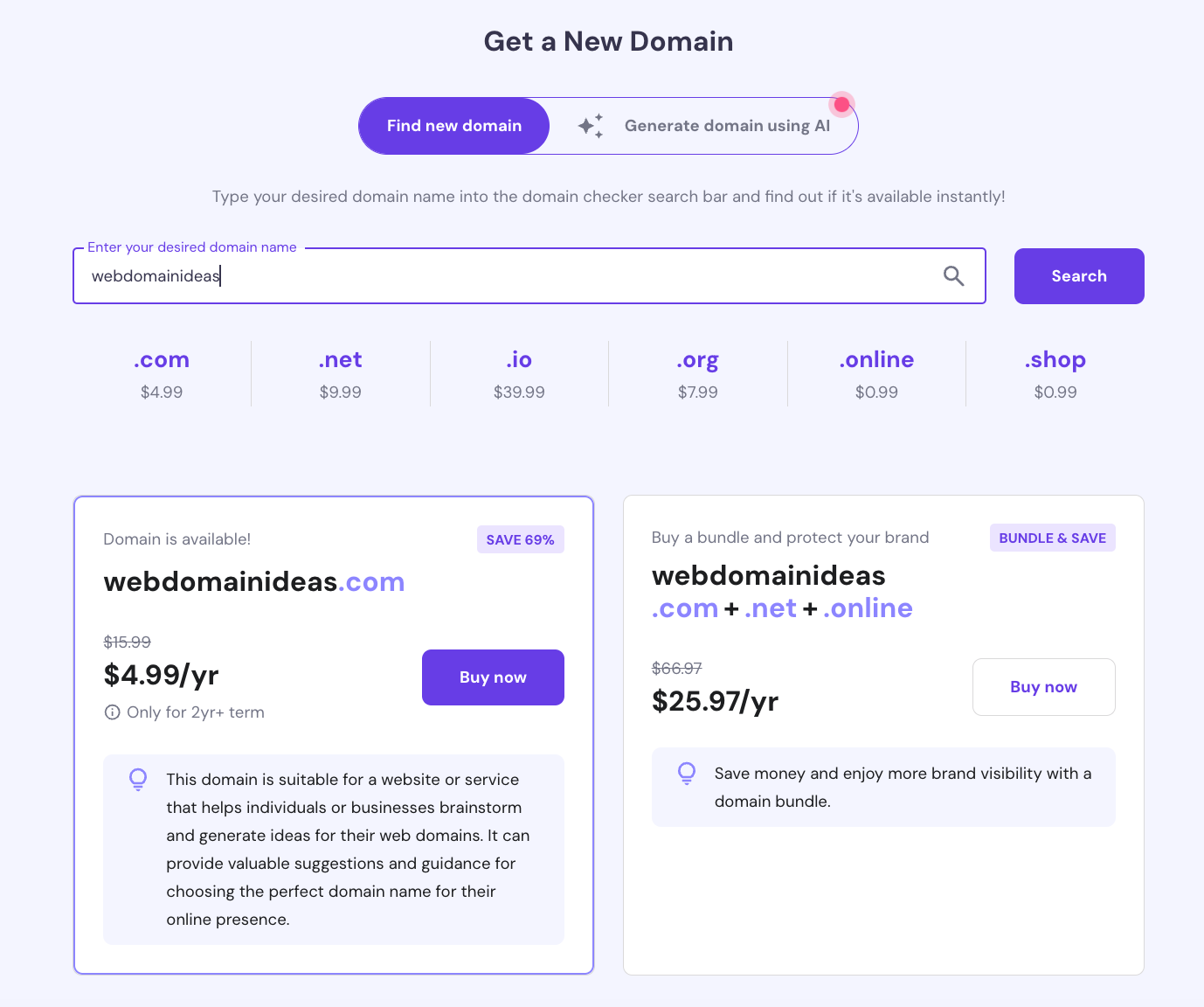
Before you can connect your custom domain name to your Blogger site, you need to purchase one from a domain registrar. You can use Hostinger’s domain name checker to see what domains are available and make a purchase there and then.
What’s more, if you are already our customer, you can take advantage of our Domain Bundle offer and purchase a collection of domains that have the same domain name but different extensions. By doing so, you will protect and future-proof your brand, as no one else will be able to register domains using your blog’s name.
Step 2. Adding Two CNAME Records
Then, it’s time to set up the CNAME records, which you can do by following these steps:
1. To find the required CNAME records, navigate to your blog’s Settings → Custom domain section.
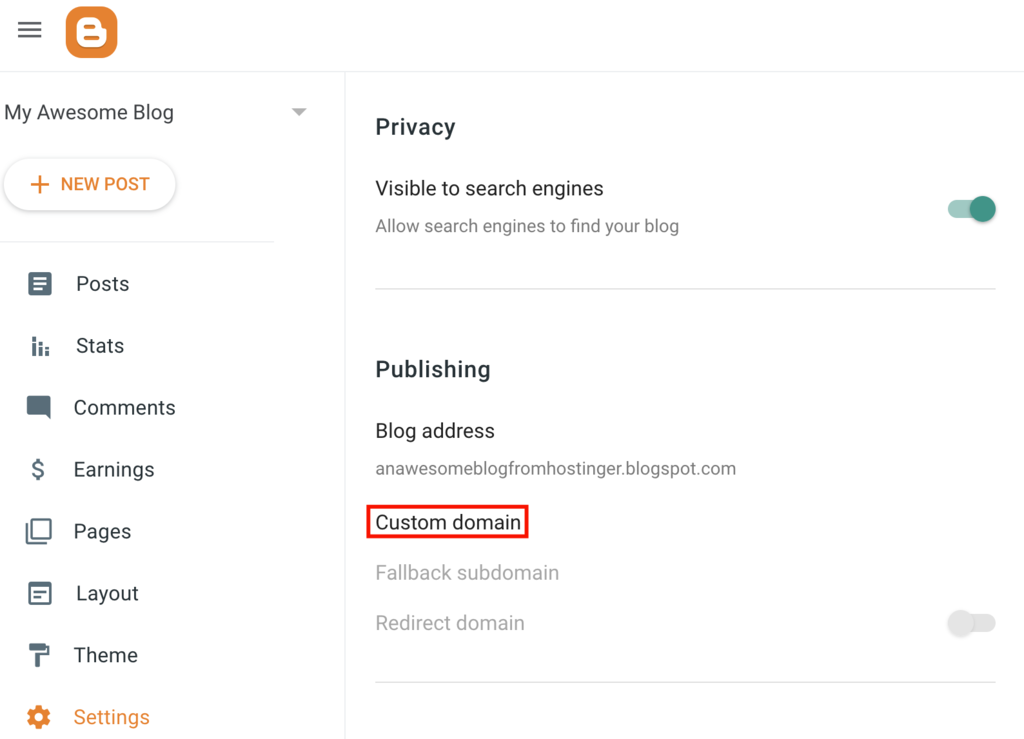
2. On the settings page, enter your domain name and click on Save.
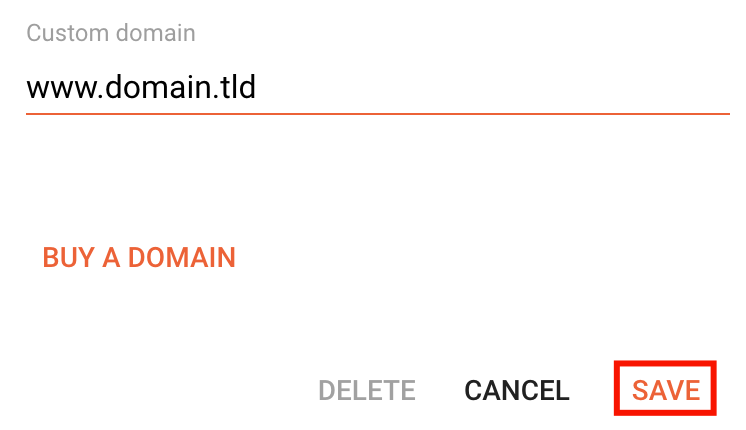
Note that the domain name must be entered with the www subdomain.
3. After that, a screen with the two required CNAME records will appear.
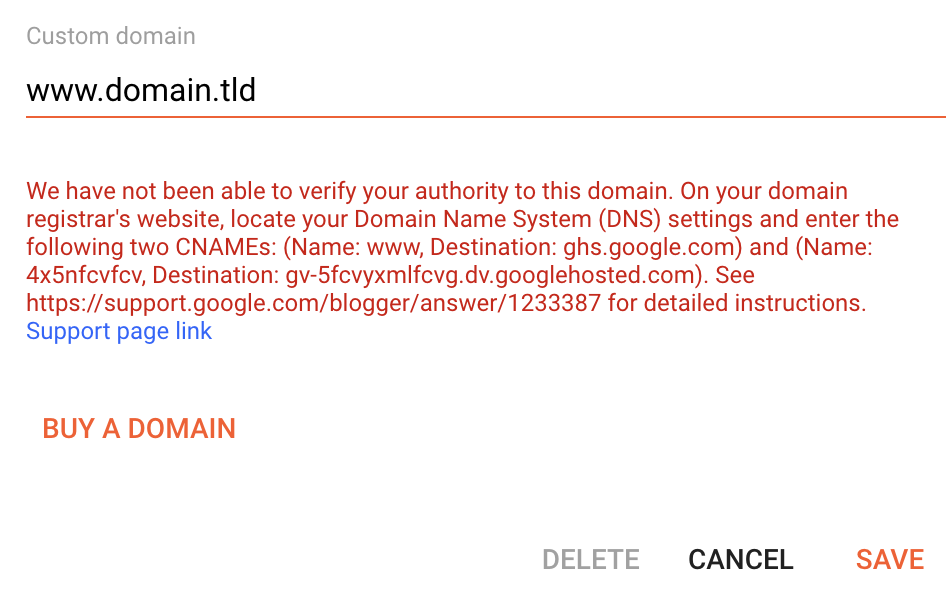
4. Add these records using any DNS editor. You can contact your hosting provider or domain registrar for assistance. In this example, we will use hPanel’s DNS Zone Editor. First, edit the existing CNAME www record.
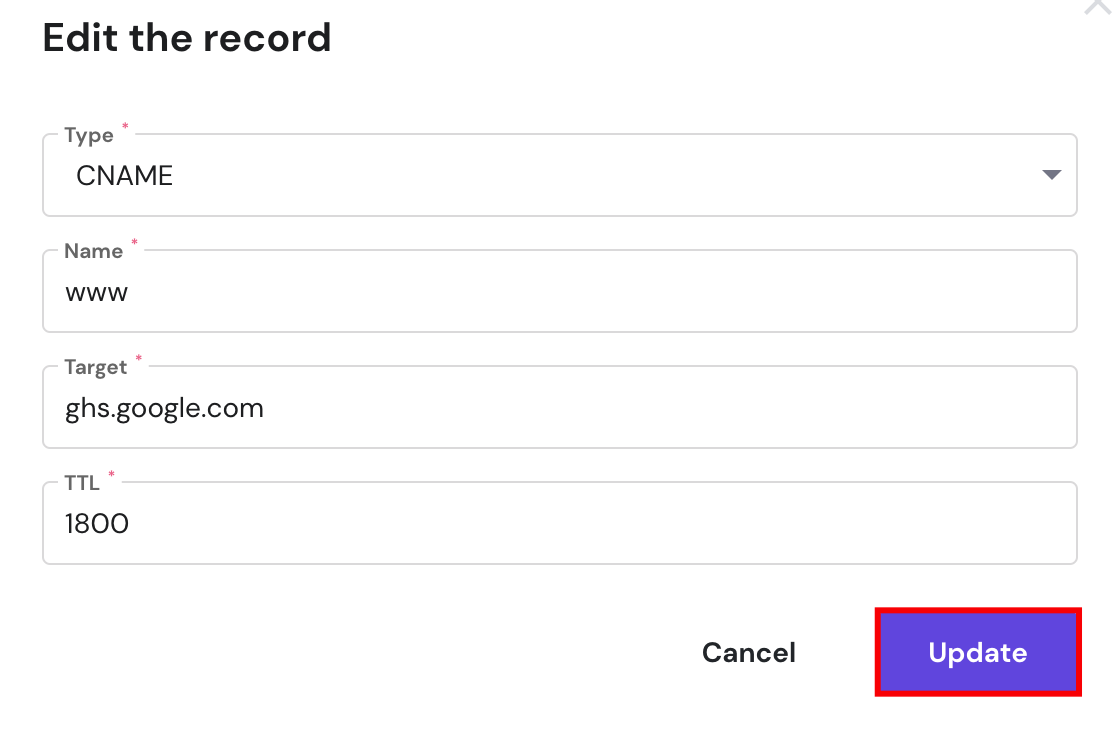
5. After that, add the new CNAME record.

6. After adding both CNAME records, save the changes on your Blogger account and allow up to 24 hours for the DNS settings to fully propagate.
Step 3 (Optional). Adding Four A Records or Redirecting to WWW
An optional step would be to add four A records. This way, you will link both www and non-www address versions of your website, loading it from both URLs.
If you skip this step, visitors who leave out the “www” part of the domain will see an error page or a different site, depending on your current A record.
To avoid that, create A records for these IP addresses:
- 216.239.32.21
- 216.239.34.21
- 216.239.36.21
- 216.239.38.21

After adding the A records, it may take up to 24 hours to fully propagate. Then, both the www.domain.tld and domain.tld URLs will lead users to your blog.
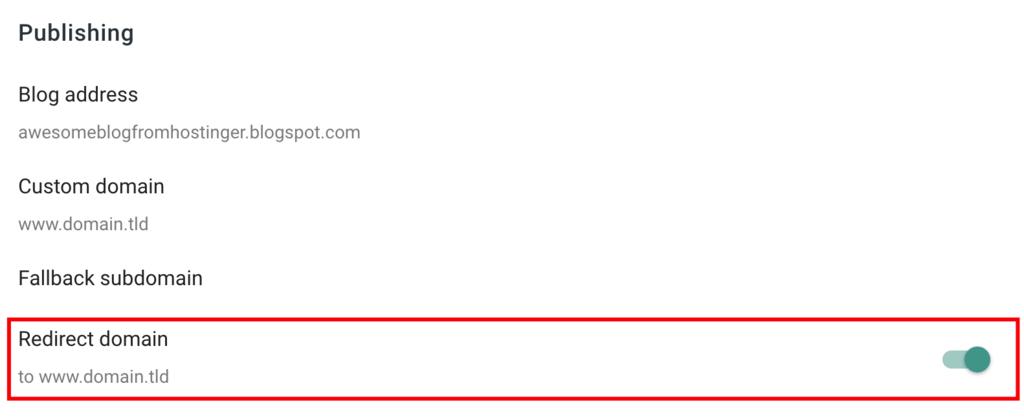
Alternatively, it’s possible to redirect visitors from the non-www to the www version of your blog. That way, setting the A records will not be required.
You can create redirects after configuring your custom domain settings. Open the Settings section and activate the toggle on Redirect domain.
Conclusion
Blogger is a free blog hosting service that includes a free subdomain. However, since the Google-provided URL is lengthy and can be hard to remember, it’s a great idea to use your own new domain.
In this tutorial, we have explained the benefits of using a custom domain for Blogger. We have also explored the process of correctly pointing your domain via CNAME records and A records.
We hope that you found this tutorial useful. In case you have any questions, leave them in the comments section below.
All of the tutorial content on this website is subject to Hostinger's rigorous editorial standards and values.

Domantas leads the content and SEO teams forward with fresh ideas and out of the box approaches. Armed with extensive SEO and marketing knowledge, he aims to spread the word of Hostinger to every corner of the world. During his free time, Domantas likes to hone his web development skills and travel to exotic places.