How to upload SVG to WordPress: 2 safe methods
Mar 10, 2026
/
Jordana A.
/
5 min Read
Web admins and web designers are bound to use different media file formats in their work. Today, one of the most popular formats is SVG, an XML-based vector format. Unfortunately, not all browsers and platforms support SVG and you need to enable SVG support manually beforehand.
This article will cover the steps of uploading SVG files on a WordPress website using the SVG Support plugin. We will also answer some questions concerning the security issues surrounding this particular media file format and why SVG is worth using.
To begin, let’s familiarize ourselves with SVG and how it works.
What Is SVG?
Scalable Vector Graphics (SVG) is a vector graphic image format based on the XML text. While common image formats like JPG and PNG are made up of tons of tiny squares called pixels, this format relies on the XML markup language to describe image attributes.
As of January 2022, 42% of all websites worldwide use SVG. This percentage has increased since January 2021, when only 29.4% of websites utilized it. Similar to PNG and JPG formats, SVG is popular among high traffic websites like Google, Wikipedia, and YouTube.
Another great thing about SVG is that it is widely supported by all major browsers. The following is a list of browsers that support the SVG file format:
| Browser | Partial Support | Full Support |
| Edge | – | Version 12-18, 79-96, 97 |
| Firefox | Version 2 | Version 3-94, 95, 96-97 |
| Firefox for Android | – | Version 95 |
| Chrome | – | Version 4-96, 97, 98-100 |
| Chrome for Android | – | Version 96 |
| Safari | Version 3.1 | Version 3.2-15.1, 15.2, TP |
| Opera | – | Version 10-81, 82 |
| Opera Mini | – | All versions |
| Opera Mobile | – | Version 12-12.1, 64 |
| Safari on iOS | – | Version 3.2-15.1, 15.2 |
| Android Browser | Version 3-4.3 | Version 4.4-4.4.4, 96 |
| UC Browser for Android | – | Version 12.12 |
| Samsung Internet | – | Version 4-14.0, 15.0 |
| QQ Browser | – | Version 10.4 |
| Baidu Browser | – | Version 7.12 |
| KaiOS Browser | – | Version 2.5 |
How Does SVG Work
Scalable vector graphics utilize XML to produce two-dimensional vector images. Unlike JPG and PNG, vector graphics don’t comprise pixels. Instead, their behavior is described in XML text files.
For this reason, scalable vector graphics can be searched, indexed, scripted, edited, and compressed like code. Accordingly, anyone can create them using a text editor or vector graphics software.
Does WordPress Support SVG
There’s no SVG support in WordPress by default due to the security risks it imposes ‒ we will cover the security issues surrounding SVG in more depth later.
The following is an error message that appears when uploading an SVG graphic to a WordPress website:

There’s a discussion about making SVG a part of WordPress core features. Until then, we have to get creative and use other solutions to upload SVG images to WordPress.
Why Use WordPress SVG

Despite its security issues, many users still use this image format as it has various benefits. Here are some of the advantages of using SVG files:
- Scalability ‒ since SVG is a vector image format, SVG files retain the same quality across all screen resolutions. This benefit is also present after enlarging them, which is why many people use this scalable image format for icons and logos.
- Smaller file size ‒ using SVG files makes improving website performance with scaled images easier as they take less of your web storage space and load way faster than raster images.
- SEO-friendly ‒ Google indexes SVG files, allowing them to show up on Google Image Search and improving your SEO efforts. With raster images, you’re limited to optimizing their alt attributes.
- Code-based ‒ SVGs are modifiable using a text editor or vector graphics editing software. You can optimize SVG image files for websites or even add animations to make the graphics interactive.
WordPress SVG and Security
Since SVG is basically an XML text file, it has exploitable vulnerabilities that don’t affect other image formats. Consequently, people can easily hijack it with malicious code to launch cross-site scripting (XSS) and XML external entity (XXE) attacks on your system.
For this reason, you need to be careful when handling SVG files and adding them to WordPress.
To minimize security risks, make sure to sanitize SVG files before uploading them to the WordPress media library. This process removes suspicious code and errors, making the images safe for your site.
You can sanitize SVG file uploads using an SVG plugin ‒ we will cover the steps to do so later. However, we recommend double-sanitizing it with the SVG Sanitizer Test ‒ it’s an online tool by Darryll Doyle, a WordPress developer.
Another way to secure your WordPress website is by limiting SVG uploads to trusted users only. The selected users should be aware of the security concerns surrounding the SVG format ‒ this will discourage them from obtaining SVG files from dubious sources.
How to Upload SVG Files to WordPress in 2 Secure Methods
Technically, there are two ways to add SVG support to WordPress ‒ using a plugin or enabling it manually. Regardless of your choice, we strongly suggest limiting upload privileges to administrators and trusted users only to minimize malicious uploads.
Use a Plugin
In this tutorial, we will be using SVG Support. This plugin uses an SVG sanitizer library that will automatically activate upon uploading SVG files to the media library. It’s also easy to set up and free to use.
Here are the steps to set up SVG Support:
- Install the plugin and activate it.
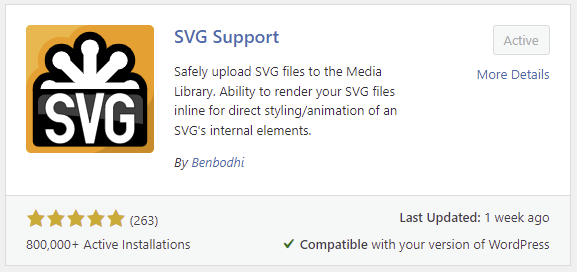
- Navigate to Settings -> SVG Support from your WordPress dashboard.
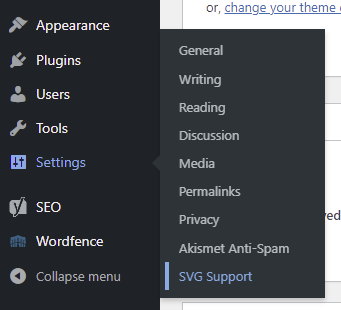
- Check the box next to the Restrict to Administrator option to limit the upload privileges. Do the same to the Enable Advanced Mode option if you want access to advanced features, such as inline SVG rendering and CSS styling.
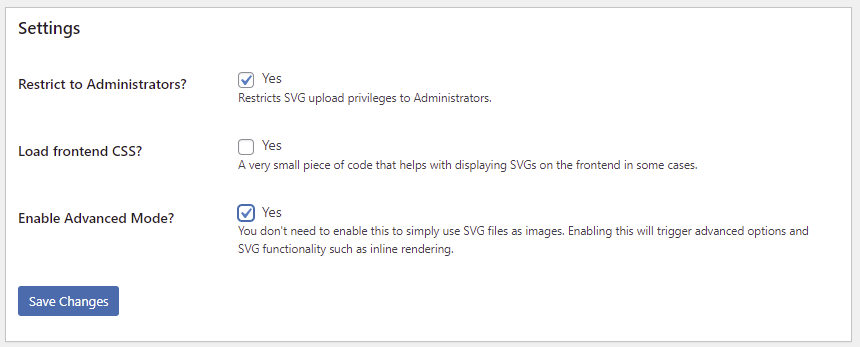
- After saving the changes, you can start uploading SVG files safely to the media library.
Pro Tip
The option to render featured images inline will appear on WordPress posts that use SVG files as featured images if you enable the advanced mode.
Manually Add WordPress SVG Support
This method involves editing the functions.php file of your WordPress website. Therefore, we strongly recommend following these steps if you’re familiar with PHP and fully understand the issue of SVG security.
Important! Make sure to back up your WordPress website before making any changes to avoid any data loss in case of misconfiguration.
The following steps will explain how to enable SVG in WordPress manually via Hostinger File Manager. That said, you can also use an FTP client like FileZilla instead.
- Access hPanel and go to Files -> File Manager.
- Navigate to public_html -> wp-includes. Scroll down until you locate functions.php.
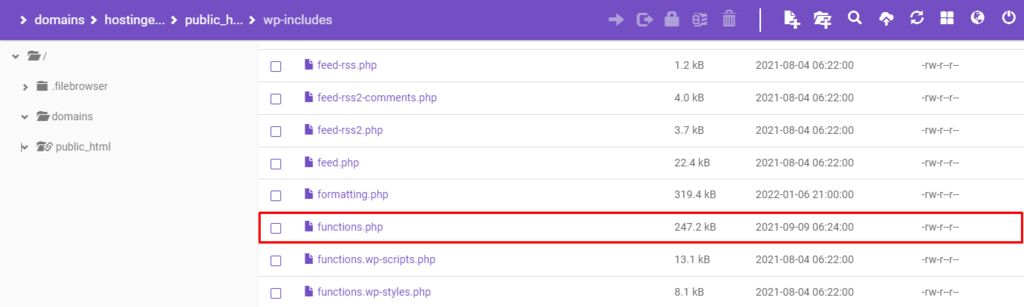
- Double-click the file to open it and paste the following code snippet in there:
function add_file_types_to_uploads($file_types){
$new_filetypes = array();
$new_filetypes['svg'] = 'image/svg+xml';
$file_types = array_merge($file_types, $new_filetypes );
return $file_types;
}
add_filter('upload_mimes', 'add_file_types_to_uploads');- Save the changes and try uploading an SVG file type. If the process is successful, your media library should accept the file upload.

Conclusion
The many benefits of SVG files contribute to this file type’s rising popularity. Unfortunately, XML text files are prone to code injection, which is the main reason why WordPress doesn’t include SVG support by default.
That said, there are two ways to make your WordPress site accept SVG files ‒ by using a WordPress plugin or modifying the site’s functions.php file. Along with limiting upload privileges, you’ll get to safely upload SVG files to the site’s media library.
We hope this WordPress tutorial has given you insight into the benefits and risks of uploading SVG files to a WordPress website. Good luck.
Upload SVG to WordPress FAQ
The following are some answers about having SVG in WordPress.
Is SVG Better Than PNG For a Website?
SVGs are better for scalable images, smaller file sizes, and animated graphics, while PNGs are better for images with lots of detail and transparency. The choice depends on your specific needs.
Should I Use an SVG logo on My WordPress Website?
Yes, using an SVG logo in your WordPress website can improve scalability, reduce file size, allow for customization, and ensure compatibility with all modern devices and browsers.
Why Can’t I Upload My SVG files to WordPress?
WordPress may not allow the uploading of SVG files due to security concerns. SVG files can contain malicious code that could harm your website. To solve this, you can use a plugin or convert the SVG to a PNG or JPG before uploading it to WordPress.

Jordana is a Senior Content Writer with a background in Information Systems. She has over five years of experience in WordPress and is casually dabbling with PHP and MySQL. Her passion for writing and technology drives her to create tutorials for anyone wanting to build their online presence. Follow her on LinkedIn.



Comments
June 02 2022
i've tried both method, and even tried another plugins (safe svg) still can't upload it. i even try to Allow Unfiltered Uploads in my wp-config.php, still can't upload svg. any idea why? i'm currently using localhost
June 07 2022
Hey there! Maybe enabling it for svgz will help you - try out this snippet of code for your functions.php file:
function enable_svg_upload( $upload_mimes ) { $upload_mimes['svg'] = 'image/svg+xml'; $upload_mimes['svgz'] = 'image/svg+xml'; return $upload_mimes; } add_filter( 'upload_mimes', 'enable_svg_upload', 10, 1 );February 25 2023
I did all the steps above! but didn't work! WP Ver 6.1.1 PHP 8.1
March 03 2023
Hello! I would suggest to try out the easier plugin method and see if it works. In case it still doesn't work, you can always contact the plugin developers on WordPress.org forums and they will gladly help you out.