Scalable WordPress: how to scale your WordPress site for high traffic
Mar 10, 2026
/
Aris S.
/
10 min Read
As an online business owner, you must understand how to scale your WordPress website to handle high traffic. Even if your site performs well, it may slow down or become unavailable during unexpected traffic spikes.
Slow or inaccessible websites can drive visitors away, increasing your bounce rate. Eventually, it will harm your site ranking and business reputation.
Thankfully, there are several strategies for managing high volumes of traffic and keeping your WordPress performance stable.
In this article, we will discuss how scalable WordPress is. You will learn how high traffic can impact page speed and how to maintain your website’s performance under heavy load.
How High Traffic Can Slow Down the Website
When users access your web page, their browsers request the site’s data from its host server.
During heavy traffic, the server has to deliver the website data to more users. This requires more processing power, especially for complex WordPress sites with a lot of data, such as high-resolution images and videos.
Commonly, a traffic spike occurs due to certain events, such as:
- Viral content
- Holiday sales and special offers
- Successful ad campaigns
- Competition or giveaways
Note that users interacting with the website, such as playing a video or sending search queries, can worsen the performance. This is because processing them requires additional resources.
Consequently, if the server resources are used up, high-traffic websites will slow down or become inaccessible.
How Scalable Is WordPress
WordPress is not just a simple blogging platform – it can serve many purposes, from building high-traffic websites, such as a large eCommerce store, to simple sites, like an online portfolio.
However, WordPress websites’ capability to handle high traffic depends on how the website is hosted and configured. When scaling WordPress sites, consider the following aspects:
- Database loading
- Dealing with a large number of visitors
- Website caching
- Media resources optimization
- High-end coding architecture
How to Scale a WordPress Website
Thanks to its high customizability and flexibility, you can modify many different aspects when running WordPress sites.
In this section, we will focus on the seven critical strategies to scale your online business.
Optimize Your Site Speed
Loading speed indicates how optimized your site is. It also shows how reliable and capable the host server is in serving users’ requests.
Quick loading speed means the host server can effectively display the website content. If the server can display the web page efficiently, it can better manage the resources to handle more traffic.
As 47% of visitors expect websites to load in less than two seconds, having a slow site can increase your bounce rate and harm your overall user experience.
To avoid this, start by checking your site loading time using a speed analytics tool like Google PageSpeed Insight.
Based on the test results, choose an effective website optimization strategy. However, the work doesn’t end here – remember to take additional steps to speed up your WordPress site.

Use a Caching Plugin
Caching stores your site data for future use. Instead of fetching the data directly from the server, web browsers can use the cached versions to display a web page.
As a result, browsers don’t have to make a request to the server when displaying a web page. This minimizes the server load, allowing it to serve more requests during traffic spikes.
The easiest way to enable caching is by using a plugin. With it, you can manage your site cache directly on the WordPress dashboard.
One of the best WordPress caching plugins is LiteSpeed Cache. However, to fully utilize the LiteSpeed Cache optimization features, your web hosting provider must use its server.
Other popular options include WP Super Cache and W3 Total Cache. We recommend the former if you are unfamiliar with caching. Alternatively, opt for the latter to get more advanced features, such as object caching.
Important! Keeping an old cache may trigger errors and even make your site inaccessible. To fix the issue, enable the auto-renew caching feature if available. Otherwise, manually clear your WordPress site cache periodically.
Follow the Best Security Practices
To maintain a reliable reputation for your online business, you can’t afford to risk your customers’ data security.
To help secure your WordPress site from cyber-attacks, implement the following practices:
- Update WordPress regularly. By doing so, you will receive the latest bug fixes and security patches. Additionally, update themes and plugins to ensure they work properly in the newer WordPress version.
- Use secure admin login credentials. Avoid using obvious usernames and passwords, such as your name. Make them more difficult by adding numbers and special characters. Finally, change WordPress your password regularly.
- Use trusted themes and plugins. Only install rated themes and plugins with positive user reviews. Furthermore, make sure they come from trusted marketplaces like the official WordPress directory, ThemeIsle, or Themeforest. Random plugins or themes may contain malware or other malicious software.
- Install SSL certificates. A secure socket layer (SSL) certificate encrypts data transmission between your WordPress website and users. It prevents hackers from stealing visitors’ personal information.
- Remove unused themes and plugins. Unused themes and plugins usually remain un-updated for a while. They may have security flaws that cybercriminals can exploit.
- Install a security plugin. For example, Wordfence adds an extra security layer to your site. Some of its features include a firewall, two-factor authentication (2FA), and a security scanner.
Furthermore, WordPress security checks also require server resources. Thus, scaling your WordPress host to handle more traffic is one of the essential steps to keep your site up and secure.
Optimize Images
Images contribute a lot to your page weight, impacting your site’s performance. Using many large pictures will slow your page load speed, especially during traffic spikes.
However, rushing to delete all your site images might not be the best idea – like other visual elements, they are essential to keep your site visitors engaged.
Besides minimizing their number, you should optimize your WordPress site’s images to make them load faster and more efficiently.
To accomplish this, consider applying the following strategies:
- Compressing. It reduces the image size without significantly lowering its quality. Use web tools such as Compressor.io to quickly compress your images.
- Resizing. Using overly high-resolution images may provide no value and instead slow your site down. Resize the image according to its container dimension.
- Caching images. As pictures are static content, they don’t change based on user requests. As a result, they can be served from the cached copy instead of the server.
- Clearing up the WordPress media library. WordPress stores all uploaded images, including unused ones. Having too many images wastes the server’s storage, slowing down your site.
Repair Broken Links
Broken links are URLs that return an error message when visited. It may occur due to an incorrect address, back-end misconfiguration, or a server issue.
Although repairing broken links doesn’t impact a website’s performance and security, it is important for your user experience.
To get the most out of traffic spikes, your web visitors shouldn’t encounter any errors. Moreover, broken links prevent crawlers from indexing your website, harming its ranking on search engines.
To quickly find broken links on your website, use a WordPress SEO tool, such as Ahrefs and Google Search Console. You can then fix them by editing the .htaccess file or the pages’ permalinks.
Alternatively, use a plugin to fix broken links on your WordPress website. For example, Broken Link Checker allows you to quickly identify errors and repair them on a single screen.
To do so, follow the steps below:
- Download and install the Broken Link Checker plugin.
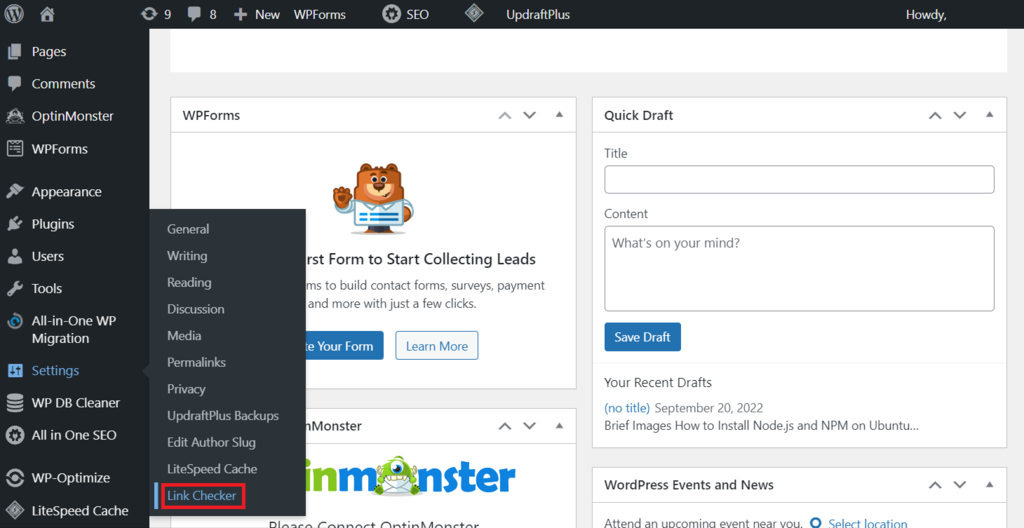
- Once activated, on your WordPress admin area, navigate to the sidebar → Settings → Link Checker.
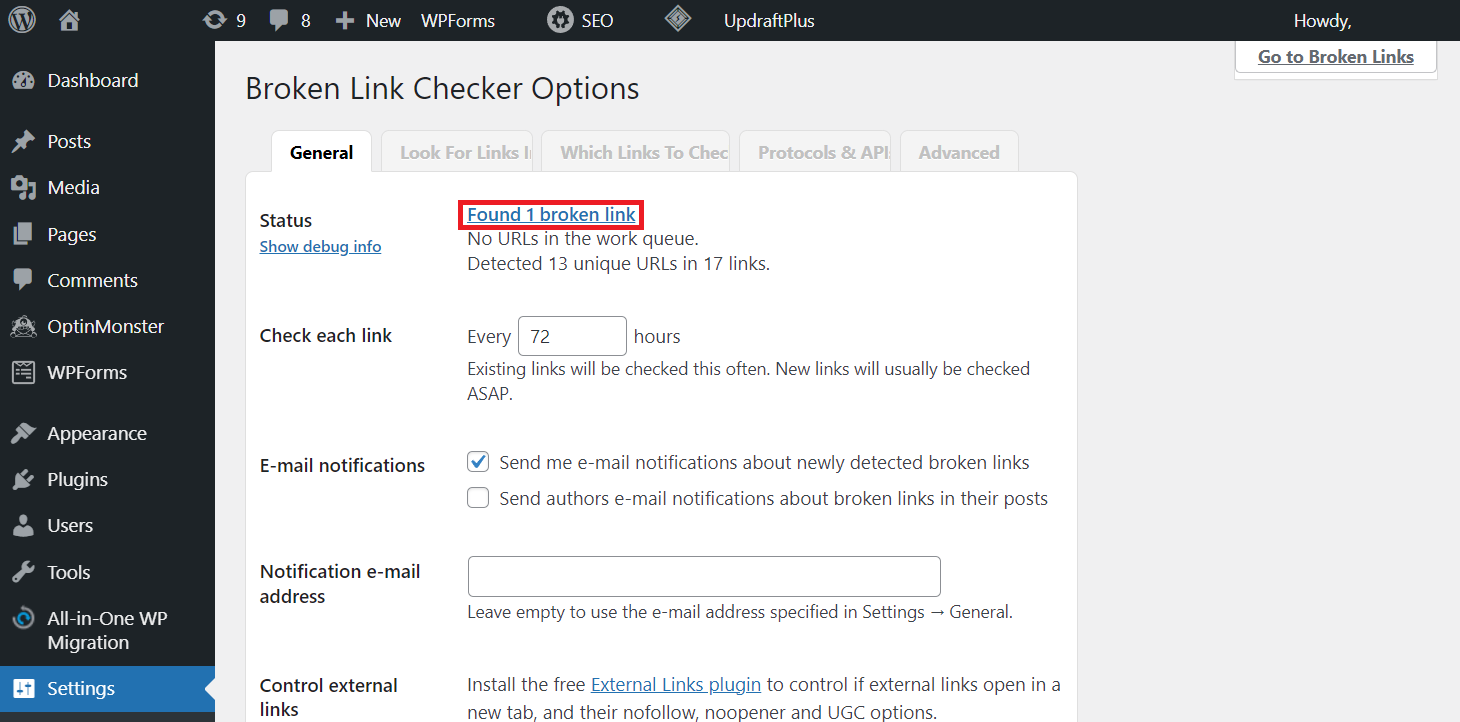
- Go to the General tab → Status → Found X broken link.
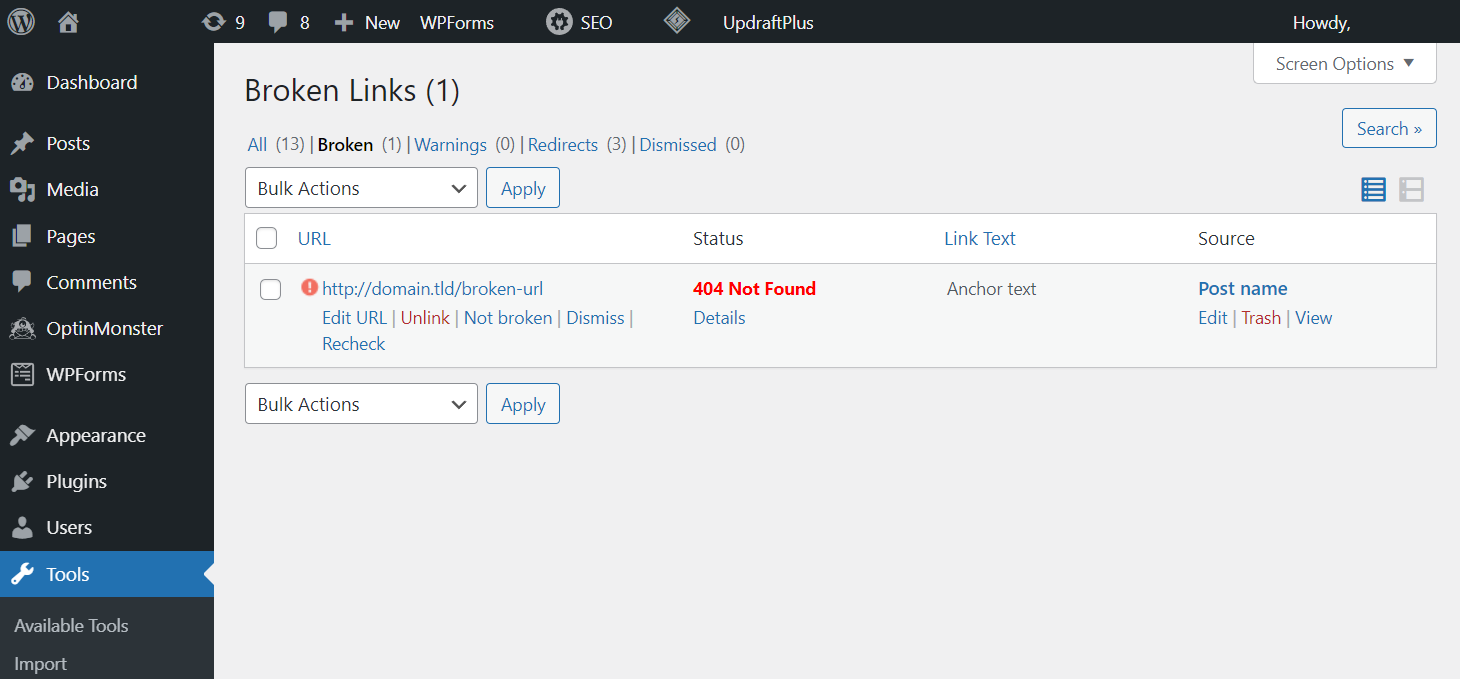
- You will see a list of all broken links on your site. Hover over the broken link you want to repair, and choose Edit or Unlink. Select Dismiss if you found a false-positive result.
Automate Tracking and Reporting Site Performance
When scaling your website, it is essential to track and analyze its performance. Doing so will show you whether the site can handle high volumes of visitors, point out the areas for improvement, and help catch any potential issues.
To make this task easier, consider using an analytics tool. It provides an accurate performance report and issues alerts, eliminating the need to monitor your site 24/7.
You may need to use multiple tools for a more comprehensive performance report. Some of the most popular options are:
- Google Analytics. This popular freemium website analytics tool provides a detailed breakdown of your website traffic, including visitors’ behavior, location, and journey.
- Pingdom. It is a great tool with real-time monitoring and multiple test locations. It also alerts site owners via email and push notifications if an issue occurs.
- Site24x7. This comprehensive tool tracks your site, web server, and network performance. Its synthetic monitoring feature also allows you to simulate how your website would perform under traffic spikes.
Use a CDN
A content delivery network (CDN) is a collection of servers spread across the world storing a copy of your site. It allows your website to perform consistently for users in different locations.
When users access your website, the CDN will serve their request from the closest server. It shortens the website’s data travel path, allowing the web page to load faster.
Moreover, CDN distributes the incoming traffic to different servers. This minimizes the host server’s load, allowing it to handle traffic surges better.
Aside from a speed boost, using CDN for your WordPress site also presents other benefits. It improves the site’s security, uptime, and search engine optimization (SEO) performance.
There are plenty of CDN services available at various prices. Hostinger offers a built-in CDN with the Business or any of the Cloud hosting plans, allowing you to distribute content via data centers across North America, Europe, Asia, and South America.
Best Practices for Scalable WordPress
To scale WordPress, you must follow several web development best practices. In this section, we will go over each of them.
Choose Managed WordPress Hosting
There are different hosting plans for various user needs. However, to scale WordPress sites, we recommend the managed hosting package.
With managed hosting, the provider will take care of the back-end aspects of running a website. It allows you to manage the site without having technical knowledge, which is ideal for beginners.
A managed WordPress hosting plan also helps simplify your scaling task, as you can focus on the front-end aspects, such as content production or design.
Before opting for managed hosting, you must understand how to choose the right provider. A reliable web hosting provider is the foundation of a well-performing and scalable website.
Here are some aspects to consider when choosing a hosting provider:
- Hosting plans. Ensure the hosting provider offers a plan that suits your needs. Choose a hosting plan that suits your budget, traffic, and feature requirements.
- Scalability. Choose a provider that offers a scalable WordPress hosting plan. Avoid using shared hosting with limited server resources when scaling WordPress sites.
- Customer support. Look for a hosting service with excellent customer service, preferably 24/7. This way, if your host server faces an error, you will always be able to reach out for a solution.
- Server resources. Pick a hosting provider with sufficient SSD storage and bandwidth. For scaling WordPress, the host server should ideally have 50% more resources than it will need when starting.
- Security. Choose a reputable hosting service provider that offers additional security features, like an installed SSL certificate, a CDN, a firewall, monitoring, and automated backups.
- Ease of use. Check what hosting control panel the provider offers. For better usability, choose one that has a simple user interface, such as hPanel.
At Hostinger, we offer managed WordPress website hosting starting at CA$ 4.19/month. The basic plan already comes with a free SSL certificate, weekly backup, and 24/7 support, making it a cost-effective quality hosting solution.
This scalable WordPress hosting plan is ideal for beginners – you will be able to upgrade once your site gets more traffic.
Don’t Overcrowd the Database
The WordPress database stores all of your site data, including posts, themes, and plugins. It will expand every time you add something to your site.
This database also stores information on deleted comments, spam, and post revisions. If your WordPress site has been around for some time, these files may pile up and waste storage space.
A bloated database takes longer to load, slowing down your website. Removing unused database files allows your site to load faster and more efficiently.
You can optimize your WordPress database using its built-in tool or via phpMyAdmin. Alternatively, use an optimization plugin such as WP-Optimize.
We recommend using a plugin to optimize your WordPress database, as this is the easiest way. Here is how to do so using the WP-Optimize plugin:
- Download and install the plugin.
- On the WordPress sidebar, navigate to WP-Optimize → Database.
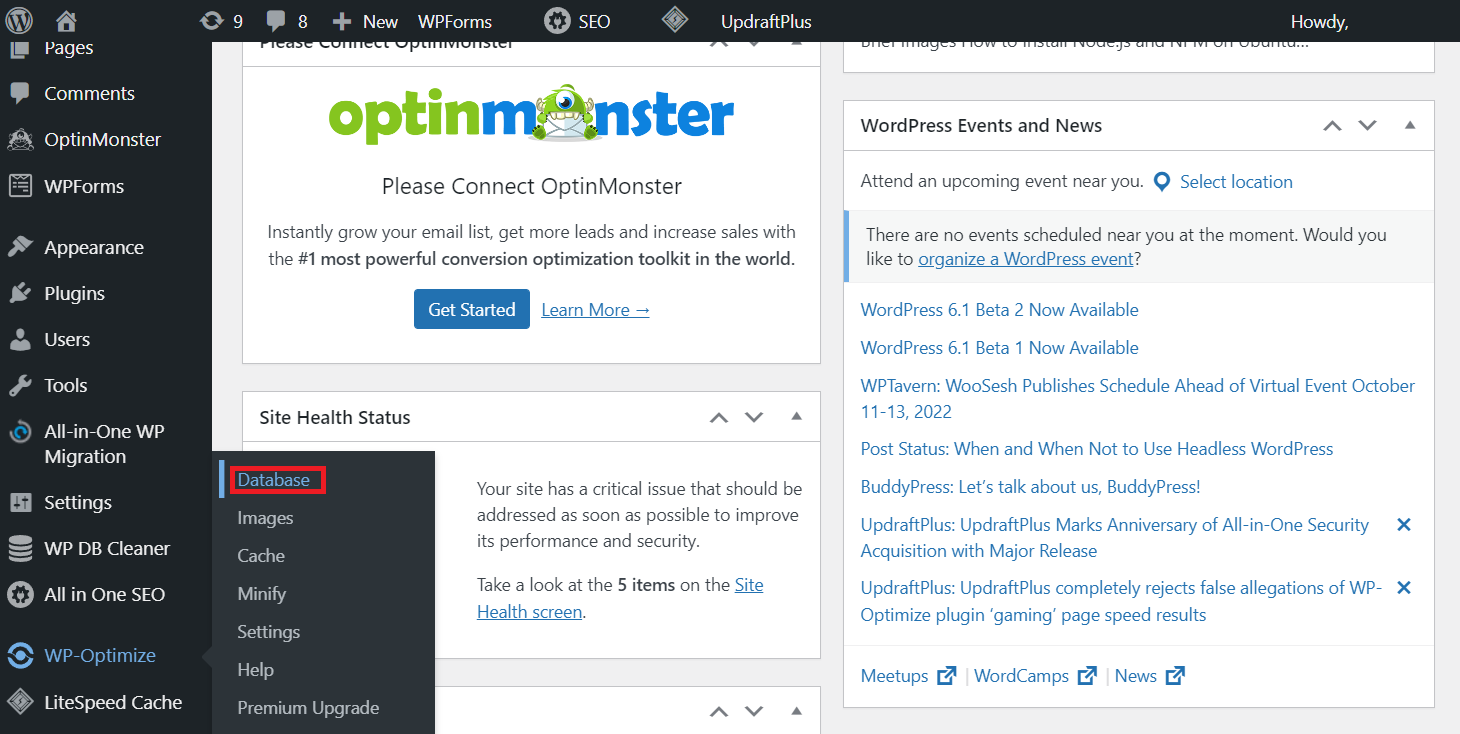
- Download and install UpdraftPlus by clicking the top hyperlink.
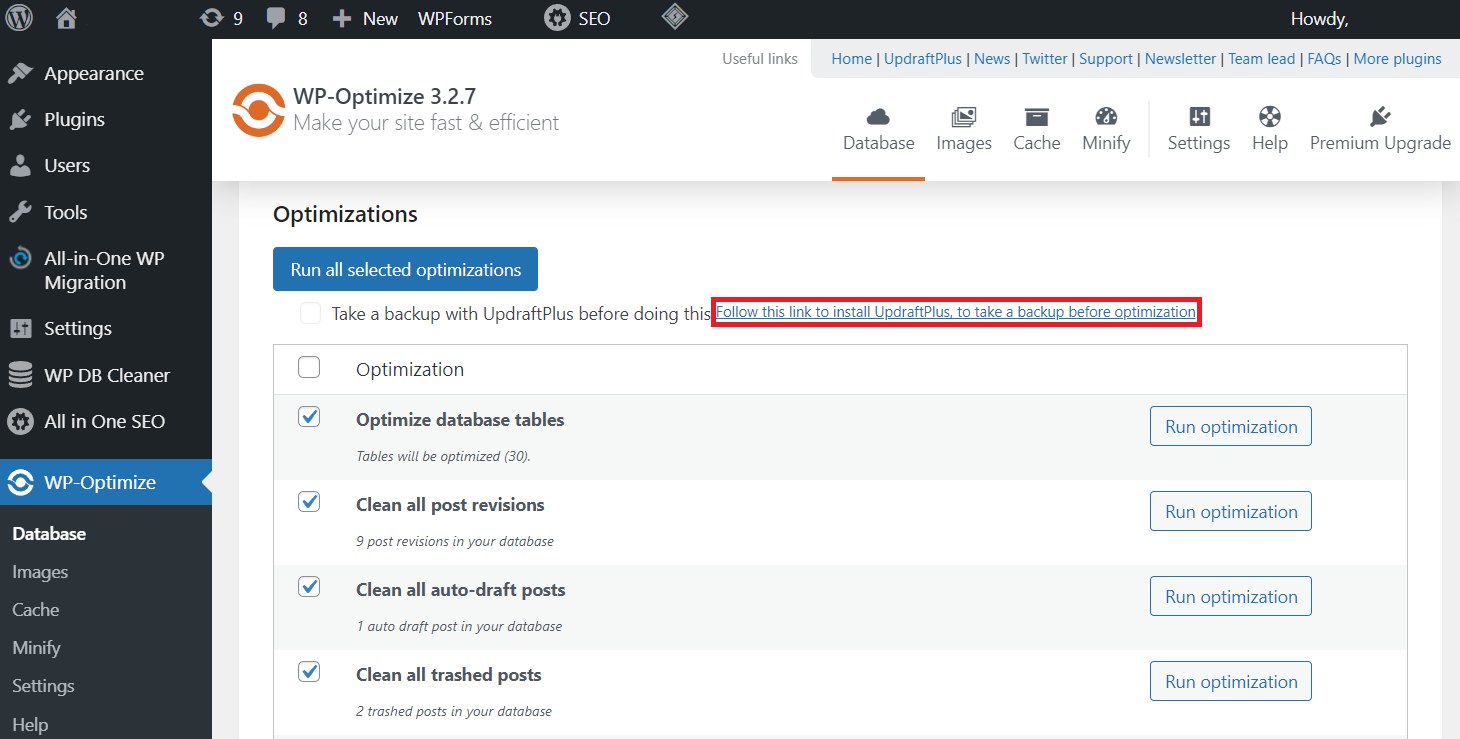
- After the installation process finishes, click Activate Plugin.

- If you are redirected to another screen, go to WP-Optimize → Database.
- Check the Take a backup with UpdraftPlus before doing this box.
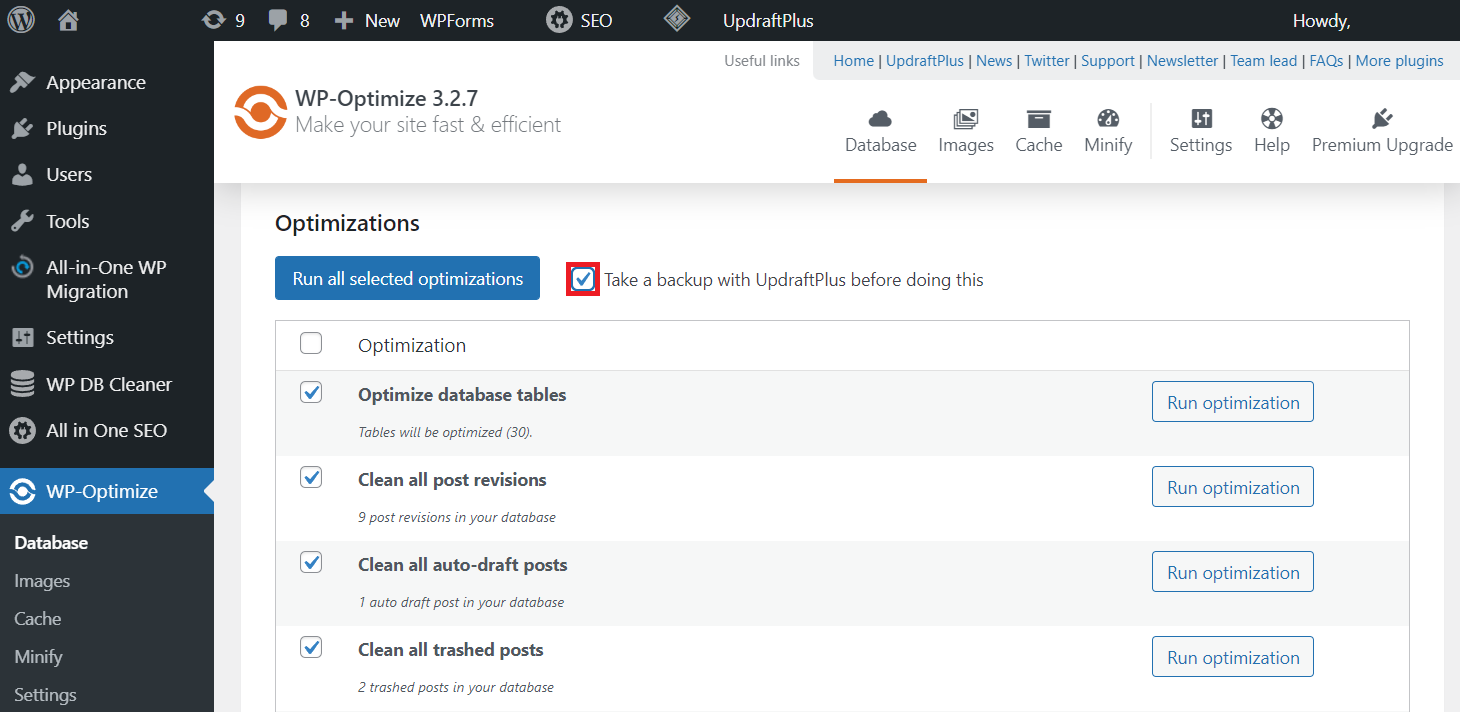
- Click the Run Optimization button next to the data type in question. Alternatively, optimize multiple data by checking the boxes and clicking Run all selected optimization.
Important! Always create a backup before clearing unused data from your WordPress database. This way, if you delete the wrong files, you will be able to restore them quickly.
Aside from optimizing, WordPress recommends adjusting your database settings. Enable query caching and proper indexing to improve your MySQL or MariaDB database performance.
Limit Autoloaded Queries
Your WordPress site’s database may have data that loads automatically upon visit. This autoloaded data is usually related to plugins, widgets, and themes.
Whenever a user accesses your website, MySQL or MariaDB automatically sends queries requesting this data. More data means more autoloaded queries to send and process.
Your website may slow down if there are too many autoloaded queries. To make sure this is not an issue, check the number of autoloaded queries and disable some of them via phpMyAdmin. To do so, follow the steps below:
- Log in to your hosting control panel. For this tutorial, we will use hPanel.
- Select the Websites tab from the top bar.
- Click the Manage button next to the domain in question.
- Scroll down to Databases → phpMyAdmin → Enter phpMyAdmin.

- On the phpMyAdmin page, go to the SQL tab.
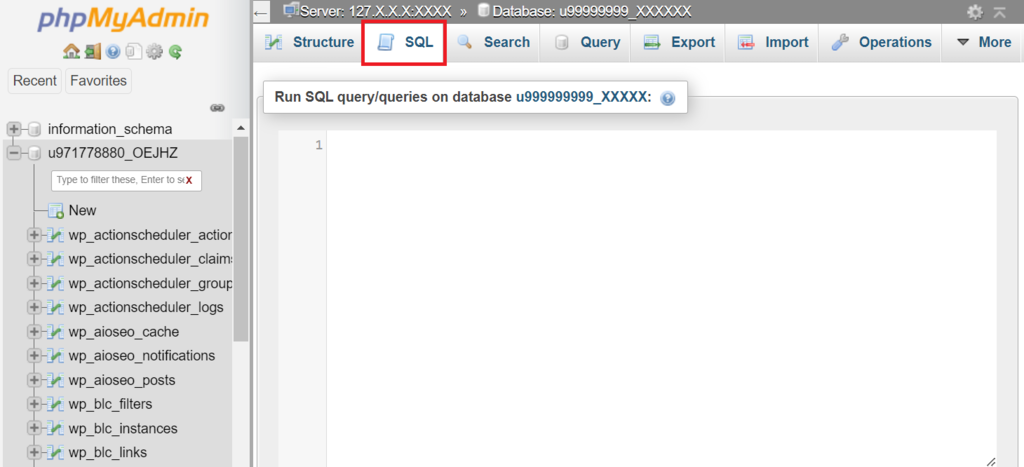
- Paste the following code into the designated field. If you don’t use the default wp_ prefix, change the wp_options:
SELECT * FROM wp_options WHERE autoload LIKE 'yes';
- Click Go to run the command.
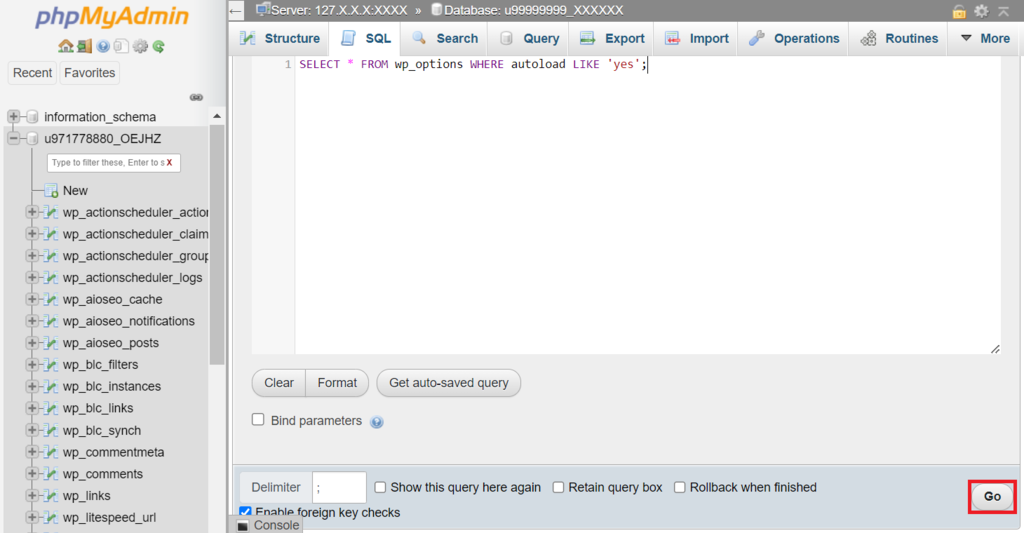
- phpMyAdmin will show you a list of autoloaded data. Select Delete → OK to remove unnecessary autoloaded data. Alternatively, disable it by clicking the Edit button.
- Scroll down to the Autoload section. On the designated field, replace yes with no.
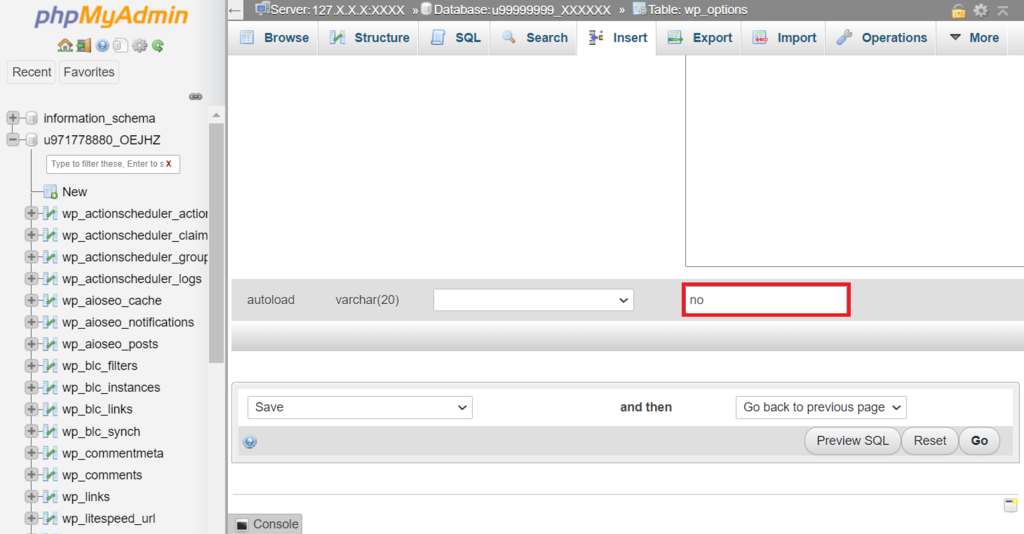
- Click Go to save the changes.
The maximum number of autoloaded queries your server can handle may vary. Regardless, ensure that you don’t delete or disable queries that affect your site’s functionality.
Aside from phpMyAdmin, you can also use a plugin such as Advanced Database Cleaner for this task. This method is ideal for WordPress users who aren’t familiar with database management.
Don’t Overcrowd the Site With Plugins
Having too many WordPress plugins can negatively affect your website’s performance.
WordPress plugins and their generated files take up a lot of disk space in your website storage. If you run out of storage space, you can’t add more files to scale your website.
In addition, using incompatible or poorly coded plugins can slow your website down even more. They are less efficient to run, thus demanding more server resources.
Even worse, plugins from unreputable developers might expose your website to security threats, as such plugins are easier to exploit for hackers.
Pro Tip
Before installing a plugin, check its user ratings, reviews, and the number of active installations to ensure its legitimacy. Furthermore, make sure it is compatible with your current WordPress version.
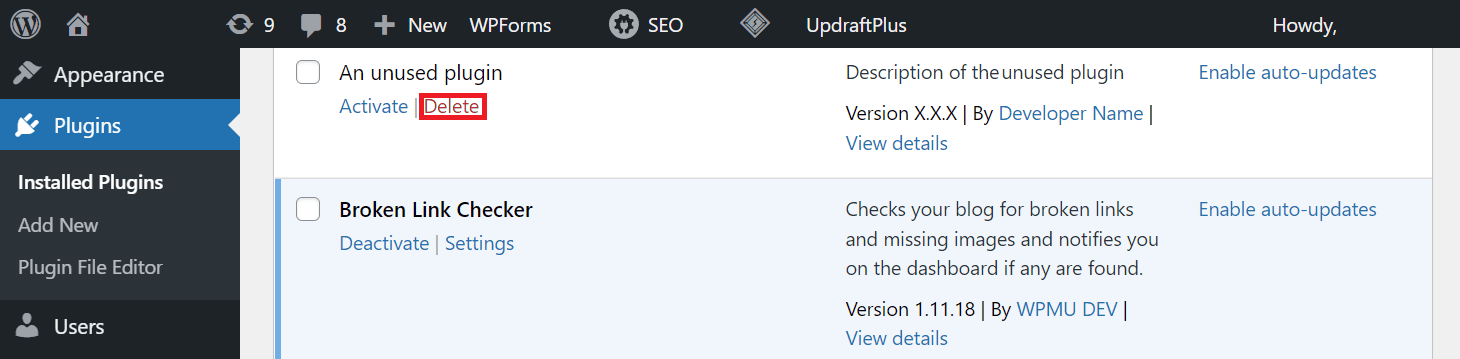
Here is how to remove unnecessary plugins from your WordPress site:
- Log in to your website’s wp-admin page.
- Navigate to the sidebar → Installed Plugins.
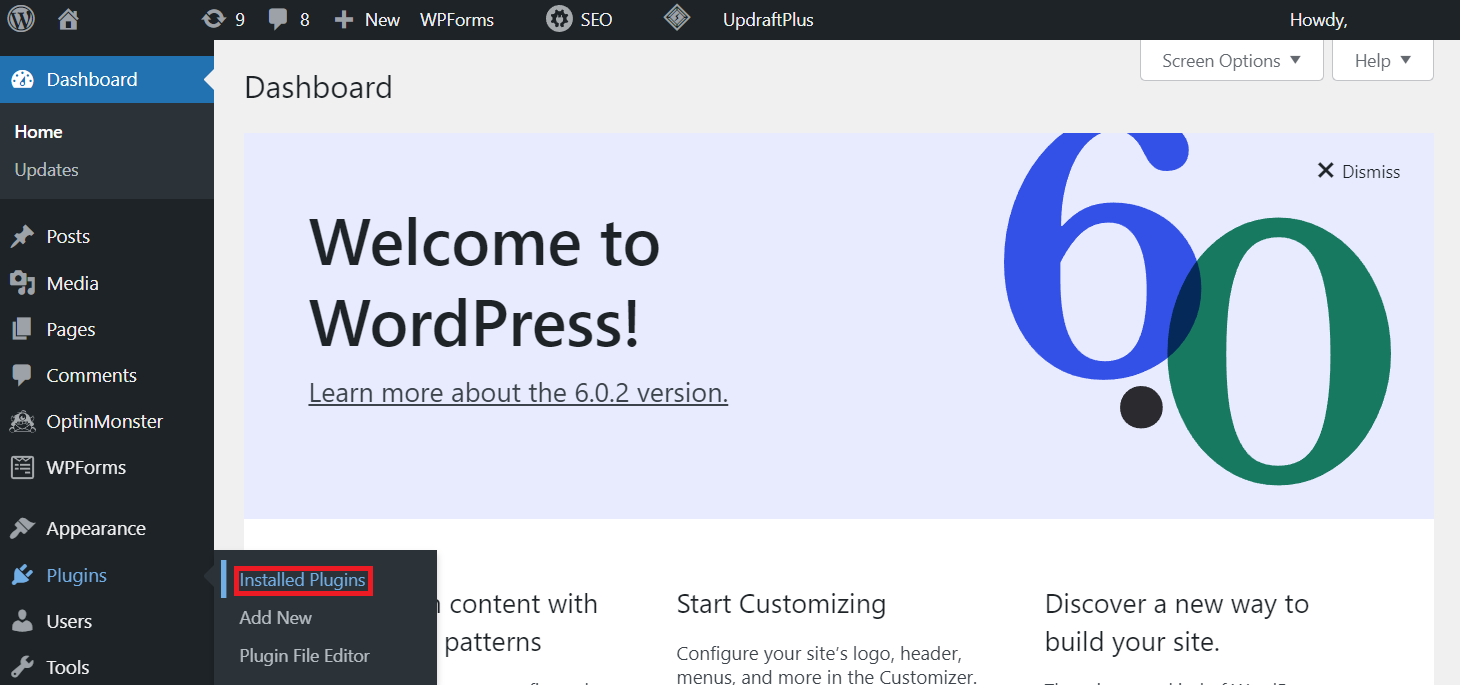
- Find the plugin you want to uninstall. If it is active, click Deactivate.
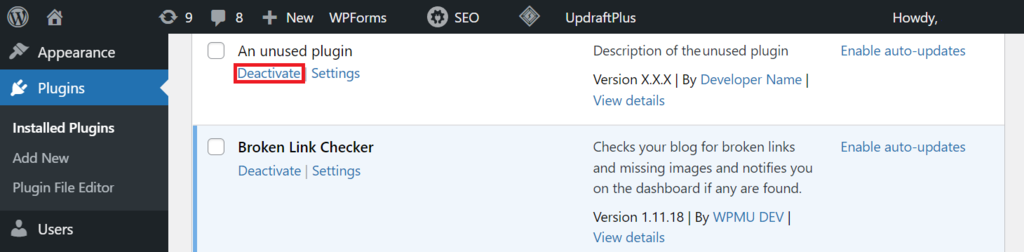
- Click Delete to remove the plugin.
Conclusion
Sometimes, your WordPress website may slow down or become inaccessible due to unexpected traffic spikes. A poorly performing website may drive visitors away, wasting the high traffic.
To avoid this, you can scale your website to make it responsive and perform consistently under heavy traffic. In this article, we have explained seven methods to scale your WordPress site:
- Optimize your site’s loading speed.
- Enable caching using a plugin.
- Implement the best security practices.
- Optimize your site’s images.
- Repair broken links.
- Use a content delivery network (CDN) service.
To improve your scaling effort, use a reliable, managed WordPress hosting service. In addition, uninstall unnecessary plugins to improve your site’s performance. Finally, don’t overcrowd your database.
We hope this article helps you understand how to scale your WordPress site. If you have a question, don’t hesitate to leave it in the comment section below. Good luck!

Aris is a Content Writer specializing in Linux and WordPress development. He has a passion for networking, front-end web development, and server administration. By combining his IT and writing experience, Aris creates content that helps people easily understand complex technical topics to start their online journey. Follow him on LinkedIn.


