How to add alt tags to images in WordPress: 3 effective methods
Dec 02, 2025
/
Tashia T.
/
5 min Read

Alt texts, also known as image alt tags, alt descriptions, or alt attributes, show up when an image doesn’t load to describe its content. Learning how to add alt tags to images in WordPress is important to improve search engine optimization (SEO) and web accessibility.
Google and other search engines use the image alt tag to understand your website’s images and how they relate to certain search terms. The better search engine bots can understand your site’s content, the higher the website will rank on search engine results pages.
Providing image alt tags is also a great way to make your website more accessible since screen readers can read the alt attribute.
This article will walk you through three methods on how to add alt tags to images on your WordPress site. We will also share tips on how to write good alt tags and show you how to check whether you have successfully added the alt text.
Download all-in-one WordPress cheat sheet
How to Add Alt Tags to Images
There are three main ways to edit alt text or add alt tags to images in WordPress – using the WordPress Media Library, the WordPress Gutenberg editor, and editing code.
Using WordPress Media Library
- Log in to your WordPress dashboard.
- Go to Media -> Library on the left navigation menu.
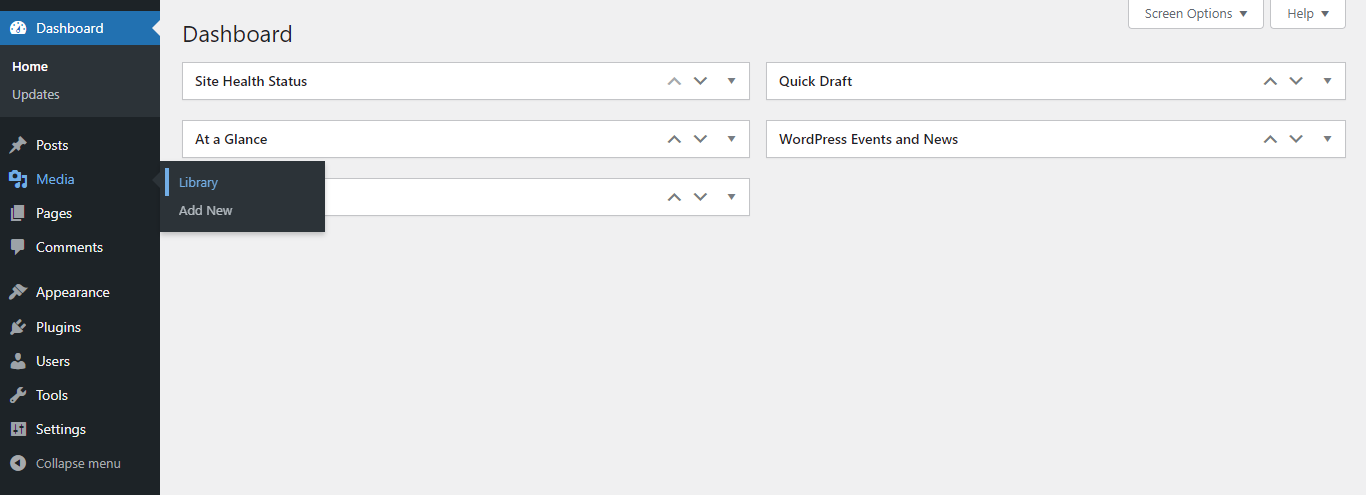
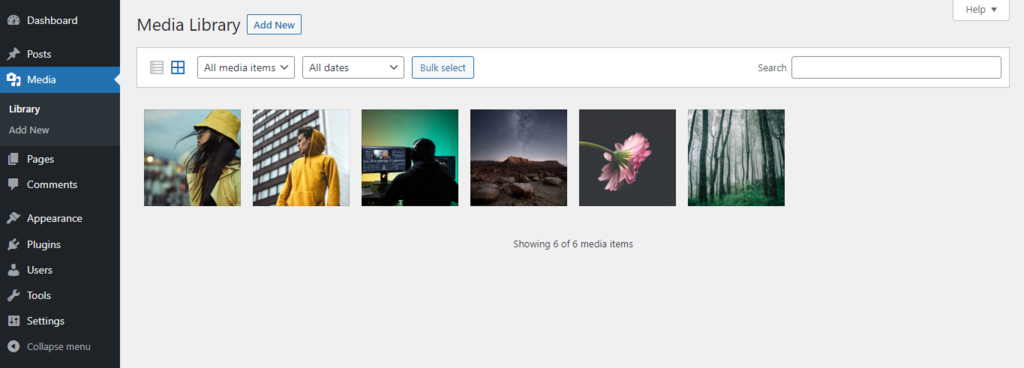
- Once you’re in the Media Library, click on the image you want to add the alt tag to. Alternatively, upload a new image.
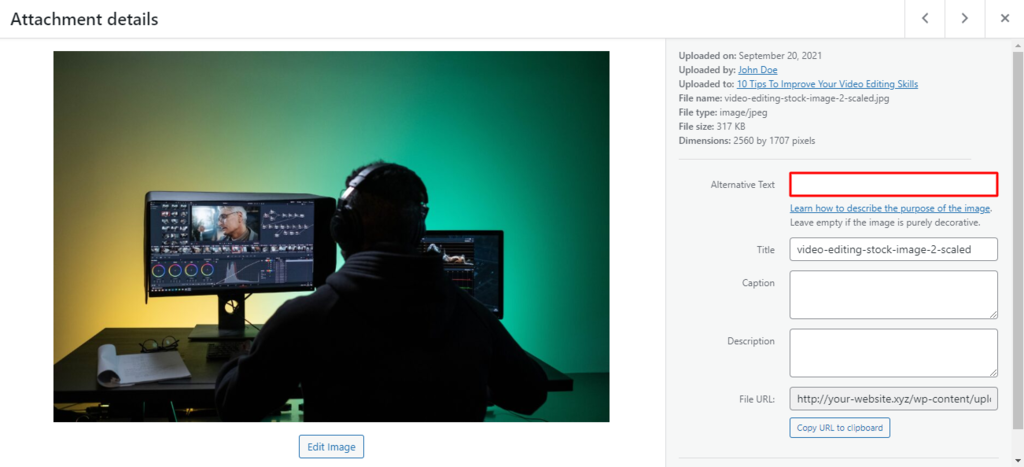
- Find the Alternative text field on the right-hand side of the Attachment details window. In this window, you can also edit other image attributes, such as the image title tag, caption, and description.
- Type in your desired alt text into the field.
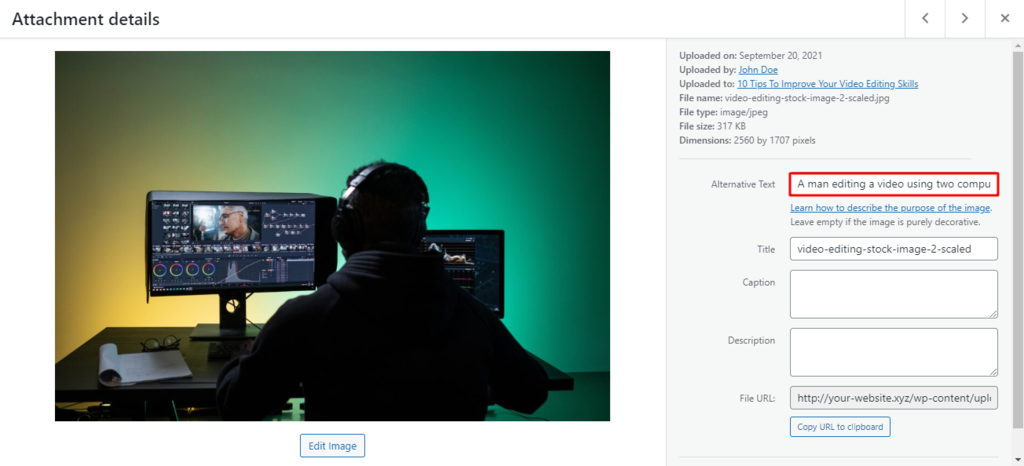
- Click off the field once finished to let WordPress save the changes.
Using WordPress Gutenberg Editor
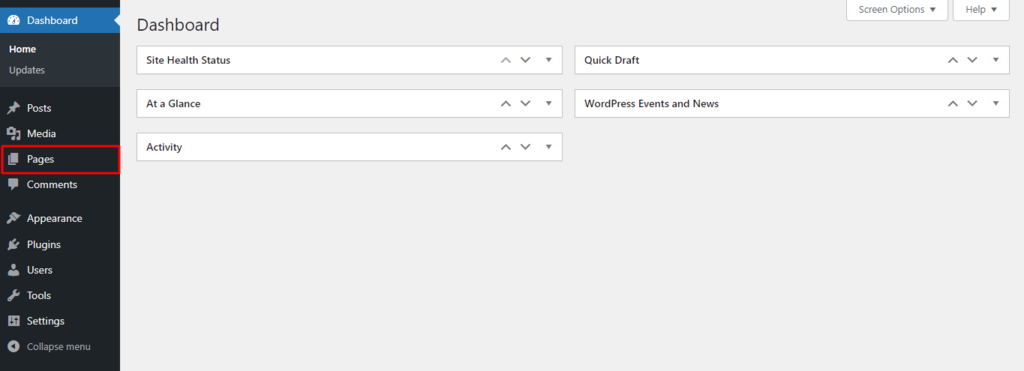
- Log in to your WordPress admin area and click on Pages on the navigation sidebar.
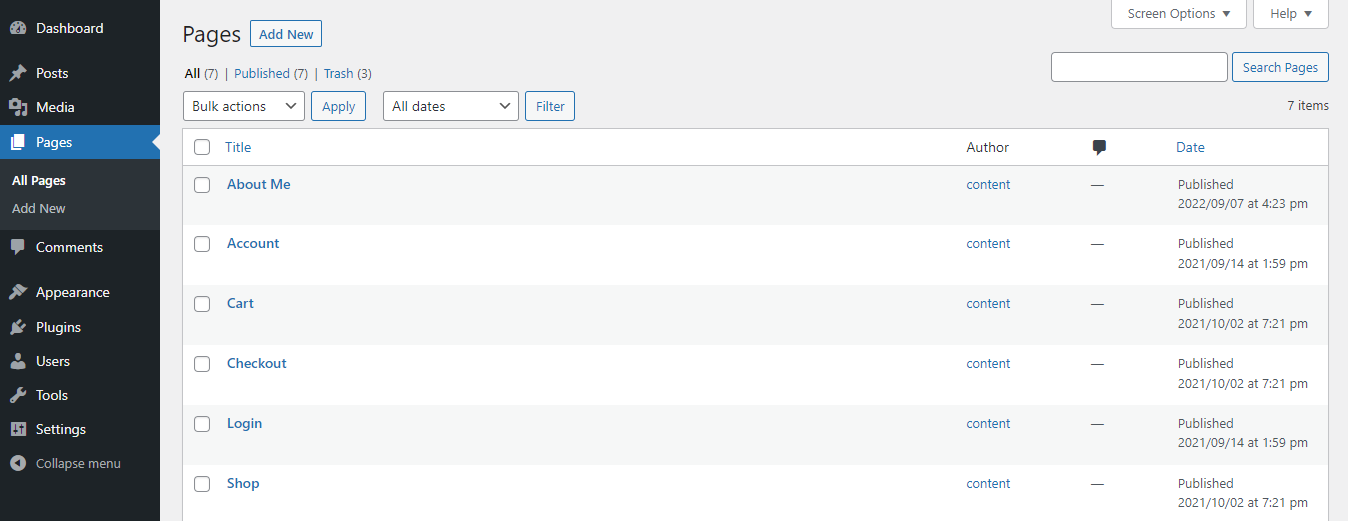
- On the Pages page, click the post or page containing the image to which you want to add the alt tag. This will open up the Gutenberg block editor.
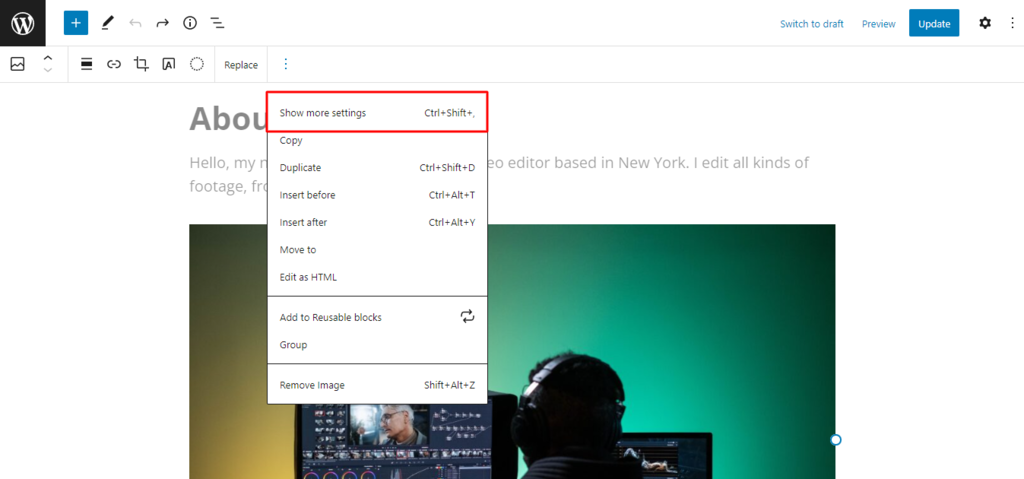
- On the page editor, click on your desired post image. Then, click on the three dots from the menu bar above and select Show more settings.
- Click on the Image settings on the right sidebar menu and find the Alt text (alternative text) field.
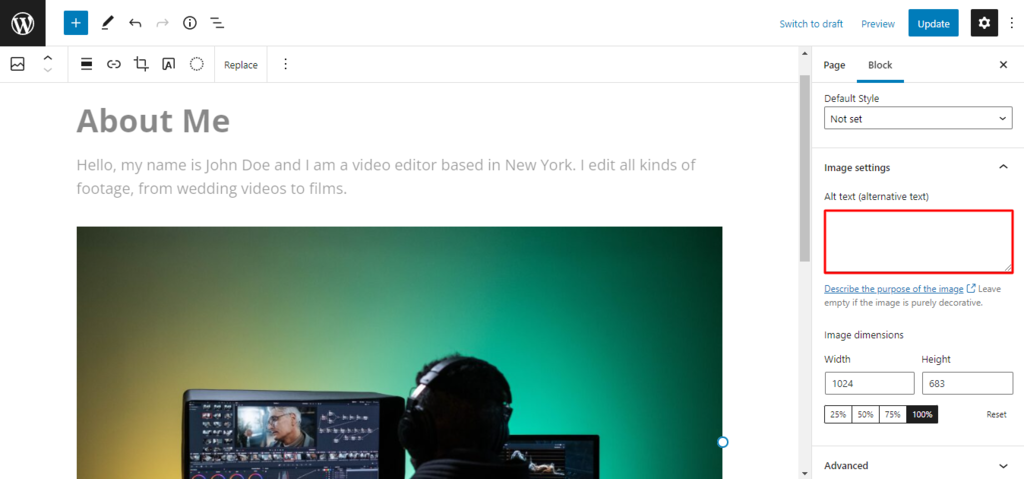
- Type the image alt text into the field and click the Update button to save the changes.
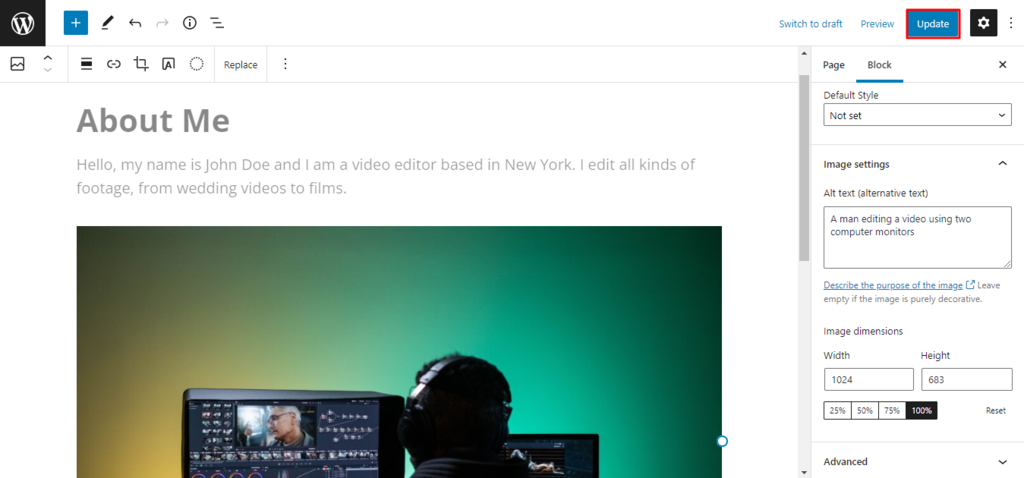
- Click Publish to make the changes go live.
Editing Code
- Open the page containing the image to which you want to add the alt tag using the first two steps from the previous section.
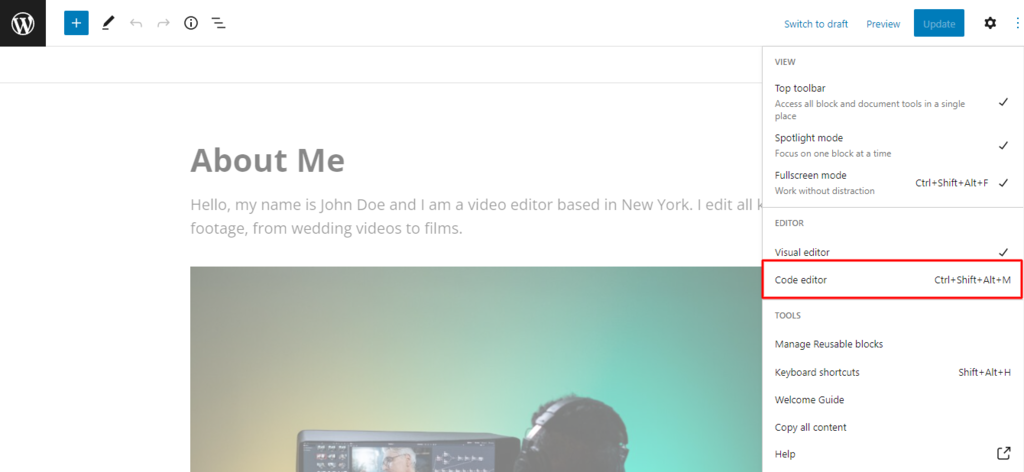
- Once you’re on the Gutenberg editor, click on the three dots at the top right corner of the page and click Code editor.
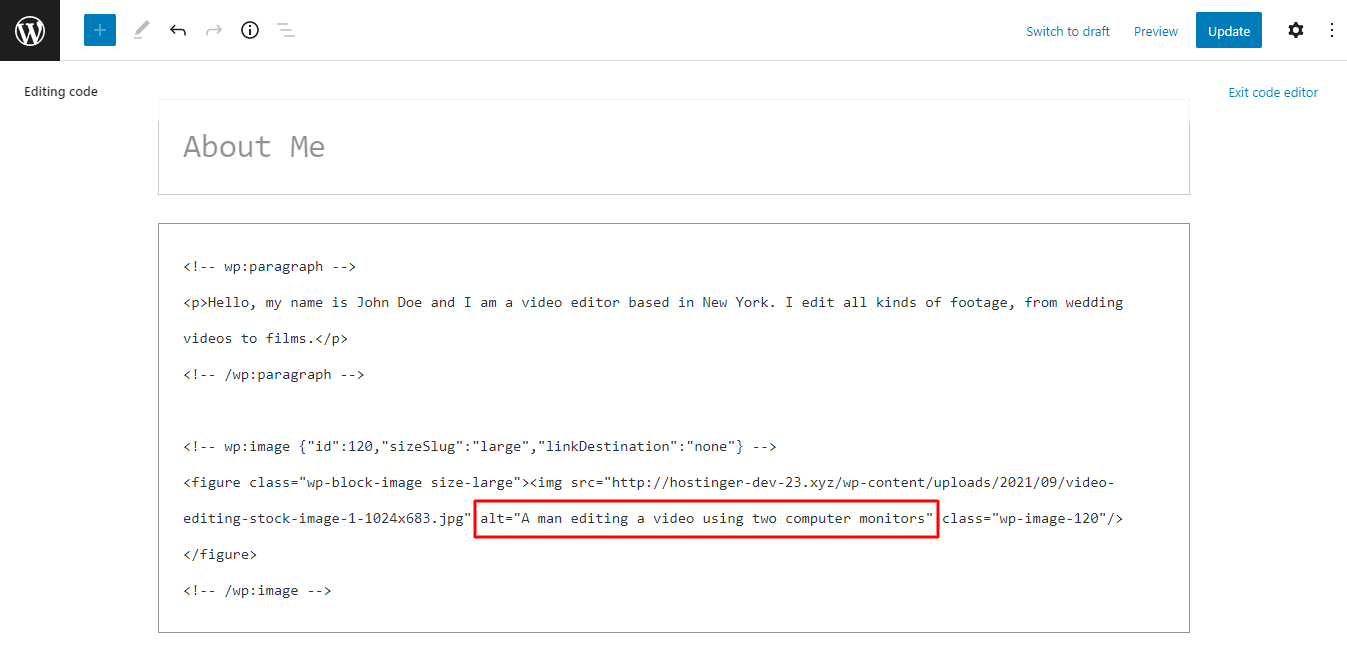
- Find the lines of HTML code representing your chosen image. The first line typically starts with <!– wp:image. If there are multiple images contained within one page, make sure these pieces of code don’t represent any other image.
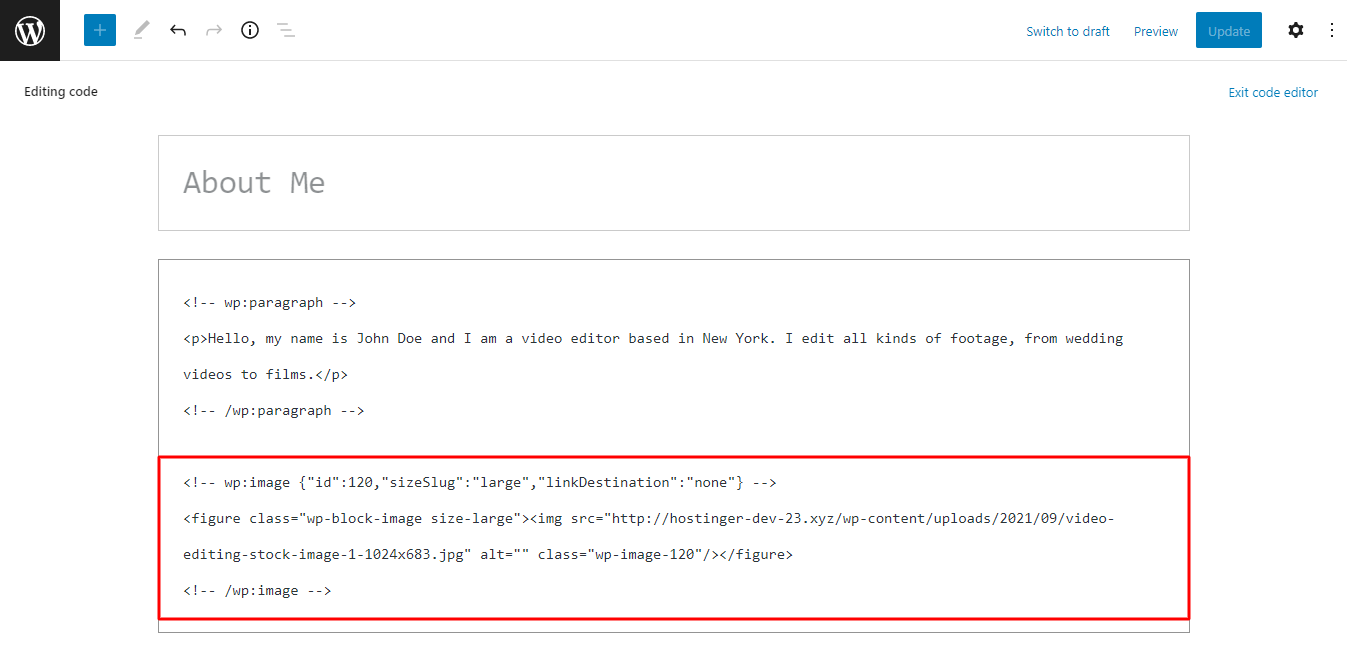
- Among those lines of code, find alt=””.
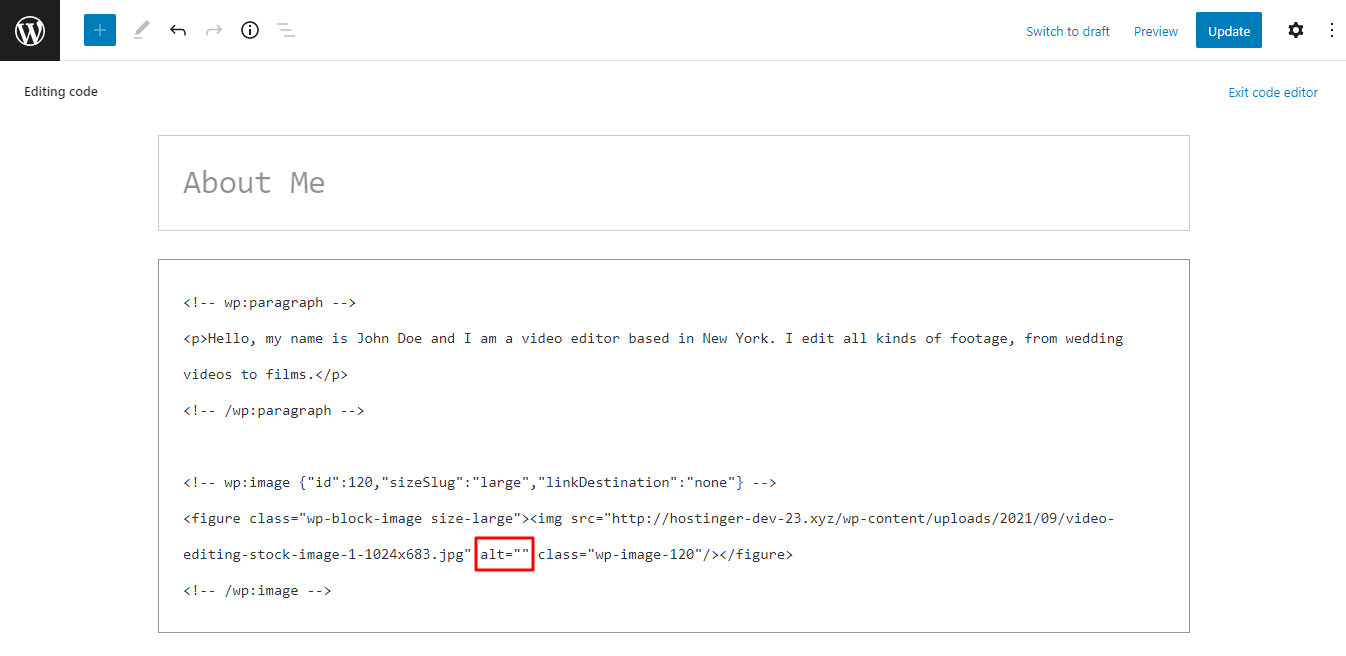
- Type in the missing alt text between the quotation marks.
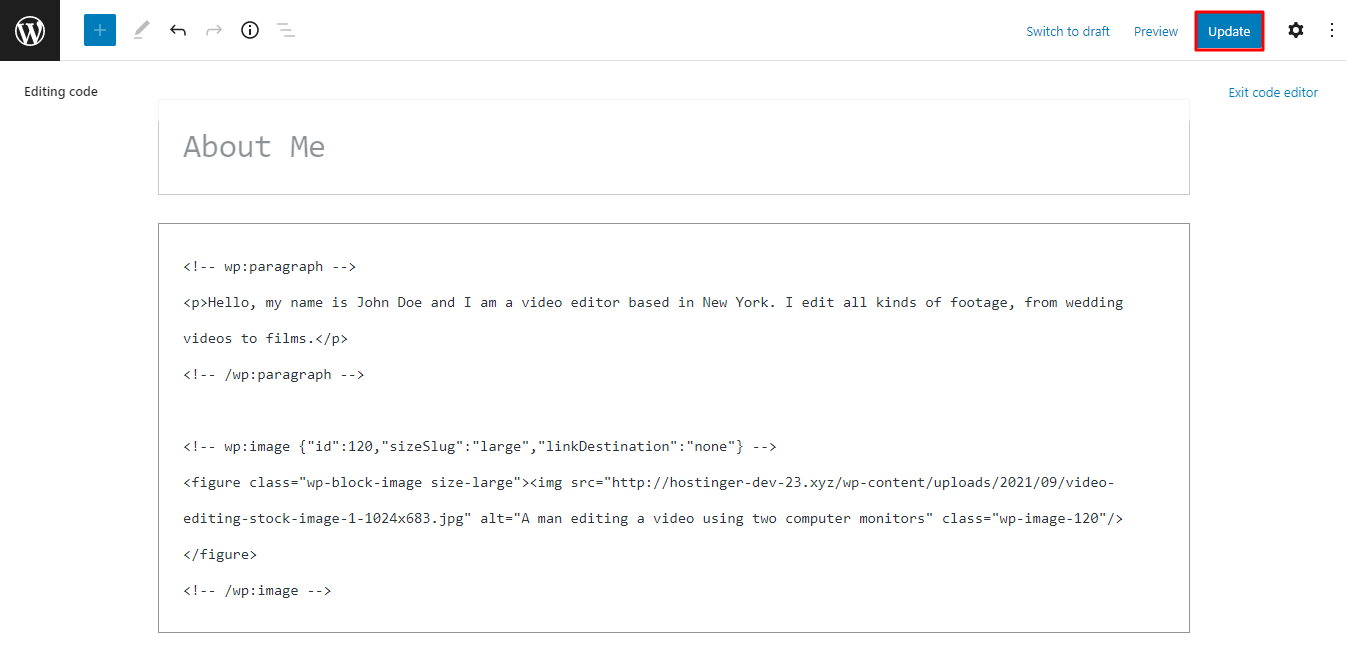
- Click on the Update button to save the changes.
- Click Publish to make the changes go live.
How to Write Good Image Alt Tags
A great image alt tag shouldn’t overexplain or underexplain images. To accomplish this, follow these image alt text practices:
- Only add alt text when necessary. Not all featured images need alt text. For example, you don’t need to add alternate text to decorative images or the ones already described in a nearby paragraph. Typically, alt text for a background image is also not necessary.
- Be specific, direct, and concise. Provide an accurate image description but don’t go into too much detail. Get straight to the point.
- Use content context. This is especially useful for describing stock images without recognizable image details, like well-known places or subjects. For example, if an image of a man looking at a computer screen was posted as part of a blog post on WordPress SEO tips, the alt text could be a “man researching WordPress SEO techniques.”
- Keep the alt text under 125 characters. Many screen readers will only read alt text consisting of 125 characters, stopping abruptly once it exceeds the character limit. This may make it difficult for visually impaired people to understand the image.
- Avoid using phrases like “a screenshot of” or “an image of.” This practice is redundant, as browsers and search engine bots can already identify it as an image file through the code.
- Incorporate keywords wisely. Include the content’s target keywords in the alt text as naturally as possible to avoid keyword stuffing. One of the best strategies to slip keywords into your alt text is by using semantic keywords.
In addition to implementing these alt text practices, other image SEO techniques include using relevant images and optimizing pictures for your WordPress site. Some ways to optimize images are choosing the right format and compressing. The latter is especially important, as larger images take longer to load.
Speeding up your website also improves your website’s SEO. To maintain optimal website performance, make sure to choose a reliable hosting provider and run website speed tests regularly.
Additionally, writing great image title attributes is an excellent way to improve user experience. Users can see these image titles or title tags in the form of tooltips – text labels that appear when you hover over an image.

How to Check Whether Alt Text Was Successfully Added
If you’re unsure whether you have successfully added alt text to your WordPress images, simply follow the steps below to check:
- Go to the live page of your WordPress website that features the images you want to check.
- Right-click on the page and click View page source.
- Press Ctrl + F on your keyboard to search the page source code. Mac users should press Command + F instead.
- Type alt=” into the search field that pops up. This will highlight the alt text of all images on the page.
Conclusion
Image alt attributes are useful for both site users and search engines. Adding alt tags to images is a good SEO technique since it helps search engines better understand your site’s content. Alt text also makes your website more accessible to those using a screen reader to navigate web pages.
There are three main methods of adding missing alt tags to images in WordPress – using the WordPress Media Library, the WordPress Gutenberg editor, or editing code. Remember that you don’t need alt text for all the images, especially the ones described in a nearby paragraph or decorative pictures.
When writing the alternative text attribute, be direct, specific, and concise. Come up with descriptive alt text to explain what the image represents. Try to keep the characters under 125, as it is the limit for many screen readers. Additionally, avoid keyword stuffing and using phrases like “an image of” or “a screenshot of.”
For those also interested in learning how to insert images into your content, check out our detailed guide on inserting an image in HTML.
We hope this article has helped you understand how to add alt tags to images in WordPress. Good luck.
How to Add Alt Tags to Images in WordPress FAQs
Here are some frequently asked questions about how to add alt tags to images in WordPress.
What Is an Alt Tag?
An alt tag, short for alt attribute or alt text, is an HTML attribute that provides a description of an image on a webpage for users who are unable to view the image. It also helps search engines understand the content of the image and improve the page’s SEO.
What Is the Purpose of an Alt Tag?
The purpose of an alt tag is to provide a textual description of an image on a webpage for users who are visually impaired or have images disabled. It also helps search engines understand the context and content of the image, which improves the page’s visibility and search engine ranking.
What Is the Difference Between an Alt Tag and a Caption?
An alt tag is a short description of an image for accessibility purposes, while a caption is a longer text that appears underneath an image. Captions often provide additional information and context, while alt tags primarily describe images for those who cannot see them.

Tashia is passionate about all things website development, digital marketing, and eCommerce. She strives to spread her knowledge and help people navigate the online world through her words, one article at a time.


