How to Delete a GoDaddy Account and Move to Another Hosting Platform
Mar 10, 2026
/
Akshay K.
/
5 min Read
GoDaddy is considered one of the leading web hosting providers that offer a straightforward account creation process. However, closing a GoDaddy account can be tricky.
To help you out, we will guide you through the step-by-step process of closing and permanently deleting your GoDaddy account.
Although daunting, we understand how important this decision is for your online journey. As such, we’re here to make this a hassle-free experience.

Why Delete Your GoDaddy Account
While GoDaddy services have their own merits, recurring issues are prompting users to cancel their hosting accounts and seek alternative solutions.
Let’s review these issues in more detail:
- Poor website performance – many users have complained about their website performance, experiencing slow speed and inconsistent uptime.
- Less value for money – while priced competitively, Godaddy’s comparable plans come with less storage and support fewer websites. Moreover, many features, such as older than 1-day backups and website security measures, cost extra.
- Inadequate customer support – getting an answer via live chat can take anywhere between five minutes to an hour. Additionally, trouble ticket responses can take 48 hours to come in, and a follow-up response may take an additional 48 hours on top.
- High renewals – even though the GoDaddy website shares the renewal prices upfront, they might still catch users by surprise and throw off their budget.
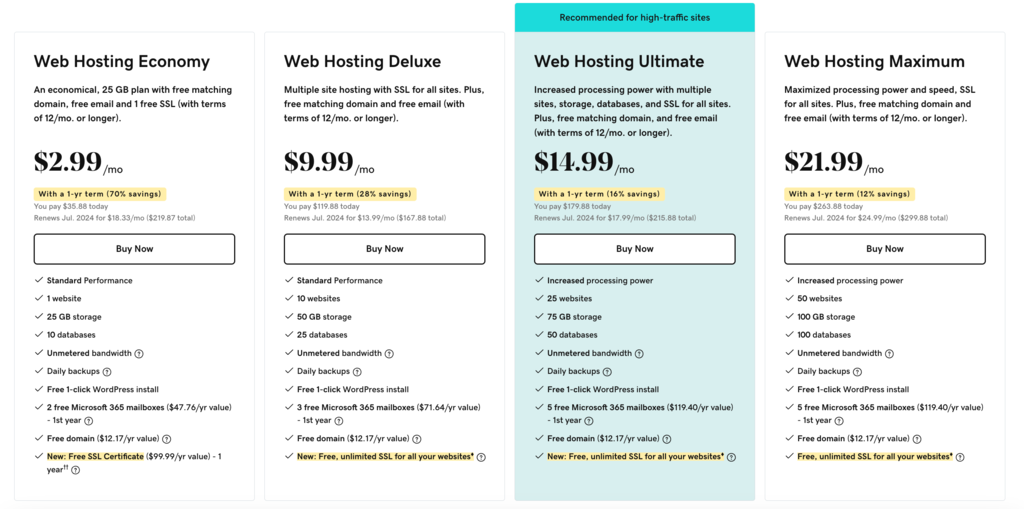
While the GoDaddy hosting service might be good enough for a test site or a simple blog that doesn’t get a lot of traffic, you should choose the best hosting provider for more serious projects.
To ensure your website operates smoothly, you need a hosting plan that offers exceptional performance and features, as well as excellent customer support and budget-friendly renewals.
Fortunately, there are GoDaddy alternatives that address these concerns by offering comprehensive web hosting services.
For example, Hostinger offers lower renewal prices, a more responsive Customer Success team, and an innovative and intuitive control panel, hPanel, in all of its hosting plans.
How to Cancel GoDaddy Account Renewal
Before you permanently delete your GoDaddy account, cancel the renewal for your hosting account first. This will stop your hosting plan from automatically renewing and charging you money.
Here’s a quick guide on how to cancel your account renewal:
- Sign in to your GoDaddy account, select Account Settings, and go to the Renewals & Billing page.
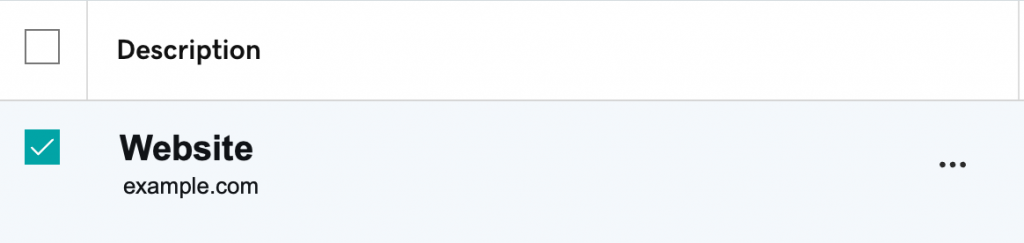
- Select the checkbox next to your product or domain name.
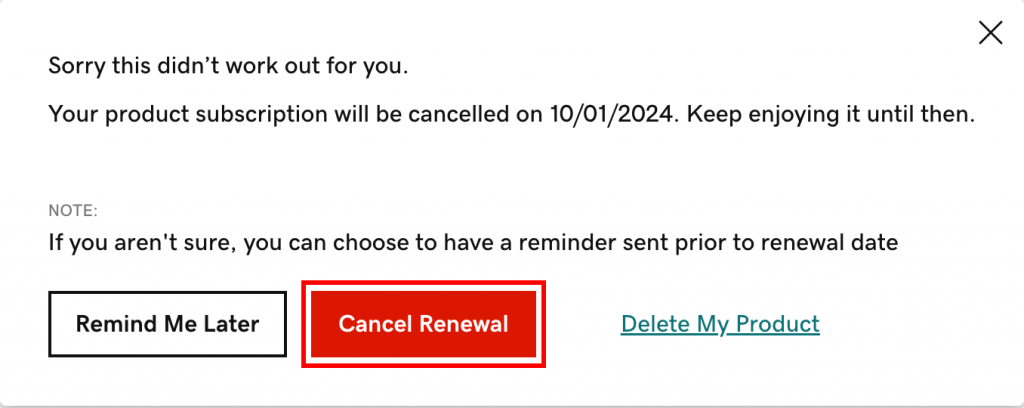
- Click on the Cancel Renewal button at the top of the page.

- On the pop-up that appears, click the Cancel Renewal button again to confirm the cancellation.
- The next crucial step is removing payment information from a GoDaddy account for security reasons. You can do so by clicking the Payment Methods tab on the same page → Options → Delete.
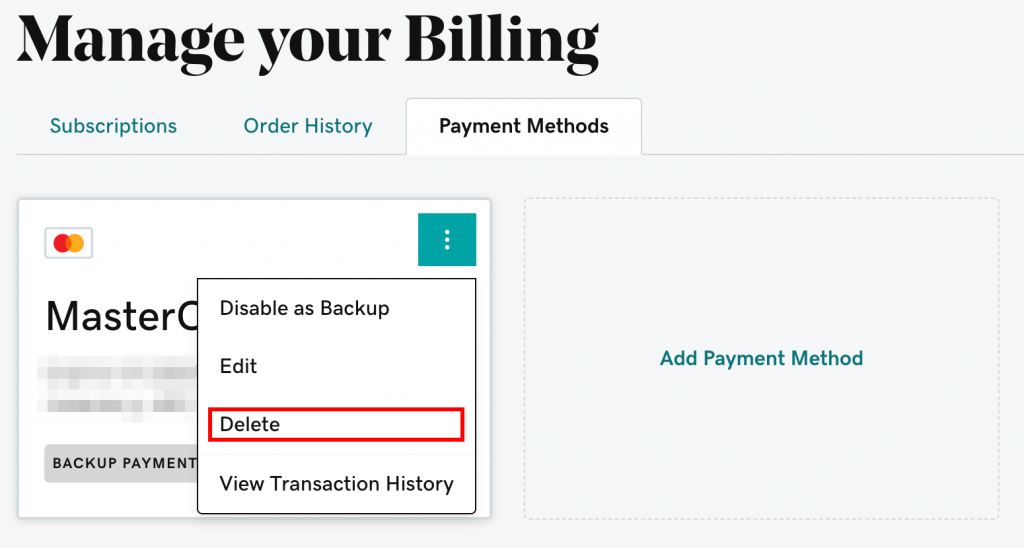
You can now proceed to the account migration process.
How to Migrate From GoDaddy to Hostinger
Transferring your website and domain to a new web hosting platform is crucial before you start removing a GoDaddy account. This ensures that both your site and domain stay with you even after you delete account data from GoDaddy.
There are very few web hosts that offer site migration services for free. For instance, the Bluehost migration service costs over $149.99, while DreamHost offers it for $99.
Hostinger provides free site migration with its web hosting services to make this process more convenient.
You can choose any Hostinger plan – they all come with free migration services that let you effortlessly transfer your site from any web host to our platform.
Our experts will handle all the technical aspects of the migration from GoDaddy, ensuring that your site, including all its files, databases, and configuration settings, is safely moved to your new Hostinger hosting account within 96 hours of starting the migration process.
This service helps you avoid the complexities and potential pitfalls of migrating your site manually and frees up your time so you can focus on your online presence.

Once your site is successfully migrated, follow this quick domain transfer guide to transfer your domain from GoDaddy to Hostinger in four easy steps.
How to Delete Your GoDaddy Account
Now that your website is transferred and safe let’s delve into steps on how to cancel a GoDaddy account permanently:
1. Log in to Your GoDaddy Account
Once logged in to your GoDaddy account, in the upper right-hand corner, go to Profile → Account Settings → Renewals & Billing.
This will show you all your products and domain names. Before canceling your account, you must delete all products and services listed on this page.
2. Delete All Products
Once your website and domains are transferred to another web hosting provider, you can move on to the first step of the Godaddy account deletion process – deleting products. It ensures a clean account termination and prevents any potential complications.
To start the product deletion process, go to the Renewals & Billing page in Account Settings and tick the checkbox next to Description to select all your products and domains.
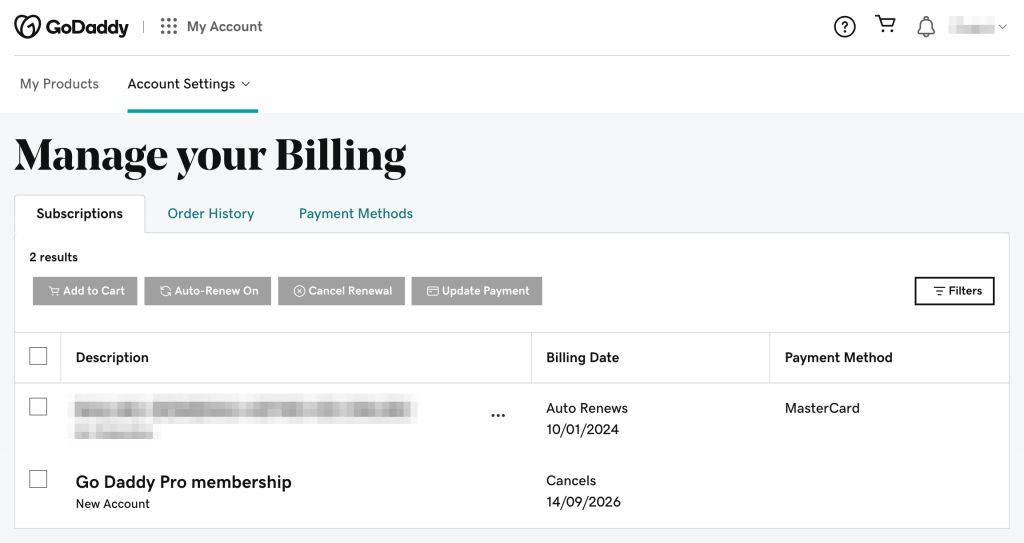
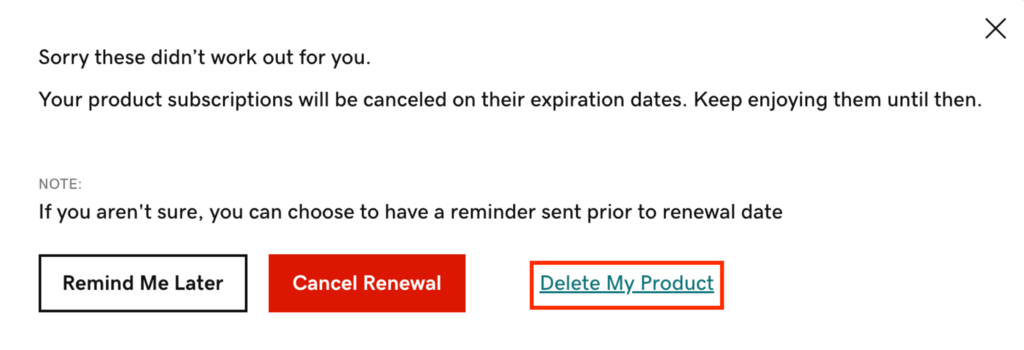
Next, click on the Cancel Renewal button. In the pop-up, click on Delete My Product.
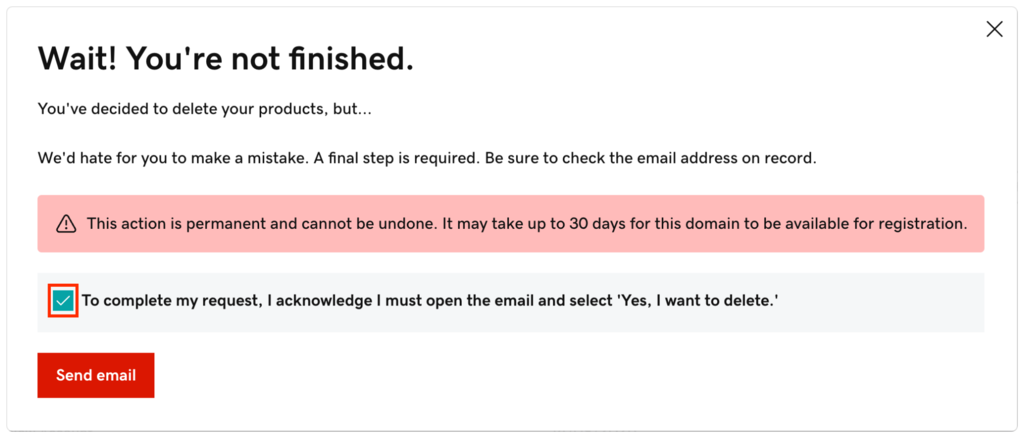
After you click on Delete my Product, an email confirmation pop-up will appear. Here, tick the checkbox next to To complete my request, I acknowledge I must open the email and select ‘Yes, I want to delete.’ and then click on Send Email.
Now head over to your email account, open the “Are you sure?” email by GoDaddy, and select the Yes, I Want to Delete! button. This will take you to your account, where you’ll finally click one last Delete Product button to delete Godaddy products.
You will get a confirmation email once your products are deleted. Then, the hosting provider will require you to wait 24 hours before allowing you to close your GoDaddy account.
Important! You can delete a GoDaddy account permanently only after you’ve removed all the products. If you still have active GoDaddy products in your account, you will need to delete those and wait another 24 hours before trying to cancel your account.
We recommend you check the GoDaddy refund policy to find out whether you can request a refund for a canceled product.
3. Navigate to Account Settings
After a wait of 24 hours, you can finally move ahead and cancel your GoDaddy account permanently.
Navigate to the Contact Preferences page through Account Settings and scroll down to the Privacy section. You might need to sign into your account.
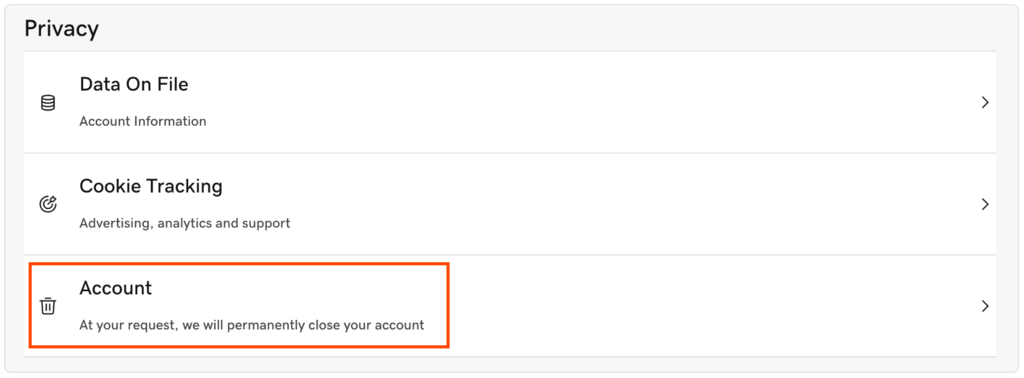
Here, click on Account and move on to the next step. You’re now halfway done with deleting GoDaddy account permanently.
4. Read the Close Account Message
After you click on Account in the Privacy section, the web host will show you a new pop-up message that contains standard information about closing a GoDaddy hosting account.
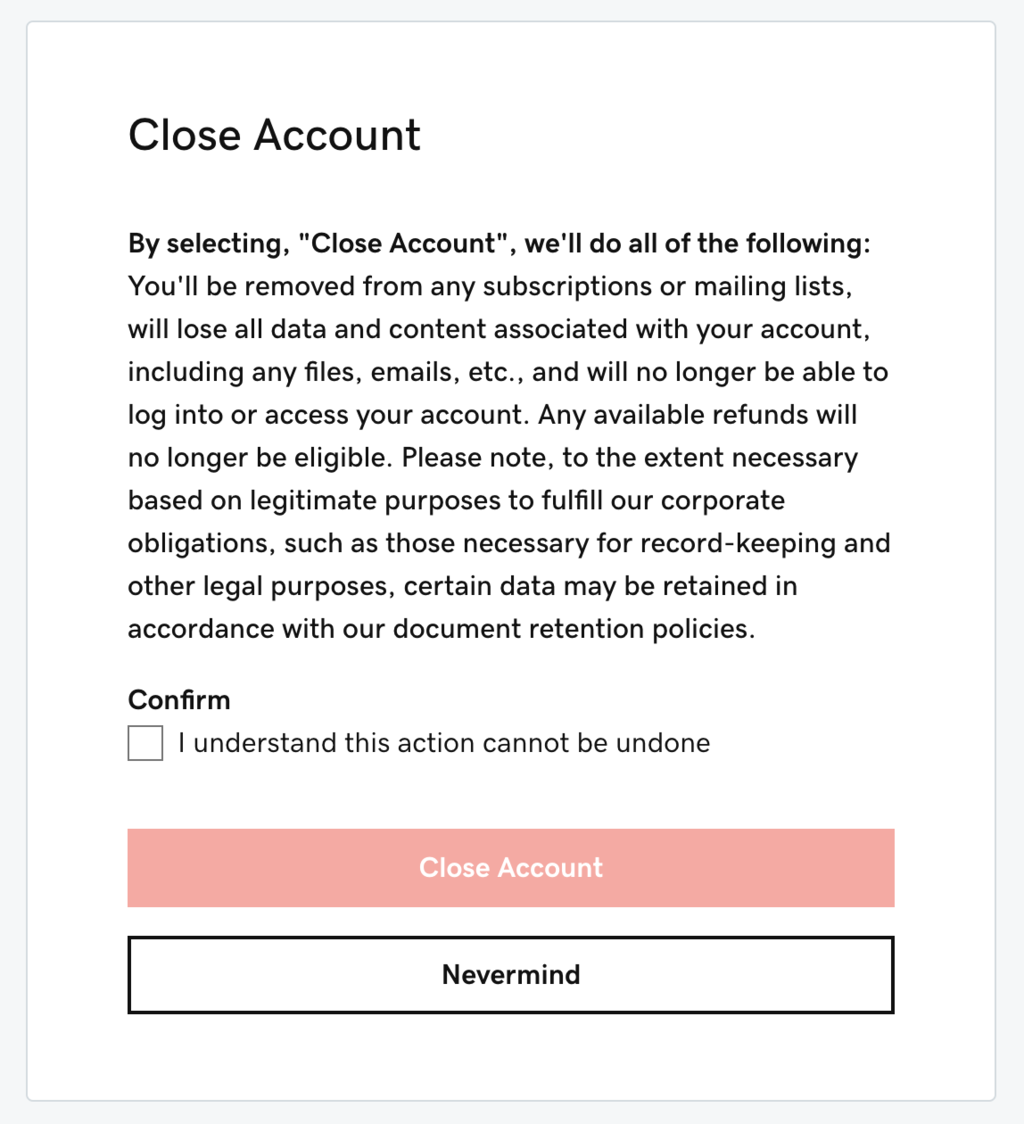
Take a moment to read the information to understand the implications and consequences of deleting your GoDaddy account. Tick the I understand this action cannot be undone checkbox to confirm your decision.
5. Delete the GoDaddy Account
Now, proceed with your GoDaddy account termination by clicking on the Close Account button. You can now finally work on migrating to a new web host.
Note that once you cancel your GoDaddy account, you will no longer be eligible for a refund unless otherwise permitted under its refund policy.
Suggested Reading
For a Bluehost website migration guide, check out our article on How to Cancel a Bluehost Account and Migrate Your Services.
Conclusion
The decision to permanently delete a GoDaddy account can improve your website performance drastically, from higher uptime to faster loading speed.
Let’s briefly overview three crucial account deletion steps:
- Cancel Godaddy account renewal – stop GoDaddy from renewing your hosting account automatically.
- Initiate website and domain transfer to Hostinger – ensure your site stays available under the same domain name.
- Delete the account – remember that you need to remove all your products first and wait 24 hours for the platform to allow you to proceed with the GoDaddy account removal process.
We also recommend creating a GoDaddy account backup before deletion to secure a copy of your site data.
Should you have any questions or suggestions, feel free to drop us a comment below.
How to Delete GoDaddy Account – FAQ
Here are some frequently asked questions about how to close a GoDaddy account:
What Happens to My Website if I Cancel My GoDaddy Subscription?
If you cancel your GoDaddy subscription and your existing plan expires, you will lose access to your site and its files, and your domain will throw a 404 error. To avoid this, we recommend initiating a free site and domain transfer to Hostinger before deleting your GoDaddy account.
Can I Recover My GoDaddy Account After It Has Been Deleted?
Deactivating a GoDaddy account is an irreversible step. Currently, the web host does not have any account recovery provision for closed accounts.
How Long Does It Take to Transfer My Website From GoDaddy to Hostinger?
After you make a migration request, our experts will transfer the website within the next 96 hours of starting work on it. Please note that transfers can take longer if your website data is incorrect. Additionally, transferring a domain from GoDaddy to Hostinger can take five to seven days.

Akshay is a Senior Content Writer who loves writing about technology. As a Computer Engineering graduate and a certified digital marketer, he aims to make tech easier for everyone. He also enjoys cooking, traveling, and learning new languages. Follow him on LinkedIn.