How to change WordPress username: 3 effective methods
Sep 15, 2026
/
By Will M. & Prasasti P.
/
6 min Read
As your website grows, you will naturally want to adjust or tweak certain elements, such as the WordPress username.
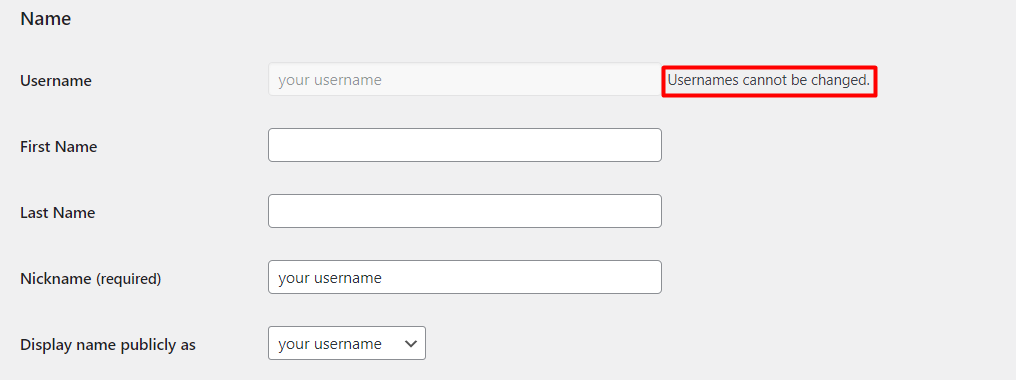
Unfortunately, WordPress doesn’t include any built-in features to change your username. When you go to the Users tab and choose Profile, you will see a greyed-out field with a message that says Usernames cannot be changed.
For this reason, you’ll need to look for a workaround to change your username.
In this article, we’ll go over the process of changing your username using three alternative methods – editing your WordPress database, creating a new user, and using a plugin. But let’s start by discussing why it might be a good idea to change your WordPress username in the first place.
Reasons to Change Your WordPress Username
Together with a password, your WordPress username is an essential element that grants access to your site.
With this in mind, security is one of the most common reasons for wanting to change WordPress usernames.
Hackers can utilize automated tools to find your vulnerabilities and take advantage of them. Examples of these include brute force and dictionary attacks, where bots will perform multiple trial-and-error attempts to guess your login credentials. In fact, brute-force attack cases escalated by 274% in the last four months of 2021.
Since generic WordPress usernames like admin are easier to guess, they pose a significant risk for your website.
Aside from security reasons, you might also want to change your WordPress username due to the following factors:
- It sounds too similar to another username on your WordPress site.
- A new WordPress username might fit your site’s new branding or content better.
- You misspelled or made other mistakes when setting up your username.
- The site or account is being transferred to another person, and you want to change the name accordingly.
Regardless of the reason, choosing a new username is something you should consider carefully, as it might affect your WordPress site’s security.
How to Change WordPress Username
Now, let’s jump into the methods on how to change your WordPress username.
1. Use Your WordPress Database
The first method to change your username is by editing the site’s database through phpMyAdmin. This method requires some technical expertise and can be challenging for beginners.
Here’s a quick overview of how to change your WordPress username using the database:
- Access phpMyAdmin through your hosting panel.
- Select the wp_users table.
- Find the user under the user_login column.
- Click on the Edit button next to the username you want to change.
- Find the user_login row and enter the new username in the Value field.
- Click on Go to save the changes.
With that in mind, be sure to follow the instructions carefully to avoid any errors.
Important! We recommend creating a backup before you modify the database. That way, you will be able to restore your site in case of an error.
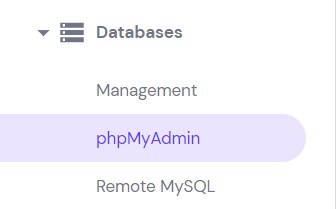
- Navigate to your WordPress web hosting account panel to access phpMyAdmin. Hostinger users can simply log in to Hostinger dashboard, head to the Databases section, and click on the phpMyAdmin menu.
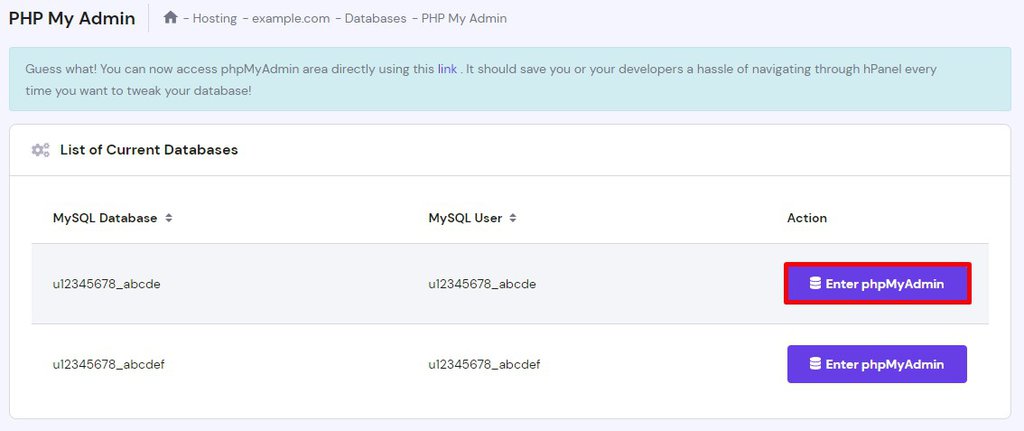
- Locate the WordPress site’s database and click Enter phpMyAdmin.
- Once you’ve successfully entered the phpMyAdmin dashboard, click on the wp_users table. The table’s name may differ depending on your web host, but it typically ends with _users.
Accessing the wp_users table will reveal a list of all the user accounts on your WordPress website.
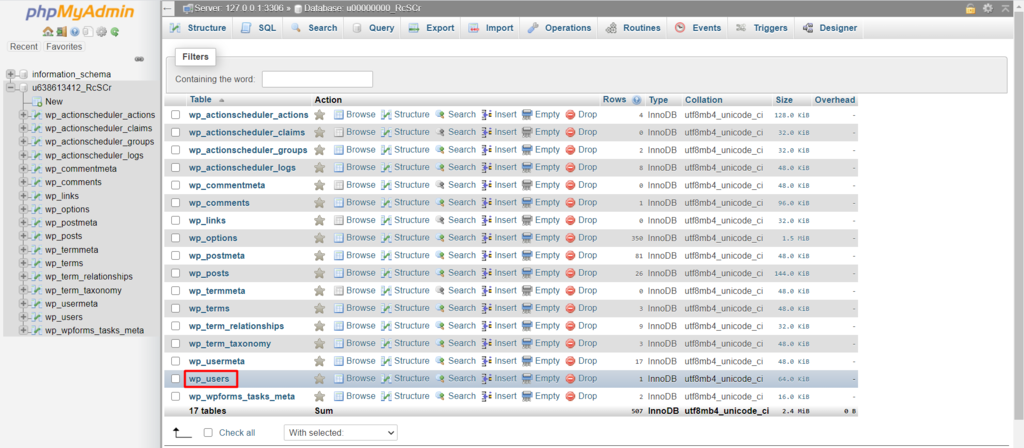
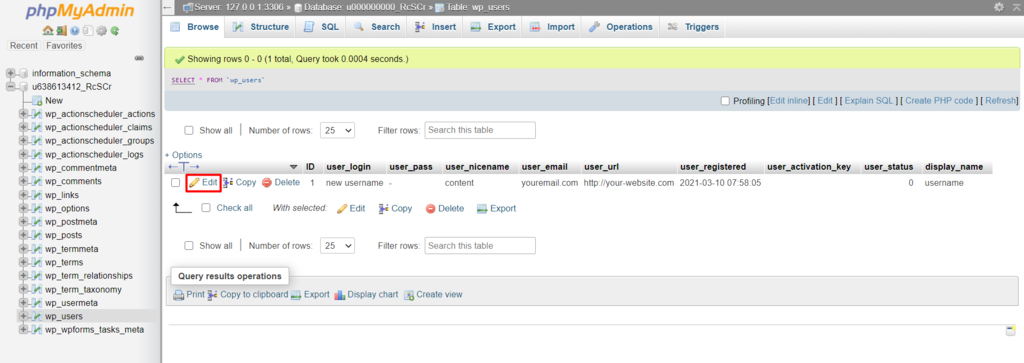
- Go ahead and find your user account by looking it up under the user_login column.
- Once you find it, click Edit on the username row you want to change.
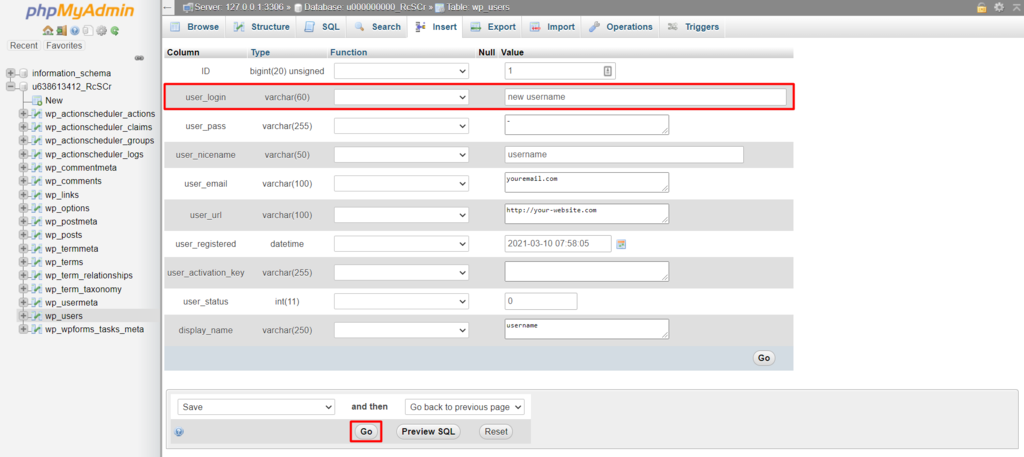
- You’ll see a list of all the values associated with your account, from its password to the domain name. Look for the user_login row, and type your new username into the Value field.
There is also a row called user_nicename, which includes your actual username – generally, it should have the same value as user_login.
You’ll also notice a display name row, which refers to the name that appears next to your blog posts and profile page. Feel free to change this value to match your current username.
- After that, click on the Go button at the bottom of the screen.
As for cPanel users, navigate to the Databases section on your dashboard and click the phpMyAdmin menu.

Then, go through the same steps to change your WordPress username.

2. Create a New WordPress User And Delete the Old One
The next method to modify your WordPress username is by replacing an old WordPress account with a new one. Unlike the previous alternative, this method is more straightforward.
Check out the quick overview on how to change your WordPress username by creating a new user:
- Login to the WordPress dashboard and navigate to the Users section, Add New tab.
- Enter the new username, and make sure to include a different email address.
- Assign the Administrator role for the new user and click Add New User button.
- Log out of the account and log in with the new credentials.
- Navigate to the All Users tab and locate the user with the old credentials.
- Delete the old user and attribute all content to the new user.
In this section, we will show you an example of how to create a new WordPress admin account and transfer all of the privileges and blog posts authorship from the old username.
- Log in to your WordPress dashboard and navigate to the Users -> Add New tab. On the following page, you’ll be able to set all the parameters needed to create a new WordPress user, including its username, email address, and password.
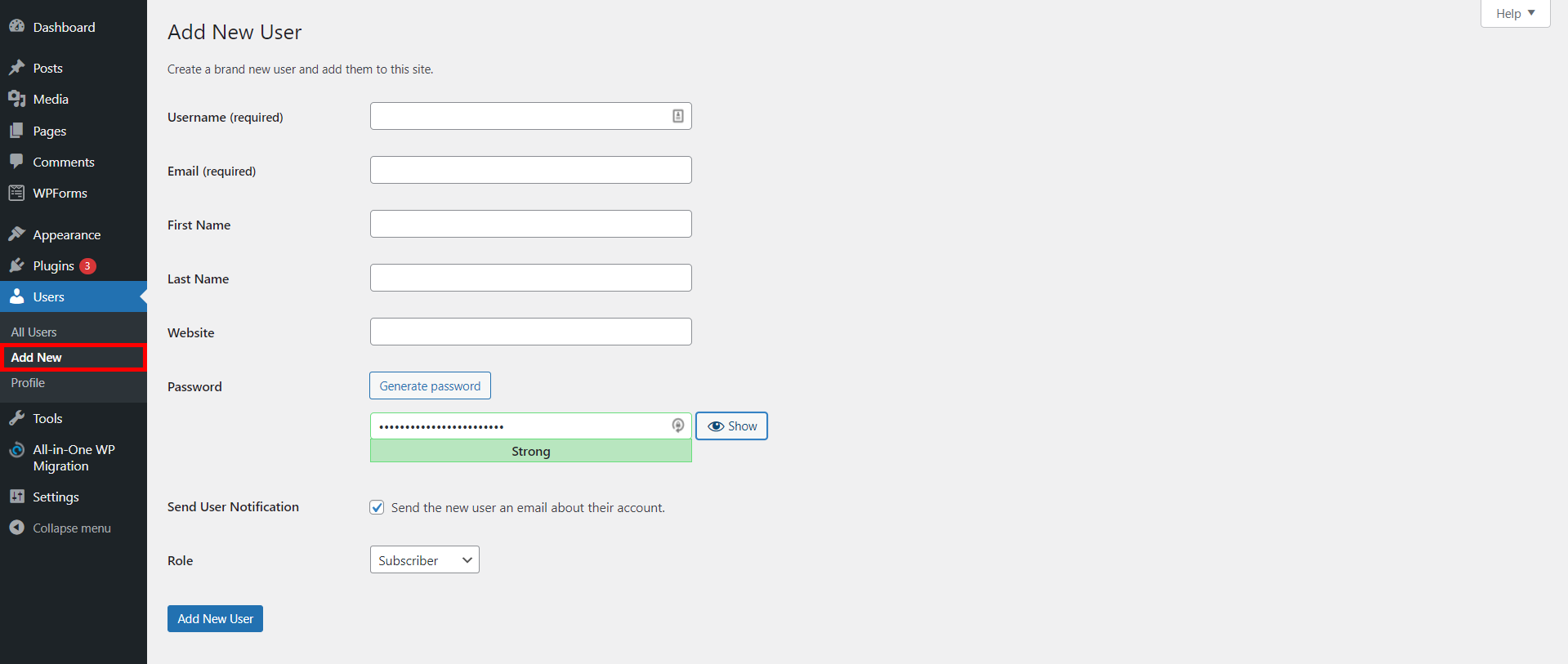
- Enter your new username in the provided field. For now, you will need to include a different email address than in your old admin account. However, you can change it back to your primary address later.
- Before you save your newly created username, make sure to assign it the Administrator role – this will ensure that your new account has all the same privileges as the old admin user account.
- Once done, click on the Add New User button.
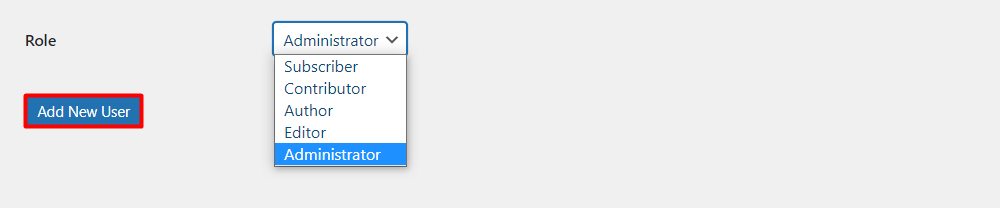
- Now, save your new account, log out, and log back in with your new credentials.
- Return to the All Users tab, look for the old admin username, and simply delete the old user by clicking the associated button underneath it.
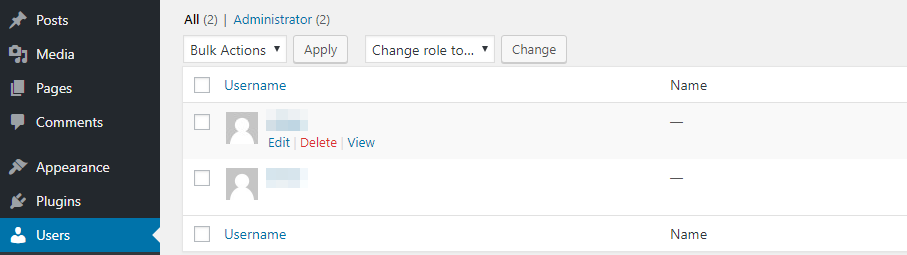
As a super admin, you can delete other accounts. Upon this process, WordPress will ask if you want to reassign the content of your old WordPress username to the new one.
- Select Attribute all content to, and choose your new admin account from the drop-down menu.
- Then, click the Confirm Deletion button.
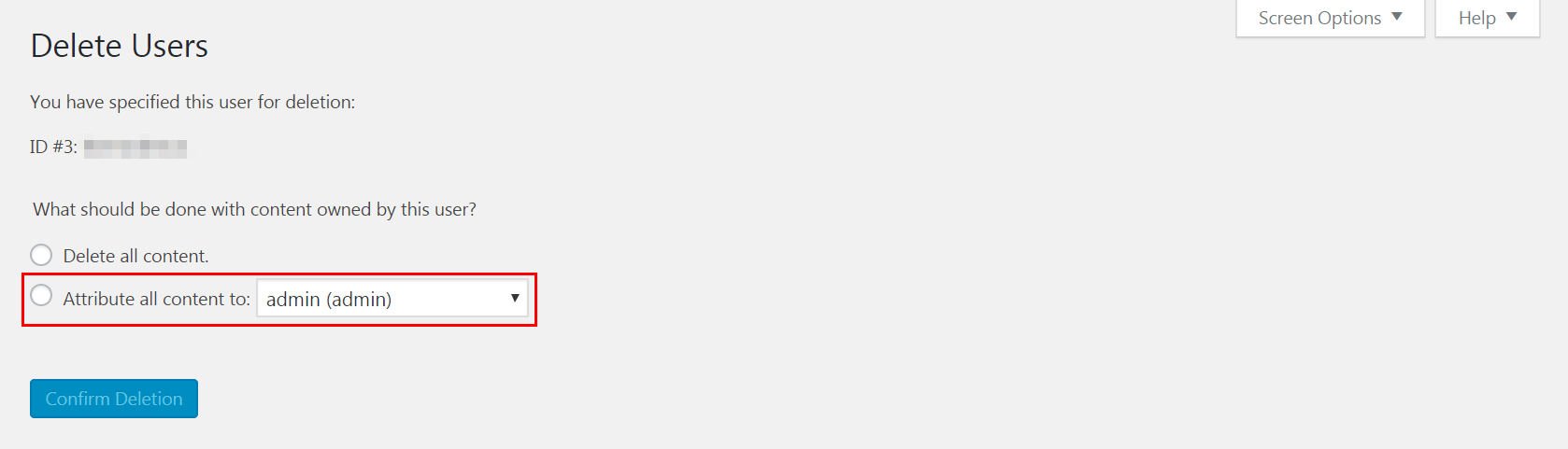
The system will then remove your old WordPress account, and your new account will be set up along with all privileges and the posts attributed to it.
3. Use a Plugin
The easiest way to change a username on WordPress is by using a plugin. A username changer plugin allows you to update your old account straight from the WordPress dashboard.
Here are the quick steps to change your WordPress username using a plugin:
- Install the username changer plugin.
- Navigate to the plugin’s settings under the Users section.
- Click on Update next to the username you wish to update.
- Enter the new username and click on the Update Username button.
There are numerous username changer plugins you can use for this purpose. In this article, we will use Easy Username Updater as an example.

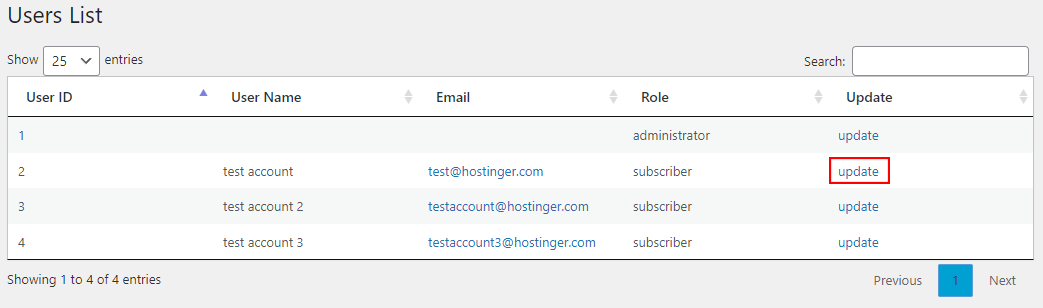
Once you install and activate the WordPress plugin, a new sub-menu for Easy Username Updater will appear under the Users section. Click on it, and you’ll see the list of users along with their email addresses, roles, and user ID.
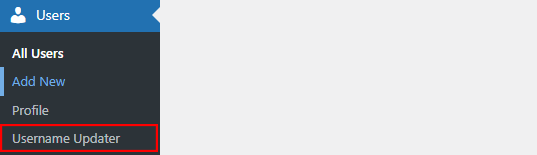
The plugin shows a maximum of 25 users for each page, and it lets you search for a specific username for easier navigation. Click on the update button to change your username. In this example, we will change the username for the test account.
A new screen will appear where you can change it – just type your desired username in the New Username field. For this example, we will change the username from the test account to the guest account.
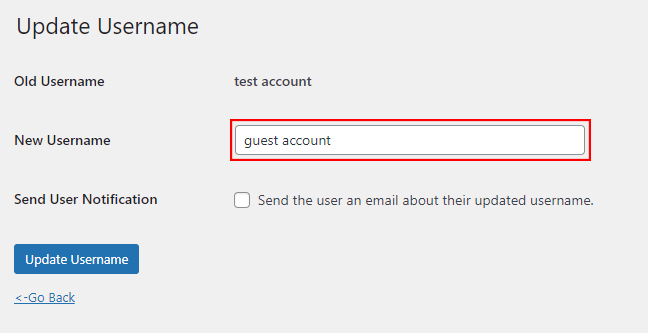
It is also possible to send the user an email about their updated username by clicking the checkbox. Once done, click on the Update Username button for the change to take effect. Don’t forget to double-check the users list and make sure the username has been changed.
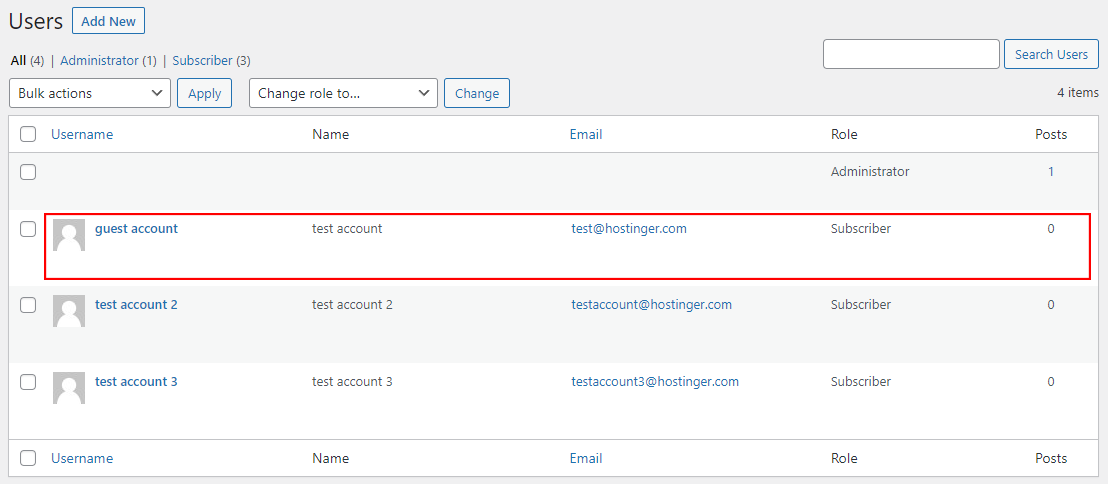
The method will vary depending on what username changer you use. If your plugin doesn’t work properly, make sure it is compatible with other installed plugins.
Conclusion
Knowing how to change WordPress usernames can be useful for many different occasions.
In some cases, a user might need to perform a name change to better reflect its branding and content. Others might need to change a username before handing the website to a new owner.
Furthermore, using a default username or generic password can pose significant risks to a site, as automated hacking attempts will have a much chance of success. Thus, always use a unique and secure username to keep your website safe.
Even though WordPress doesn’t include a default feature to change your username, it is still possible to change your WordPress username safely following these three methods:
- Editing your database via phpMyAdmin – this involves directly editing your WordPress database. Thus, we suggest backing up your website before applying this method. Locate the wp_users table to begin editing your username.
- Creating a new account and deleting your old username – a method that requires you to create a new user account. You will also need to assign all of your site’s content to the new username before deleting your old account.
- Installing a WordPress plugin – this will add functionality to your site, enabling you to change WordPress usernames from your admin dashboard. Be sure to configure all of the plugin settings before changing your username.
Do you have any questions about how to change your WordPress username? Let’s talk about them in the comments section below.
Read More About WordPress
Complete WordPress Tutorial
Compare WordPress.org vs WordPress.com
Is WordPress Free?
How to Install WordPress
What Are WordPress Tags?
Guide to WordPress Featured Images
Guide to WordPress Security
How to Speed Up WordPress
This article is a localized version of How to change WordPress username: 3 effective methods, originally published in English.

Will Morris is a staff writer at WordCandy. When he's not writing about WordPress, he likes to gig his stand-up comedy routine on the local circuit.

Pras has a background in IT education and experience as a website administrator, he hopes to share his knowledge with other tech enthusiasts. In his free time, Pras likes to play video games.


