How to optimize your WordPress database
Sep 15, 2026
/
By Jordana A.
/
9 min Read
Your WordPress website relies on a database to store information like posts, pages, settings, comments, and user data. Over time, this database can become cluttered with unnecessary data, slowing down your site and affecting how quickly pages load.
The consequences? Frustrated visitors, decreased SEO rankings, and an increased risk of errors or crashes. That’s why regular WordPress database optimization is essential for keeping your site fast, stable, and easy to manage.
Optimizing a WordPress database involves seven key steps:
- Find what slows down the database queries. Use tools to detect heavy or slow queries that may be affecting performance.
- Tune the database. Run built-in or plugin-based optimization routines to clean and repair database tables.
- Reduce the number of post revisions. Reduce the number of saved versions of your posts to prevent unnecessary database entries.
- Delete unnecessary data. Clean up spam comments, expired metadata, and auto-drafts that pile up over time.
- Clean up transients. Remove temporary data stored in your database that’s no longer needed.
- Uninstall unused plugins and themes. Deleting unused items helps reduce clutter and minimizes security risks.
- Auto-remove items in trash. Set WordPress to auto-clear deleted posts, comments, and media files to keep the database lean.
These steps are beginner-friendly, even more so when broken down into smaller tasks. Make sure to optimize your WordPress database at least once a month or more frequently if you publish content regularly or run a busy website.
1. Identify what slows down the database queries
Understanding what’s slowing your website down is the first step in optimizing your WordPress database. This helps you avoid blindly deleting data and makes sure your efforts actually improve performance. By identifying slow or heavy queries ( specific requests your website sends to the database), you can target and fix the real problems.
A WordPress debugging plugin like Query Monitor makes this process easier. It shows which queries take the longest to load, which plugins are responsible, and how your database responds during page loads. As a rule of thumb, queries that take over 100ms to execute could be a sign that your database needs optimization.
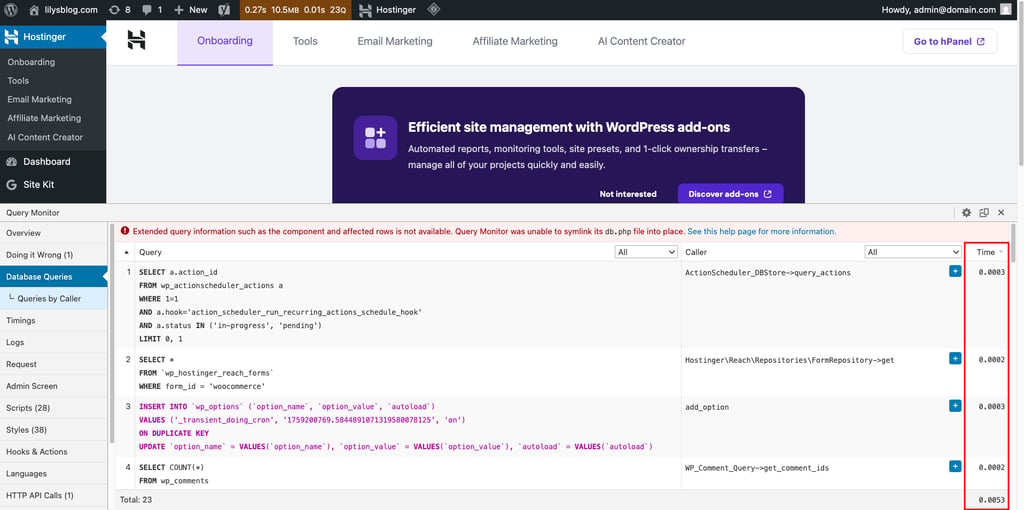
If you’re unsure what a certain query means, you can copy and paste it into an AI tool like ChatGPT for a plain-language explanation.
Don’t worry – you can still follow the next steps to optimize your WordPress database effectively, even without fully understanding the technical details.
2. Optimize the database
There are three main ways to clean a WordPress database: using a plugin, through phpMyAdmin, or running SQL queries directly.
The plugin method is fast, safe, and doesn’t require coding ‒ best for beginners or anyone without technical experience. On the other hand, the phpMyAdmin method offers more control but requires a basic understanding of how databases work.
For developers or SQL-savvy users, the SQL queries section explores advanced WordPress database maintenance.
Important! Back up your WordPress website before optimizing your database to prevent data loss.
Using a plugin
For the majority of WordPress users, the easiest and safest way to optimize the database is using a database cleaner plugin. WordPress database plugins like WP-Optimize or Advanced Database Cleaner are designed to handle all the routine cleanup tasks code-free. Many also offer scheduled maintenance to keep your database clean over time.
Here’s how to do it with WP-Optimize:
- Install the plugin and activate it.
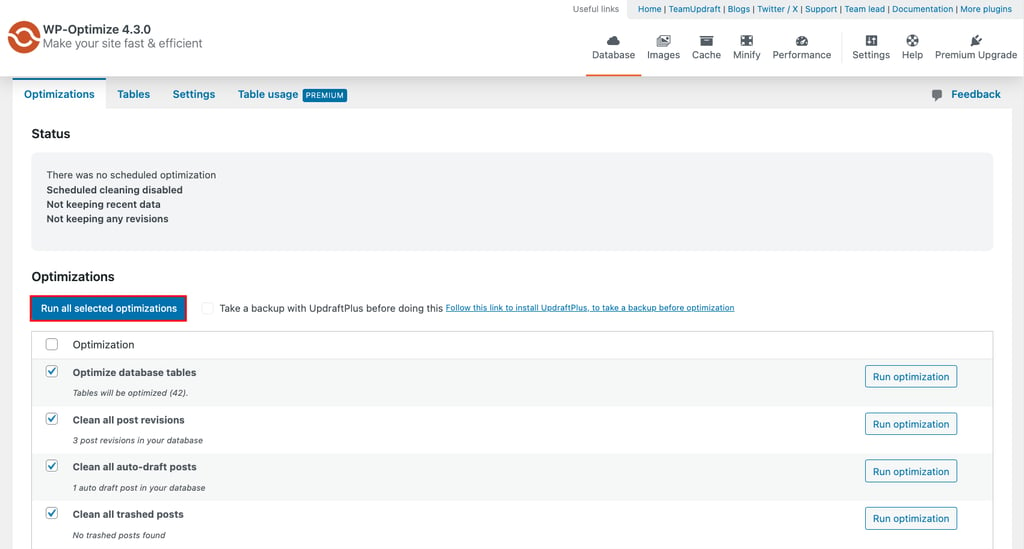
- Go to WP-Optimize → Database from the admin dashboard.
- Within the Optimization tab, you’ll see all the potential optimization options. Check or uncheck the ones you see fit, then click Run all selected optimizations.
Through phpMyAdmin
This method gives you more direct control than plugins, but it still doesn’t require advanced coding skills. It works by removing wasted space and reorganizing data for faster access, similar to a defragmentation process. You can repeat this whenever your site feels slow.
Here’s how:
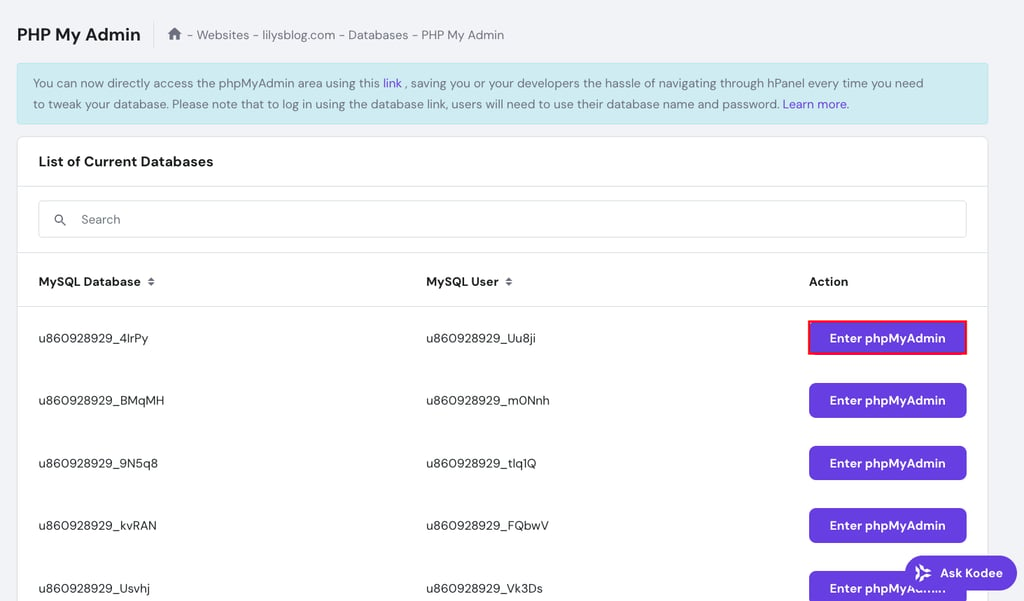
- Open phpMyAdmin via your hosting provider. For Hostinger users, head to Databases → phpMyAdmin from the Hostinger dashboard and select the database you want to optimize. Check our guide to find your WordPress database name.
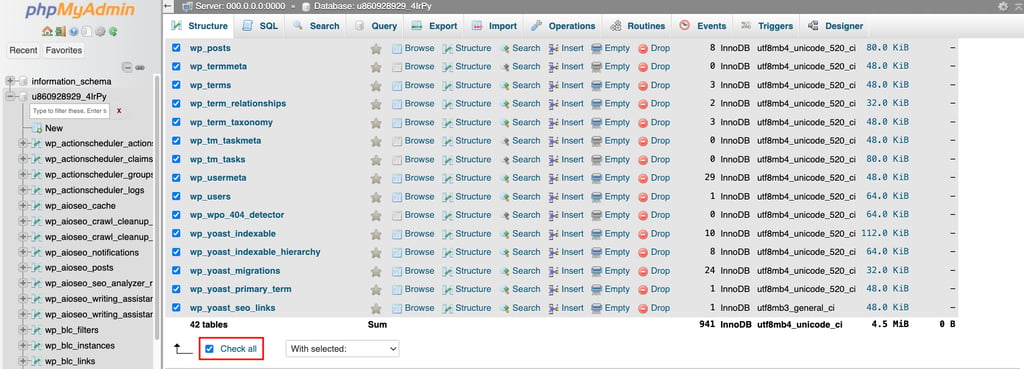
- Within the Structure tab, select Check all to optimize all the WordPress database tables. Alternatively, select individual tables by checking the checkbox on the left.
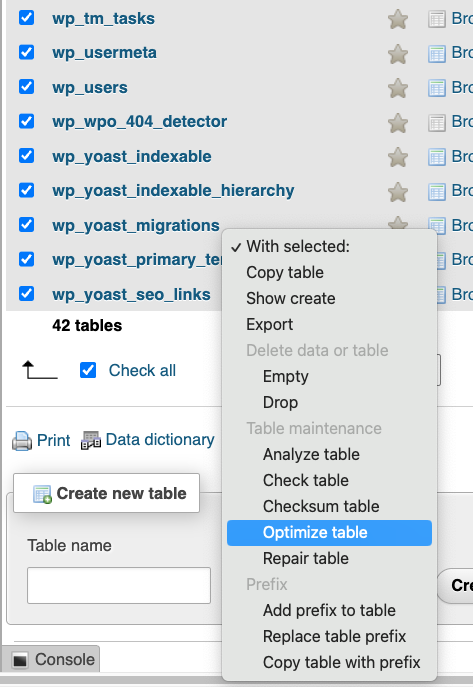
- Open the With selected: drop-down menu and click Optimize Table.
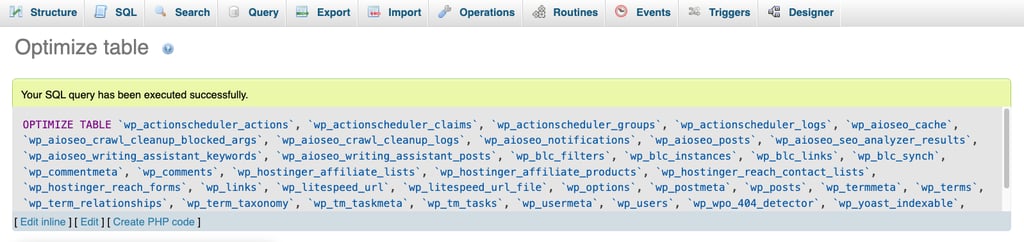
- If the process is successful, you’ll get a confirmation message stating your SQL query has been executed.
If you’d prefer to avoid the phpMyAdmin route, you can enable WordPress’s built-in repair tool by editing the wp-config.php file.
Follow these steps to set it up:
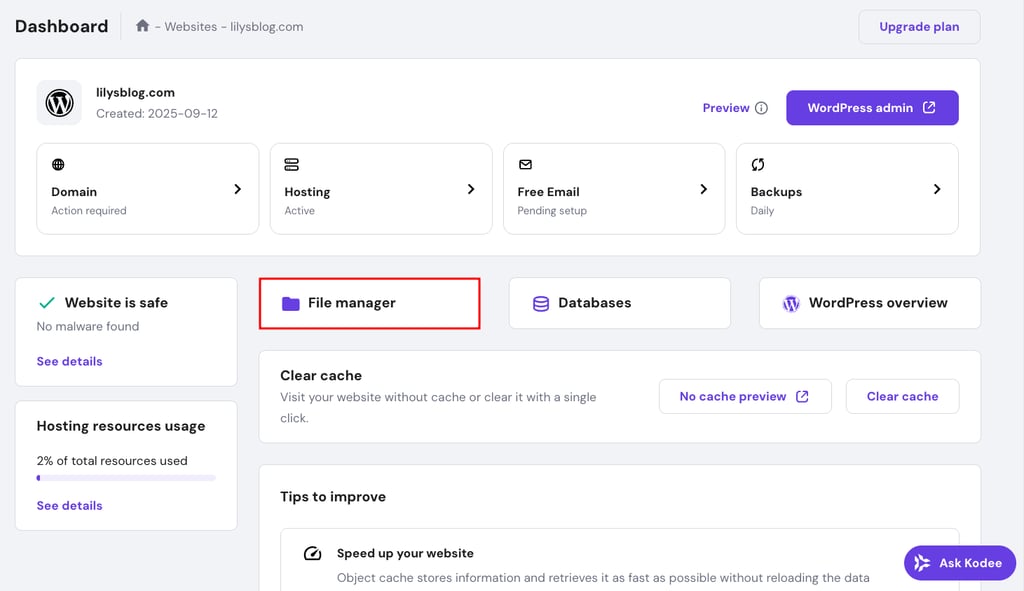
- Access your root directory (public_html) via File Manager or an FTP client like FileZilla. Hostinger users can go with the first option via Hostinger dashboard.
- Locate the wp-config.php file and double-click to edit it. Alternatively, download the file and edit it with a text editor like Notepad++.
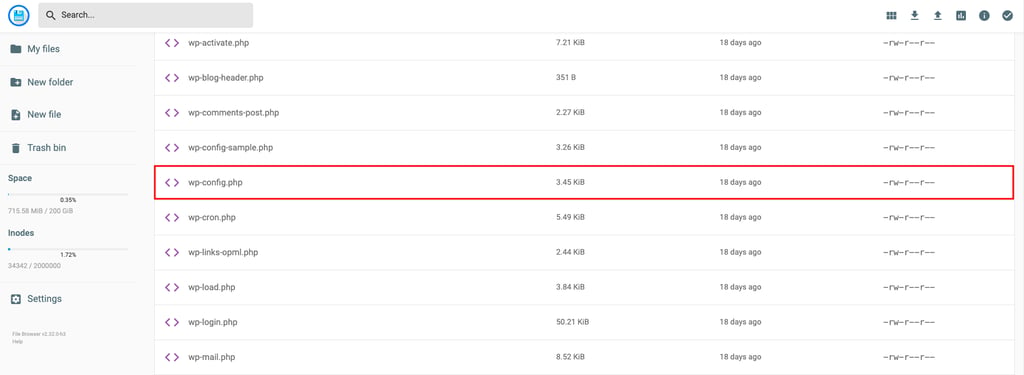
- Add the following line above /* That’s all, stop editing! Happy publishing. */ :
define( 'WP_ALLOW_REPAIR', true );

- Save the changes and close the file. If you edited it locally, upload the updated wp-config.php file back to the server.
- Go to https://www.yourwebsite.com/wp-admin/maint/repair.php to access the database optimization tool. Remember to replace “yourwebsite.com” with your site’s actual domain.
- Click the Repair and Optimize Database option.
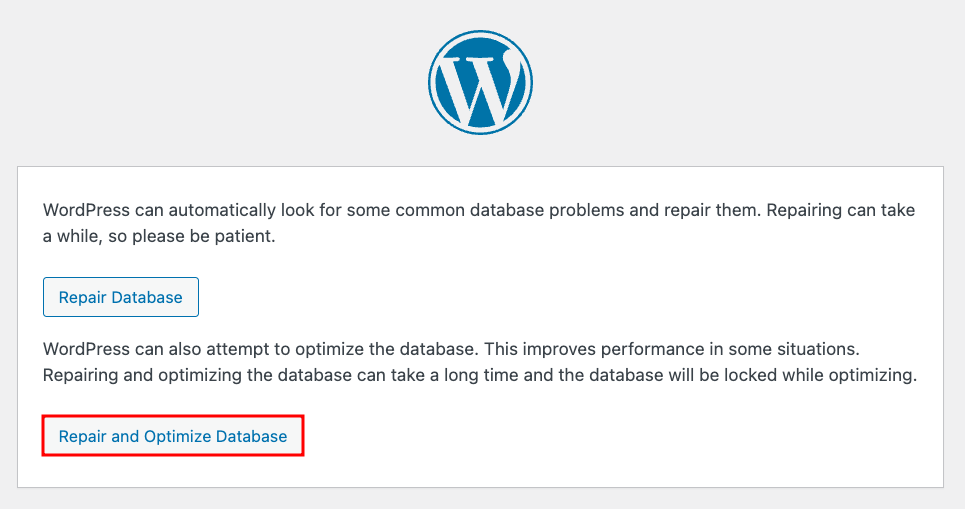
- Once the process is complete, follow the same steps to remove the WP_ALLOW_REPAIR function from wp-config.php. This prevents the page from being used by unauthorized users.
With SQL queries
Using phpMyAdmin, you can also run SQL queries to perform WordPress database maintenance tasks. This method gives you the most control, allowing you to clean up, repair, or optimize specific parts of the database with custom commands.
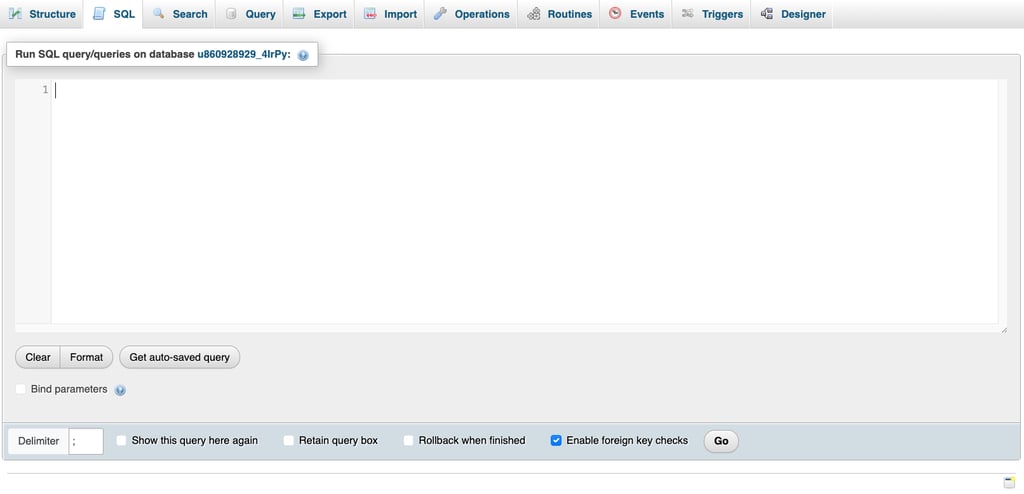
To execute the queries, open phpMyAdmin and enter them within the SQL tab. Below, we’ll go through some common SQL queries for database optimization.
Missing or inefficient indexes
An index is like a shortcut that helps the database find information quickly, instead of scanning an entire table. Without proper indexes, the database may scan entire tables, which slows down queries.
If filters like WHERE post_type = ‘product’ take seconds to run, adding indexes to frequently used columns can make them much faster.
/* Add index for post type and status combination */
CREATE INDEX idx_post_type_status ON wp_posts(post_type, post_status);

/* Add index for meta lookups */
CREATE INDEX idx_meta_key_value ON wp_postmeta(meta_key, meta_value(50));
Excessive autoloaded options
WordPress loads all autoloaded options every time a page is opened. If this list becomes too large, it can slow down your WordPress site. You’ll often see queries like:
SELECT option_name, option_value FROM wp_options
WHERE autoload IN ('yes', 'on', 'auto-on', 'auto')
First, identify the largest autoloaded options.
SELECT option_name, LENGTH(option_value) AS size
FROM wp_options
WHERE autoload = 'yes'
ORDER BY size DESC
LIMIT 20;
Then, disable autoloading for unnecessarily large options. This significantly reduces database query overhead.
UPDATE wp_options
SET autoload = 'no'
WHERE option_name = 'large_unnecessary_option';
Inefficient WooCommerce queries
WooCommerce stores can slow down when product queries become too heavy, especially if you sell items with many variations or custom fields. You might notice queries that filter product metadata or sort products by sales data taking several seconds to run.
Adding specialized indexes for these common WooCommerce operations can help speed things up.
/* For product sorting by popularity */
CREATE INDEX idx_product_sales ON wp_postmeta(meta_key, meta_value(20))
WHERE meta_key = 'total_sales';

/* For product price filters */
CREATE INDEX idx_product_price ON wp_postmeta(meta_key, meta_value(10))
WHERE meta_key = '_price';
Excessive JOIN operations
When queries join multiple tables without proper indexing, performance can drop sharply. If you see queries with several JOIN statements taking seconds to finish, the fix is to add indexes to the columns used in those JOIN conditions.
/* Index for post relationships */
CREATE INDEX idx_post_parent ON wp_posts(post_parent);

/* Index for taxonomy relationships */
CREATE INDEX idx_term_taxonomy ON wp_term_relationships(term_taxonomy_id, object_id);
3. Limit post revisions
Every time you update a post or page in WordPress, the platform saves a revision in the database. This is useful for reverting to earlier content, but hundreds of revisions can pile up. These entries take up extra space in the WordPress database, which can slow down queries and overall performance.
First, remove old revisions that are no longer needed by executing this SQL query within phpMyAdmin:
/* Check how many revisions the user has */
SELECT COUNT(*) FROM wp_posts WHERE post_type = 'revision';

/* Delete excessive revisions (keep recent ones) */
DELETE FROM wp_posts
WHERE post_type = 'revision'
AND post_date < DATE_SUB(NOW(), INTERVAL 30 DAY);
Once cleaned, you can prevent the problem from recurring by limiting or disabling future revisions.
To limit post revisions to only two copies, add this line to your wp-config.php file:
define( 'WP_POST_REVISIONS', 2 );
If you prefer to disable revisions entirely, you can add this line instead:
define( 'WP_POST_REVISIONS', false );
Warning! Disabling revisions means WordPress won’t save any history of your edits. If you accidentally delete content or make a mistake, you can’t restore an earlier version. Limiting revisions is generally a safer option for most users.
4. Remove unnecessary data
Over time, your WordPress database stores a lot of clutter you don’t actually need. This includes spam or trashed comments, auto-drafts, expired metadata, and leftover settings from deleted plugins or themes.
You can clean them with a plugin like WP-Optimize, or by checking your tables directly in phpMyAdmin.
It’s also worth removing orphaned metadata (bits of information left behind after deleting posts, users, or plugins) as they add unnecessary weight and slow performance. To do so, execute this SQL query in phpMyAdmin:
/* Delete postmeta without associated posts */
DELETE pm FROM wp_postmeta pm
LEFT JOIN wp_posts wp ON pm.post_id = wp.ID
WHERE wp.ID IS NULL;
5. Delete transients
Transients are pieces of temporary data that WordPress and plugins save in the database to make your site load faster. For example, they cache the results of an API call instead of requesting it every time. The problem starts when plugins don’t clean up their transients automatically.
Expired transients can stay in your database long after they’re needed, causing the wp_options table to become bloated. In some cases, this also leads to InnoDB fragmentation, where deleted rows still take up space until the table is optimized. Both issues make the database work harder and slow down your site.
To fully clean transients, you can use plugins like Transient Cleaner or manually run this SQL query in phpMyAdmin:
/* Remove expired transients */
DELETE FROM wp_options
WHERE option_name LIKE '%_transient_timeout_%'
AND option_value < UNIX_TIMESTAMP();

DELETE FROM wp_options
WHERE option_name LIKE '%_transient_%'
AND option_name NOT LIKE '%_transient_timeout_%';
Then, reorganize the table and reclaim space by running:
OPTIMIZE TABLE wp_options;
6. Remove unused plugins and themes
Every plugin or theme you install can add its own settings, tables, or metadata to the WordPress database. Even if you’re not using them, inactive plugins and themes can still take up space and sometimes load background processes. This extra clutter can slow down queries and cause database bloat.
Regularly review your site and deactivate or delete WordPress plugins you no longer need to avoid this. Activating only essential plugins reduces the load on your database and minimizes potential security risks from outdated code.
The same applies to themes. By keeping only your current theme (and maybe one default theme as backup), you reduce database overhead. Follow our guide to safely remove a WordPress theme.
7. Automatically delete trash items
WordPress trash acts as a safety feature, allowing you to restore mistakenly deleted content. However, too many trashed items can still consume database space.
To keep things tidy, you can set WordPress to automatically delete trash items after a certain number of days. Add this line to your wp-config.php file:
define( 'EMPTY_TRASH_DAYS', 7 );
In this example, WordPress will permanently delete trashed items after seven days. You can adjust the number to whatever fits your needs. For example, set it to “30” for a monthly cleanup.
Warning! If you set this value to “0”, WordPress will permanently delete items right away. While this saves space, it also removes the chance to restore deleted content, so proceed with caution.
What slows down the WordPress database?
Several factors can affect how quickly your WordPress database responds. Some come from your hosting environment, while others result from how WordPress stores and manages data over time. Here are the most common causes:
- Limited hosting resources. On shared hosting plans, your website competes for server resources with other sites. Upgrading your hosting plan can fix this bottleneck.
- Heavy themes and design choices. Some WordPress themes include complex features or flashy designs that require extra database calls. While these can look appealing, opt for a lightweight theme for better performance and user experience.
- Too many or poorly coded plugins. Having many plugins installed doesn’t automatically slow down a website, but low-quality or outdated plugins can overload the database. Stick to essential, well-reviewed plugins that are regularly updated.
- Large, unoptimized content. Oversized images or data-heavy pages put pressure on the database. Compress media and simplify layouts to reduce the strain.
- Spam comments. WordPress stores every comment, including spam comments, which build up and hurt both speed and trust.
- Post revisions. Each edit creates a new copy in the database. Active blogs can quickly bloat their storage with revisions.
- Expired transients. When transients expire, WordPress doesn’t always remove them automatically, leaving clutter behind.
- Deleted items in Trash. Posts, pages, and comments remain in the Trash until emptied.
- Unused tables from old plugins. Uninstalled plugins often leave tables behind, adding unnecessary weight to the database.
Over time, these issues combine to bloat the WordPress database and affect site speed, which is why regular optimization is necessary. However, with limited hosting resources, upgrading your WordPress hosting plan may be the best long-term fix.

How often should I optimize my WordPress database?
In most cases, it’s best to clean up your database at least once a month. This keeps unnecessary data from piling up. For highly active websites like busy blogs or WooCommerce stores, consider optimizing every one to two weeks for smooth operations.
If you’re unsure when to optimize, look for these signs your database needs attention:
- Slower page load times. If your site takes longer than usual to respond, an overloaded database might be the cause.
- Large wp_options table. A bloated options table usually signals too many transients or leftover plugin data.
- Excessive spam or trash. Your site has piles of unmoderated comments, old drafts, or trashed items.
- High CPU or memory usage. If your hosting dashboard shows unusual spikes, it could be due to inefficient queries.
- Errors when saving posts. Trouble publishing or updating content might mean your database is under strain.
What else should I do to optimize my WordPress site?
Database optimization is only one part of overall site performance. While it helps reduce clutter and improve query speed, other factors like hosting quality, caching, and media optimization play just as important a role in keeping your website fast.
A well-optimized WordPress site loads quickly, improves user experience, and ranks better on search engines. Faster sites also have lower bounce rates, higher engagement, and more conversions, which helps achieve your online goals. If you want to go further, check out our complete guide on how to speed up WordPress. You’ll learn practical steps beyond database optimization, from choosing lightweight themes and plugins to enabling caching and optimizing images.
This article is a localized version of How to optimize your WordPress database, originally published in English.

Jordana is a Senior Content Writer with a background in Information Systems. She has over five years of experience in WordPress and is casually dabbling with PHP and MySQL. Her passion for writing and technology drives her to create tutorials for anyone wanting to build their online presence. Follow her on LinkedIn.


