GZIP compression: how to enable it to speed up your site
Sep 15, 2026
/
By Irfan F.
/
6 min Read

Search engine optimization (SEO) is an inseparable part of digital content creation. After all, the ranking of websites or web pages on search engine results pages directly impacts visibility and traffic.
One of the deciding factors of SEO ranking is website speed. Thus, it is crucial to ensure your site loads quickly. Otherwise, people might get frustrated and hit the back button before the page even finishes loading.
This is where Gzip compression comes in handy – it is one of the tricks for improving page speed.
By the end of this article, you will know what Gzip compression is and how to check and enable Gzip compression on a website.

What is Gzip compression
The larger the file, the longer it takes to complete the file transfer, increasing your site’s load time. Luckily, data compression lets users download reduced-size files. Thus, your website will load faster.
There are two main types of compression:
- Lossy compression – eliminates some information from the original file.
- Lossless compression – preserves all the data within the original file.
Gzip falls into the category of lossless compression. It’s a popular method to reduce the size of HTML, PHP, JavaScript, CSS, and other files.
How to enable Gzip compression
Before enabling Gzip compression, first check whether the site has it enabled already.
The following section will show you how to do so using site speed or Gzip compression tests and browser developer tools.
Check Gzip compression using website speed test
A website speed test is a tool for measuring sites’ load time. It grades the site or page load time and often provides a detailed report of elements affecting the performance. Some tools will even display the website’s rate of file size reduction.
It also suggests numerous tips and tricks to improve website speed, including recommendations of compression algorithms to produce smaller files.
This free tool is available on many websites, including Pingdom, Google’s PageSpeed Insights, and GTmetrix.
Check Gzip compression using the test
You can use one of the many free tools to check if a site has Gzip compression enabled, such as Small SEO Tools’ Check Gzip Compression and WhatsMyIP’s HTTP Compression Test.
Simply open the tool, paste the site URL in the provided field, and click Check Compression or a similar button.
Check Gzip compression using browser developer tools
This method is best for those who don’t want to use an external tool to check a website’s Gzip compression.
Follow the steps below to check if Gzip is enabled on a site using a browser:
- Type the website URL into the browser.
- Open the browser developer tools or right-click on the page and select Inspect.
- Click on the Network tab. You should see all the resources the web server has sent. In case you don’t, reload the page.
- Select one of the resources to view its content. Click the Headers tab.
- Under Response Headers, find content-encoding – the compression method used by the site will be listed beside it.
If Gzip has not been enabled, there are two ways to do it. You can either modify the .htaccess file or go for a WordPress plugin.
Enable Gzip compression using a WordPress plugin
The easiest way to enable Gzip on a WordPress website is to install a plugin. It will be a lot easier and safer than modifying the .htaccess file.
There are many plugins for this purpose available, but we have chosen these four plugins based on their features and ease of use:
- WP-Optimize Cache. An all-in-one solution to boost website performance. The plugin enables Gzip and web caching. In addition, it eliminates unnecessary files from a website. This tool can even optimize images to free up more space.
- Hummingbird. This plugin gives users more freedom to choose which aspects to optimize. Gzip compression, minification, and lazy load offscreen images are some of its main features.
- WP Fastest Cache. This tool combines its caching prowess with Gzip to make pages fast and lightweight. This plugin can also automatically disable emojis and optimize every single post.
- WP Rocket. A web performance plugin equipped with numerous features such as page and browser caching, cache preloading, Gzip compression, eCommerce optimization, and excellent compatibility with popular WordPress plugins, themes, and hosting types.
Since these plugins have more features than just compression, we suggest trying all of them to see which one fits your needs best.
Enable Gzip compression using the .htaccess file
This method of enabling Gzip compression is quite technical, so it’s more suitable for advanced users. However, anyone can do it as long as they’re careful.
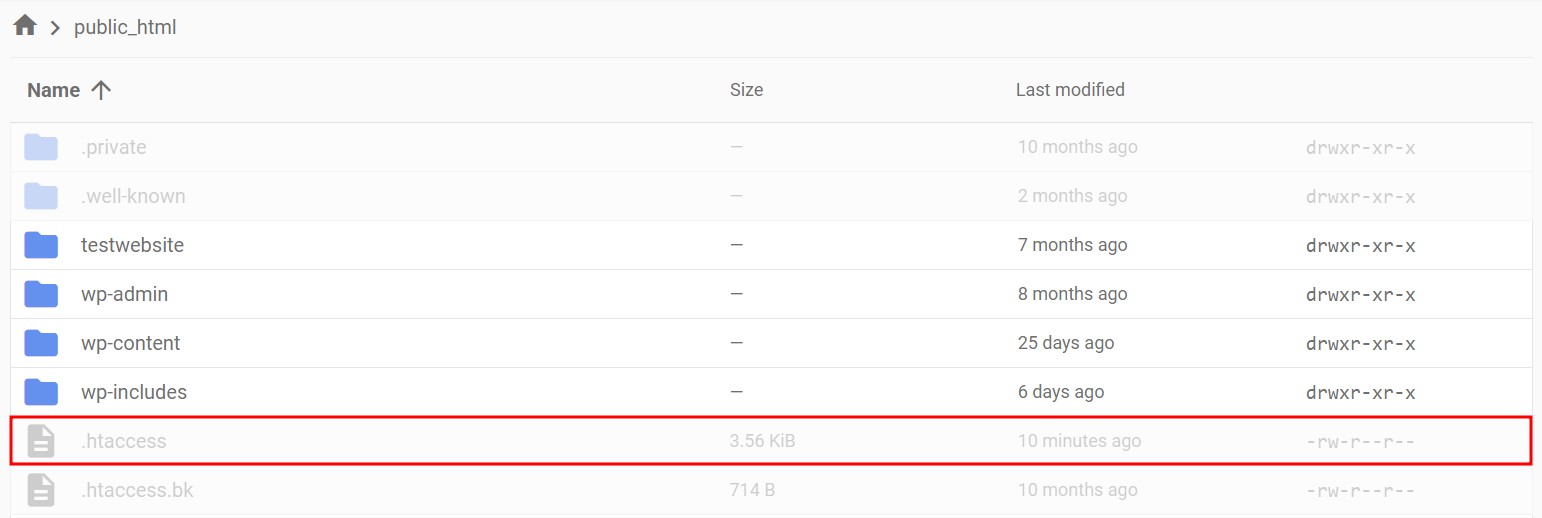
Important! Before we continue, back up the .htaccess file first in case something goes wrong.
This tutorial will show you how to modify the .htaccess file using the File Manager of your web hosting provider’s control panel. We’ll be using Hostinger dashboard. However, you can also use an FTP such as FileZilla client.
To enable compression via the .htaccess file, follow the steps below:
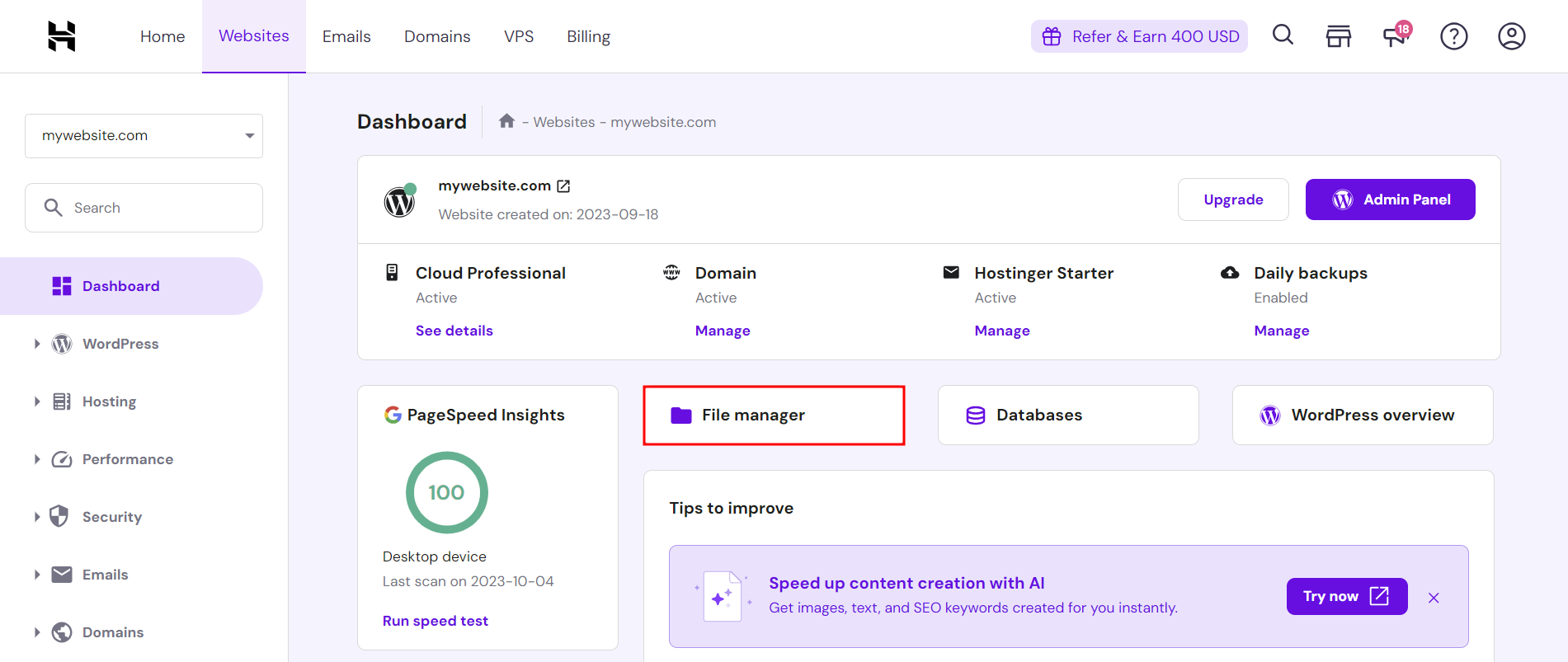
- Access File manager from the Hostinger dashboard.
- Open the root directory (public_html) and locate the .htaccess file.
- Double-click on the file to open it, then paste the following code into it before the # END WordPress line:
<IfModule mod_deflate.c>
AddOutputFilterByType DEFLATE text/plain
AddOutputFilterByType DEFLATE text/html
AddOutputFilterByType DEFLATE text/xml
AddOutputFilterByType DEFLATE text/css
AddOutputFilterByType DEFLATE application/xml
AddOutputFilterByType DEFLATE application/xhtml+xml
AddOutputFilterByType DEFLATE application/rss+xml
AddOutputFilterByType DEFLATE application/javascript
AddOutputFilterByType DEFLATE application/x-javascript
</IfModule>
- Hit Save to keep the changes.

How does Gzip compression work
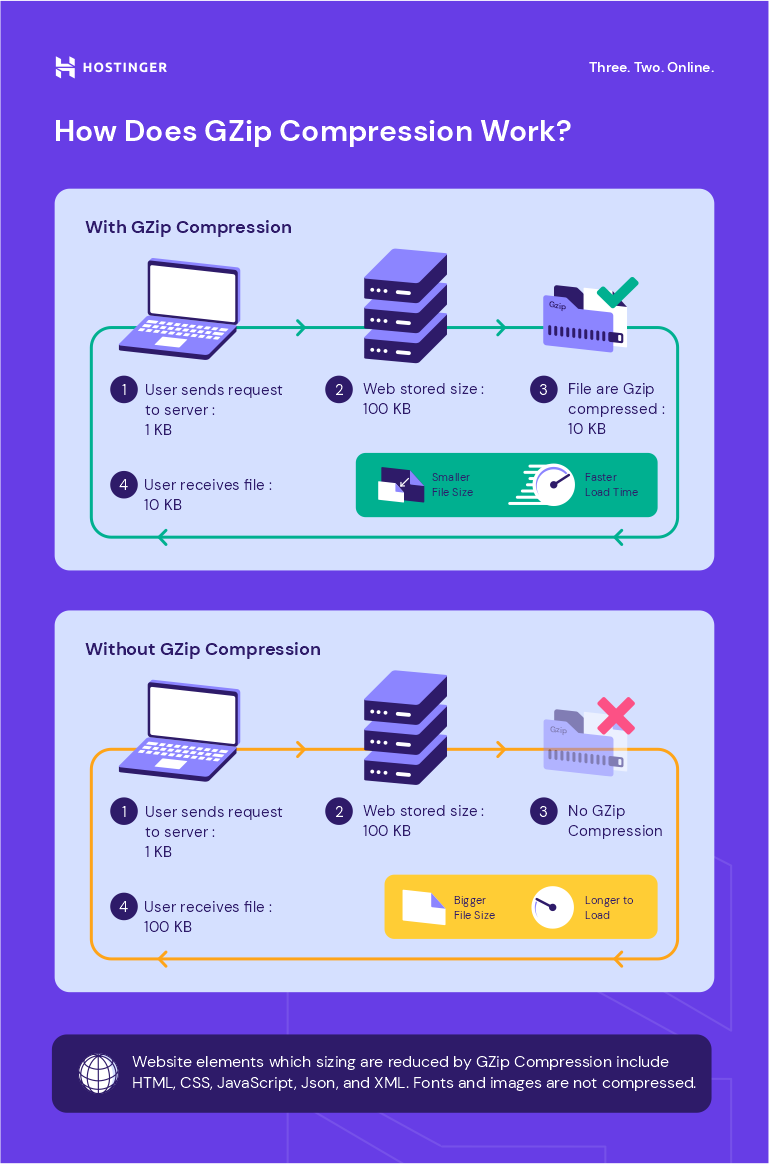
To understand Gzip, you first need to know how a website works.
A website is made up of web files stored on a web server. When a person types the website’s URL into a browser, the browser sends a request to the web server hosting the desired content.
The web server processes the request by retrieving the requested files from a database. It sends the files to the browser in the form of an HTTP response. Naturally, the bigger the size, the longer the data transfer will take.
Once the browser receives the files, it will render the web page in question.
However, there will typically be repeated data within text files, such as duplicate characters or words appearing several times throughout a document.
Within HTML files, for instance, there will be a similar closing tag for every opening tag. For example, the opening tag <table> will be paired with </table> , while the <div> tag will be paired with </div>.
Gzip employs the lossless DEFLATE algorithm, which finds and replaces these duplicate strings with unique identifiers.
This process is called character encoding. It produces zipped or compressed files whose names will end with the .gz file extension. The file in the compressed size is smaller compared to the original or uncompressed version. This saves bandwidth and results in faster data transfer times.
Once the end user’s browser receives the compressed file, it will unzip or uncompress the file. The unique identifiers in the compressed file will be decoded back to the original data.
Important! While Gzip can be used to process files of any type, there will be no significant amount of file size reduction for already compressed file types, like images or videos. Such files may even increase in size.
In addition, note that Gzip is not the same as ZIP. The latter is also a lossless compression method, but it is used for storing files rather than transferring them. It produces a .zip file instead of a .gz file.
Why enable Gzip compression
Gzip is only one of many data compression methods and algorithms. Examples of other methods include ZIP, TAR, and 7Z.
You may wonder why you should enable Gzip compression instead of other methods, especially when they supposedly have better performance. For example, research conducted by Expedited Security shows that Google’s compression algorithm Brotli can compress HTML, CSS, and JavaScript files into smaller sizes than Gzip.
That being said, there are many reasons to choose Gzip over other methods or algorithms, including:
- Free and open-source nature. The Gzip software is free to use. It was first created as a free substitute for compress, a patented Unix shell compression program.
- Large market share. As of June 2022, around 60% of all websites compress files with the Gzip method.
- Minimal resources. Gzip uses relatively little computing power and temporary data storage compared to similar methods.
- Effective compression ratio. The Gzip method can reduce the size of small text-based data files by around 70% and up to 90% for larger files.
- Fast compression and decompression speeds. Gzip is quicker than many of its competitors, such as Brotli and BZIP2.
With its quick and efficient compression time and ratio, Gzip helps reduce page load time, increasing SEO ranking.
Fast load time positively impacts web pages’ rankings on search engine results pages. The faster the site loads, the higher it ranks. The higher it ranks, the more visibility it gets, driving traffic to the website and increasing its revenue.
Conclusion
Gzip is a file format and a type of lossless compression technology used to reduce the size of files and speed up sites. Gzip works using the DEFLATE algorithm, which finds duplicate strings within a text file and replaces them with unique identifiers. They are decoded back to the original data during the decompression process.
After enabling Gzip compression, your site’s visitors will have a great user experience, and it will possibly rank higher on search engine results pages.
You can check whether a website has already enabled Gzip by using a website or online Gzip speed test or your browser’s developer tools.
Gzip compression on a website can be enabled using two methods – installing a WordPress plugin or editing the .htaccess file. We recommend installing a plugin rather than editing the .htaccess file for beginners – it is easier and less risky.
Although various compression methods and algorithms are available, there are many reasons to choose Gzip compression over others. Not only is it free and open-source, but it also boasts one of the most effective compression ratios and is very fast.
We hope this article has helped you understand Gzip compression better. We wish you good luck with improving your website.
This article is a localized version of GZIP compression: how to enable it to speed up your site, originally published in English.

Irfan believes that technology and the internet can help improve our lives significantly. That's why he shares his experience as a WordPress blogger to educate others. In his free time, Irfan enjoys good films and books.