How to delete a theme in WordPress and why you should remove unused themes
Sep 15, 2026
/
By Jordana A.
/
5 min Read
Installing multiple WordPress themes is part of the journey of finding the right one for your website. However, removing unused themes is just as important for security and efficiency reasons.
This WordPress guide will walk you through four ways to delete themes ‒ from the WordPress dashboard, using Hostinger dashboard, through File Manager, and with WP-CLI. We’ll explore the top use cases for each method to help you select the best one for your needs.
Additionally, you’ll learn the benefits of removing unused WordPress themes and how to choose which ones to keep.
How to Delete a WordPress Theme
Before removing any themes, back up your WordPress site. It allows you to restore your site in case you accidentally delete the wrong WordPress theme.
Another good practice is to remove the theme and install new ones on a staging site first. This testing environment provides a safe space to experiment with themes without affecting the live WordPress site, reducing the risk of errors and functionality issues.
Check out our guide for setting up a WordPress staging site, including how to use Hostinger’s built-in staging tool on WordPress Business and Cloud Hosting plans.
Before you proceed, make sure your WordPress site has at least one theme installed.
How to Delete a WordPress Theme From the WordPress Dashboard
Deleting a theme via the WordPress admin dashboard is the most straightforward way to do it. The only requirement is having administrator privileges to access and delete installed themes on the site.
Did You Know?
WordPress only allows one active theme on a website at a time. To delete the currently active theme, you must activate a different theme first.
Here’s how to do it:
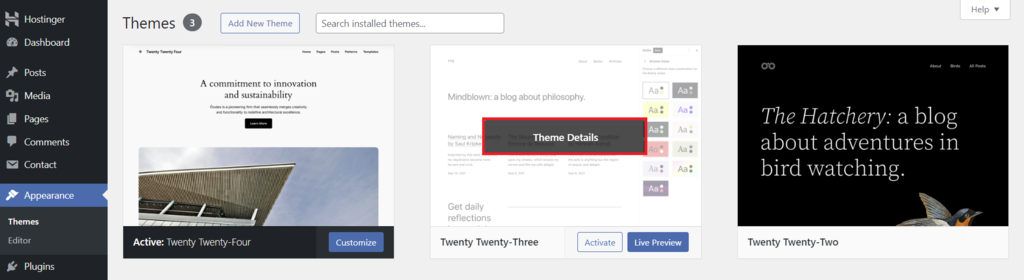
- Navigate to Appearance → Themes from your WordPress dashboard’s main menu.
- The first WordPress theme listed in the directory is your active theme. Hover over the inactive theme you want to delete and click Theme Details.
- The theme’s page will appear. Select the Delete option in the bottom right corner of the window.
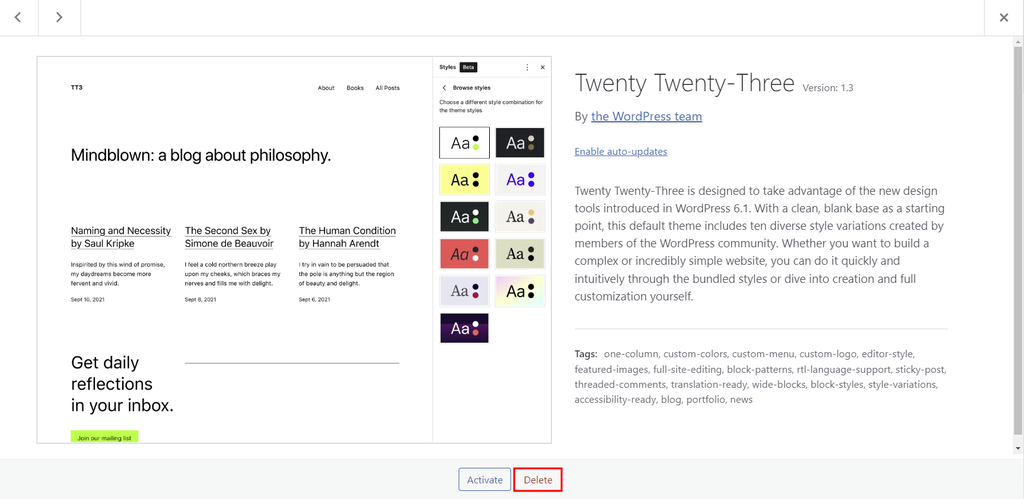
- Read the disclaimer and click OK to remove the WordPress theme properly.
How to Delete a WordPress Theme Using Hostinger dashboard
Hostinger users can remove deactivated themes from our custom control panel, Hostinger dashboard. This method is handy when managing multiple websites, as you won’t have to access the WordPress dashboard numerous times.
Here’s how to remove extra themes from your WordPress installation using Hostinger dashboard:
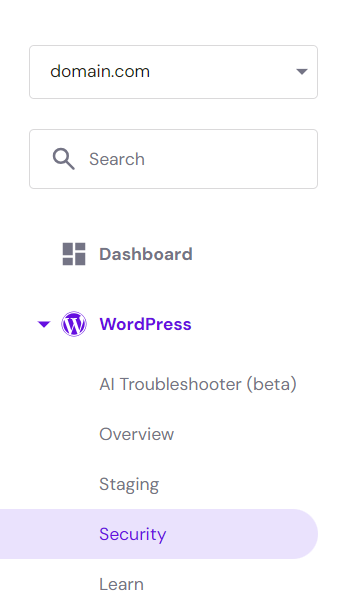
- Log in to your hosting account and head to WordPress → Security.
- Scroll down until you see the list of themes installed. Click the Delete icon next to the inactive theme you no longer use.
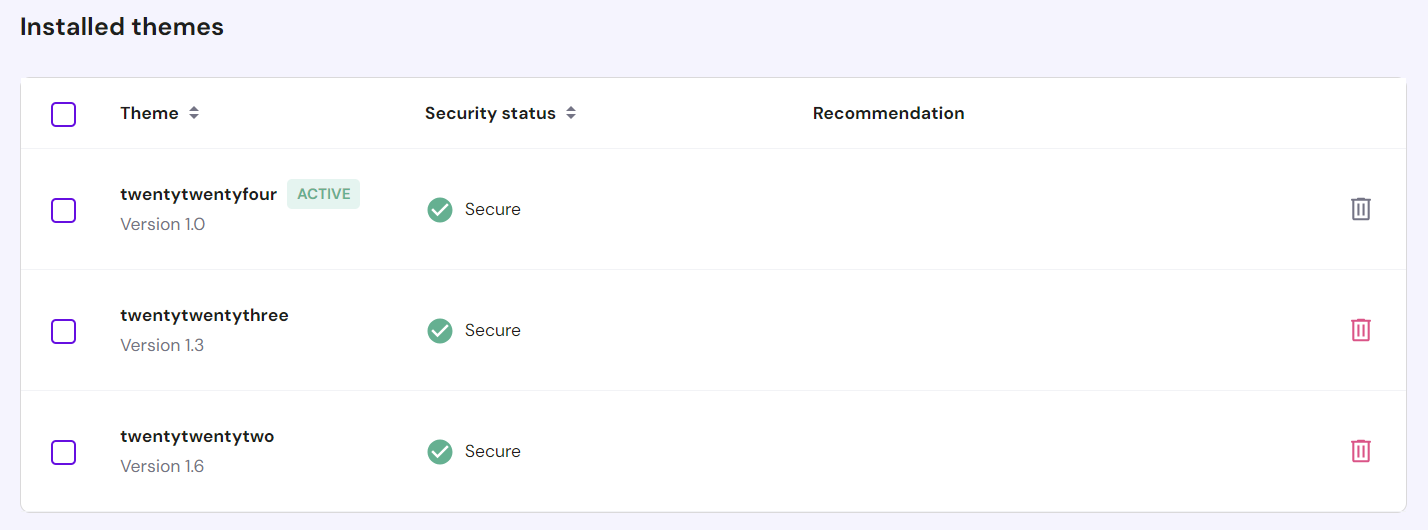
- Read the disclaimer message and hit Delete to confirm.

How to Delete a WordPress Theme Using File Manager
If an error blocks access to your WordPress dashboard, use File Manager provided by your web host or a File Transfer Protocol (FTP) client like FileZilla to remove the problematic theme. This method also works for deleting several themes at once.
Here’s how to manually delete a WordPress theme using Hostinger’s File Manager:
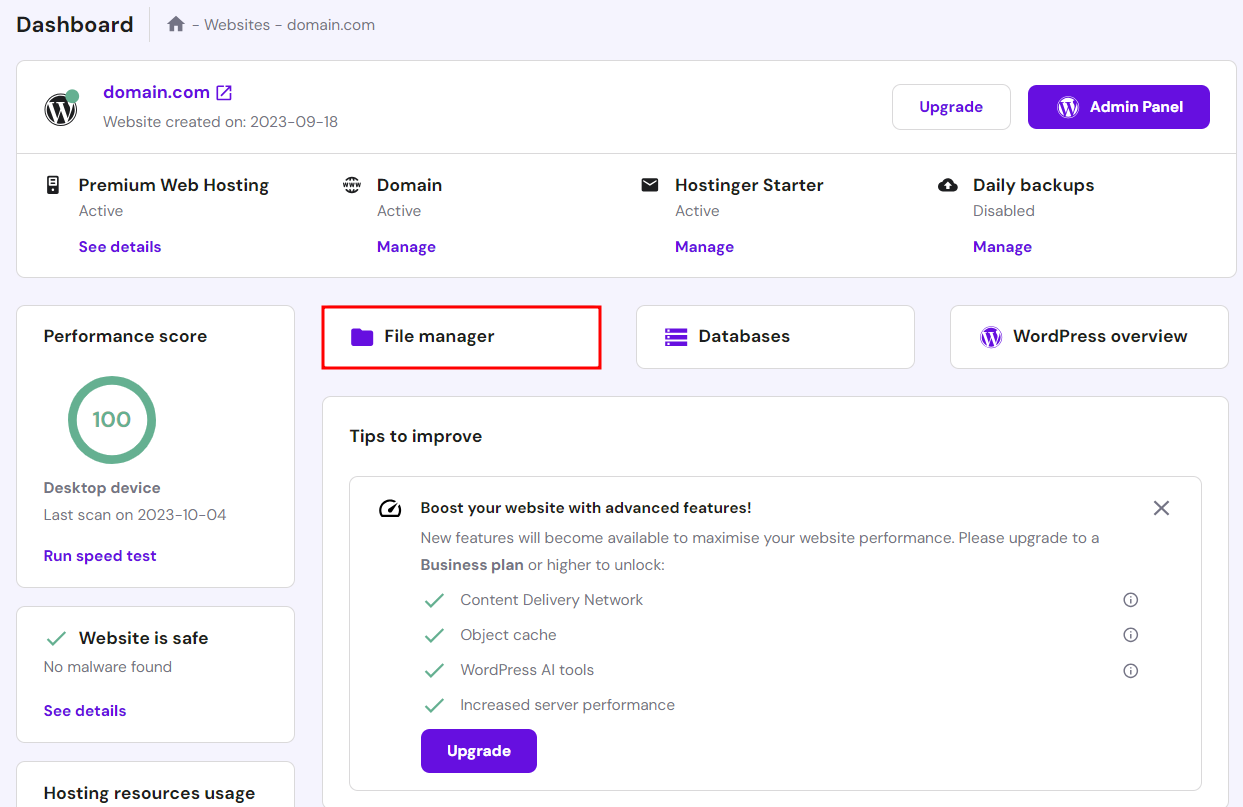
- Access your Hostinger dashboard and click the File Manager option.
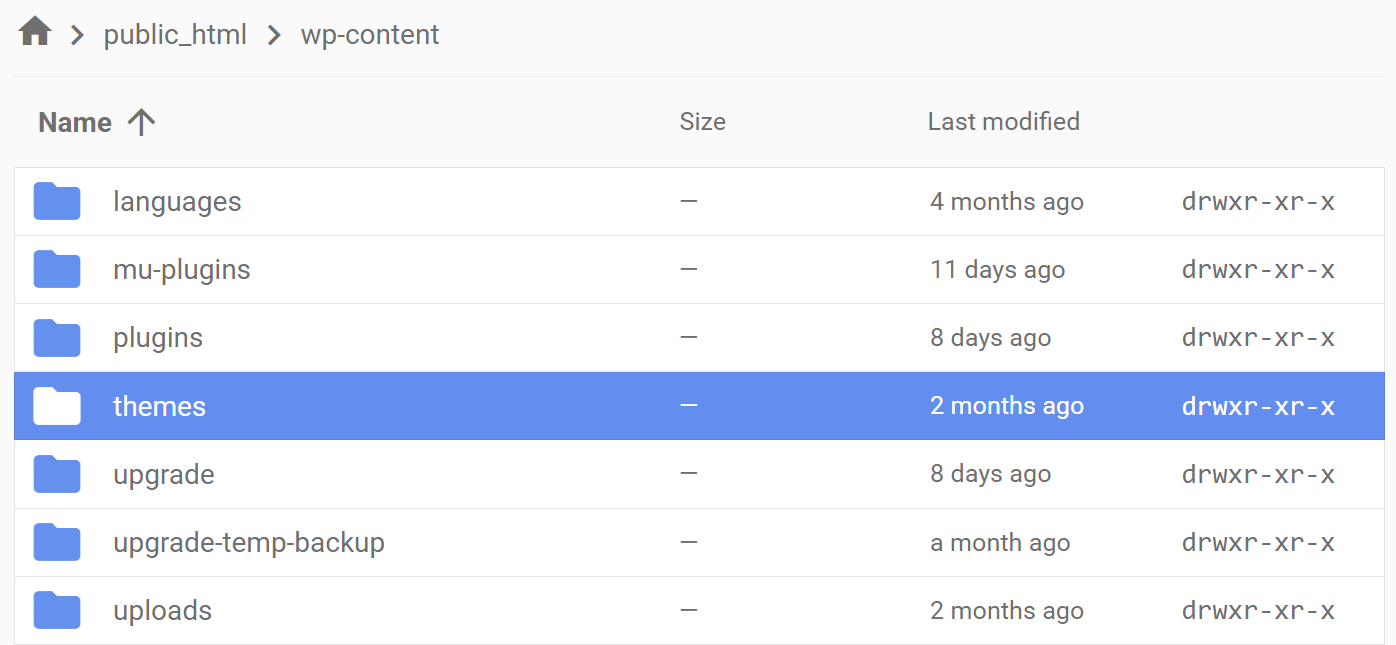
- From your root directory (public_html), navigate to the wp-content → themes folder.
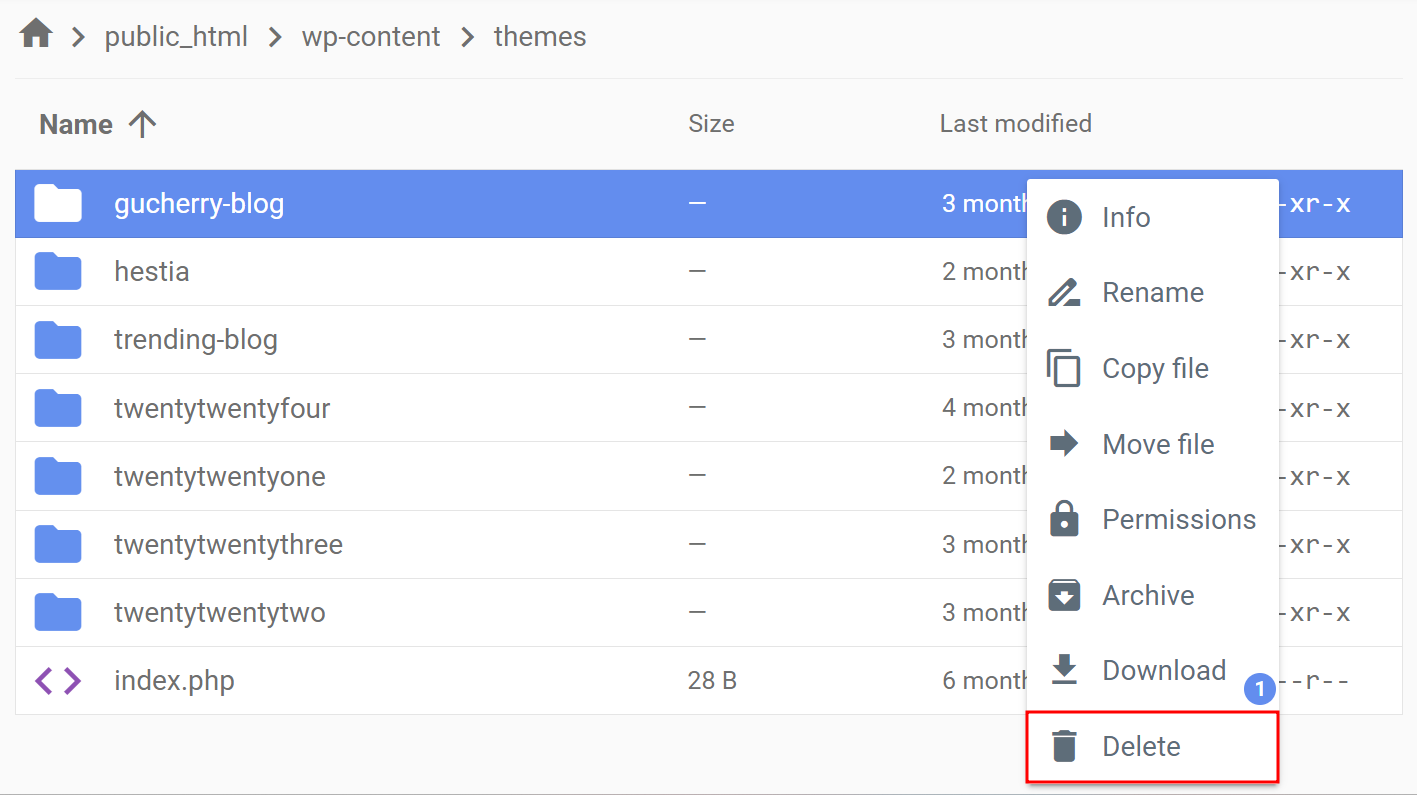
- Right-click the theme folder you want to remove and select Delete.
- A disclaimer pop-up will ask if you want to skip the trash bin and delete the theme files right away. Unchecking that option lets you restore the folder if you accidentally deleted the wrong one. Once you decide, hit the Delete button to confirm.
How to Delete a WordPress Theme Using WP-CLI
WordPress Command Line Interface (WP-CLI) allows you to quickly execute tasks in bulk via a command line interface. With this method, you can automatically delete multiple themes across WordPress sites.
WP-CLI comes pre-installed on all Hostinger WordPress and Cloud Hosting plans. Follow these steps to delete unused WordPress themes through WP-CLI:
Log in to your server via Secure Shell Protocol (SSH). Head to Advanced → SSH Access from Hostinger dashboard to get your SSH details.
If you want to remove the currently active theme, switch to another one first using the following command. Remember to replace the <theme> placeholder with the chosen theme’s folder name.
wp theme activate <theme>
To delete an unused theme, use the following command:
wp theme delete <theme>
List multiple themes within the wp theme delete command to remove multiple themes at once:
wp theme delete <theme_1> <theme_2> <theme_3>
We don’t recommend it, but if you really have to, you can force delete an active theme using the following command:
wp theme delete <theme> --force
Or, run the following command to delete all themes except the active one:
wp theme delete --all
How to Delete a Theme in WordPress – Video Tutorial
Check out our video guide on deleting a WordPress theme.


Why You Should Delete Unused WordPress Themes
Besides keeping your website’s files organized, here are other reasons why you should delete WordPress themes you no longer use:
- Improved security ‒ hackers can exploit security vulnerabilities within an old theme due to the lack of updates and patches.
- Better performance ‒ having fewer themes installed can boost your site’s performance, leading to faster backup and restoration processes.
- More storage space ‒ removing themes saves you server storage, saving you hosting costs over time.
- Easier maintenance ‒ fewer themes mean fewer updates, simplifying website management.
- Avoiding team confusion ‒ for websites with multiple users or admins, installing only essential themes can prevent confusion and accidental changes to the website’s design.
What Else Should You Delete From WordPress?
Deleting a deactivated theme can leave behind clutter on your WordPress site. Keep your WordPress installation folder clean by deleting the following theme-related content:
- Widgets and shortcodes ‒ custom widgets or shortcodes for a specific theme might still appear in the widgets area or content, although they won’t work properly.
- Demo content ‒ remove images and other files that were uploaded as part of the theme’s demo site from the WordPress media library.
- Child themes ‒ if you delete a parent theme, remove its child themes as well since they are no longer usable.
- Custom post types ‒ posts related to the removed theme’s custom post types may no longer appear correctly on your site, negatively impacting user experience.
- Database entries ‒ some themes create custom tables or entries in the WordPress database that aren’t automatically removed after deleting the theme.
When to Keep Inactive WordPress Themes?
We’ve learned that removing inactive WordPress themes is beneficial. However, there are some cases where it’s better to keep them.
In a multisite network, all WordPress sites need an active theme. Admins often use themes for development or testing, so deleting them may cause errors. Ask other users on your network before deleting a theme to make sure you won’t remove the wrong one.
If you’re using a WordPress child theme, it’s crucial to keep its parent theme from being deleted. Deleting a parent theme can disrupt your site since the active child theme depends on its files and functions.
Inactive themes also act as a backup in case something goes wrong with your active theme. Default WordPress themes are particularly reliable for this purpose because they receive regular updates to stay compatible with the latest WordPress version and features.
Websites with themes for special occasions might also want to keep them for later use. Deactivating instead of deleting can save time when those occasions come around.
Regardless of the reason, it’s crucial to maintain all themes you decide to keep. Make sure that they’re always up-to-date. Even if they’re inactive, outdated themes can expose your site to security threats.
Conclusion
Old WordPress themes take up valuable storage space and pose security risks. For optimal performance, regularly remove inactive themes from your WordPress website.
Here’s how to delete themes in WordPress:
- From the WordPress dashboard ‒ the simplest method of the four. It works for users with administrator privileges.
- From Hostinger dashboard ‒ available exclusively for Hostinger users. It simplifies theme management for multiple websites.
- Using File Manager ‒ ideal for removing a faulty theme if you can’t access the admin dashboard.
- Through WP-CLI ‒ the fastest way to delete multiple themes at once. It’s also great for troubleshooting and automating theme management tasks.
We hope this article gave you useful insights on deleting themes properly. If you have any questions, leave a comment below or check out our FAQ section. Good luck!
How to Delete a WordPress Theme FAQ
Let’s discuss some of the most common questions about deleting a WordPress theme.
What Happens if I Delete a WordPress Theme?
Deleting a WordPress theme removes its files from your WordPress website, freeing up storage space. However, make sure they’re deactivated first. Deleting an active theme can potentially lead to errors in your site’s appearance and functionality.
Will Changing My WordPress Theme Delete Everything?
Changing your current theme won’t delete your posts, pages, or most settings. However, it will remove some theme-specific features from your WordPress site.
Can I Delete Inactive Themes WordPress?
Yes. Deleting inactive themes helps improve site security and performance, and it won’t affect your site’s appearance or functionality.
This article is a localized version of How to delete a theme in WordPress and why you should remove unused themes, originally published in English.

Jordana is a Senior Content Writer with a background in Information Systems. She has over five years of experience in WordPress and is casually dabbling with PHP and MySQL. Her passion for writing and technology drives her to create tutorials for anyone wanting to build their online presence. Follow her on LinkedIn.


