How to edit categories in WordPress: everything you need to know about adding and deleting categories
Dec 02, 2025
/
By Domantas G.
/
6 min Read

When publishing a WordPress post, one aspect that shouldn’t be forgotten is its category. That’s because overlooking this component may harm the traffic of your WordPress site and its ranking in search results.
WordPress categories organize or group the content and posts based on a shared topic, project, or characteristics. It’s also one of the default WordPress taxonomies.
Additionally, categories help visitors navigate the site to find the content they need and make crawling easier for search engines.
As a beginner, managing a category list can be confusing at first. Hence, this article will show you how to add, edit, and delete categories in WordPress. Additionally, we’ve included a few website category best practices as well.
Video Tutorial on How to Create Categories in WordPress
Looking for a short version of how to create categories in WordPress? Here’s a quick video tutorial just for you!
How to Add a New Category in WordPress
For WordPress website owners, it’s important to have a category list to group posts. Not only will it improve the site’s structure and ease navigation, but it will also boost the site’s search engine optimization (SEO).
You don’t need any technical experience to add a category, and the process is very straightforward. There are two ways to add a category in WordPress – via the categories panel and the page or post editor.
Through the Categories Panel
Adding a new WordPress category for posts through the Categories screen is a very straightforward process. Here’s a three-step guide on how to create post categories:
- Open your WordPress admin dashboard, hover over Posts, and select Categories.

- Fill in the required fields:
- Name – the title of the WordPress category, for instance, Lifestyle or News.
- Slug – creates the permalink to the WordPress category page. If it is left blank, WordPress automatically sets it based on the category name.
- Parent Category – a category that contains subcategories in a hierarchy. For example, News can be a parent category of child categories Local and International News.
- Description – outlines what the category is about. It’s hidden by default, but some WordPress themes may display it.
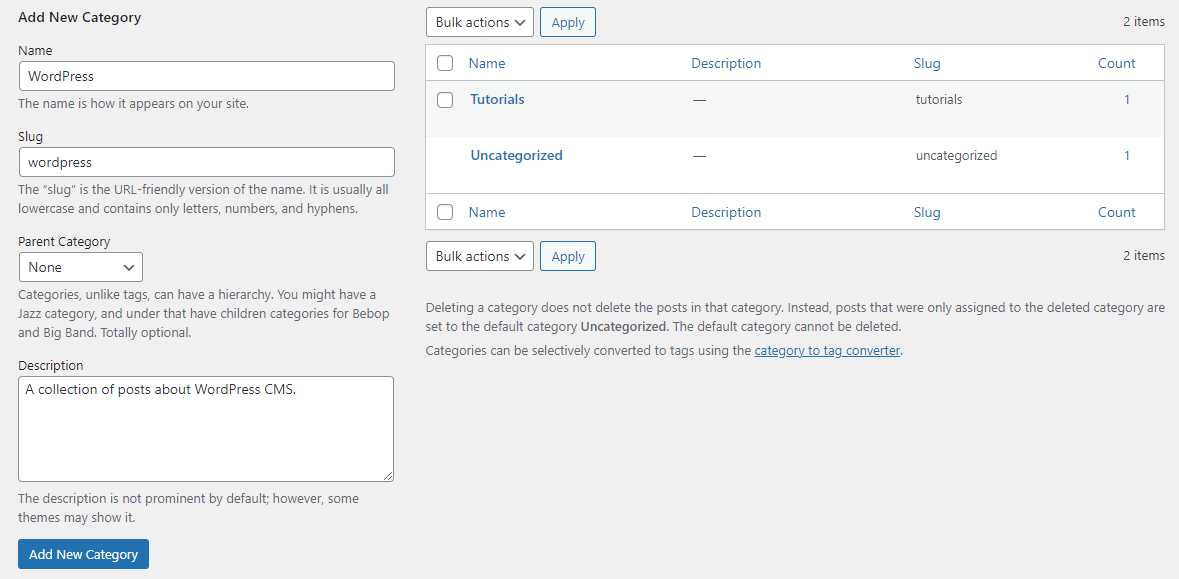
- Click Add New Category.
Once done, the new category will show up on the list.
To have a post hierarchy in WordPress, it’s necessary to create the main post categories – parent categories – and subcategories or child categories. Keep in mind that you have to add the parent categories before the subcategories.
For example, add the category Sports first. Then, create the category Soccer and set Sports as its parent category. Soccer will automatically turn into a child category.
Through the WordPress Editor
Another way to add a category in WordPress is via the post editor. It’s very convenient for when you are writing or editing a new post, and it doesn’t have a category yet. In this tutorial, we will be using the Gutenberg editor.
- From the WordPress admin interface, go to Posts → All Posts.

- Click on the post you want to edit.
- Press the Settings button, and select the Post tab.
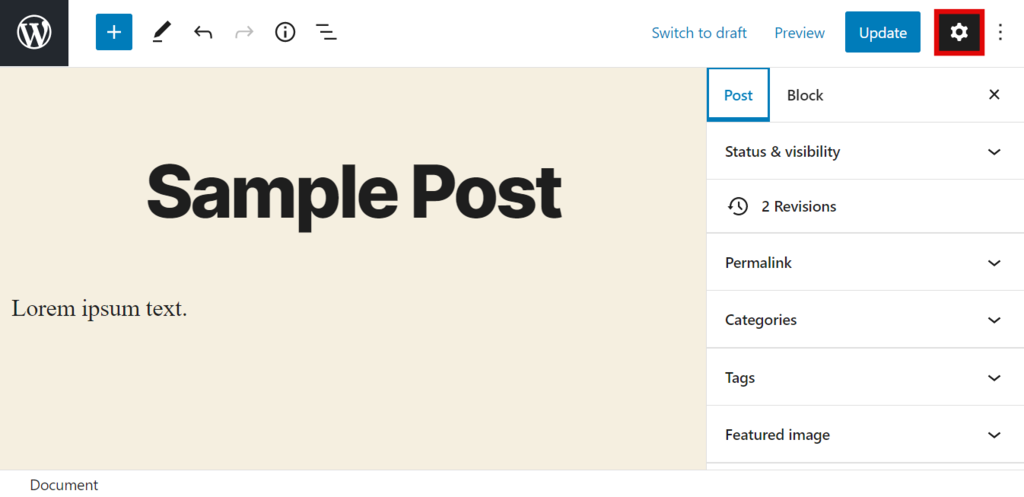
- Find the Categories section and click Add New Category.

- Fill in the New Category Name and select a Parent Category if applicable.
- Press the Add New Category button and click Update.
Set a Default Category in WordPress
WordPress will automatically set a default category, Uncategorized, if you don’t assign a category to a blog post or page.
The Uncategorized category can’t be deleted if there aren’t any other category options, but it can be renamed. However, make sure the site is not live since you will also be changing the slug. This means that the URL of the category page will change as well.
Editing the slug on a live website can lead to 404 errors. Visitors won’t be able to access your blog posts, and it will be necessary to redirect the old link to the new URL.
Here’s how to rename the Uncategorized category in WordPress:
- Navigate to Posts → Categories from the WordPress admin panel.
- Hover over Uncategorized and click Edit.
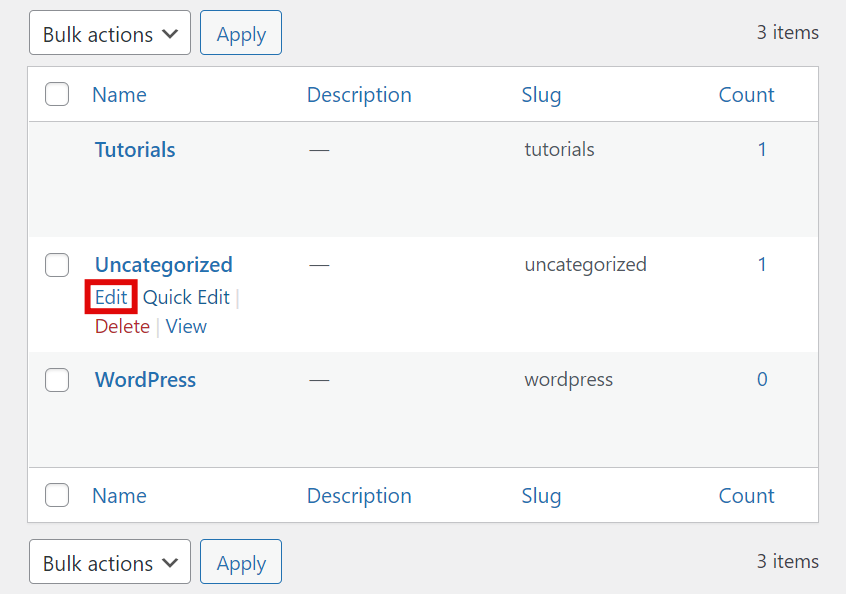
- Change its Name and Slug to the category you want to set as default.
- Press Update.
If the website already has categories added, here’s how to set one of them as the default category instead:
- On the WordPress admin panel, hover over Settings and select Writing.
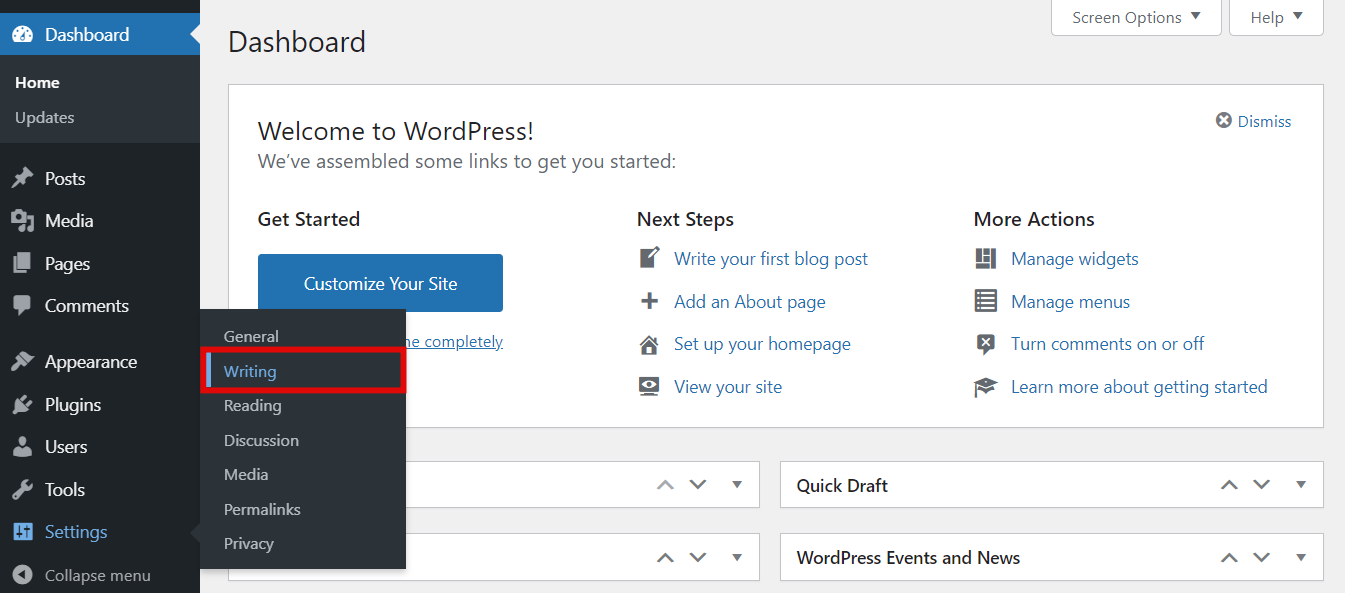
- Find Default Post Category and click on the dropdown menu.
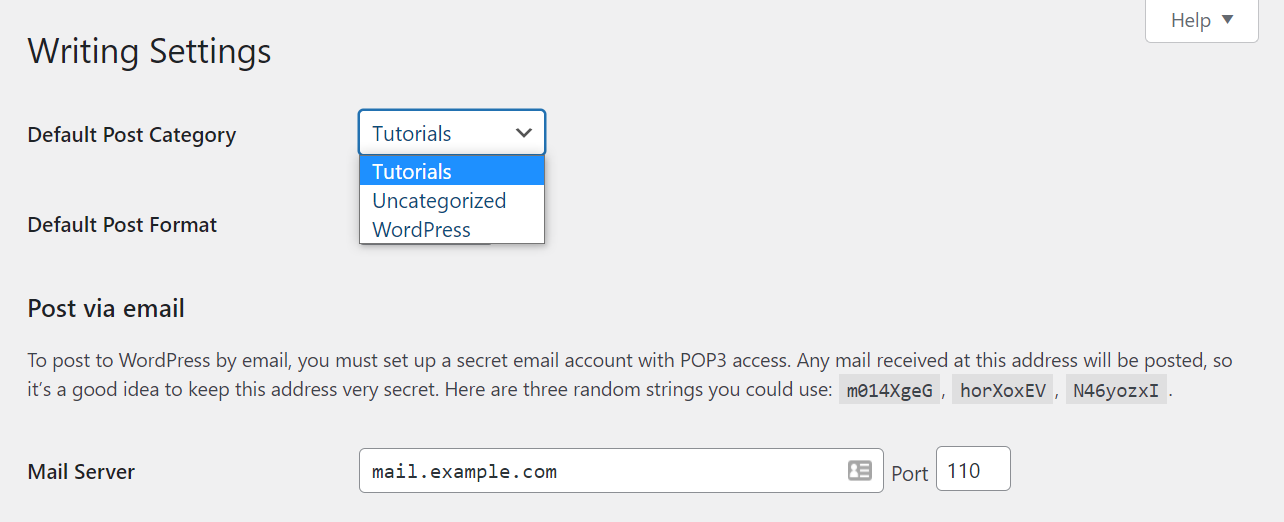
- Pick the category you want to set as default, then press Update.
Once the new default category is set, the Uncategorized category can be deleted. You can leave it be, although we advise renaming it to make use of the category page.
How to Edit Categories in WordPress
For users who already have a list of categories, there are times when it’s necessary to make a few changes. There’s no need to delete a category and create a new one as you can rename it, or change the category slug or the description.
To edit a category in WordPress, use the Quick Edit or Edit option.
Through the Quick Edit Option
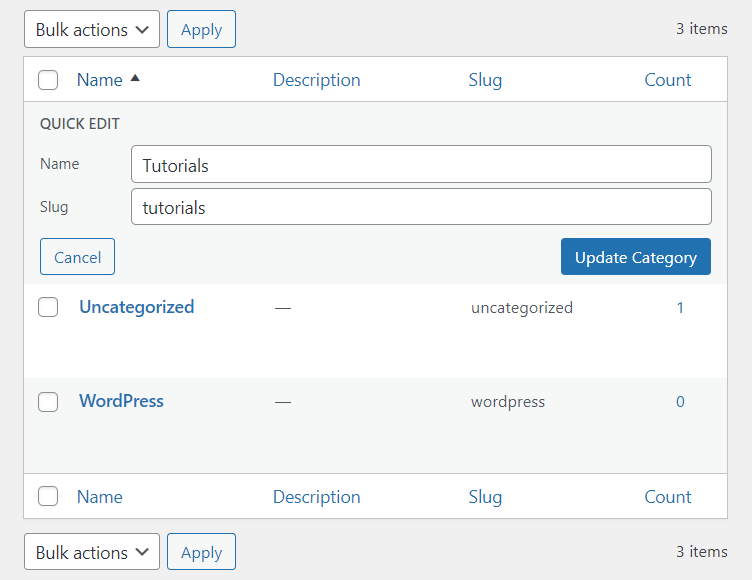
If you only want to edit the category names and slugs, follow this tutorial:
- From the WordPress admin panel, go to Posts → Categories.
- Hover over the category of your choice, and select Quick Edit.

- Change its name and slug, then press Update Category.
Through the Edit Option
Here are the steps for users who need to edit the parent categories and descriptions as well:
- Click Posts → Categories on the WordPress admin sidebar.
- Hover over the category you need to configure and select Edit to be directed to its page.

- Change or add the details – Name, Slug, Parent Category, Description.
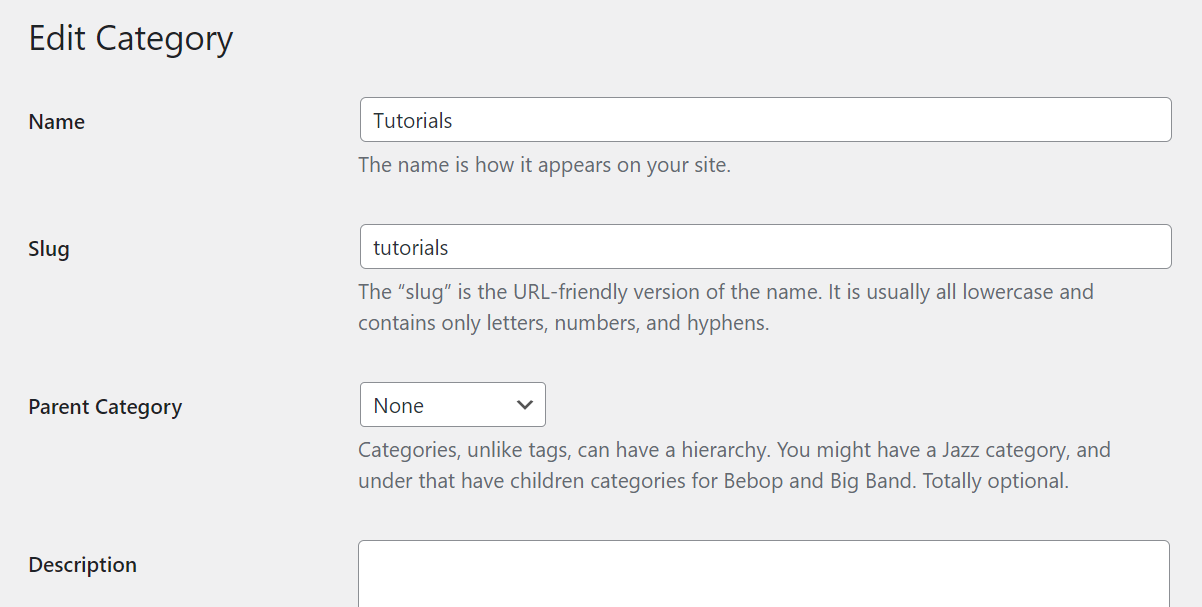
- Press Update to save the changes.
How to Delete WordPress Categories
When managing categories in WordPress, you may need to delete one that is not in use. The process of deleting categories is very simple. It’s possible to remove a single category or several at once.
Delete a Specific Category
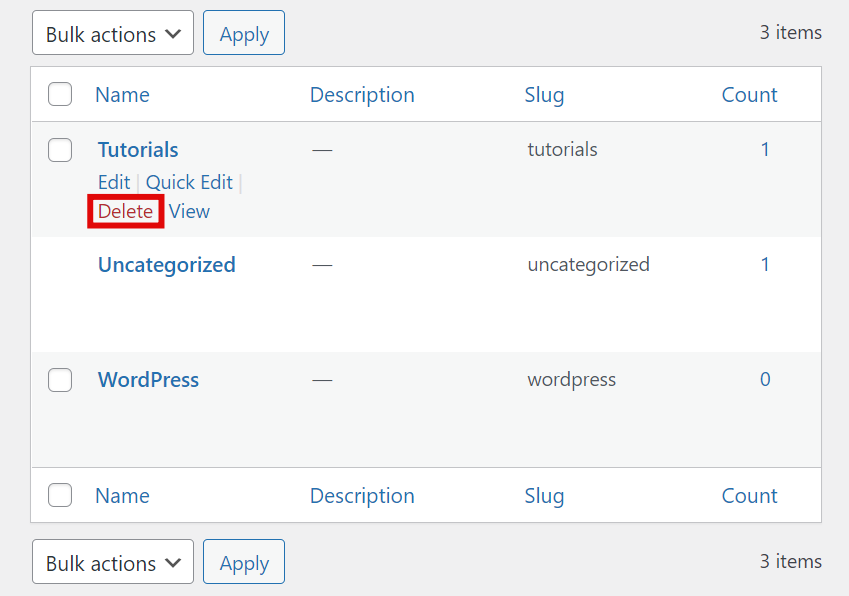
To delete a single category, follow the tutorial below:
- Access the WordPress dashboard and navigate to Posts → Categories.
- Hover over a category and click the Delete button when it appears.
Delete in Bulk
If you want to delete categories in bulk, here’s how:
- From the WordPress dashboard, go to Posts → Categories.
- Tick the boxes beside the categories you wish to remove.
- Click the Bulk Action dropdown menu and select Delete.
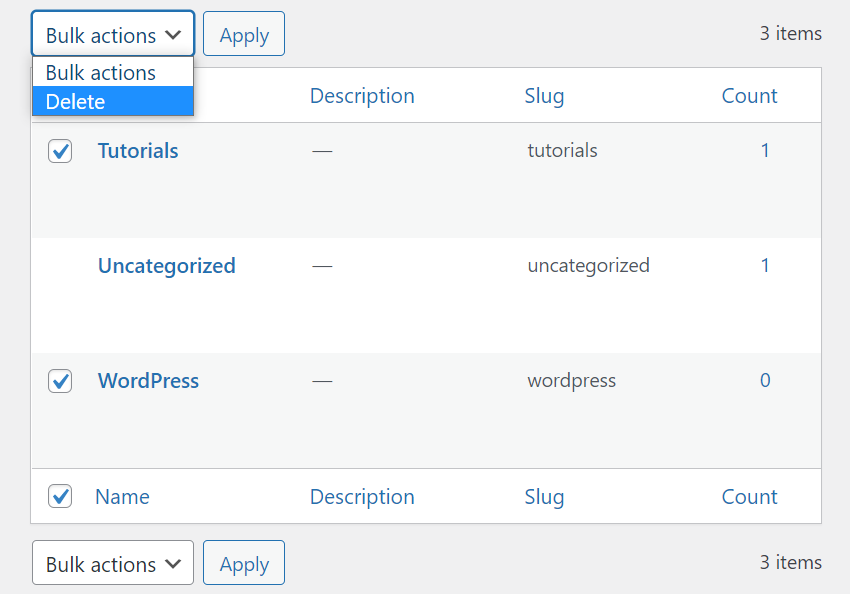
- Press Apply.
WordPress Categories Best Practices
Using categories properly helps boost the WordPress pages rankings on search engine result pages (SERPs). Since categories help give structure to your site, search engine crawlers will be able to view them to easily move from one page to another and figure out what the site’s about.
Here are some best courses of action you can follow:
1. Create a Website Structure and Category Strategy
Before you start adding all categories that come to mind, make sure that the website structure is ready. A blueprint will help decide on the number of categories needed and if subcategories are required. Plus, it will prevent content duplication.
Try to keep the structure simple, as it’ll make it easier to come up with a category strategy or hierarchy.
2. Use the Right Keywords and Avoid Unnecessary Categories
Search engines can also rank WordPress category pages. Make sure to include keywords related to the content and website niche on them. Avoid using unrelated, unnecessary, or inappropriate categories to reduce the risk of getting penalized.
To do that successfully, conduct keyword research and take note of the categories competitors use.
3. Fill In the Category Descriptions
Don’t leave the description field blank when adding new categories. A high-quality category description will help the category page’s SEO. Explain what the category is about or what it represents and insert relevant keywords.
If you have published several posts under one category, the category archive has the potential to rank well on SERPs as well. Category archives can also act as landing pages as they guide visitors and search engine crawlers through the site.
4. Remove the /category/ Term From the Post URL
The link structure of a post belonging to a WordPress category usually looks like this:
www.yoursite.com/category/postname
For SEO purposes, implement cleaner and shorter permalinks. Omit /category/ from the URL and use only /postname as the WordPress slug. The post will still belong to the category despite it not showing up on its permalink.

Conclusion
The WordPress category is a predefined taxonomy element that helps sort posts into groups, usually according to the topic or type of content. Hence, it is important to make sure that all posts belong to categories when managing a WordPress website.
Categories define the content hierarchy and assist visitors in navigating through the articles. They also help search engines figure out what the website is about during the crawling process.
Handling categories doesn’t require much technical knowledge. Simply follow the tutorials above to:
- Add a new category in WordPress via the Categories page or the Gutenberg editor.
- Edit a category through the Quick Edit or Edit options.
- Delete categories in WordPress.
Since WordPress categories are an essential part of site navigation and SEO, make sure to implement the best practices we listed as well. If you have any questions or comments, leave them in the section below.
Learn What Else You Can Do With WordPress
Guide to WordPress Security
How to Change Username in WordPress
How to Install WordPress
Guide to WordPress Widgets
2 Methods to WordPress Menu Icons
How to Add WordPress Related Posts
How to Log in to WordPress
How to Use SMTP in WordPress to Send Emails
How to Make a WordPress Site Live
How to Edit Categories in WordPress FAQ
Here are some frequently asked questions about how to edit categories in WordPress.
How Do I Manage Categories in WordPress?
After logging in, navigate over to Posts → Categories located on the left side of the dashboard. There, you will see default categories as well as any other custom ones. Manage the categories name, description, and slug there.
How Do I Add WordPress Categories to My Main Menu?
Access your WordPress Dashboard and head to Appearance → Menus. On the left side of the page, click the Categories tab and check off the category to included in your menu. Make sure to click Add to Menu after adding categories so they are visible in the menu section.
What Is the Difference Between a Tag and a Category in WordPress?
Tags and categories both provide a way to organize content within WordPress, but they have different functions. Categories are intended for broad grouping of posts, while tags are meant to refine the categorization further by providing more detail about a particular post or page.
This article is a localized version of How to edit categories in WordPress: everything you need to know about adding and deleting categories, originally published in English.

Domantas leads the content and SEO teams forward with fresh ideas and out of the box approaches. Armed with extensive SEO and marketing knowledge, he aims to spread the word of Hostinger to every corner of the world. During his free time, Domantas likes to hone his web development skills and travel to exotic places.



Comments
0 responses