How to set up a CDN to improve website performance
Oct 14, 2026
/
By Domantas G.
/
4 min Read

To set up a content delivery network (CDN), first check whether your website already uses one, enable a CDN through your hosting provider or a third-party service like Cloudflare if needed, and test that it’s working correctly.
A CDN improves website performance by caching content across geographically distributed servers, reducing the distance data travels to visitors. This can improve loading speed, reduce server load, and help handle traffic spikes.
In this guide, you’ll learn how to set up a CDN using Hostinger or Cloudflare and verify that it’s working correctly.
1. Check if your website already uses a CDN
Before setting up a content delivery network, analyze your website and check whether a CDN is already integrated on your server using a tool such as CDN Finder by CDN Planet.
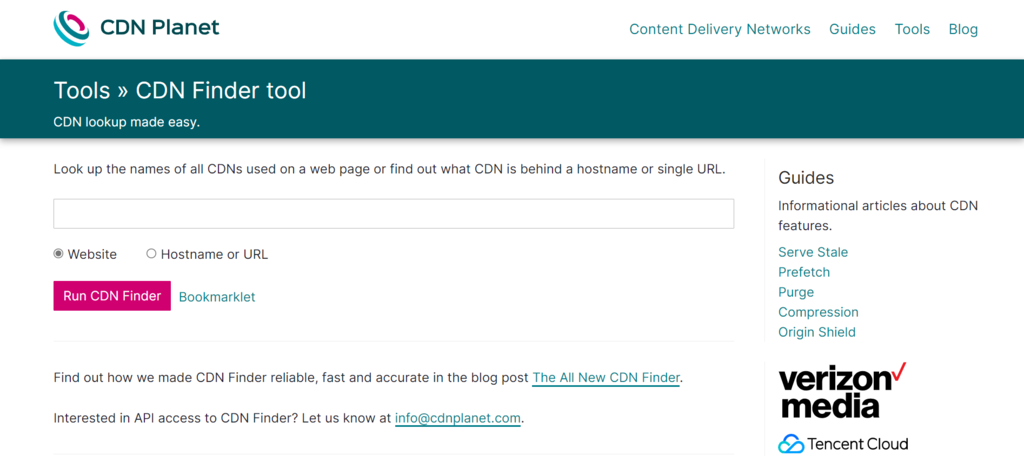
If the CDN is not activated yet, proceed to the next step.
2. Enable the CDN
There are three ways to enable a CDN: use a free CDN provider, invest in a paid service, or activate a CDN included with your hosting plan.
Building your own CDN is also possible, but it can be costly since you’ll need to set up your own infrastructure or rent server space in private data centers.
Let’s take a look at each of the methods to enable a CDN.
Option 1 – Enabling free CDN
If you run a small site with medium traffic, using a free CDN provider should be more than enough.
Cloudflare is one of the best free CDN services – its free plan comes with many excellent features, including distributed denial-of-service (DDoS) protection.
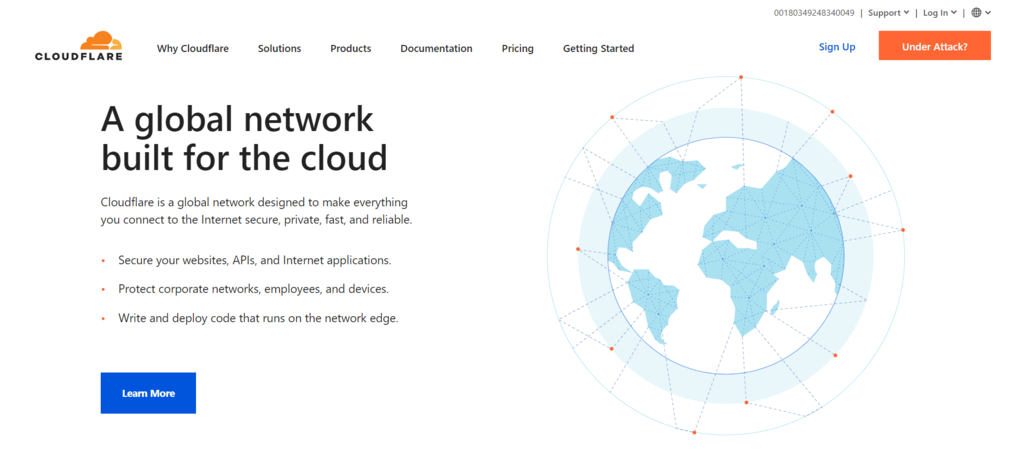
If the Cloudflare CDN comes with your web hosting plan or is an additional service, it will only take a few minutes to configure it.
To configure Cloudflare on VPS hosting, or if your web host doesn’t support this service by default, you’ll have to set up the CDN manually.
It is pretty straightforward – create a Cloudflare account, add your domain name to it, and change the domain nameservers to Cloudflare’s.
After configuring your domain to use CloudFlare, wait for a few hours for the changes to take full effect. Once the process is complete, you’ll receive an email confirmation.
Note that if you set up Cloudflare on a WordPress site, it’s also essential to install the Cloudflare plugin to manage its settings from your WP-Admin dashboard. You can also check out our review of other WordPress CDNs.
Option 2 – Use paid CDN solutions
If your site experiences high traffic spikes and encounters high resource usage, investing in a paid CDN service will be a better option.
Here are a few excellent paid CDN providers to consider:
- Google Cloud CDN – includes free SSL certificates and lets users utilize custom certificates at no additional cost.
- Fastly – supports encryption and uses secure tokens that restrict access to your media files.
- Leaseweb – provides in-depth statistics such as cache performance and traffic breakdowns.
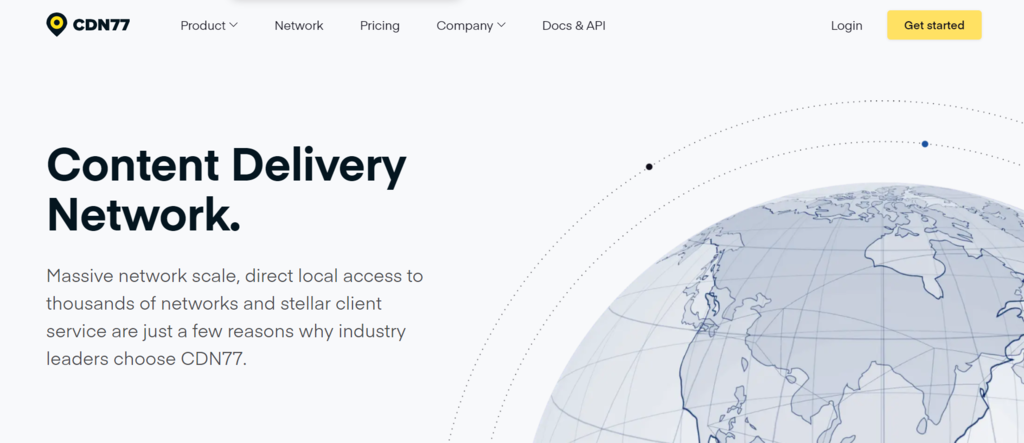
- CDN77 – features a streamlined and user-friendly web console interface – great for CDN beginners.
Option 3 – Use Hostinger CDN
Hostinger CDN is included with Hostinger web hosting, cloud hosting, and agency hosting plans. It is also automatically enabled for many eligible websites.
To enable it manually:
- Log in to your Hostinger dashboard and go to Websites.
- Click Dashboard next to your website.
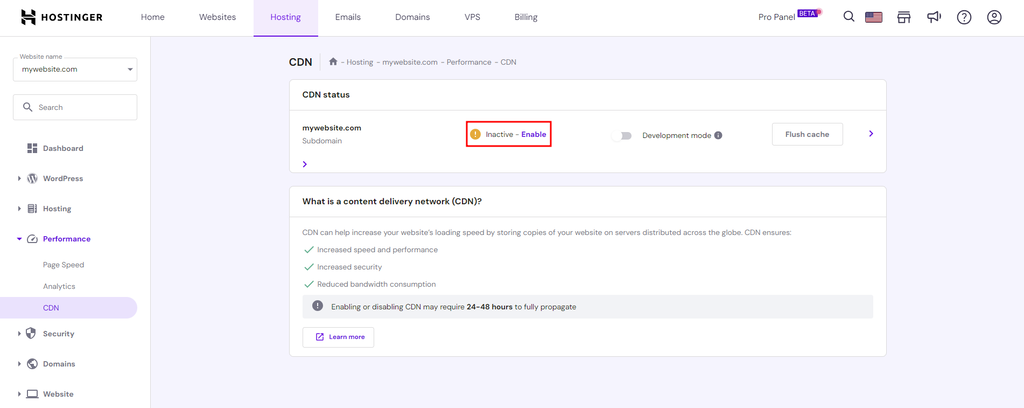
- Navigate to Performance → CDN.
- Check the CDN status and click Enable if it’s inactive.
Your domain must use Hostinger nameservers and point to the correct hosting IP address. If you’re already using another CDN, disable it before activating Hostinger CDN.
3. Test the changes
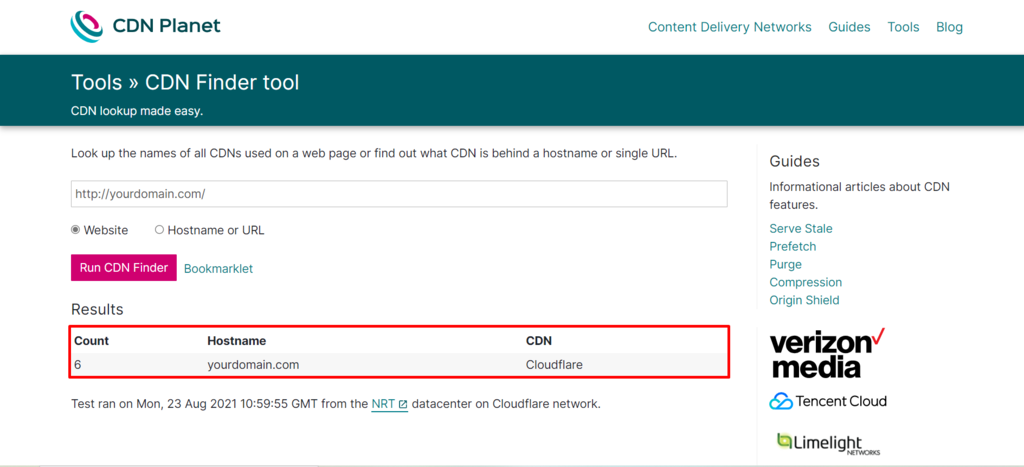
After enabling the CDN, run another test with CDN Finder to check whether it was successfully integrated into your site.
Here’s what the results should look like:
Do all hosting platforms support and benefit from CDNs
All hosting platforms need the help of content delivery networks to improve their performance and speed.
A hosting provider typically stores your web files on one or more servers located in a single data center. The further a visitor is from your hosting server, the longer it takes to load your site. Even if you use a robust hosting platform such as a VPS, the server’s location will still affect the website’s loading speed.
A CDN helps by delivering files to visitors from the nearest available server, thus overcoming the speed limitations imposed by the distance between users and your hosting server.
However, a CDN cannot replace web hosting since a CDN server typically only stores and serves static cached data. Many web hosts include free CDN services with their plans or have them available as an additional feature.
If your website uses free or shared hosting, a CDN can help you use fewer resources, which are usually limited on such platforms. In case your site experiences traffic spikes, CDNs will also ensure that those surges don’t result in exceeding the resource limit.

Advantages of using a content delivery network
Aside from improving site speed, utilizing a CDN comes with other benefits, such as maintaining website uptime.
Many CDN services use load balancing in their data centers to distribute incoming requests across available CDN servers, preventing any hardware failures from disrupting your site traffic.
Here are other advantages that a CDN offers:
- Improving website security – CDNs have multiple data center locations and features like intelligent load balancing and failover, which can help secure a website against DDoS attacks. Additionally, many CDNs implement CAPTCHAs or multi-factor authentication to prevent brute force attacks.
- Reducing bandwidth consumption – CDNs store cached content closer to users, lowering the number of data transfers from the host server.
- Improving SEO – since a CDN enhances site speed and user experience, it may also help a site rank higher on search engine results pages (SERPs).
- Better use of rich media – a CDN facilitates the use of rich forms of media like high-resolution images, infographics, and videos to engage site visitors.
Next step: Optimize your website performance
Setting up a CDN is one way to improve website speed, but it’s not the only factor affecting loading times. Once your CDN is active, monitor your website’s performance to see how it affects the visitor experience.
Use tools like Google PageSpeed Insights to identify other areas for improvement, such as large images, unnecessary JavaScript, or slow server response times.
For further improvements, explore these website performance optimization techniques to make your website faster and more responsive.
This article is a localized version of How to set up a CDN to improve website performance, originally published in English.

Domantas leads the content and SEO teams forward with fresh ideas and out of the box approaches. Armed with extensive SEO and marketing knowledge, he aims to spread the word of Hostinger to every corner of the world. During his free time, Domantas likes to hone his web development skills and travel to exotic places.