How to change WordPress URL in database: A MySQL tutorial using phpMyAdmin
Sep 15, 2026
/
By Domantas G.
/
3 min Read
WordPress relies on the MySQL database to store its data, including site URLs. If you ever need to change your WordPress URL, you have to make adjustments in MySQL.
This creates a problem when you need to change the website’s domain and URL. Not only will your site address change, but all internal links stored in the database will also be broken.
Fortunately, it is an easy fix to update the site address and domain. In this article, we will walk you through the easy way of changing the WordPress URL in a MySQL database using phpMyAdmin.
Download all-in-one WordPress cheat sheet
1. Determining the Name of WordPress MySQL Database
Skip this part if you only have one MySQL database. If you have multiple databases and need to confirm which one belongs to your WordPress site, check it in Hostinger dashboard.
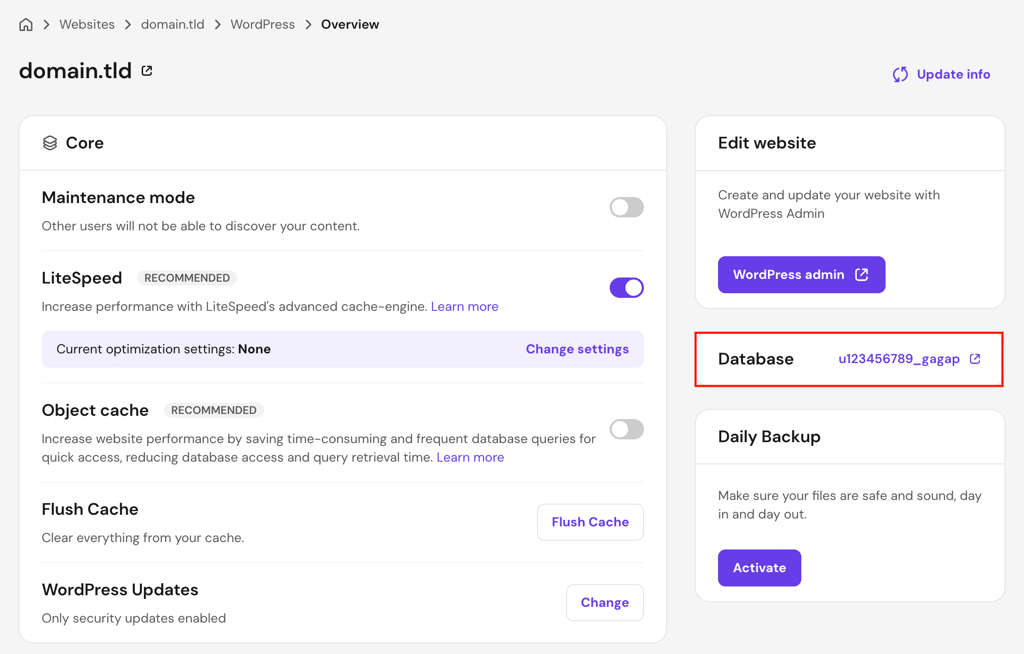
Open Hostinger dashboard and navigate to WordPress → Overview. The database name is listed in the Database section.
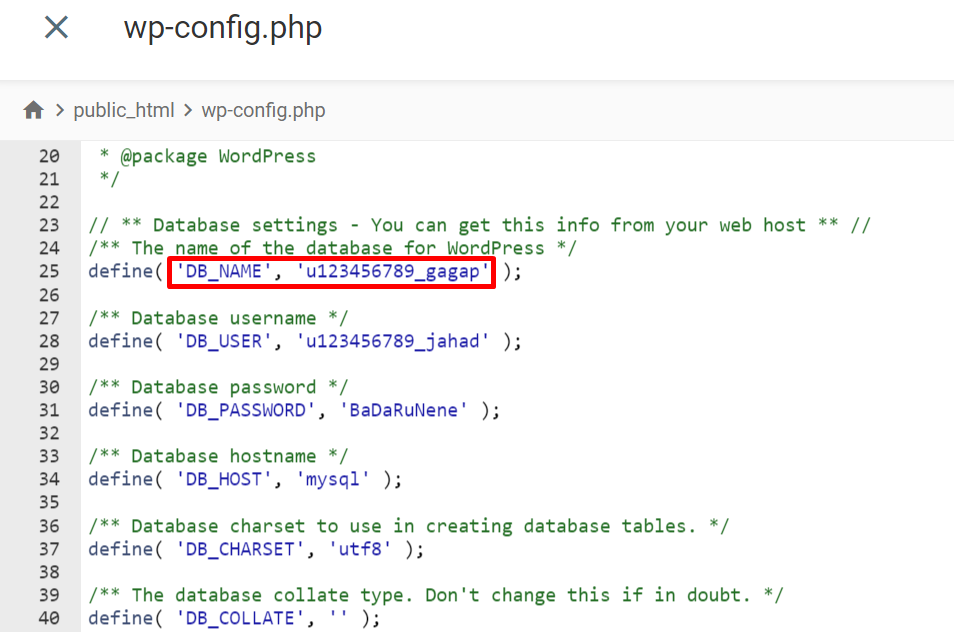
You can also find the database name in the wp-config.php file. Open File Manager from Hostinger dashboard, locate wp-config.php in your root directory, and search for DB_NAME. The value next for parameter is your database name.

2. Changing WordPress URLs in MySQL Database
To replace your current URL, follow these steps:
- Go to phpMyAdmin via your website’s control panel.
- The left panel lists all of your databases. Select the one connected to your WordPress site and head to the SQL tab.
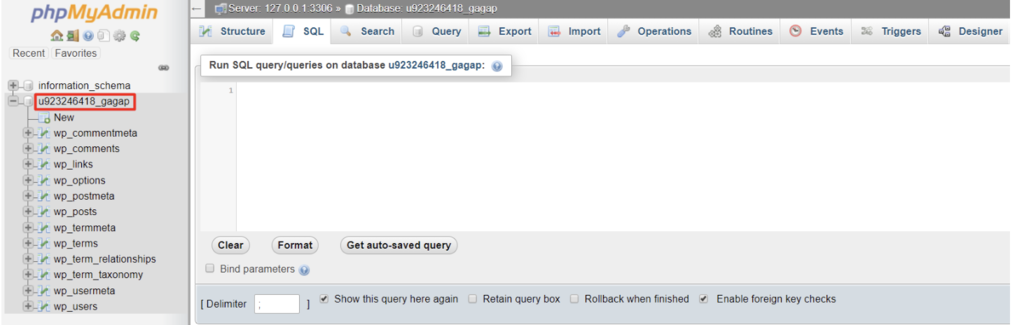
- Enter the following SQL query:
UPDATE wp_options SET option_value = replace(option_value, 'oldurl.com', 'newurl.com') WHERE option_name = 'home' OR option_name = 'siteurl';UPDATE wp_posts SET guid = replace(guid, 'oldurl.com','newurl.com');UPDATE wp_posts SET post_content = replace(post_content, 'oldurl.com', 'newurl.com'); UPDATE wp_postmeta SET meta_value = replace(meta_value,'oldurl.com','newurl.com');
Replace oldurl.com with your current WordPress address and newurl.com with your new WordPress address.
Important! Your table prefix might not be wp_. See the correct table prefix on the left panel of phpMyAdmin, and update the SQL query.
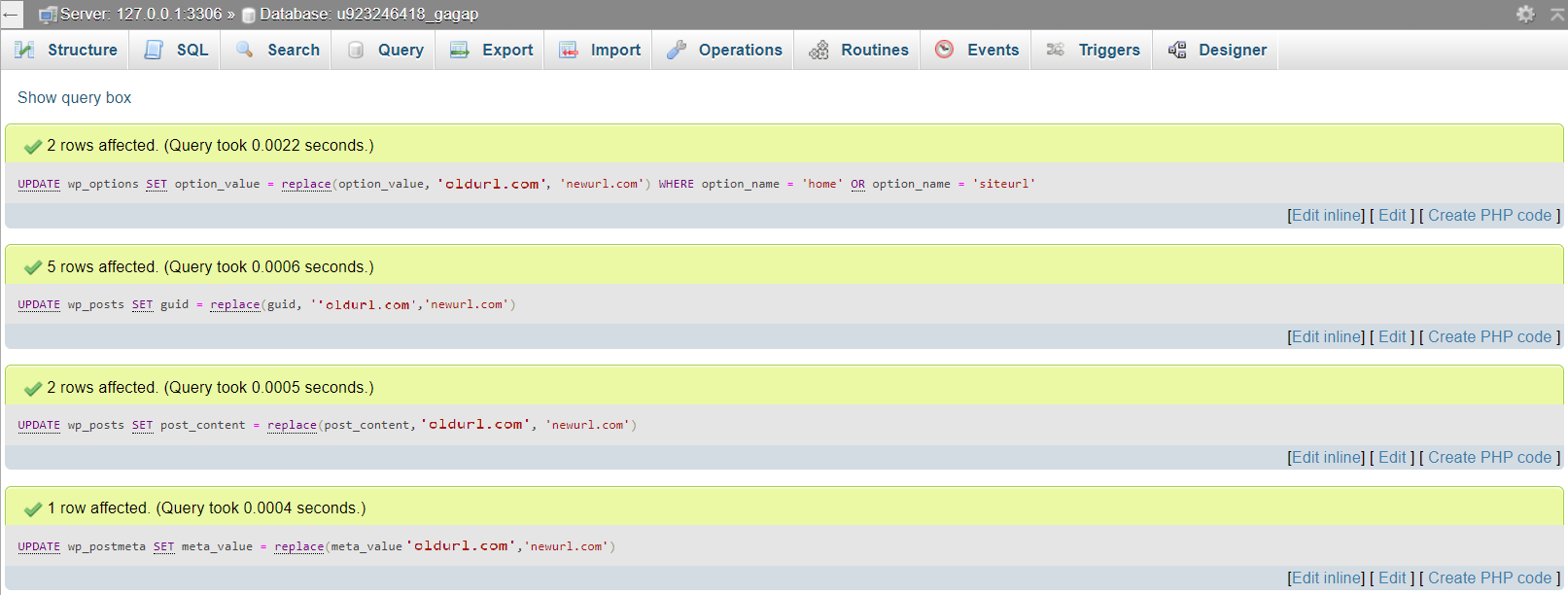
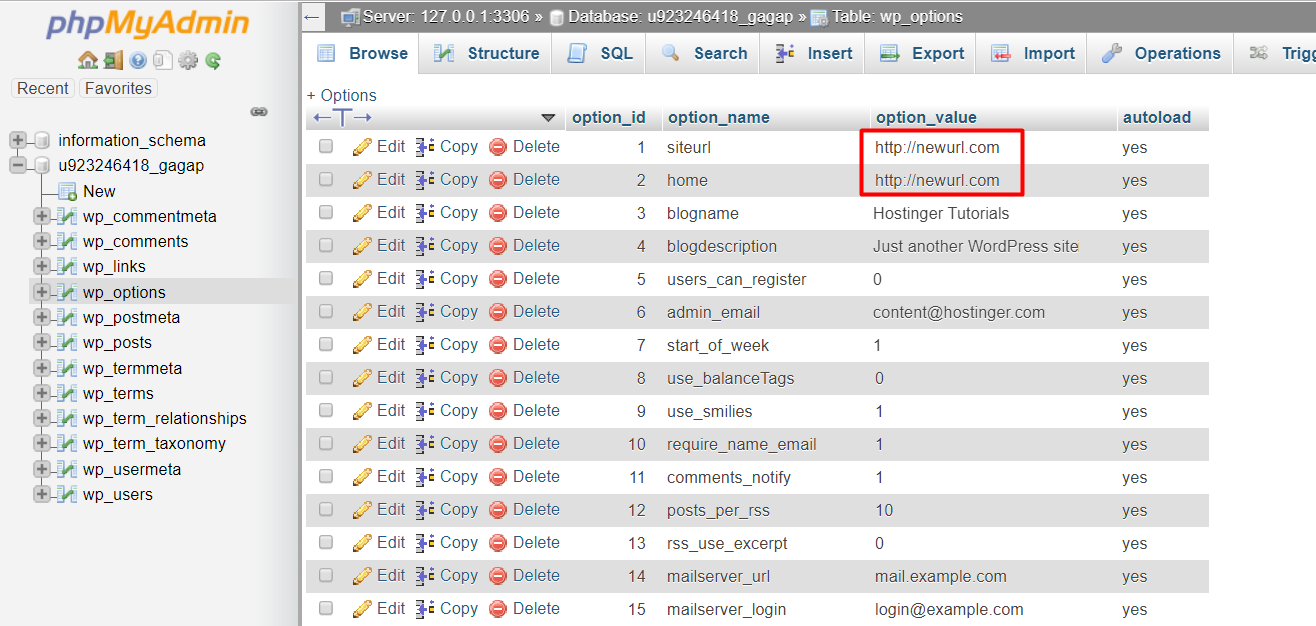
If you get error messages and the queries are not executing, check your code for syntax errors and make sure you are using the correct table prefix. Contact the hosting support for further assistance if the error persists.
Conclusion
We have just learned how to change WordPress URLs in the MySQL database using phpMyAdmin.
As we can see, all the steps above are quite straightforward. You just need to determine the correct database and then input some lines of code.
We hope this tutorial can give you clear guidance on how to change WordPress URLs in the MySQL database. Kindly leave any questions you have below!
Learn Other Advanced WordPress Techniques
How to Locate and Create the WordPress .htaccess File on cPanel and Hostinger dashboard
How to Perform a WordPress Search and Replace in the Database
Basics of Using WordPress WP_Query + Examples With Code
How to Use XAMPP to Set Up a Local WordPress Site
How to Speed Up a WordPress Site
Change WordPress URL in Database FAQ
Once you know how to change WordPress URLs in your database, here are some frequently asked questions about the topic.
How Do I Change the URL in MySQL?
Changing the URL in MySQL requires some technical knowledge. First, you’ll need to open the database where your URL is stored, often in the data folder within your MySQL installation directory. Then, use a text editor to find and replace all instances of the old URL with the new one.
How Do I Connect My WordPress Website to MySQL Database?
First, log in to your hosting account and launch phpMyAdmin. There, click on the Import link from the top menu and then the Choose file button. Select your WordPress database to connect the two.
Can I Change My WordPress Database Name?
Yes, it is possible to change your WordPress database name. Once you access the phpMyAdmin from your hosting account, click on the Operations tab. Under Rename database to, enter the new name and click Go.
This article is a localized version of How to change WordPress URL in database: A MySQL tutorial using phpMyAdmin, originally published in English.

Domantas leads the content and SEO teams forward with fresh ideas and out of the box approaches. Armed with extensive SEO and marketing knowledge, he aims to spread the word of Hostinger to every corner of the world. During his free time, Domantas likes to hone his web development skills and travel to exotic places.