How to use WordPress do_shortcode
Sep 15, 2026
/
By Emma Y.
/
2 min Read
Extending site functionality is easy with the help of shortcodes. To place them on any part of your website, you can use the WordPress do_shortcode function. Here, we will show you how to apply it. So, let’s start by exploring the basics of WordPress shortcodes.
Download all-in-one WordPress cheat sheet
What Exactly is Shortcode?
Shortcode is a snippet of code, which allows you to execute a function like displaying content. For example, if you create a slider using the MetaSlider plugin, you need to embed the plugin’s shortcode into your site to show the slider.
However, you can only embed it on the site’s body or widget. Otherwise, the content won’t show up. To solve this problem, you can use WordPress do_shortcode function. It allows you to embed the shortcode anywhere you want – including the header. Here’s how it looks:
<?php echo do_shortcode( '[your shortcode goes here]' ); ?>
To apply this function, you need to access and tweak the theme files. Don’t forget to make a full website backup of your WordPress site and use the WordPress child theme beforehand to avoid data loss if something goes wrong.
How to Use WordPress do_shortcode?
Now, let’s try adding a shortcode using WordPress do_shortcode. For instance, let’s assume you want to include a slider in your theme’s header using MetaSlider – make sure you’ve installed the plugin. However, you don’t have any widget for the header area.
So, you need to embed the shortcode of the slider to the theme’s header file. To do so, use the following steps:
- Click on MetaSlider on the left sidebar of the WordPress admin dashboard.
- Copy the shortcode at the bottom right of the page.
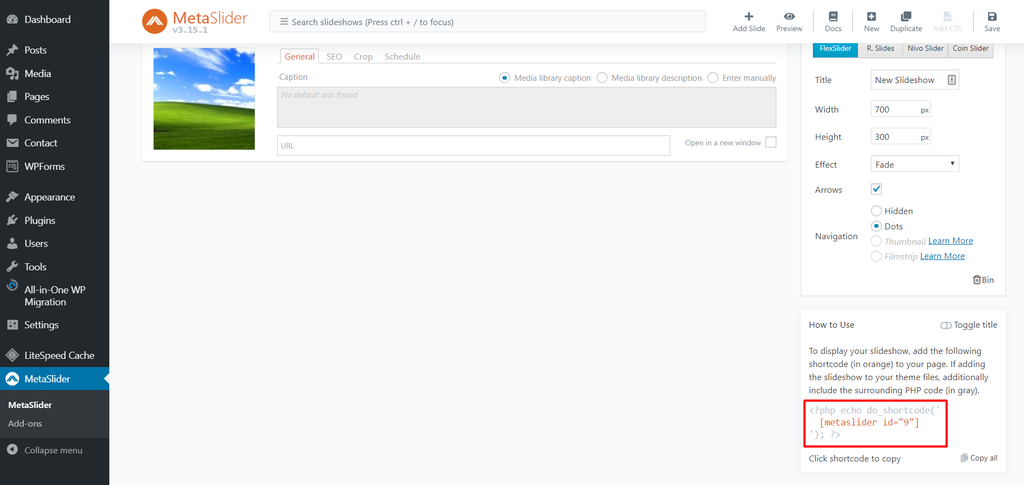
If you notice, the MetaSlider’s shortcode is already inside the WordPress do_shortcode function. You can then proceed with editing the theme’s header file by accessing your hosting provider’s file manager or an FTP client like FileZilla.
The following steps will show you how to edit theme files with Hostinger’s File manager – it can be applied in an FTP client as well:
- Access your Hostinger dashboard and click on File Manager
- Go to the public_html folder and navigate to wp-contents -> themes.
- Find and access your currently active theme folder.
- Open header.php, then scroll down the page and put the do_shortcode function above the </header> tag.
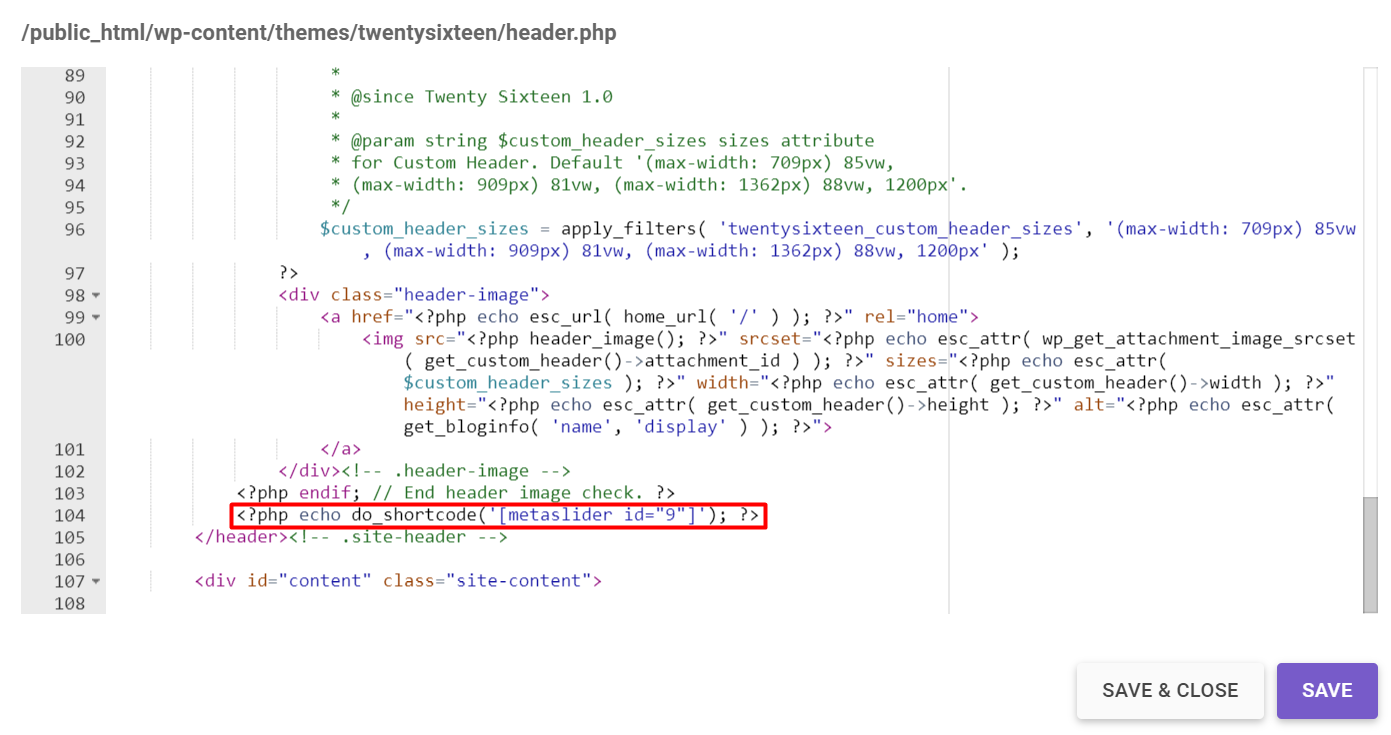
- Save and check how your website looks.
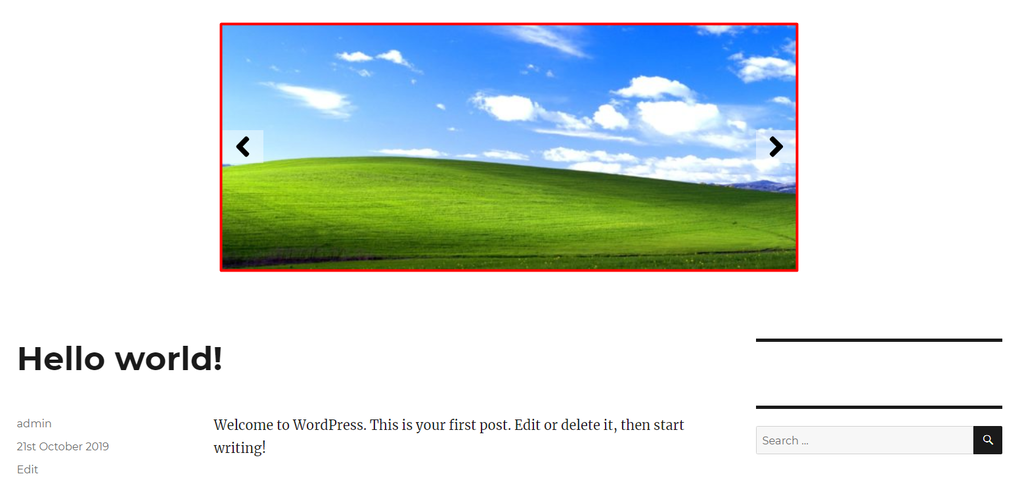
Sometimes, editing theme core files can break your WordPress template. To solve it, you should alter the CSS to make your website look better. Check our tutorials on how to inspect elements with Chrome and download CSS cheatsheet.

Conclusion
Now you’ve learned how to use shortcodes and display them using the WordPress do_shortcode function. Just put it into the theme’s file, and you’re ready to go! Don’t forget to backup your site before editing the file to avoid the risk of losing data.
Do you have any questions regarding the topic? Drop a comment below!
Discover More Expert WordPress Techniques
WordPress Multisite
Custom Post Types in WordPress
Add Custom CSS to WordPress
How to Edit HTML in WordPress
Headless WordPress
WordPress Rest API
Add PHP to WordPress
This article is a localized version of How to use WordPress do_shortcode, originally published in English.

Emma is an advocate for organized chaos. She loves longboarding, yoga, and cyber security. On a normal day, her content strategy is surfing the waves of content platforms, flexing the forms of social media and blog, and unlocking the paths of untouched SEO techniques.